End User Workflow Guide - Helpdesk
- In Wavity, users can create tickets through Platform, Email, Customer Portal, Slack, Microsoft Teams, WhatsApp, Instagram, and Facebook, and they can track the progress, status updates, and responses related to the tickets they have submitted.
- Note: The steps provided serve as sample instructions and can be customized based on specific requirements; however, the core workflow will remain the same.
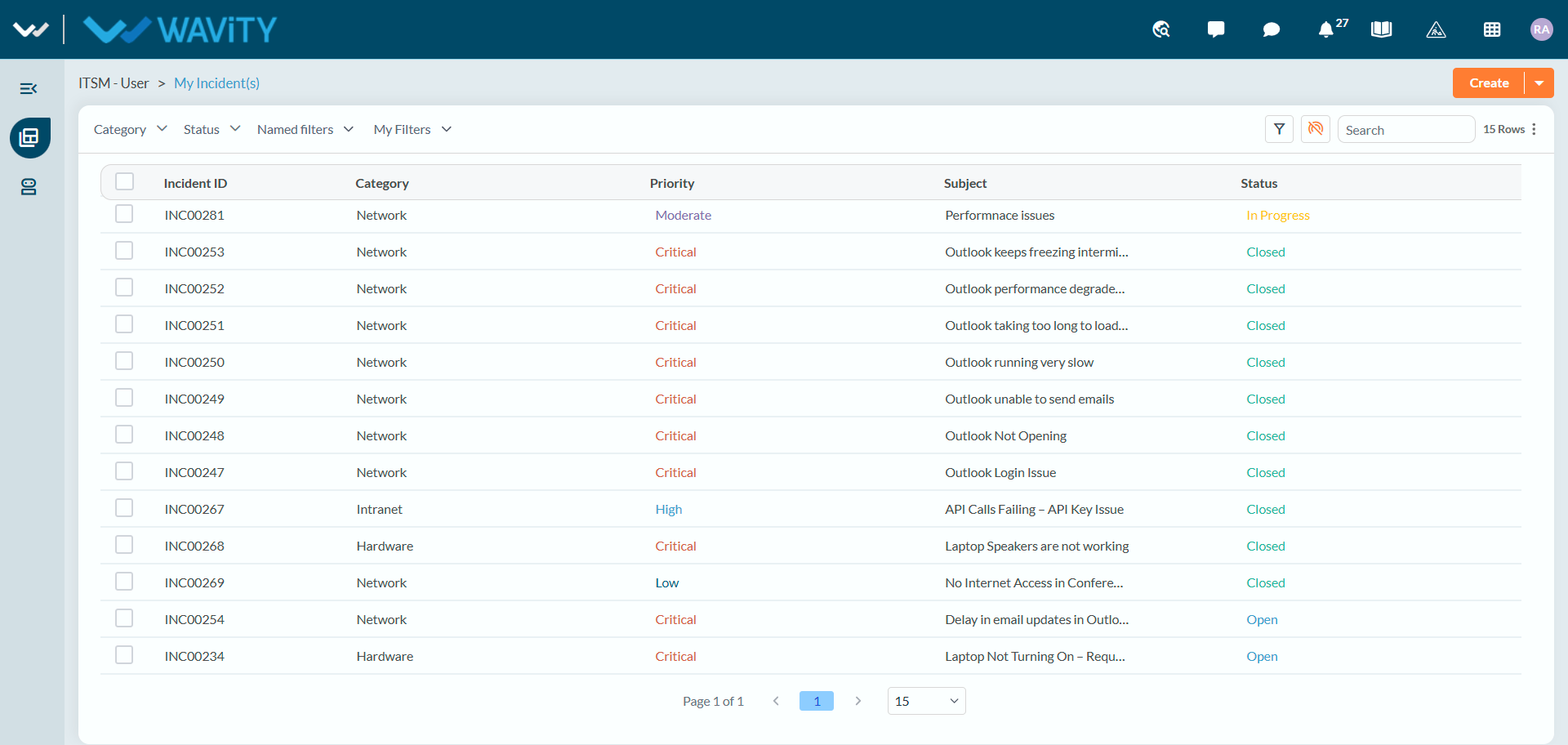
- When users log in to Wavity using their credentials, they are directed to the User Landing Page. By default, the landing page displays the My Incident(s) section, where users can view and manage the incidents associated with their account.
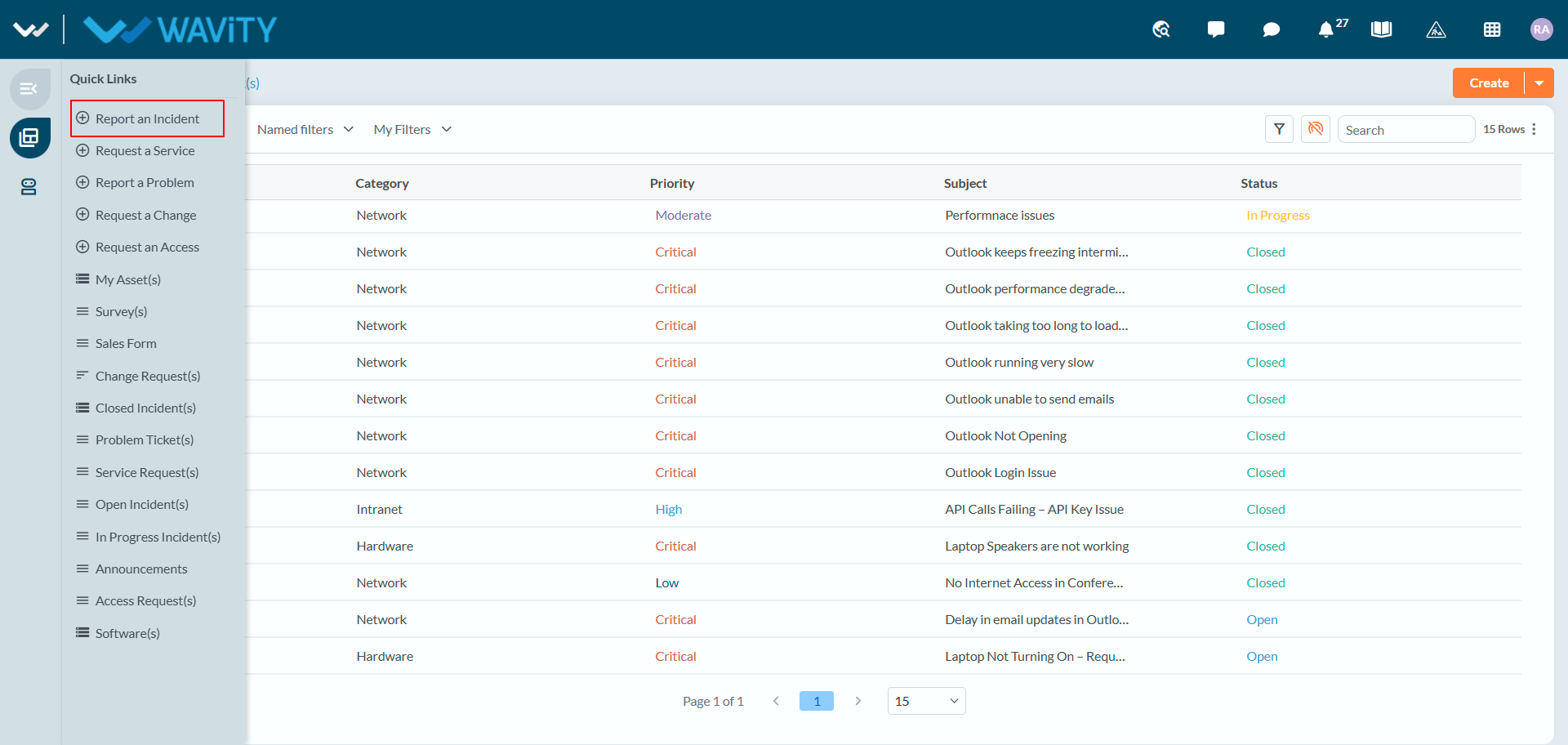
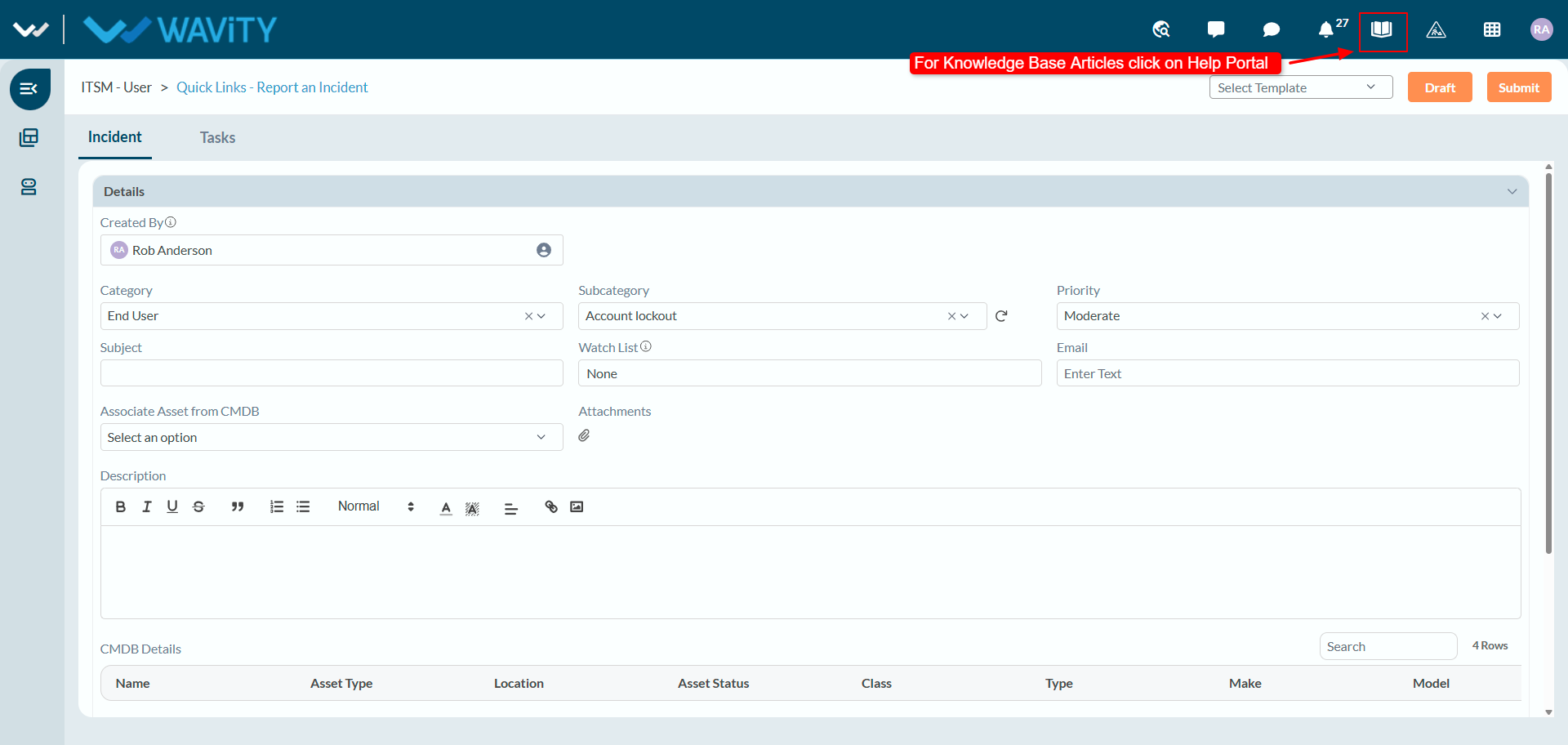
- Users can create a ticket from the Quick Links menu by selecting Report an Incident.
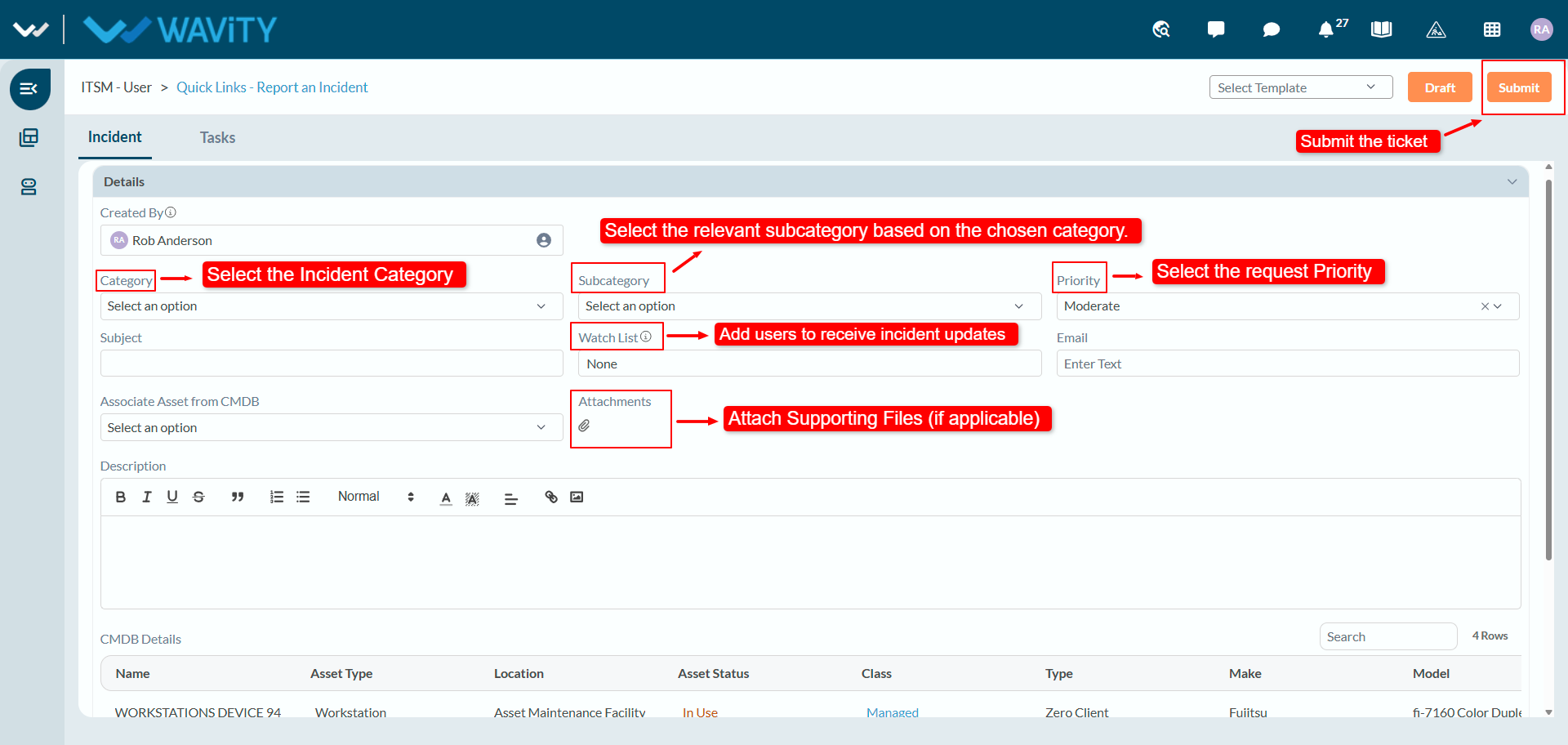
- User can select different Categories such as Database, Network, Asset, Remote Access, Security, etc., and based on the selected category, choose the appropriate Sub-Category and also specify the impact and urgency level of the ticket under Priority.
- Users can attach images or screenshots related to their queries or issues in Attachments, and they can also add any user to the Watch List. After entering all the required details, click on the Submit button to create the ticket.
- Users can view Knowledge Base articles by clicking on the Help Portal.
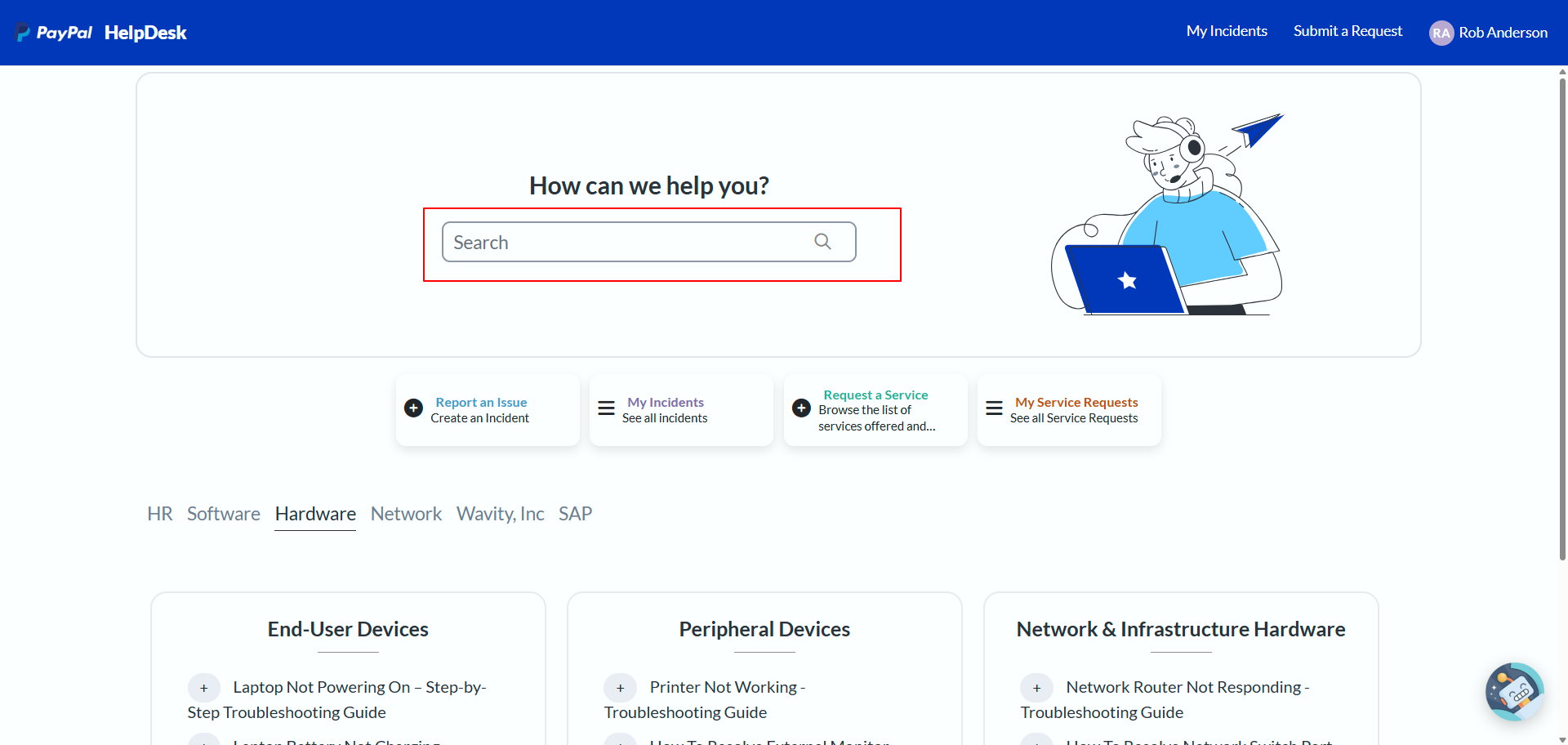
- Users will land on the portal where they can view knowledge base articles. They can use the search bar to quickly find relevant articles.
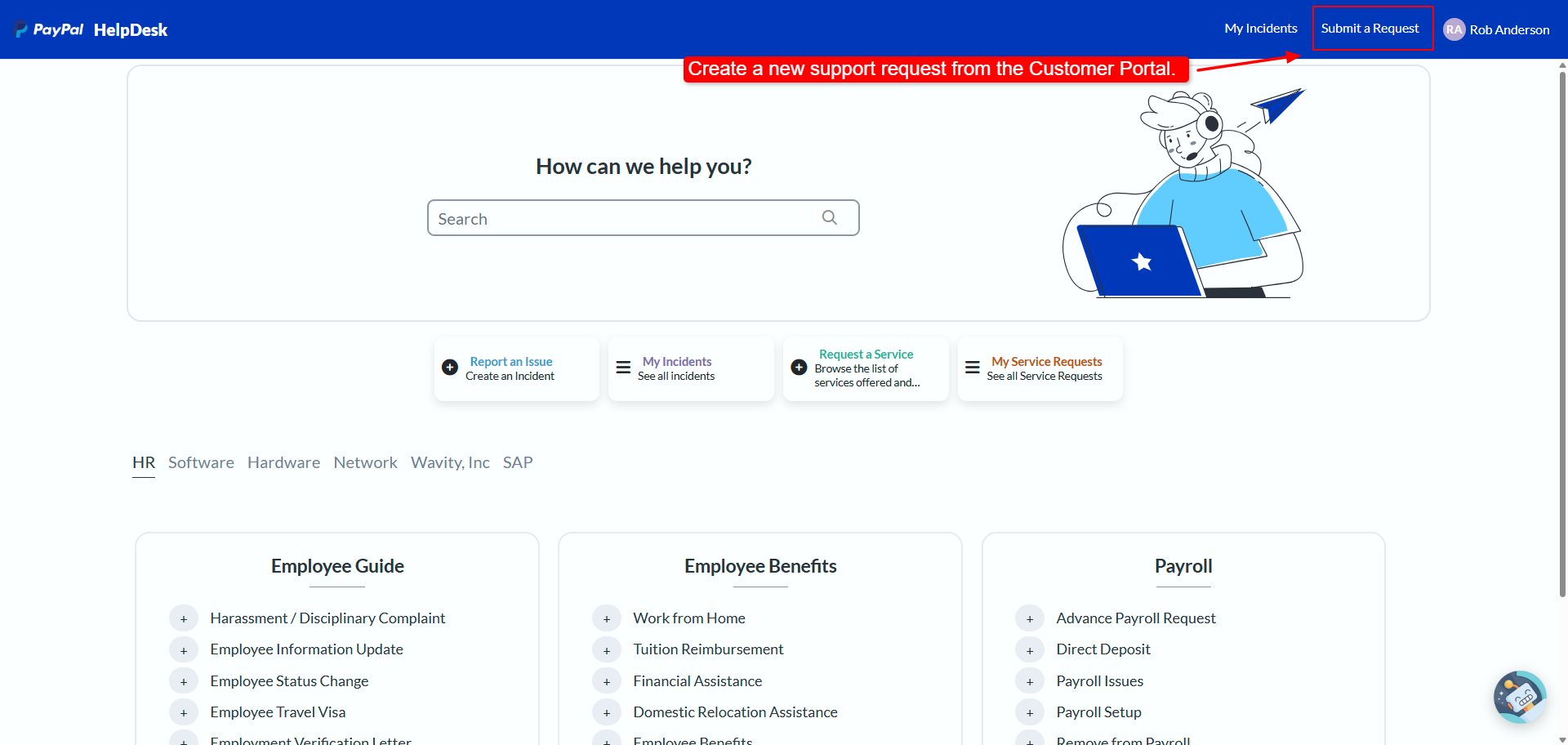
- Users can also use Request a Service options available on the portal home page, depending on the type of support required.
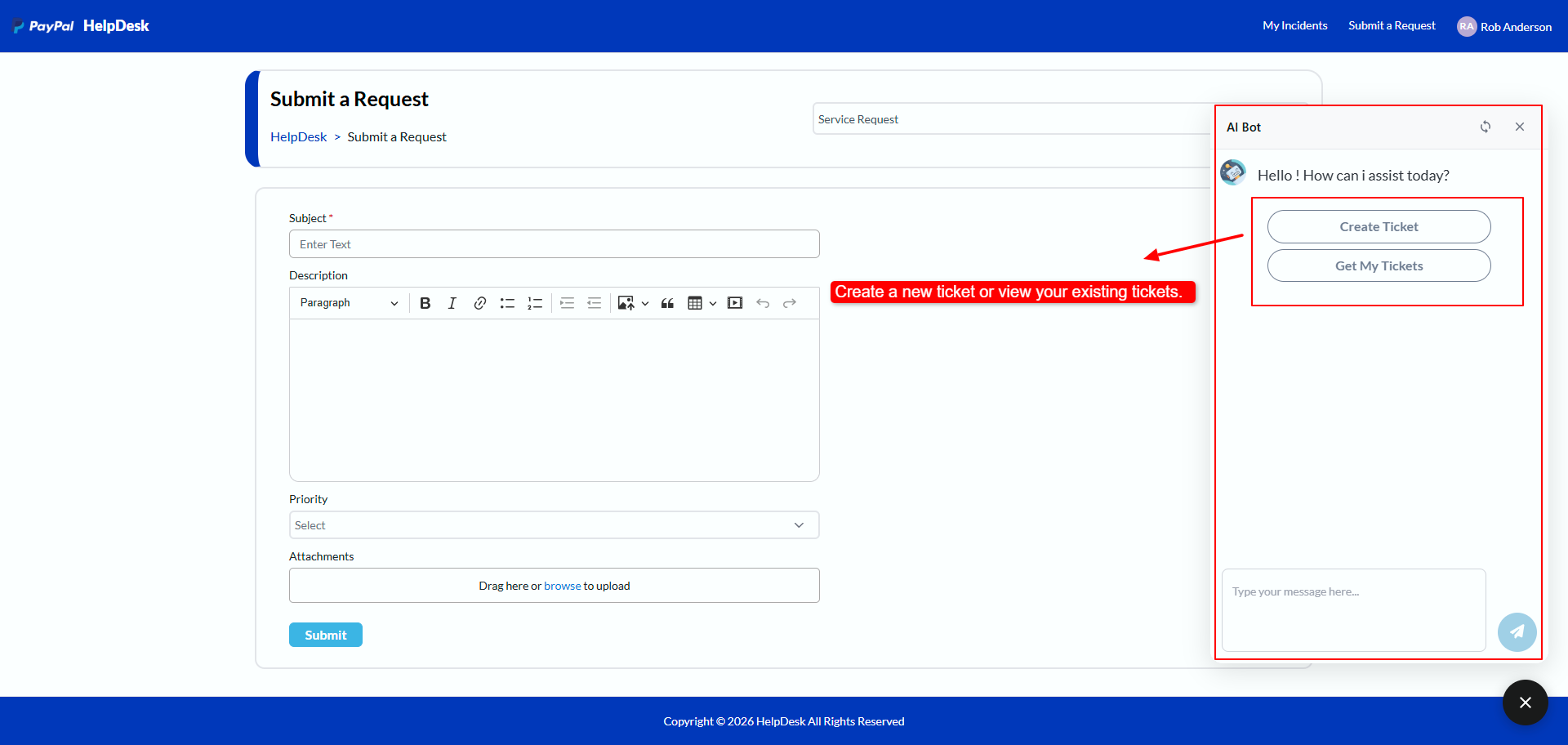
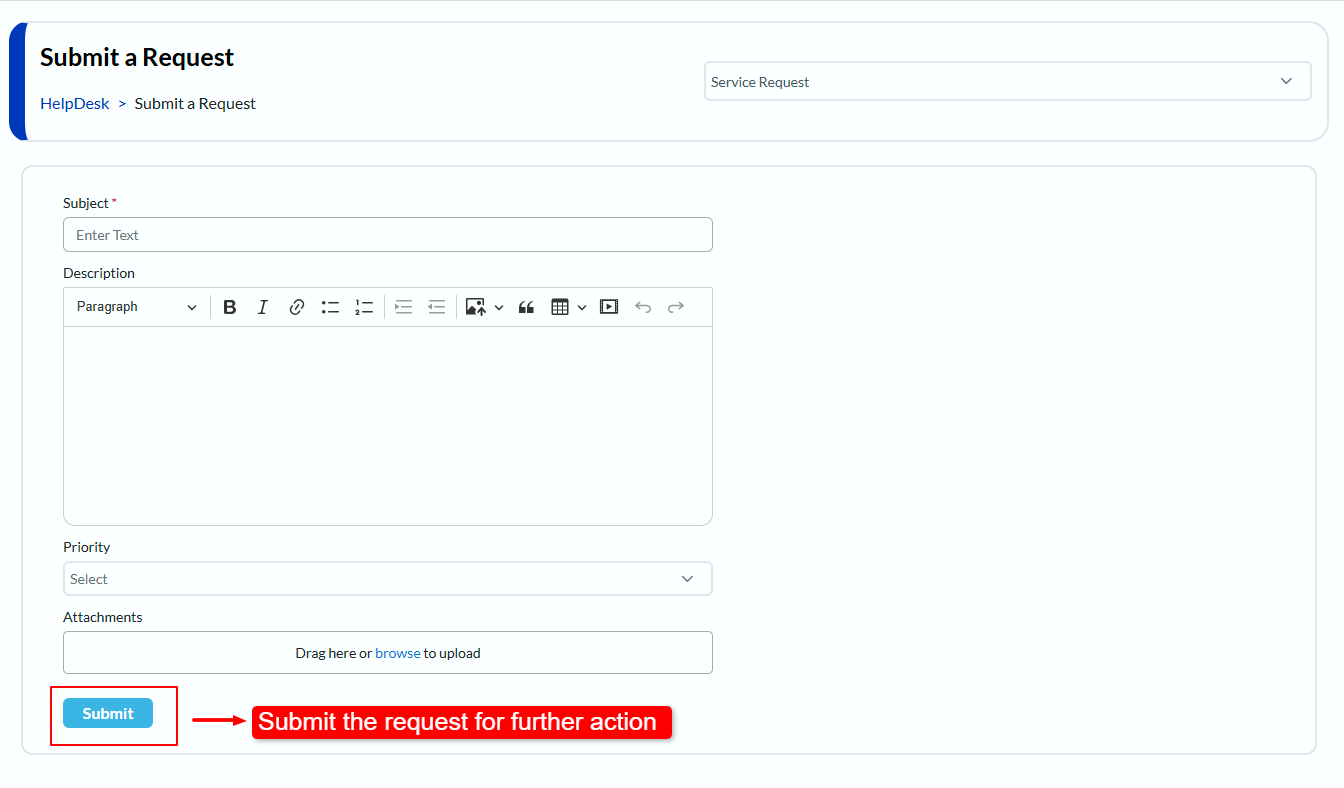
- Users will be directed to the Submit a Request page, where they can enter the required details such as Subject, Description, and Priority.
- Supporting files can also be added under Attachments, if required. After entering the necessary information, click Submit to create the service request.
- Users can also use the AI Bot available on the Customer Portal for quick ticket assistance. From the bot, select Create Ticket to raise a new ticket or Get My Tickets to view and track existing tickets. Users can also type their query in the message box to interact with the bot.