Setting Up Signatures for Support Communications
Setting Up Signatures for Support Communications
- In Wavity platform, the Signature feature allows users (especially support agents or admin) to automatically add a preset signature to their ticket and email replies.
- Once you set up a signature, it automatically appears at the bottom of the ticket responses.
- Setting up Signature is a simple process.
- Only Admin have the access to set up the signature.
- In the Profile section of your account, enter the user's name to set up the signature.
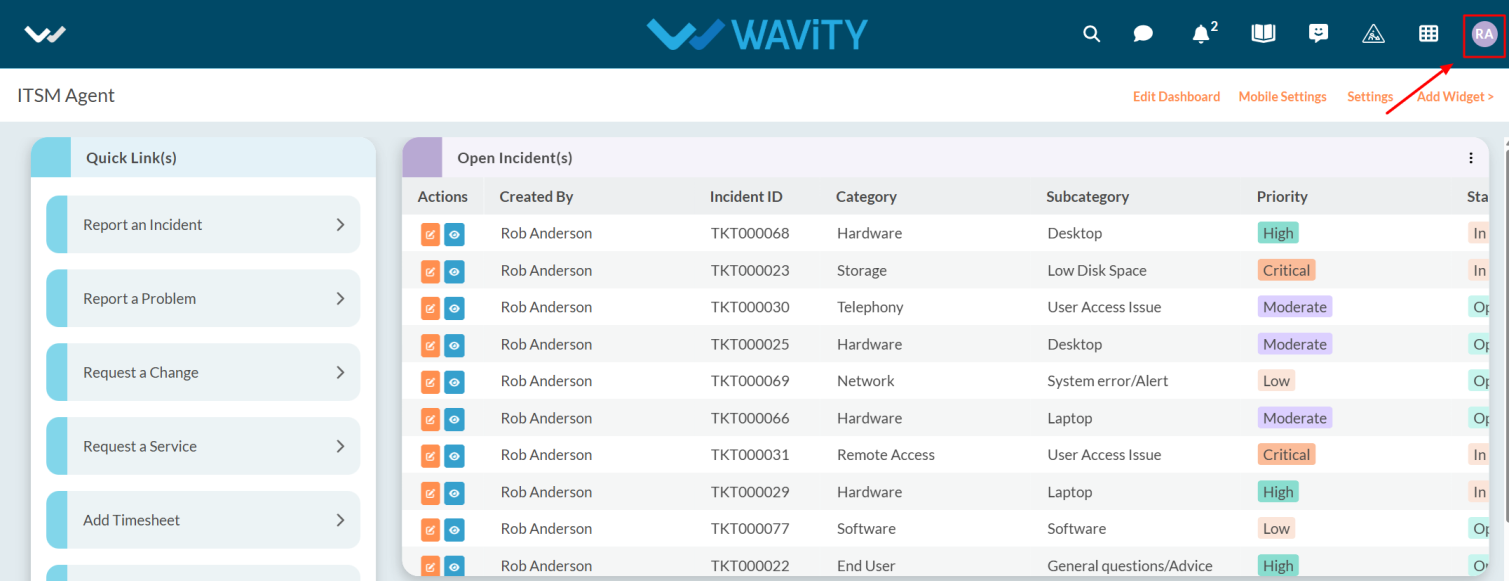
- Click on Profile Icon.

- Select the Account from options.
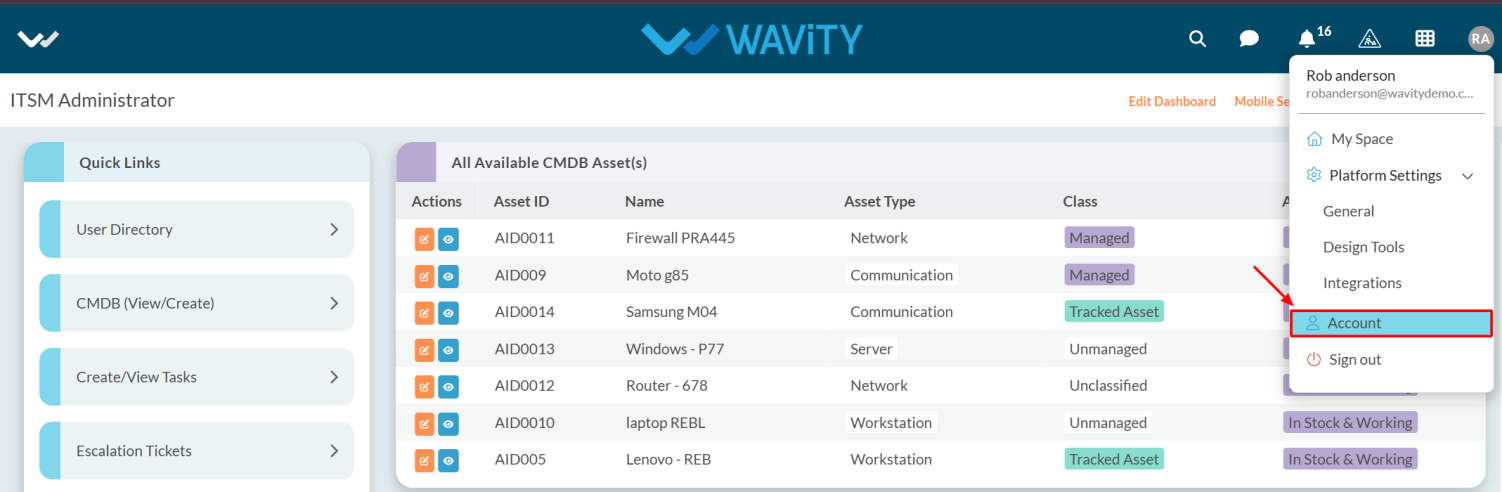
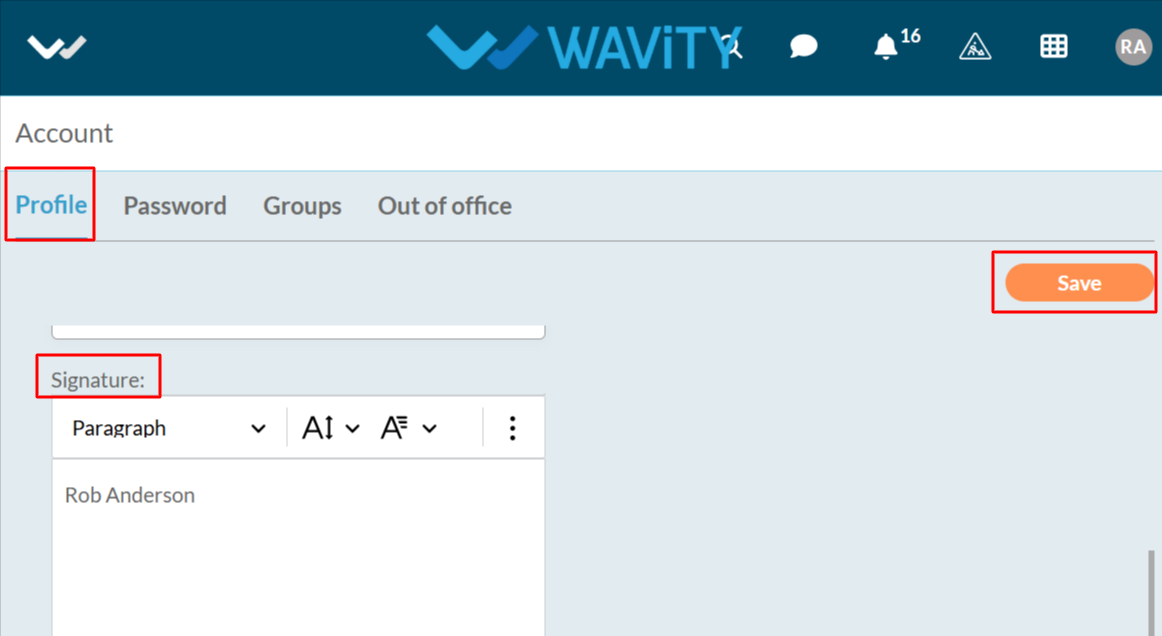
- After clicking, you will be directed to the Account page. From there, select the Profile section.
- Scroll down to find the Signature.
- Enter your name in the content box and click the Save button to apply the changes.
- Now as Admin to set signatures. Click on the Profile Icon.
- From the options, select the General.
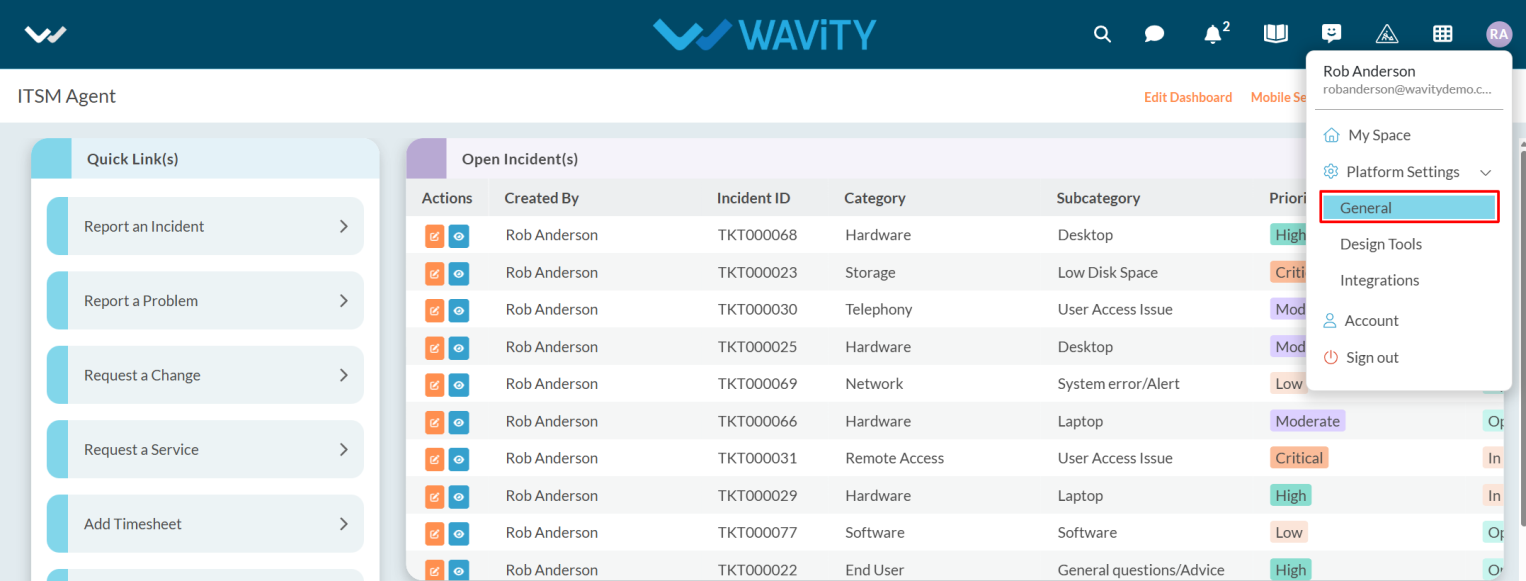
- After selecting General from the options, you will be directed to the Platform Settings – General page.
- Navigate to the Preferences tab and select Signature.

- To set up a signature click on Create.

- Enter the caption and description as you needed.
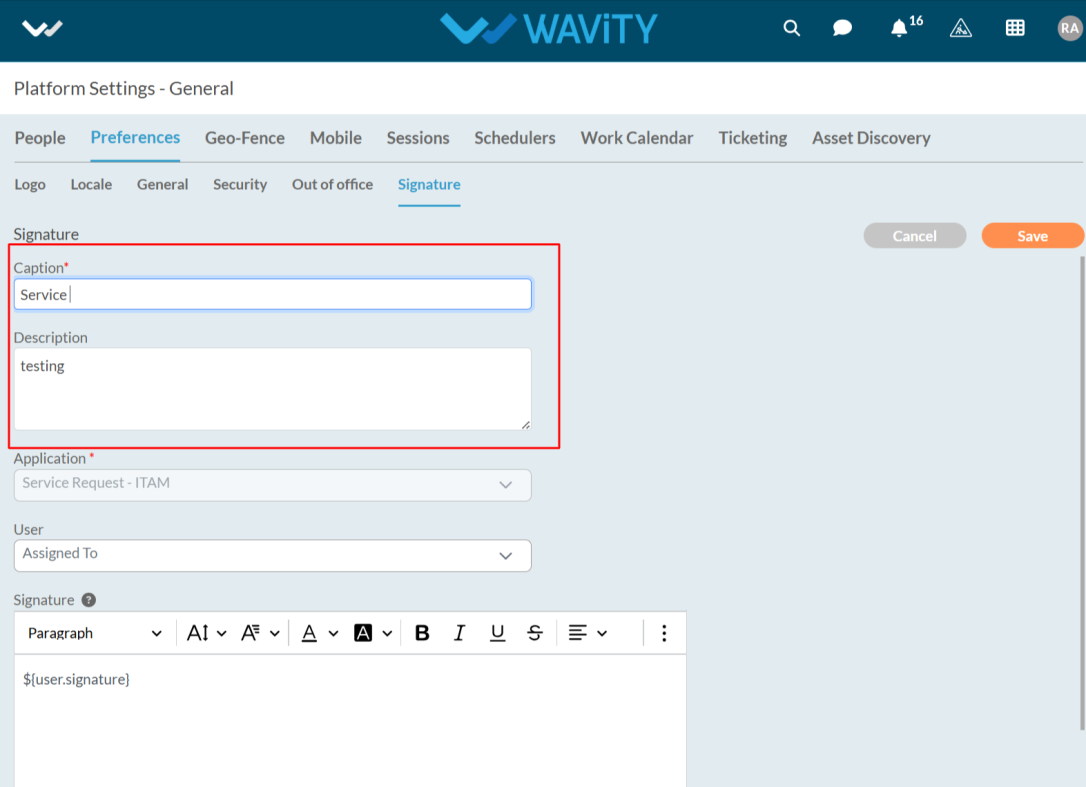
- After Entering the details select the Application and User.
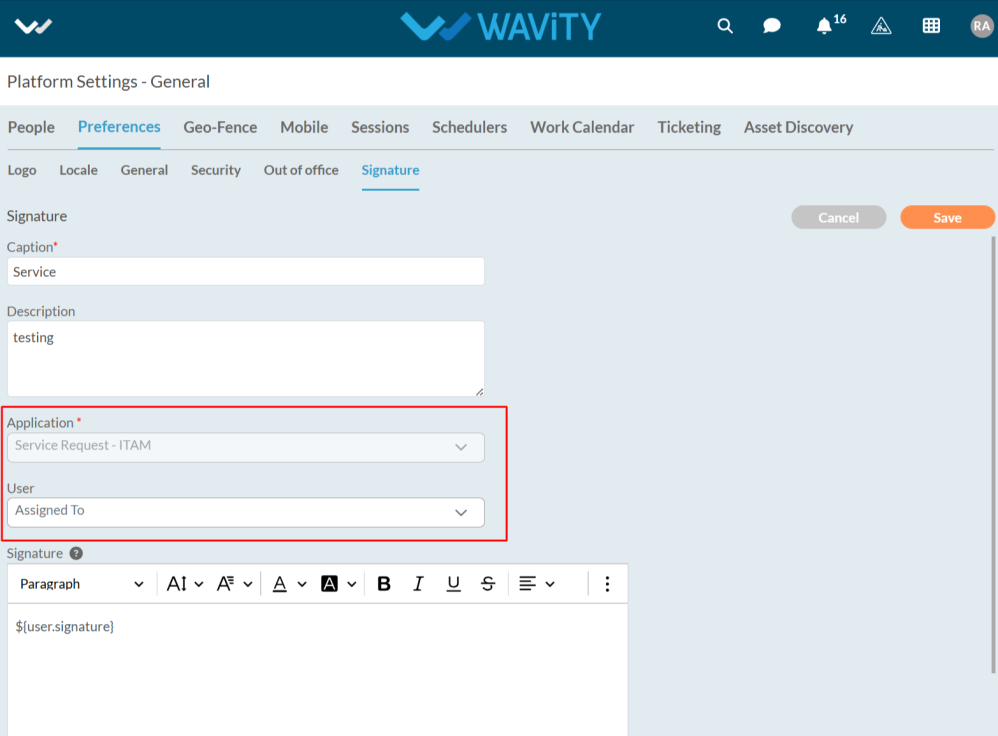
- In User, select the option to determine which username should appear in ticket responses.

- To add a user signature, click on the question mark symbol.
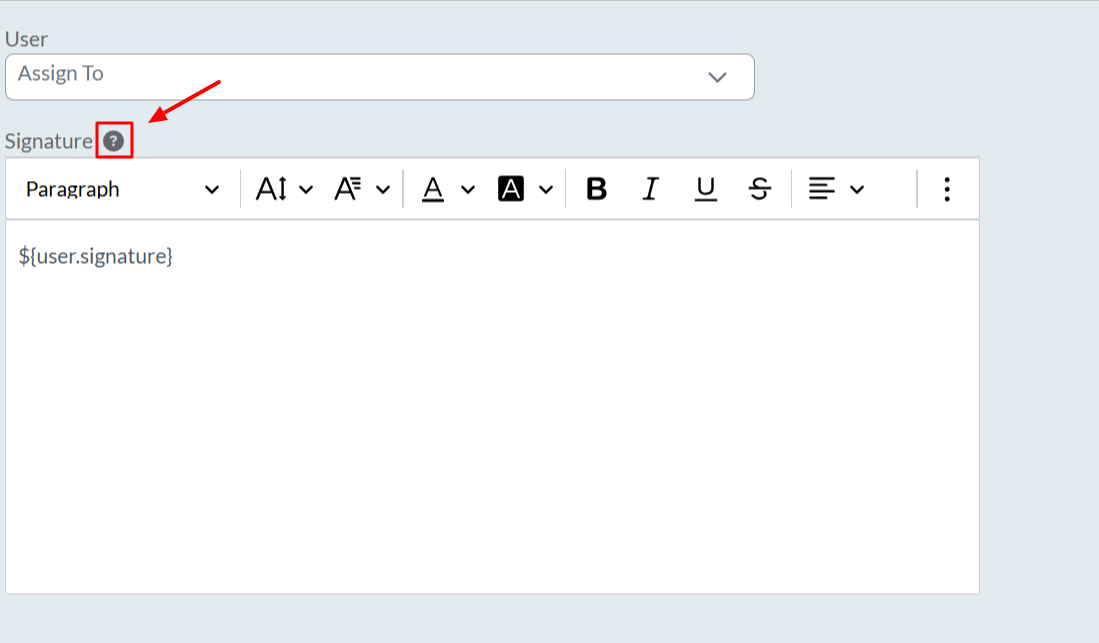
- After clicking on the symbol, a box appears where you can view all the links.
- You can add the user's first, middle, and last name, along with their email and phone number.
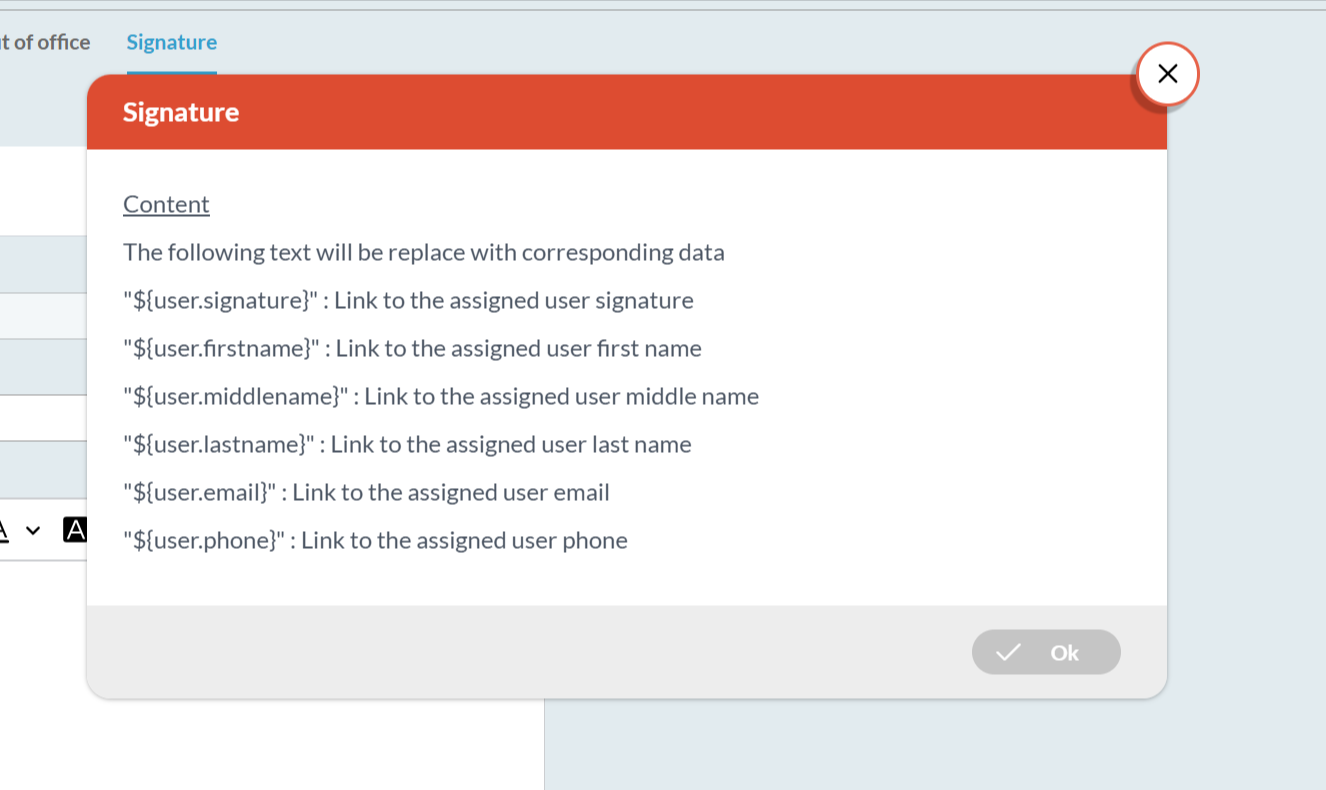
- Copy the link as you required.

- You can paste the link into the box, and there is also a text options available that you can select according to your requirements.
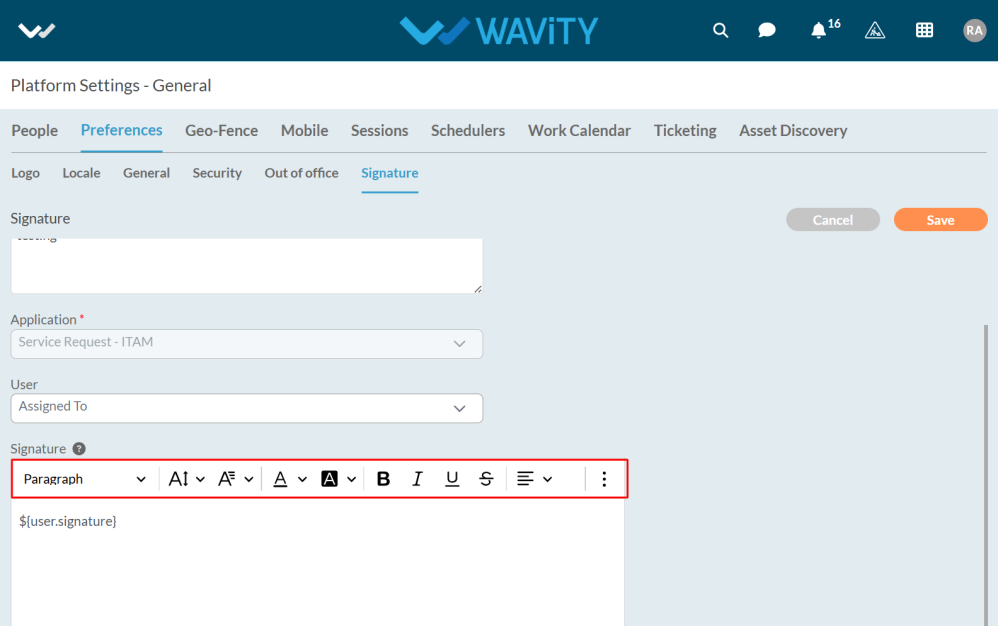
- After entering the details, click the Save button to apply the changes.

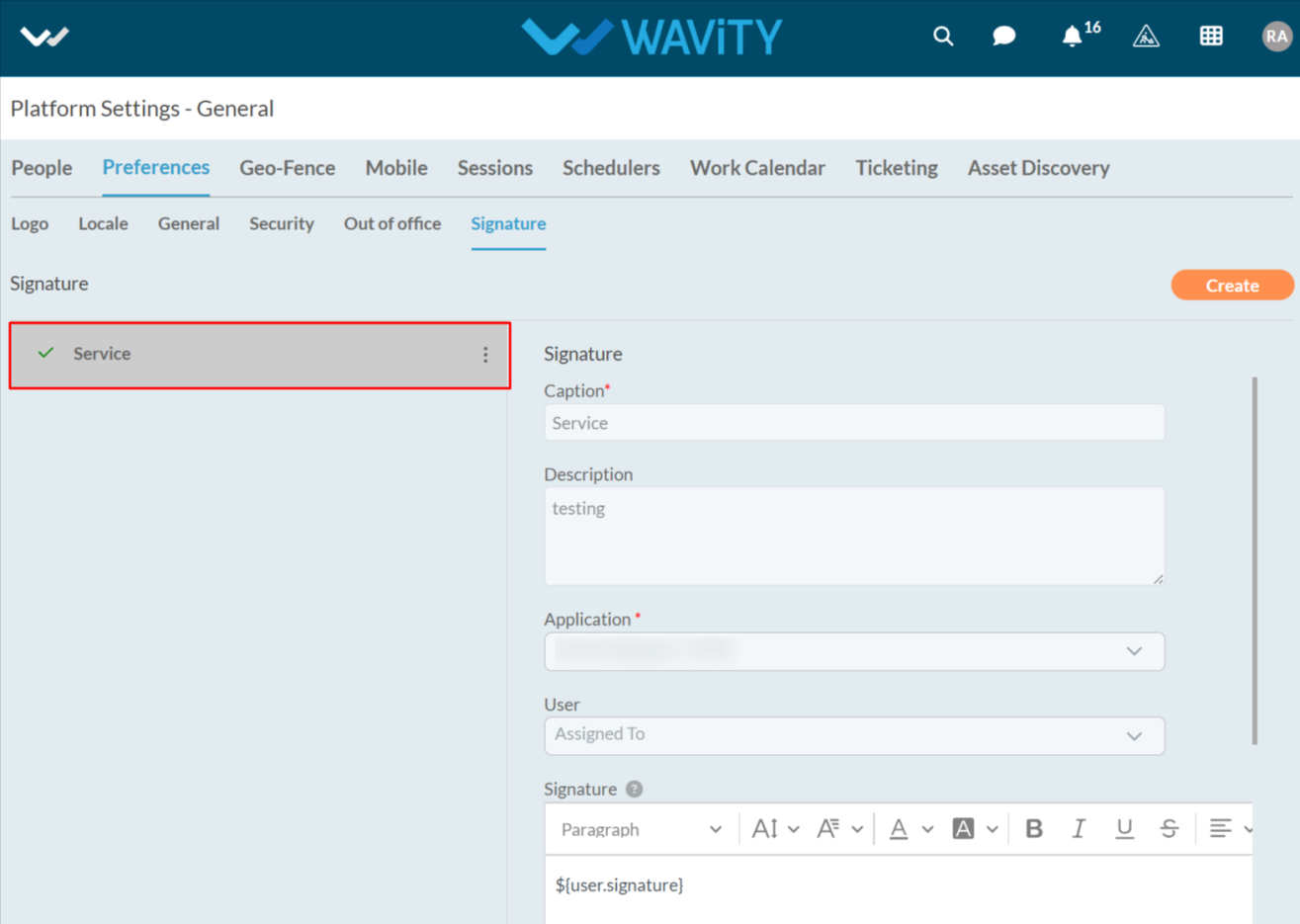
- The signature has been successfully created and is now ready for use in all ticket responses.
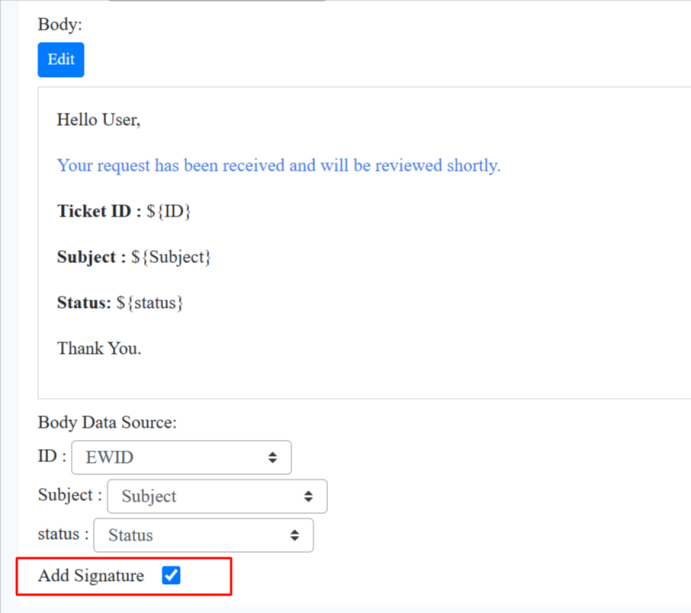
- After this, you need to enable the Add Signature option in Wbots for the application you set up the signature for. This ensures that when a ticket's status is updated or closed, the agent's name (as set in the signature) will appear at the bottom of the notification email.