Agent Guide: Communicating with Users
- In the Wavity platform, agents can interact with users through multiple channels such as Email, Chatbot, WhatsApp, Instagram, Facebook, Slack, and Microsoft Teams.
- Through the Wavity platform, agents engage with users using Conversational UI, Chatbot, and the Comments.
- Note: The steps provided serve as sample instructions and can be customized based on specific requirements; however, the core workflow will remain the same.
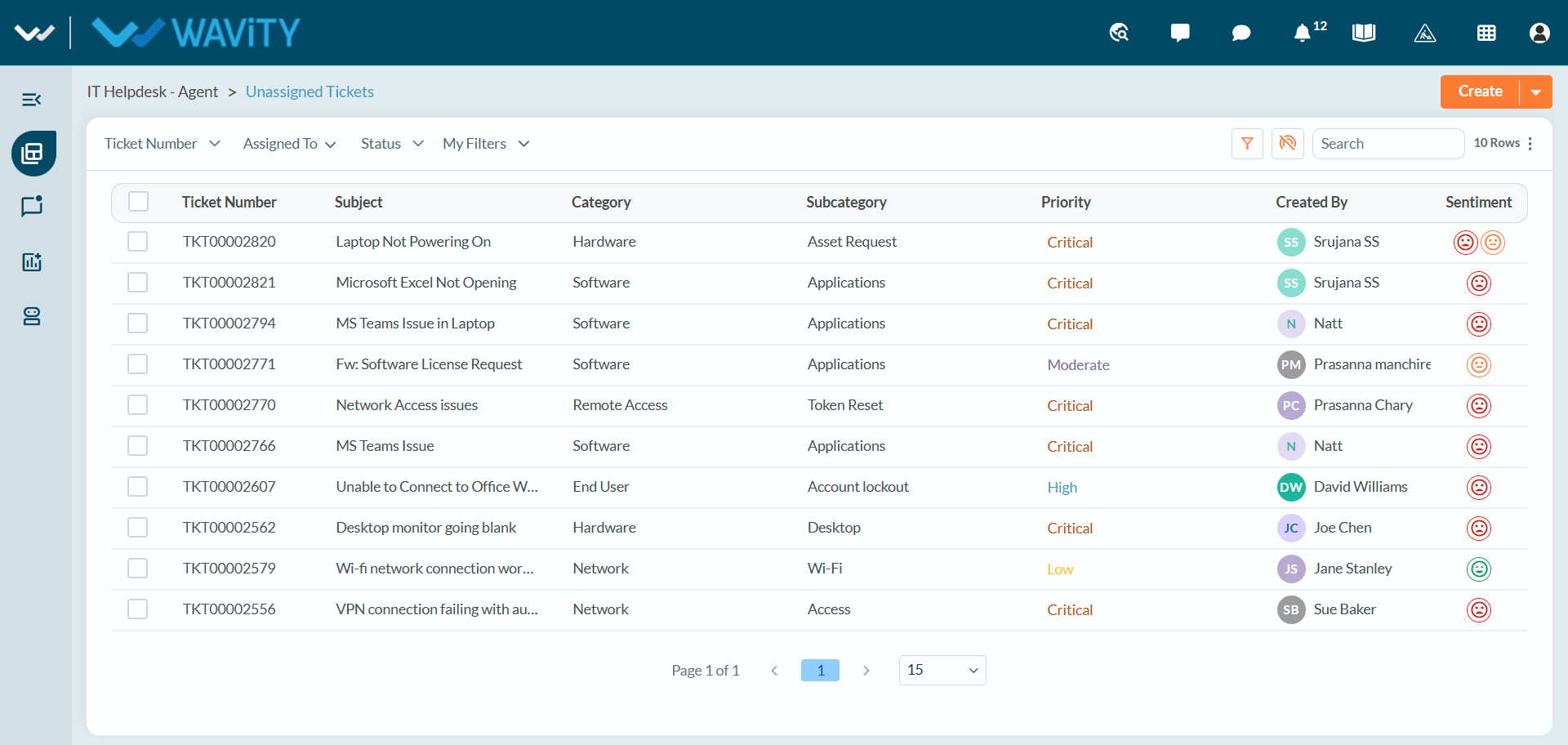
- When an agent logs in with their credentials, they are directed to their landing page as shown in the image.
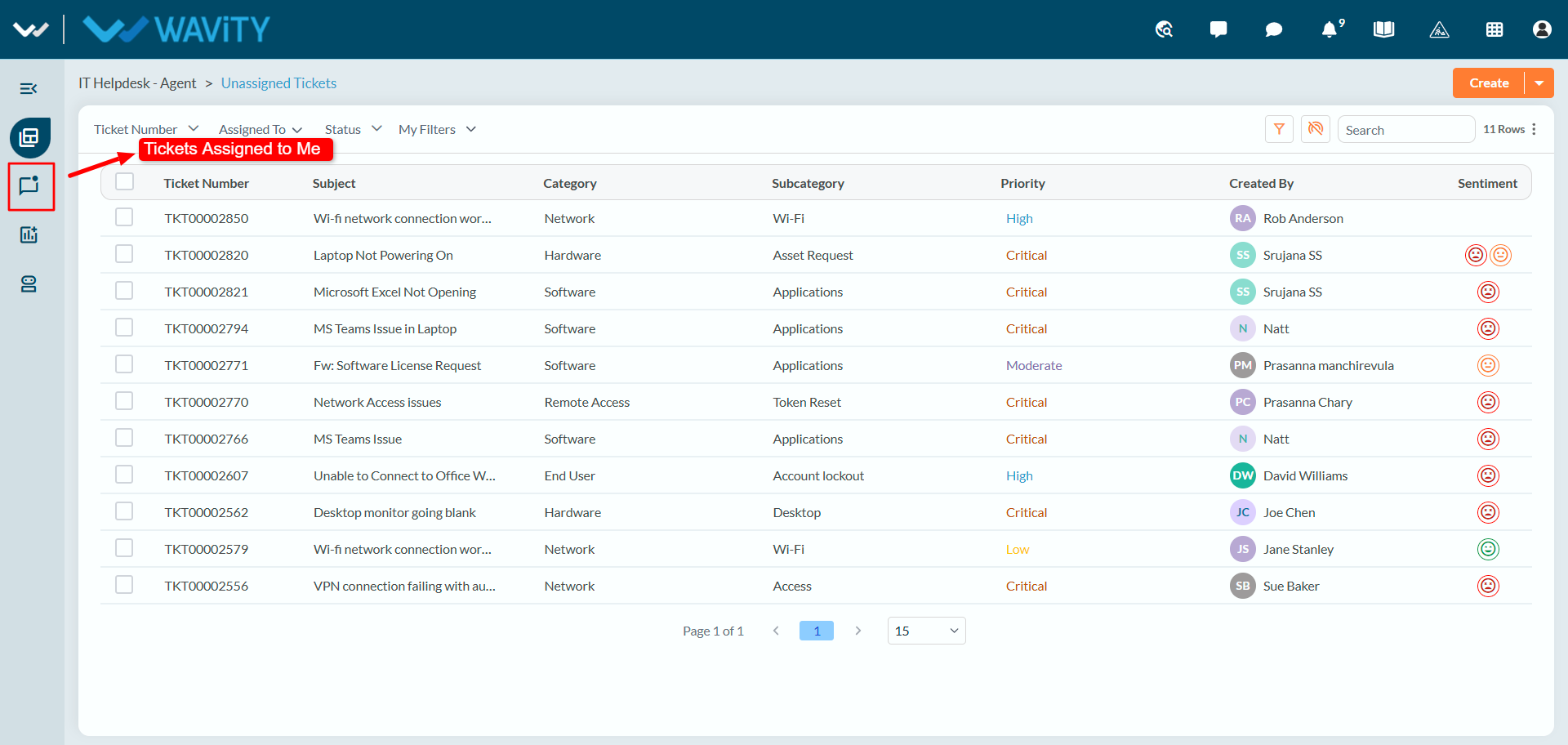
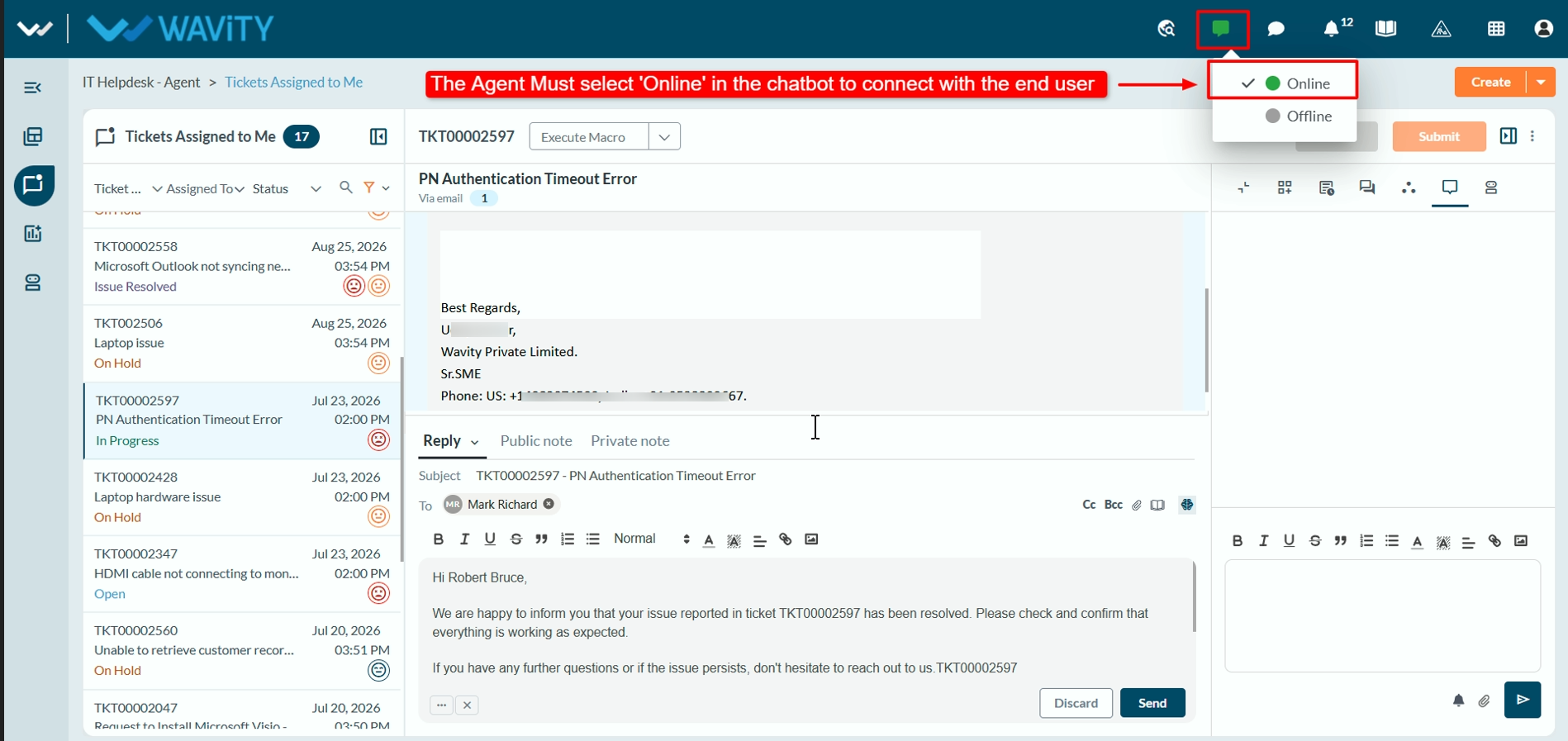
- Click on Ticket(s) Assigned to me to view the Conversational UI, where agents can communicate with users.
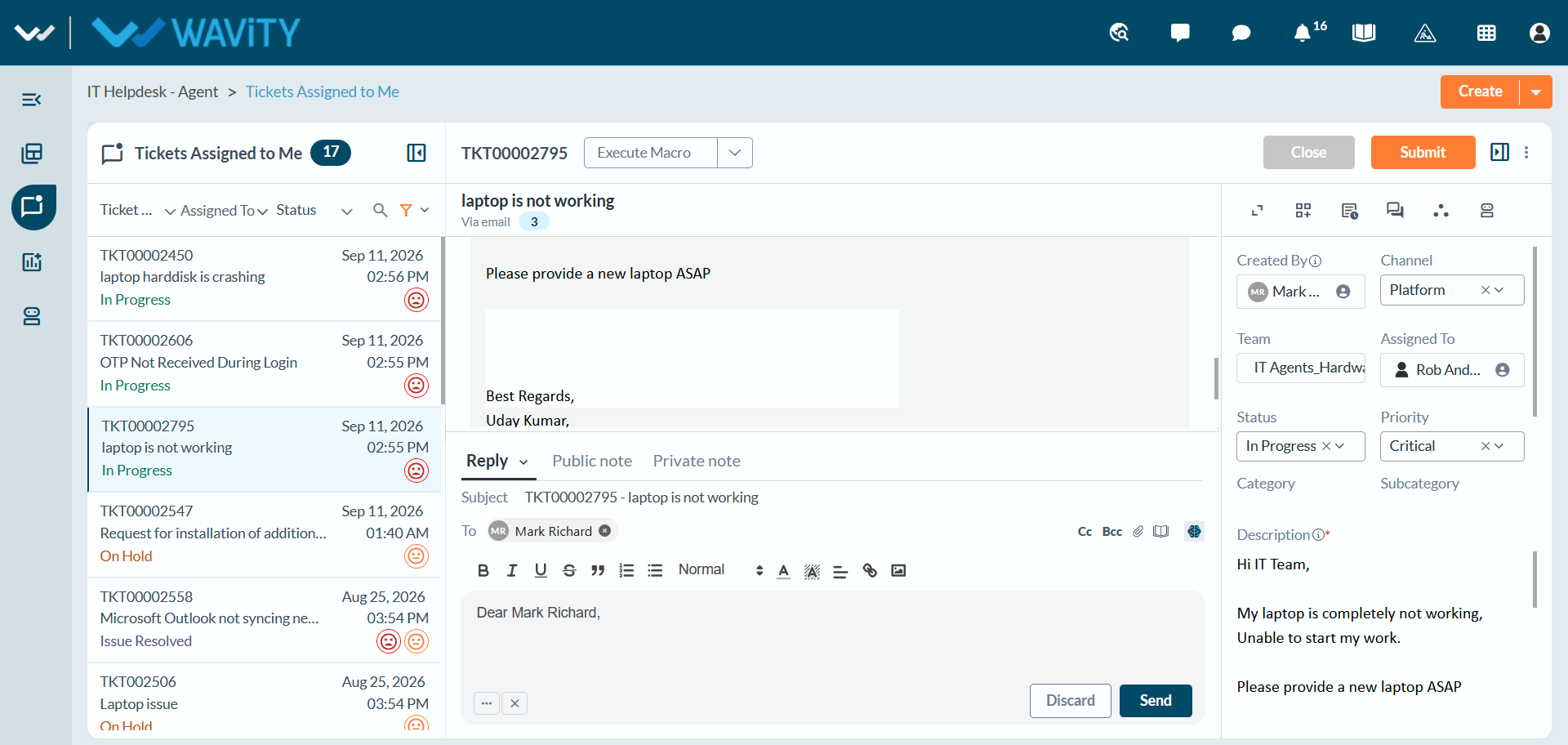
- On the left side, agents can select the specific ticket they want to work on to resolve the issue.
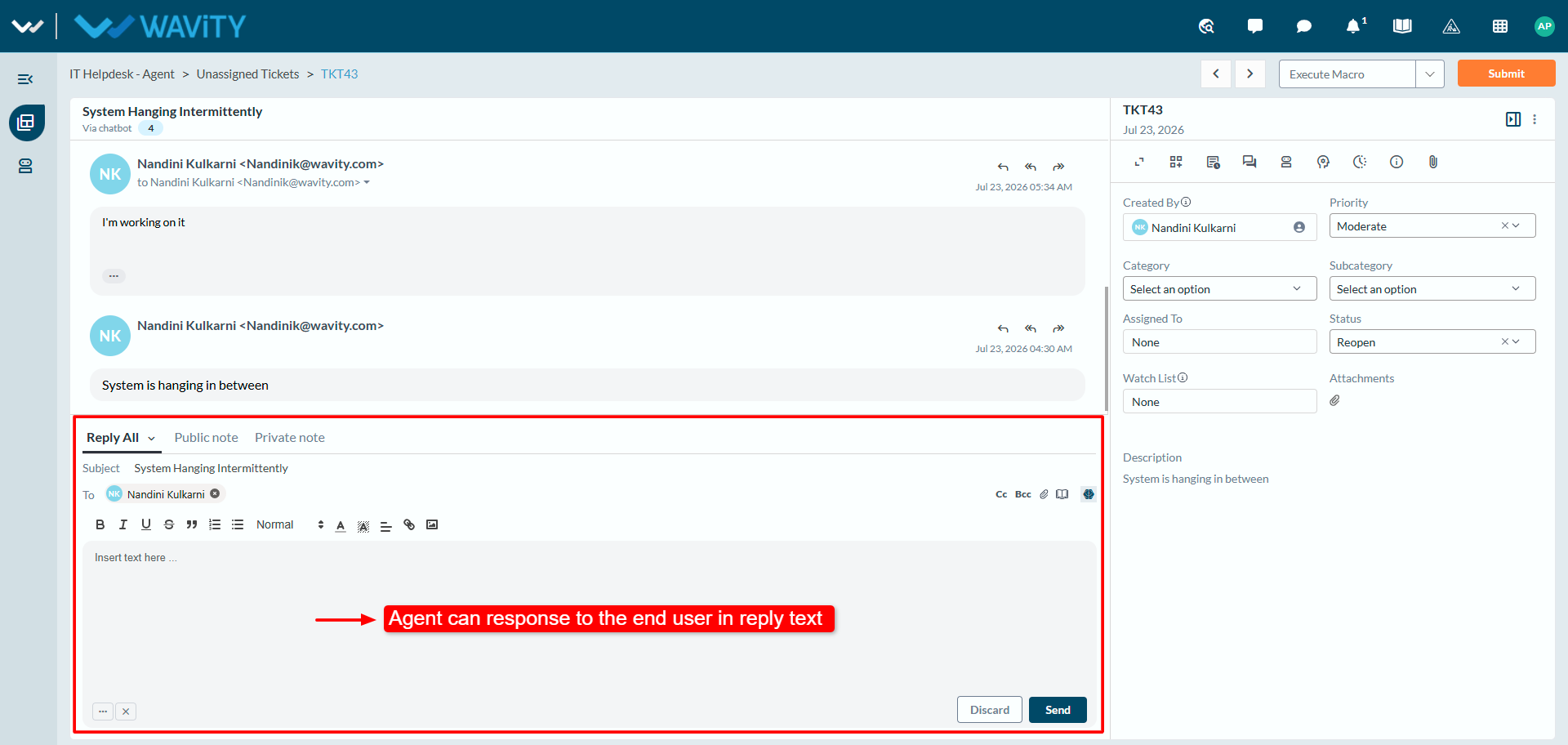
- Agent can reply to end user through the Conversational UI and Click on Send button.
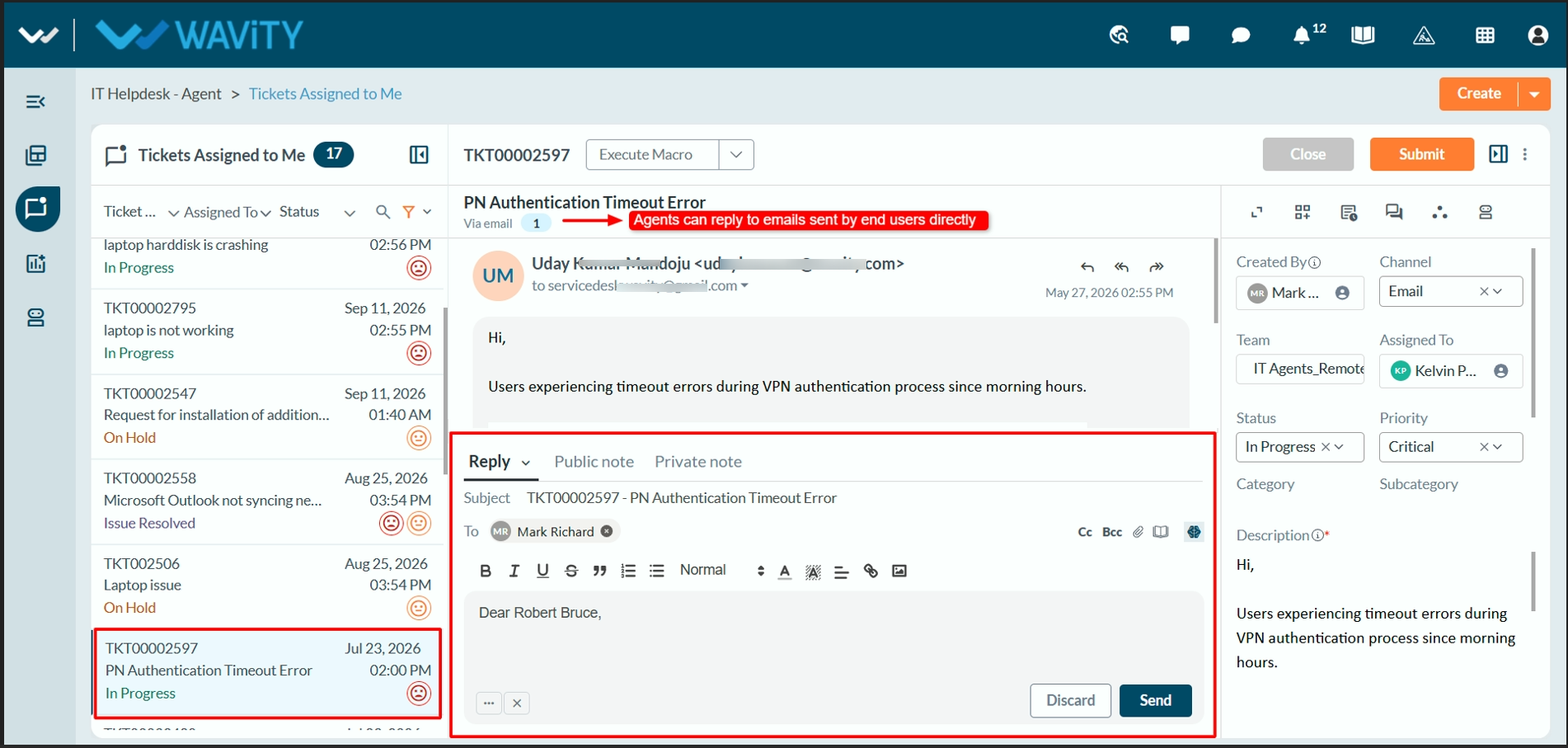
- Agents can use the macro also, which helps to streamline workflows, reduce manual effort, and ensure consistency in handling routine processes.
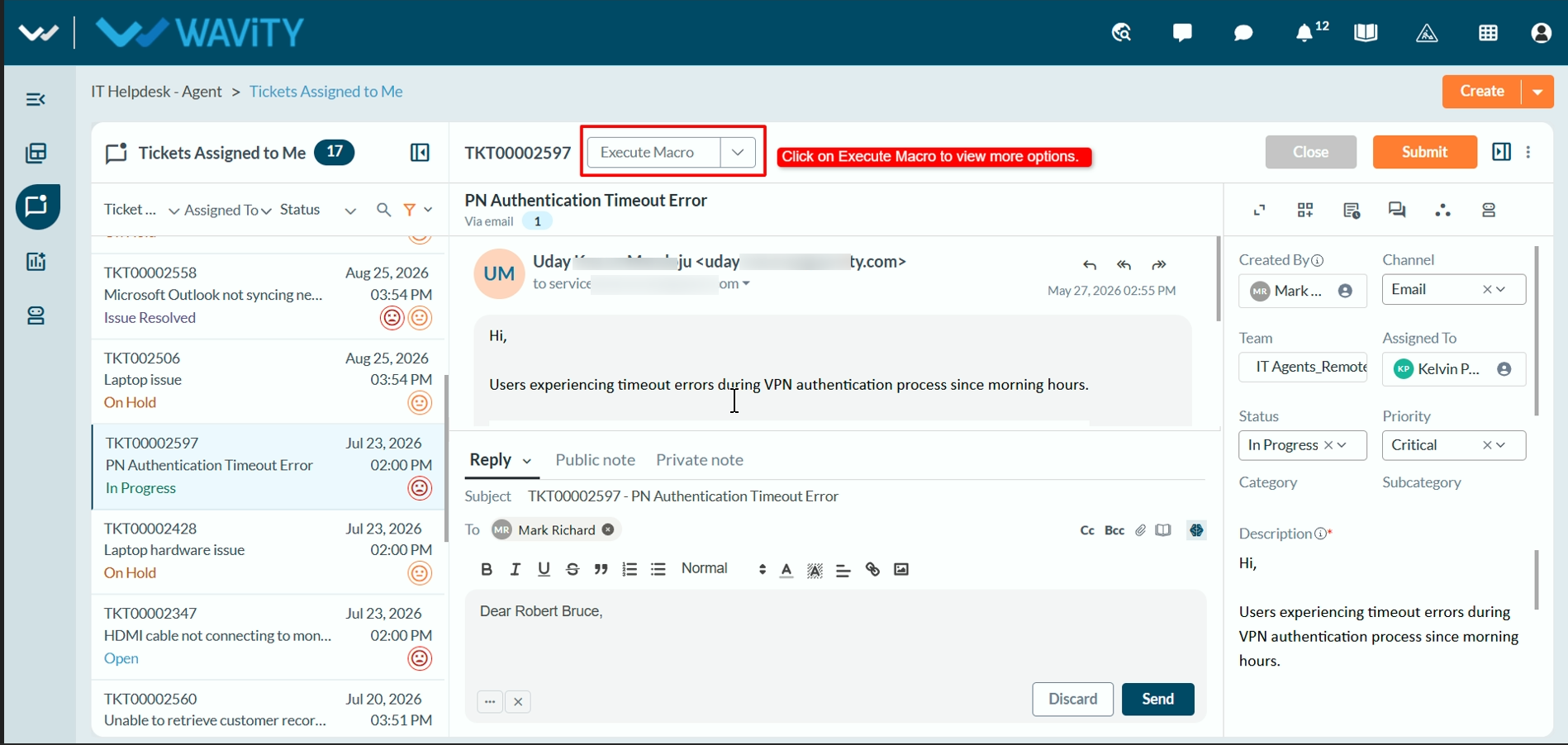
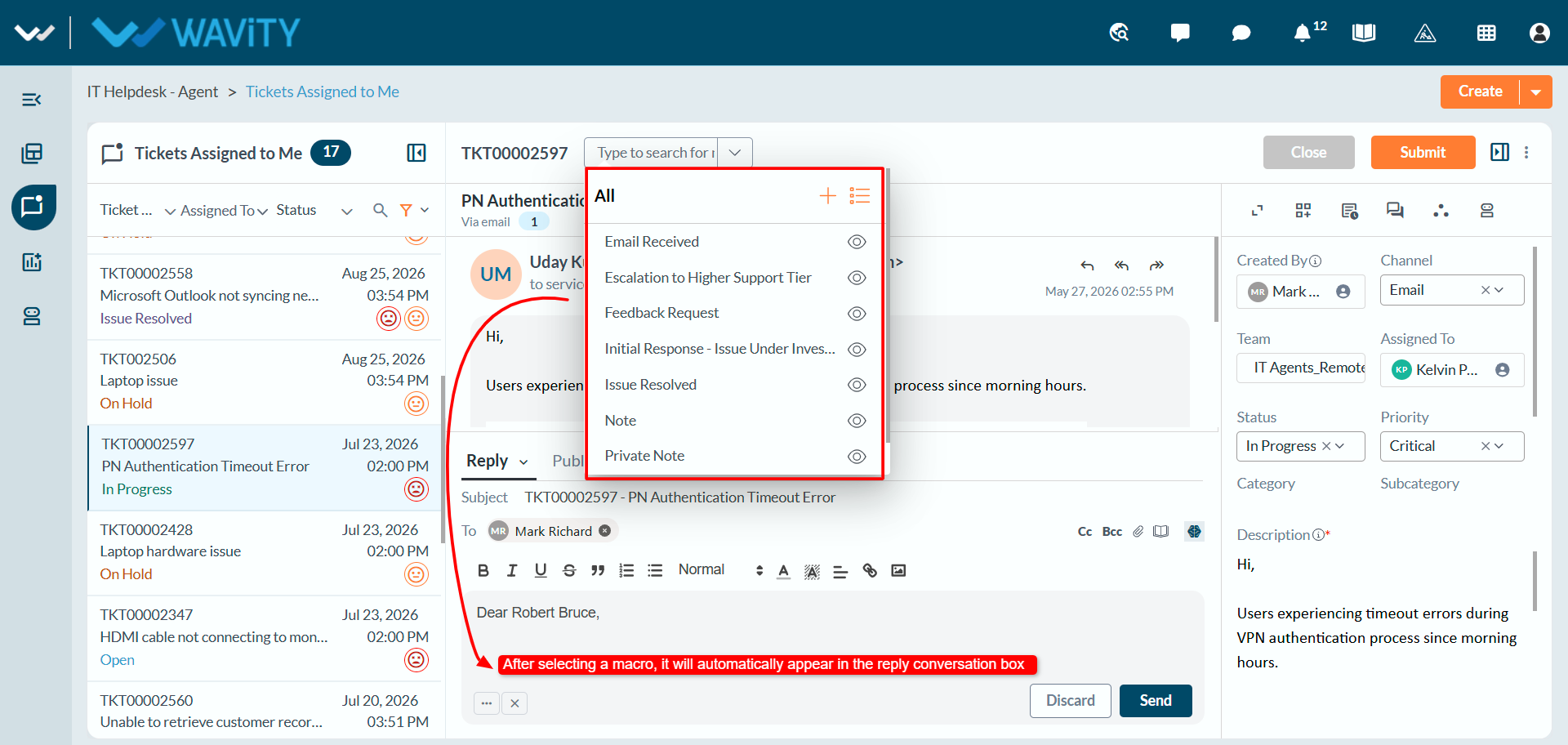
- Select any macro from the options to execute which you want to reply to the user.
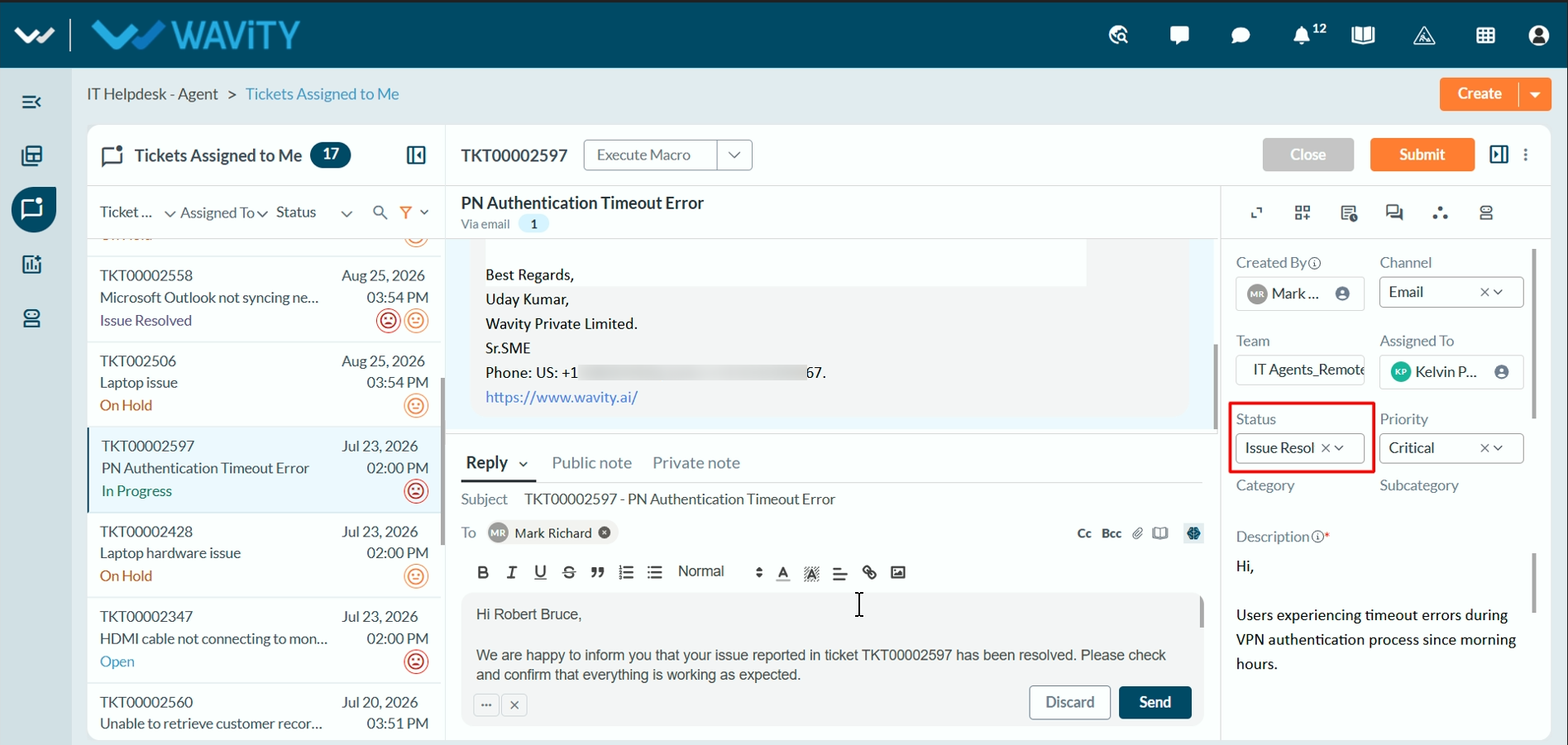
- After selecting a macro, the ticket status will automatically change Issue Resolved if the user selects Issue Resolved from the options. The status update depends on the macro selected. After selecting the macro click on the submit button.
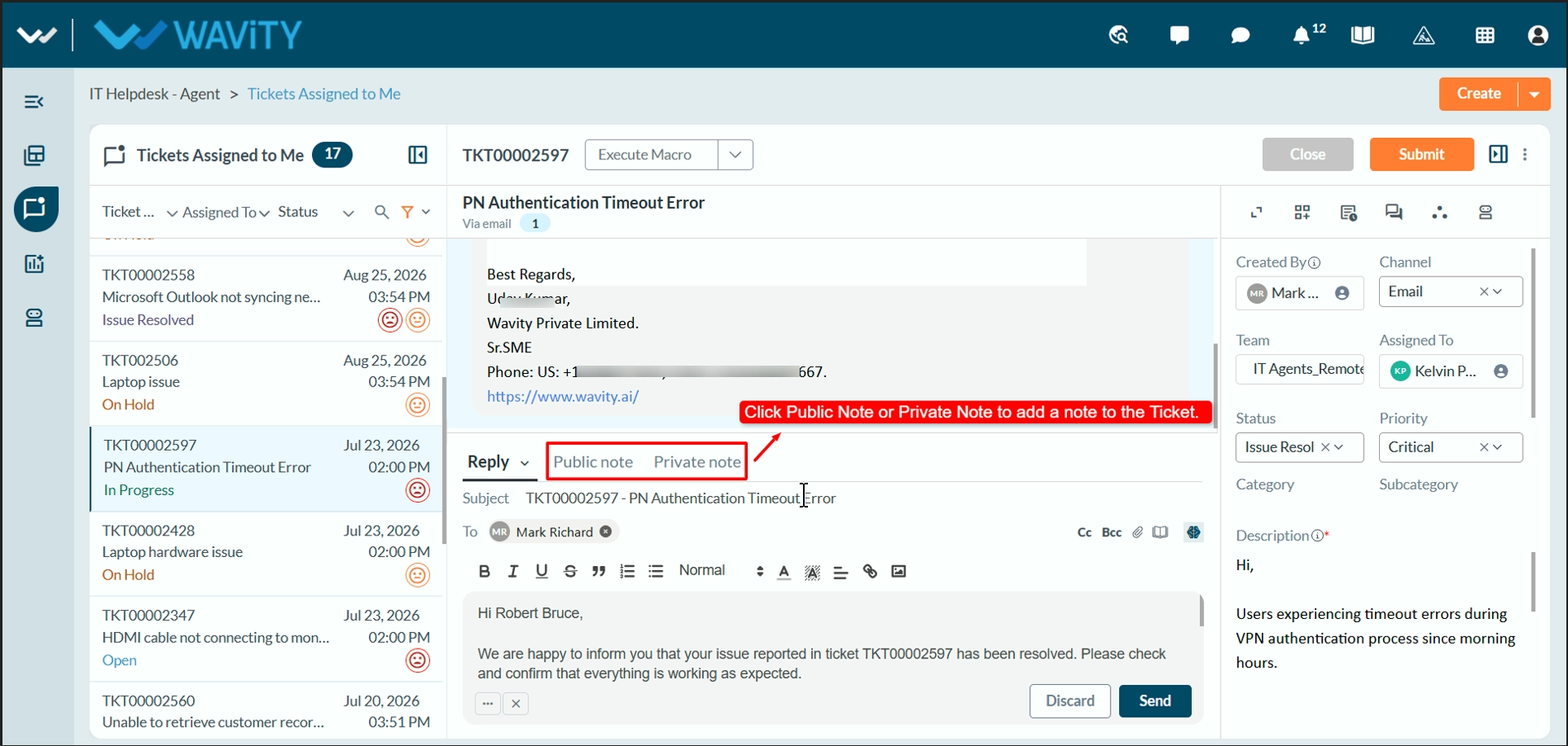
- Agents can add Public, Private Notes to the ticket.
- Public Notes: Everyone in the conversation can see these notes
- Private Notes: Only selected people can see these notes.
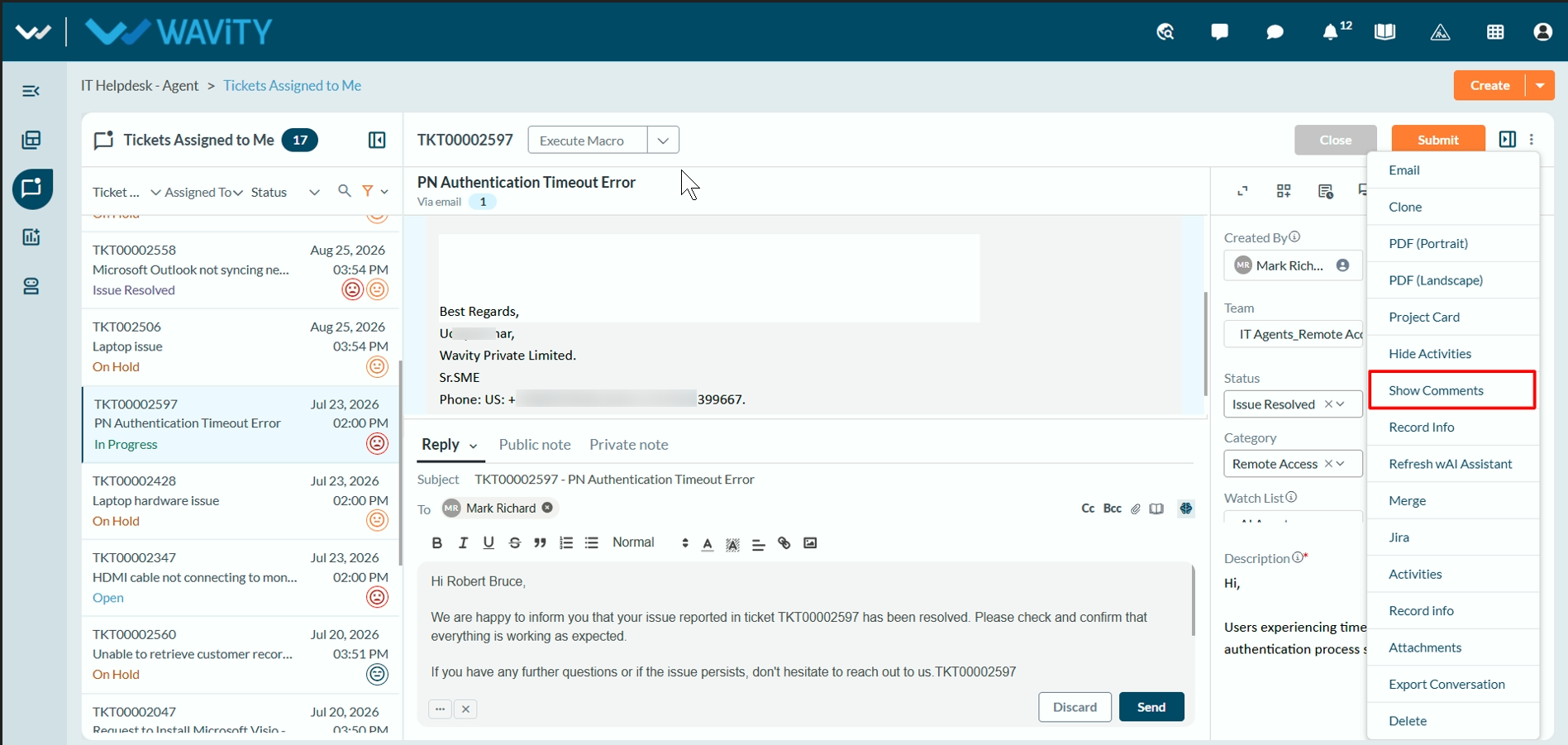
- Agents can view comments associated with a ticket from the More Options (⋮) menu. Click Show Comments to view comments related to the user’s issue, including additional information, updates, or supporting details shared on the ticket.
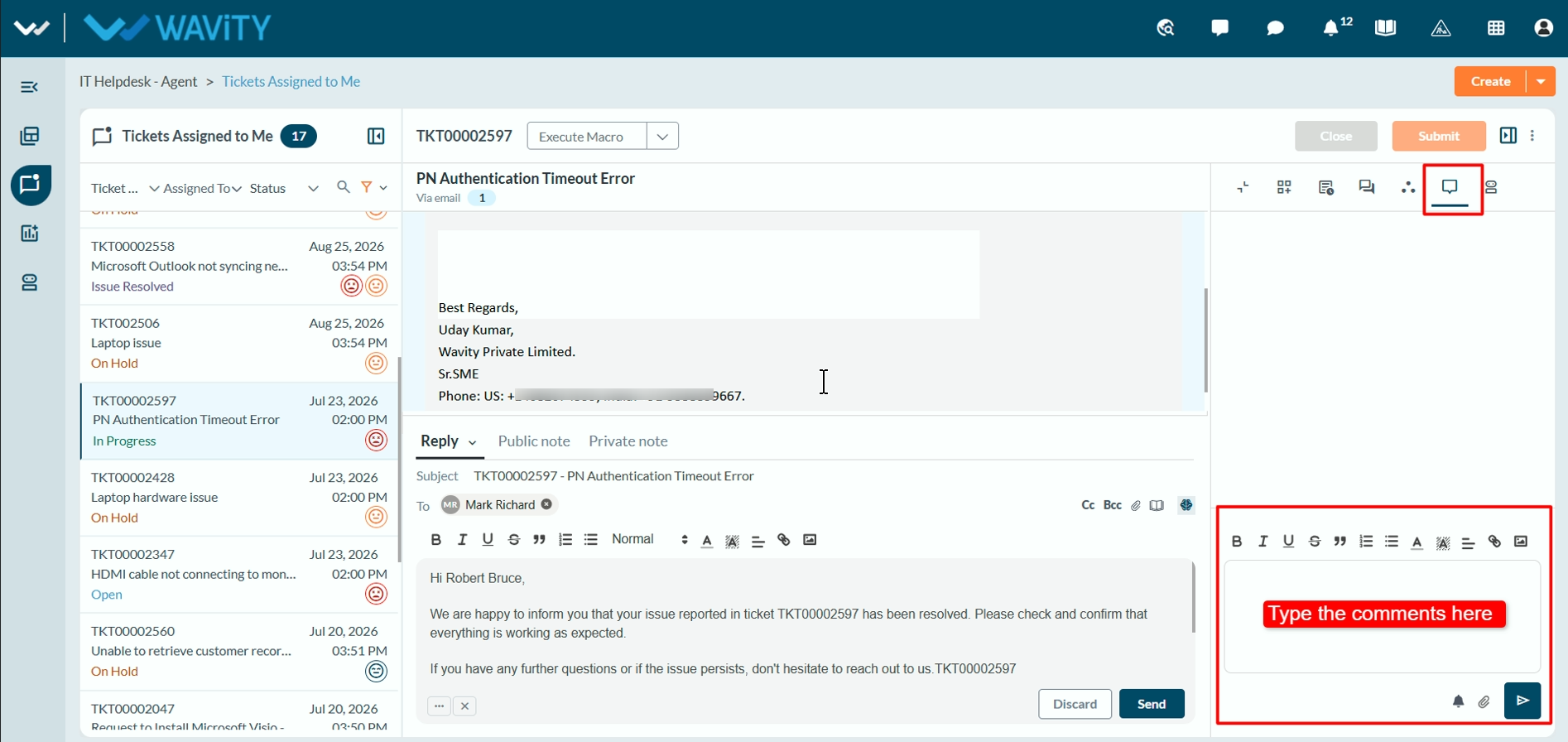
- Once the Comments panel opens on the right side of the Conversational UI, agents can enter additional information or updates related to the ticket. Type the required comment in the text box and click the Send icon to add the comment.
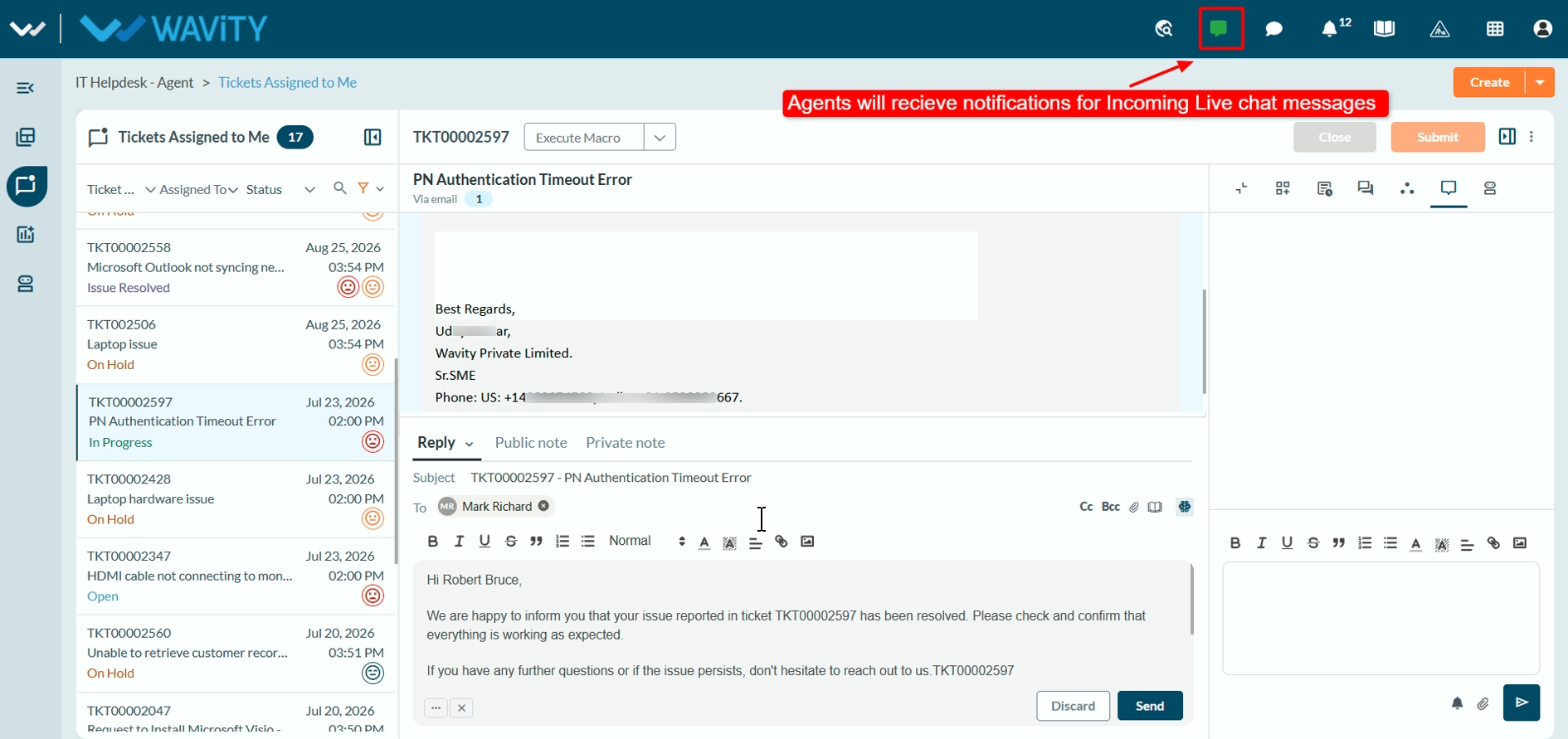
- Agents can also communicate with users through Live Chat. When a user selects Talk to an Agent in the Chatbot, the agent receives a notification if they are online.
- Agent needs to accept the chat with user by selecting Accepted as shown in the below image.
- After accepting the chat, the agent can see the user's messages displayed in the Conversational UI for further interaction.