Team Member Guide: Viewing and Updating Pending Tasks
  • In Wavity Project Portfolio Management, Team Members can view their pending tasks through the Team Member Interface.
  • Users with Team Member access can log in using their credentials to access this interface.
  • Note: The steps below serve as sample instructions and can be customized as per specific requirements, though the core workflow remains the same.
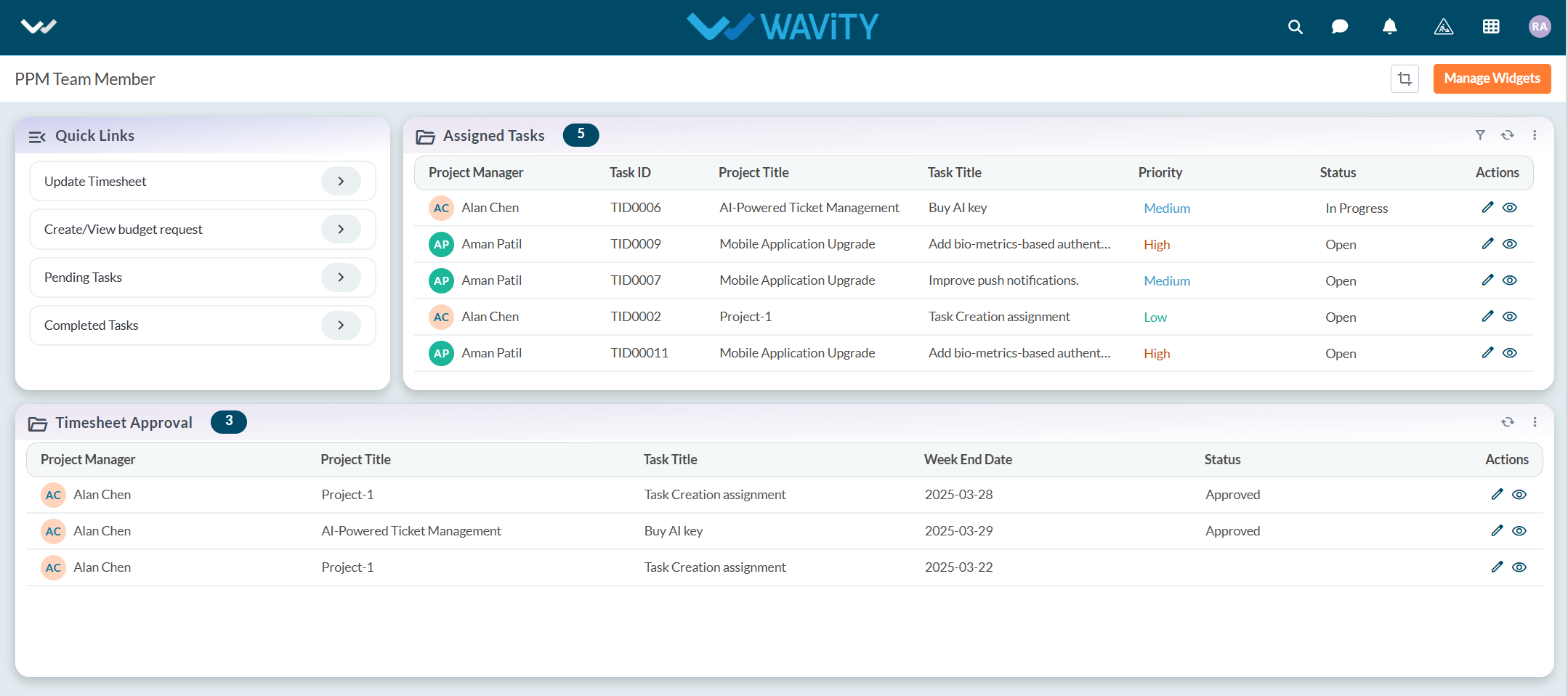
  • In the Quick Links section, click on Pending Tasks to view the list of all assigned tasks that are pending.
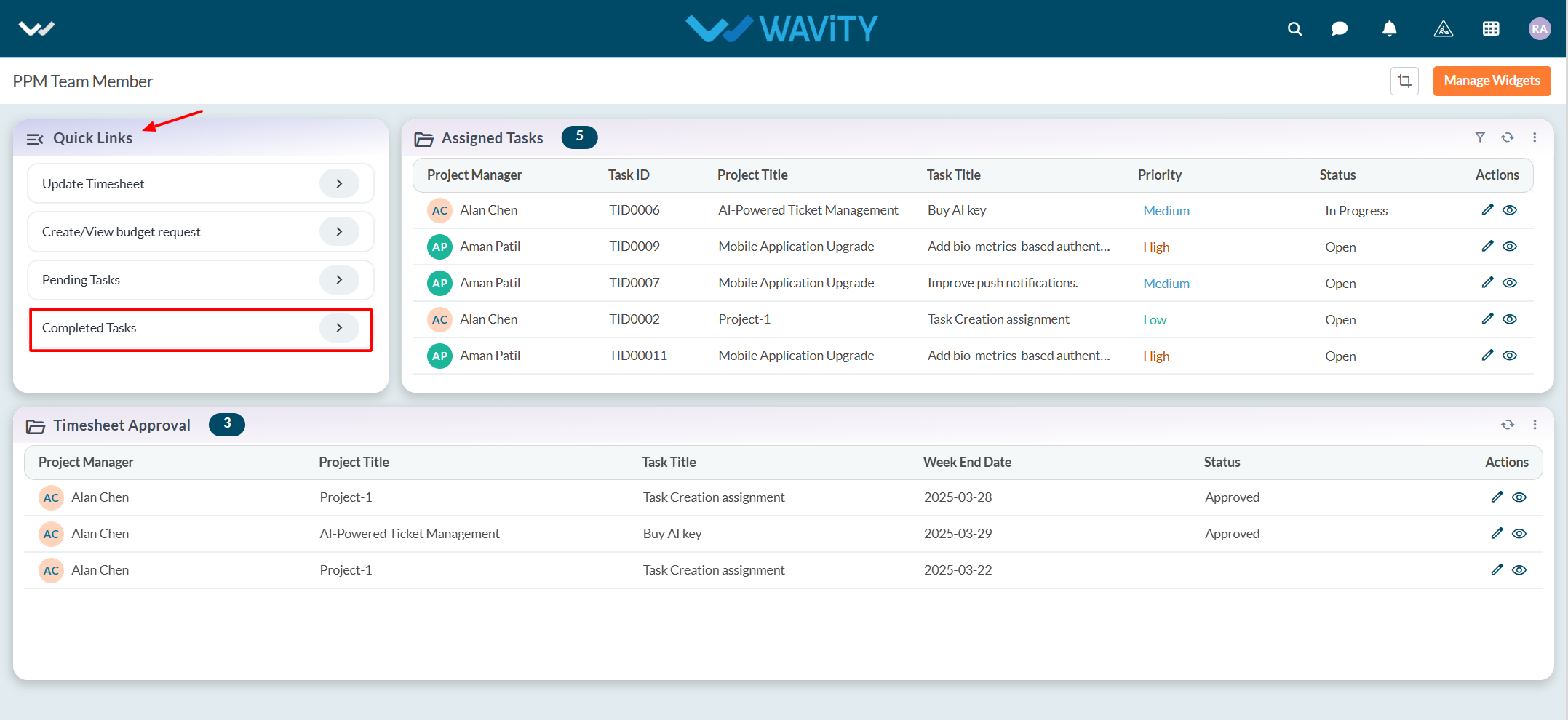
  • All pending tasks will be displayed in a list format. Click on the eye icon next to a task to view its details.
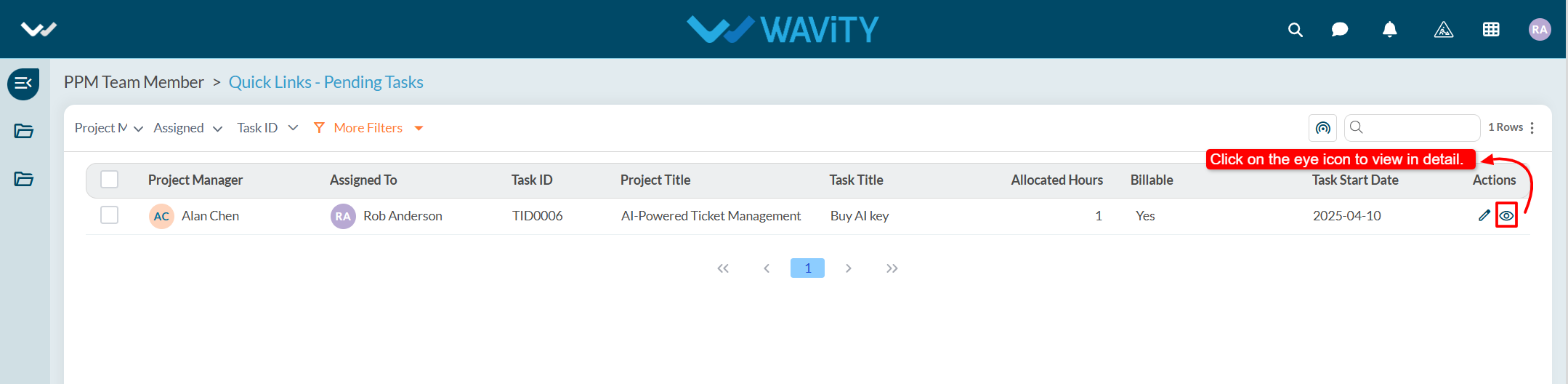
  • Users can update the task status based on their current progress or working state and click on the save button to apply the changes.
Team Member Guide: Viewing and Updating Pending Tasks
  • In Wavity Project Portfolio Management, Team Members can view their pending tasks through the Team Member Interface.
  • Users with Team Member access can log in using their credentials to access this interface.
  • Note: The steps below serve as sample instructions and can be customized as per specific requirements, though the core workflow remains the same.
  • In the Quick Links section, click on Pending Tasks to view the list of all assigned tasks that are pending.
  • All pending tasks will be displayed in a list format. Click on the eye icon next to a task to view its details.
  • Users can update the task status based on their current progress or working state and click on the save button to apply the changes.

Leave you comment...

Thank you! Your submission has been received!
Oops! Something went wrong while submitting the form.