How to edit existing Analytics & Reports?
How to edit existing Analytics & Reports?
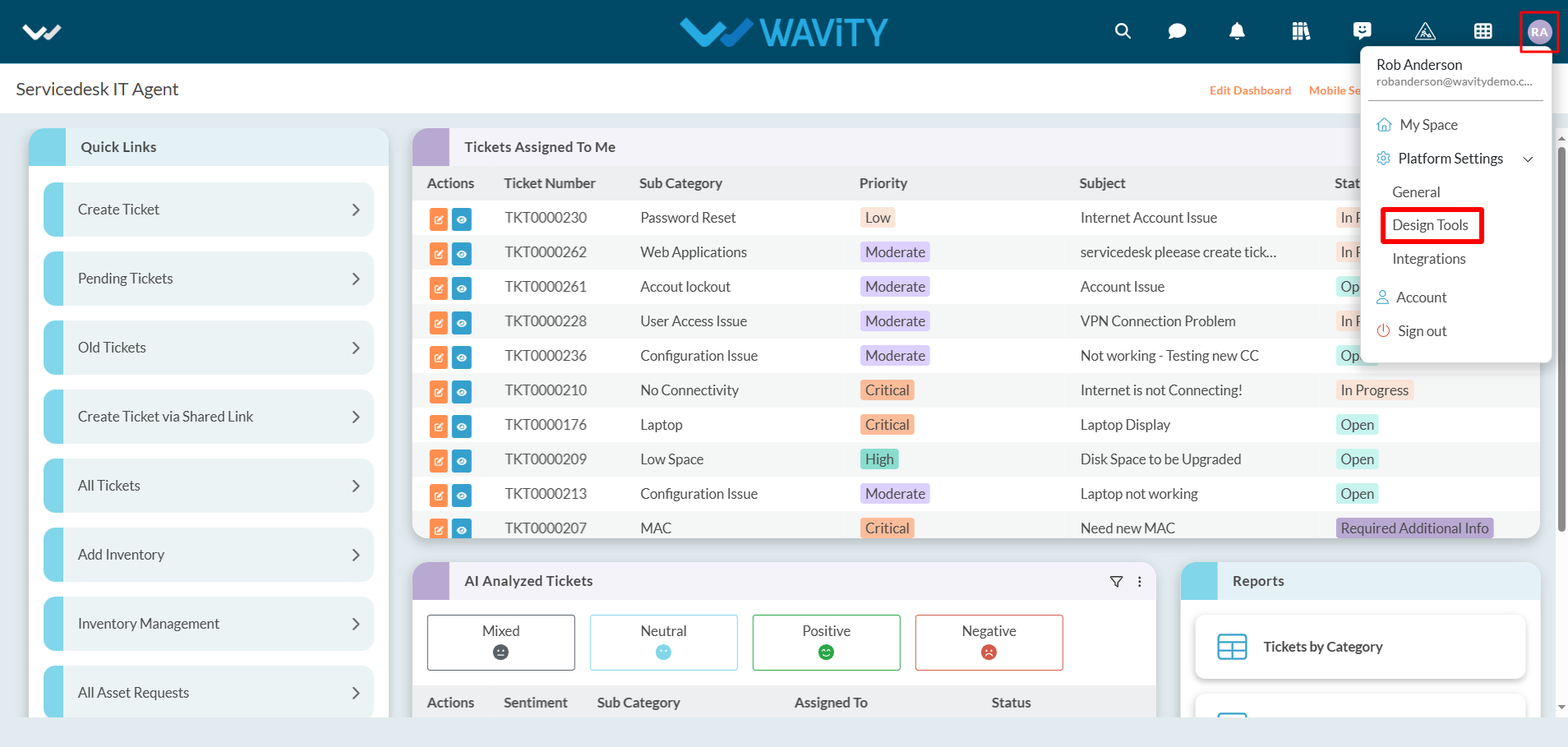
- Only Admins have the authority to edit existing analytics in the platform.
- To begin, click on Design Tools, as shown below.
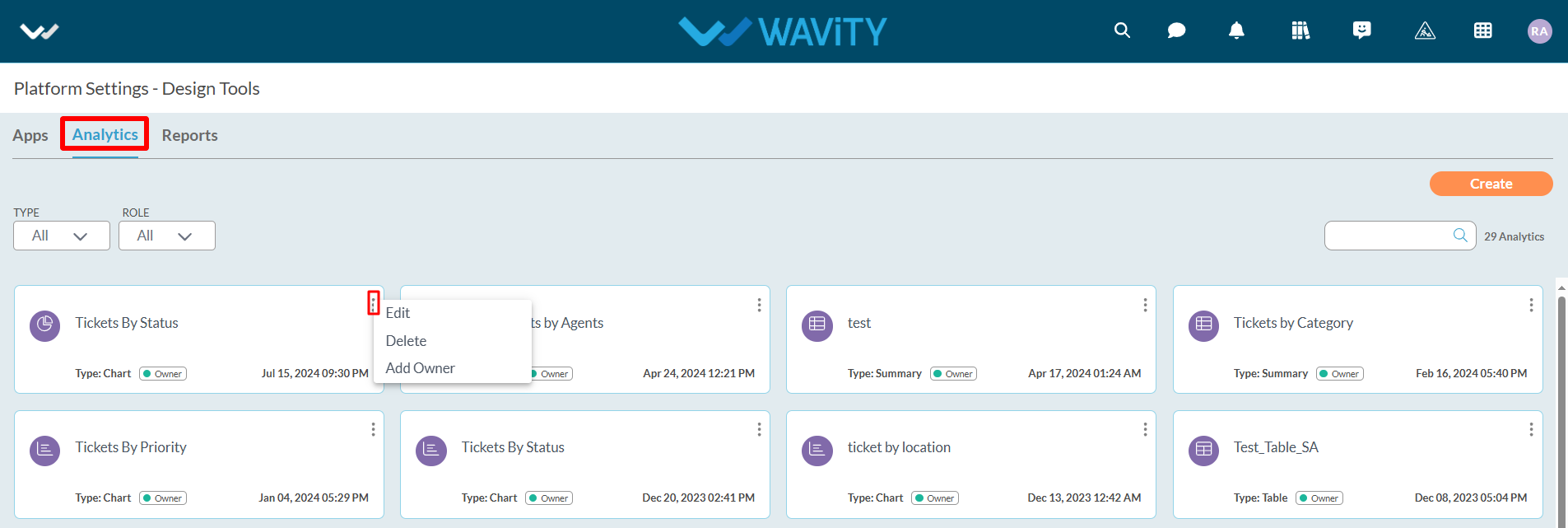
- In “Analytics” section, All the existing analytics of the platform will be displayed for the admin.
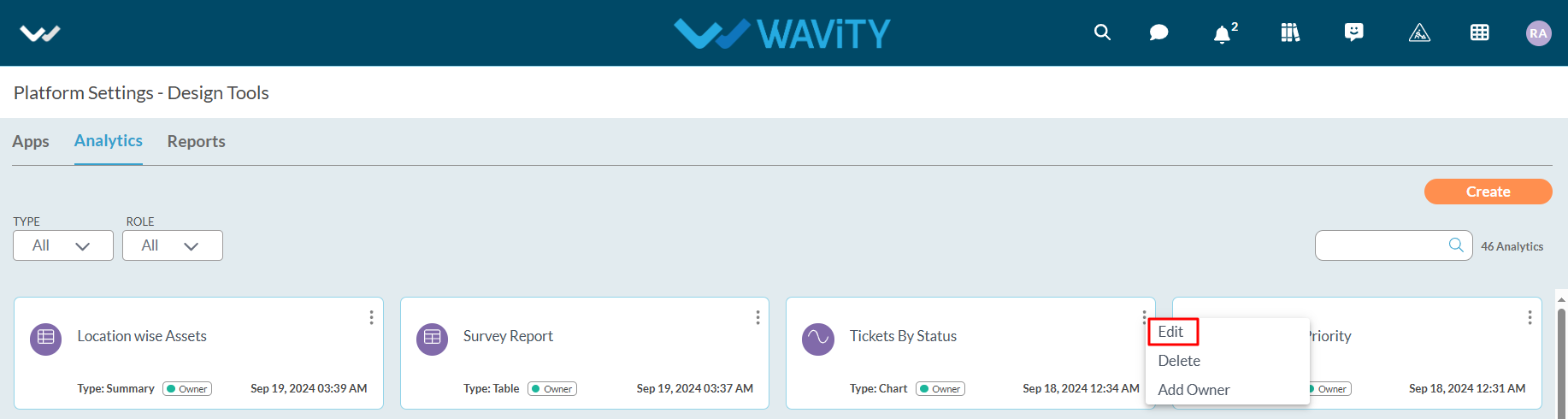
- Click on “3 dots” icon to carryout multiple functions of the existing analytics such as editing, deleting or adding owner as shown below.
- Click on “Edit” as shown in below image.
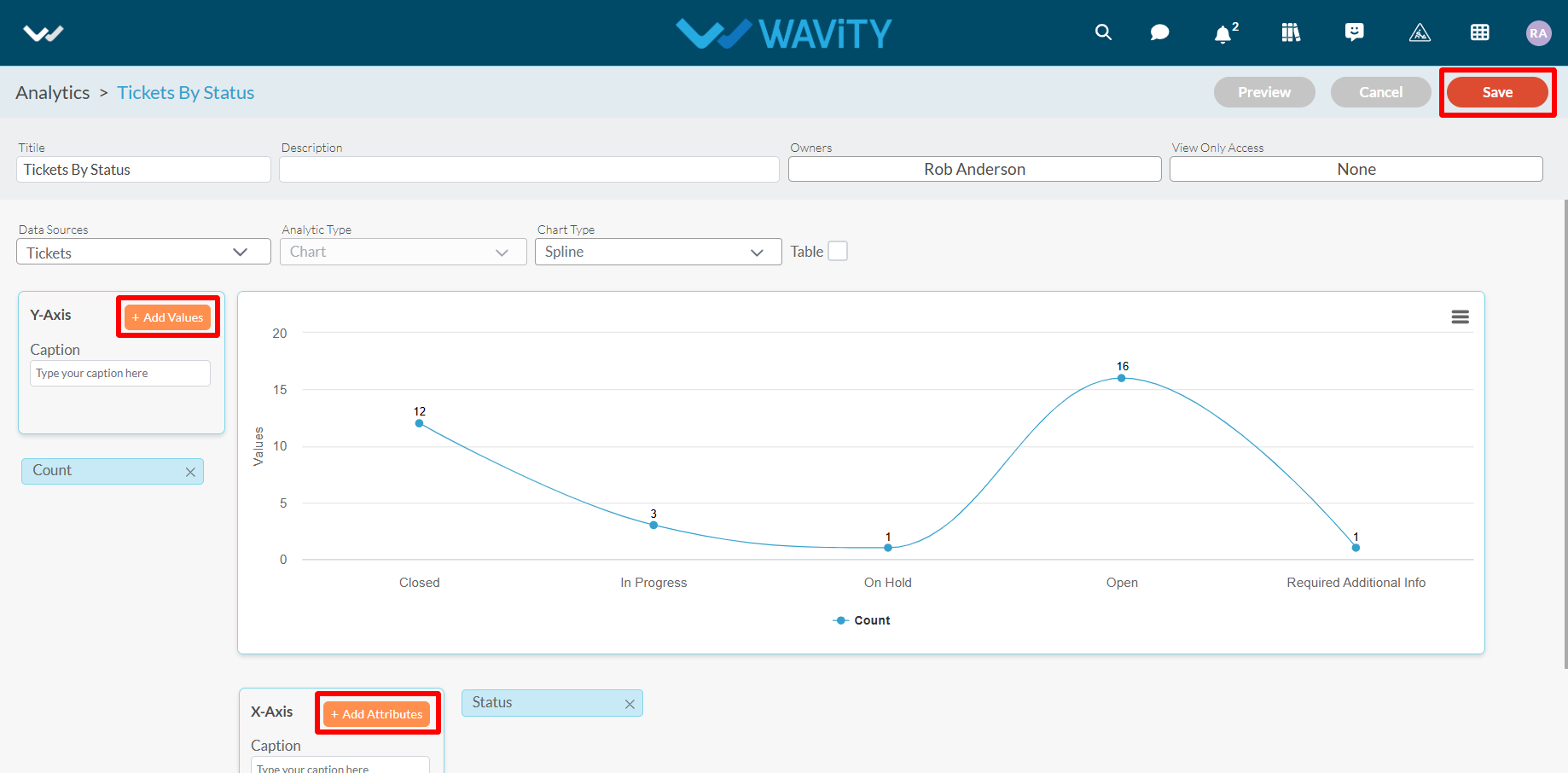
- Edit or update details like the title and description of the analytics for future reference.
- Additionally, specify or add users who will have owner access. You can also include other users or groups with view-only access to the analytics.

- Select or add the data source application from which you can include attributes and values for the X and Y axis to generate analytics and reports based on your requirements.
- Multiple data source applications can be selected if needed.
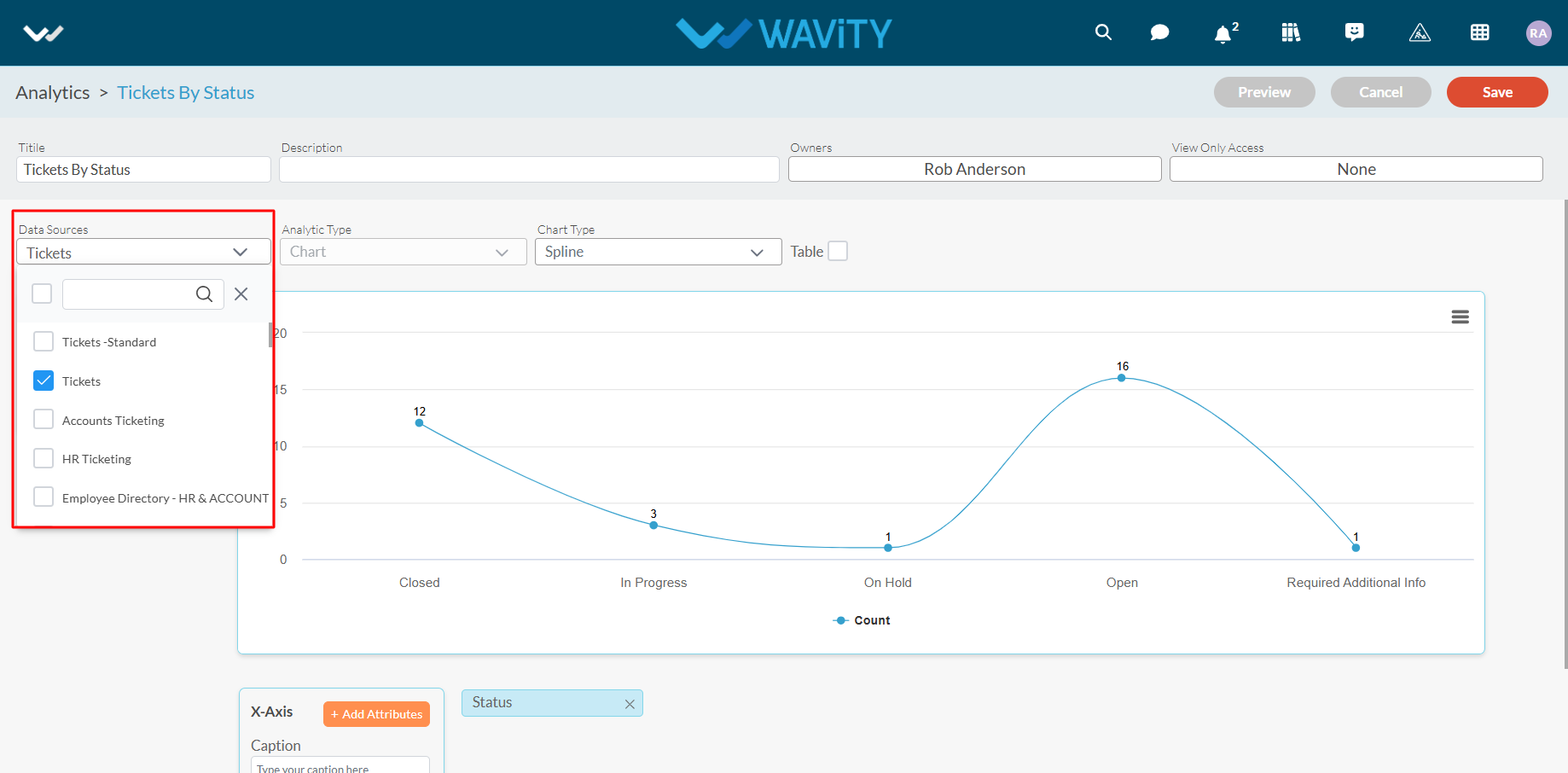
- You can also change the chart type if needed by selecting a different option from the dropdown, as shown below.
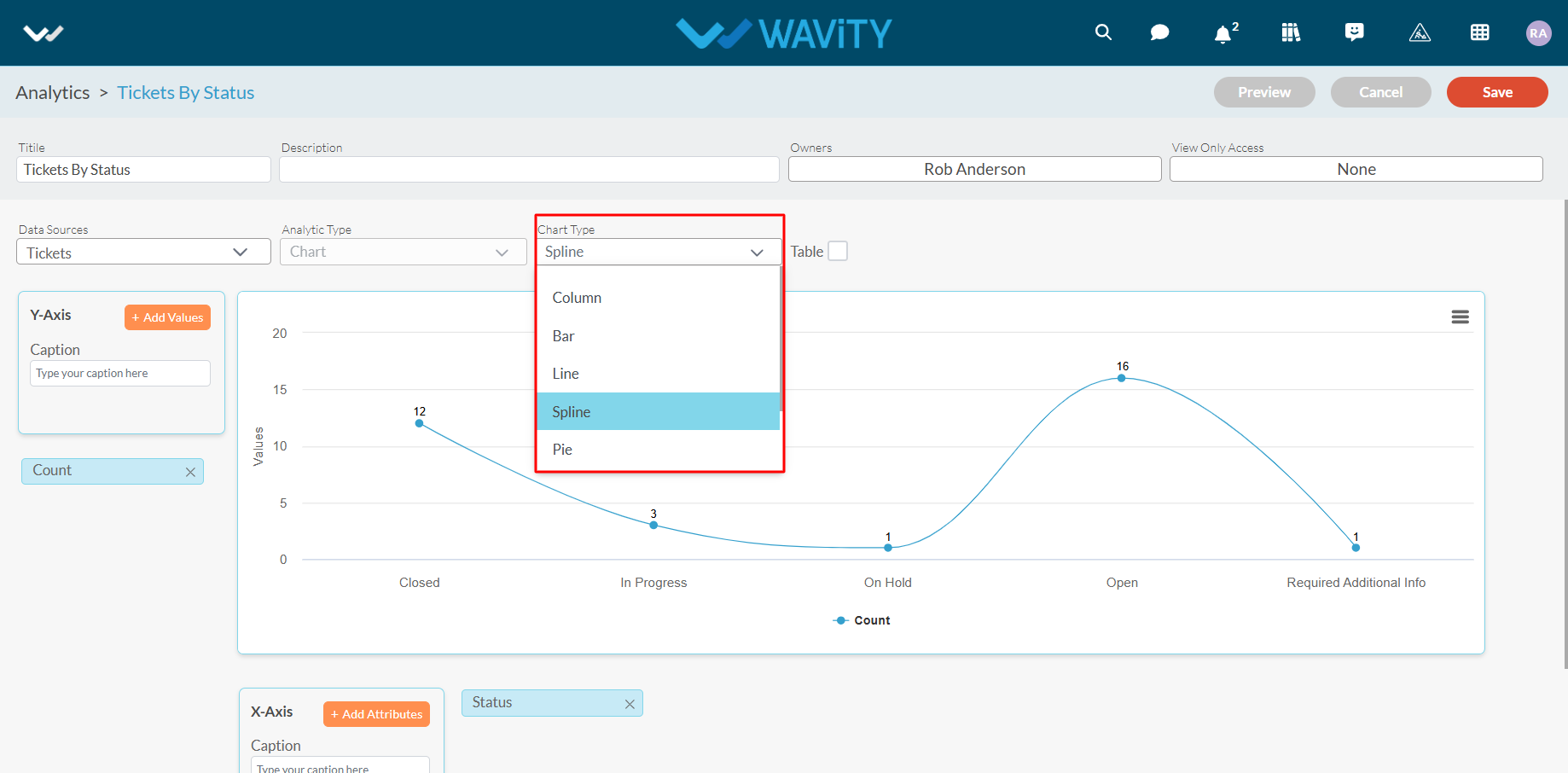
- Now, you can add more values and attributes based on your requirements. For more information on adding values and attributes, please refer to the following link: How To Create Analytics & Reports ? | Wavity
- Click the “Save” button to complete the process of editing the existing analytics.