Project Manager Guide: Task Creation Process
Project Manager Guide: Task Creation Process
- In the Wavity Project Portfolio Management Solution, Project Managers can easily create and assign tasks to other users.
- Users with Project Manager access can log in using their credentials and will be directed to the Project Manager Persona.
- Note: The steps provided serve as sample instructions and can be customized based on specific requirements; however, the core workflow will remain the same.
- Tasks can also be created from Quick Links by selecting Create Tasks.

- In the Assigned Projects table widget, select the project for which you want to create a task.
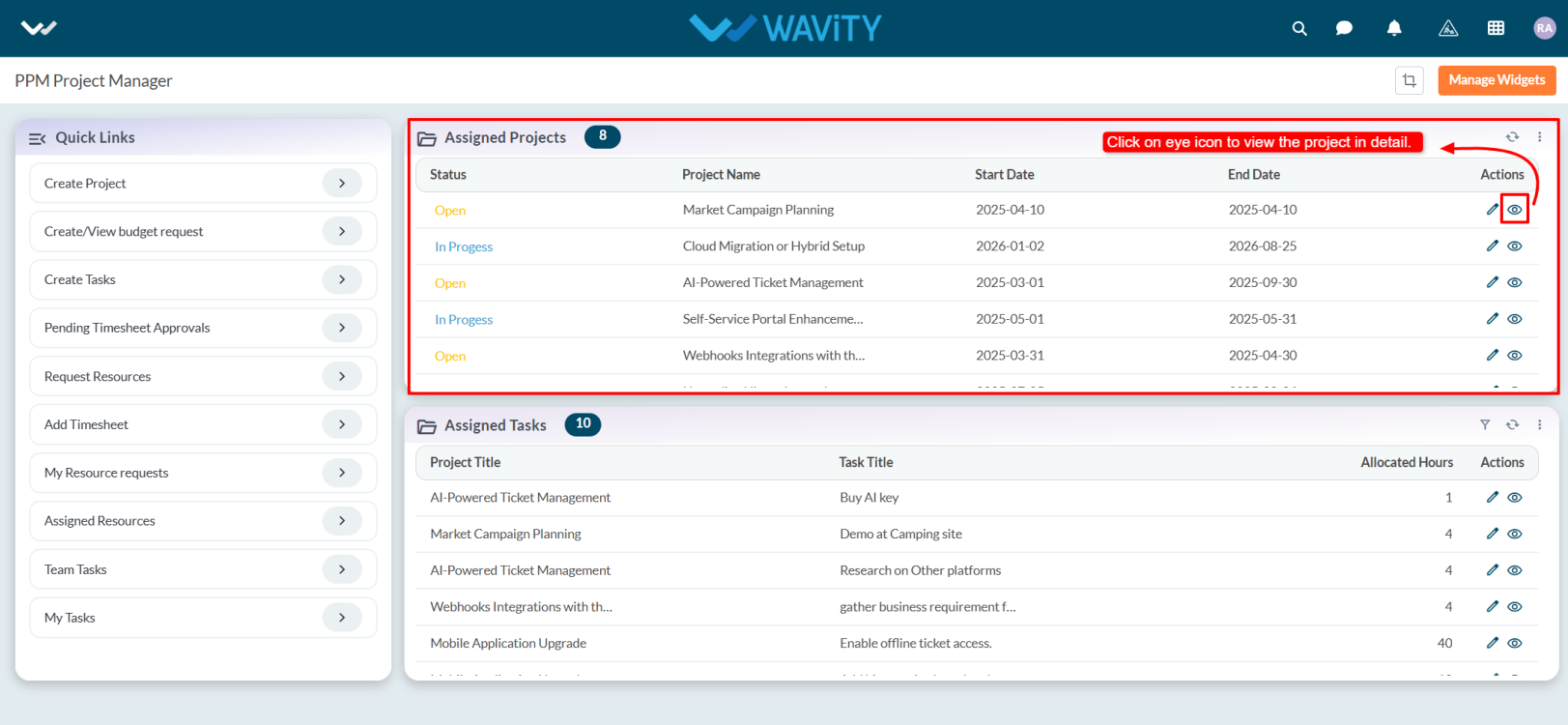
- Navigate to the Task tab. Under the Associated Tasks section, click the Create New Records icon.

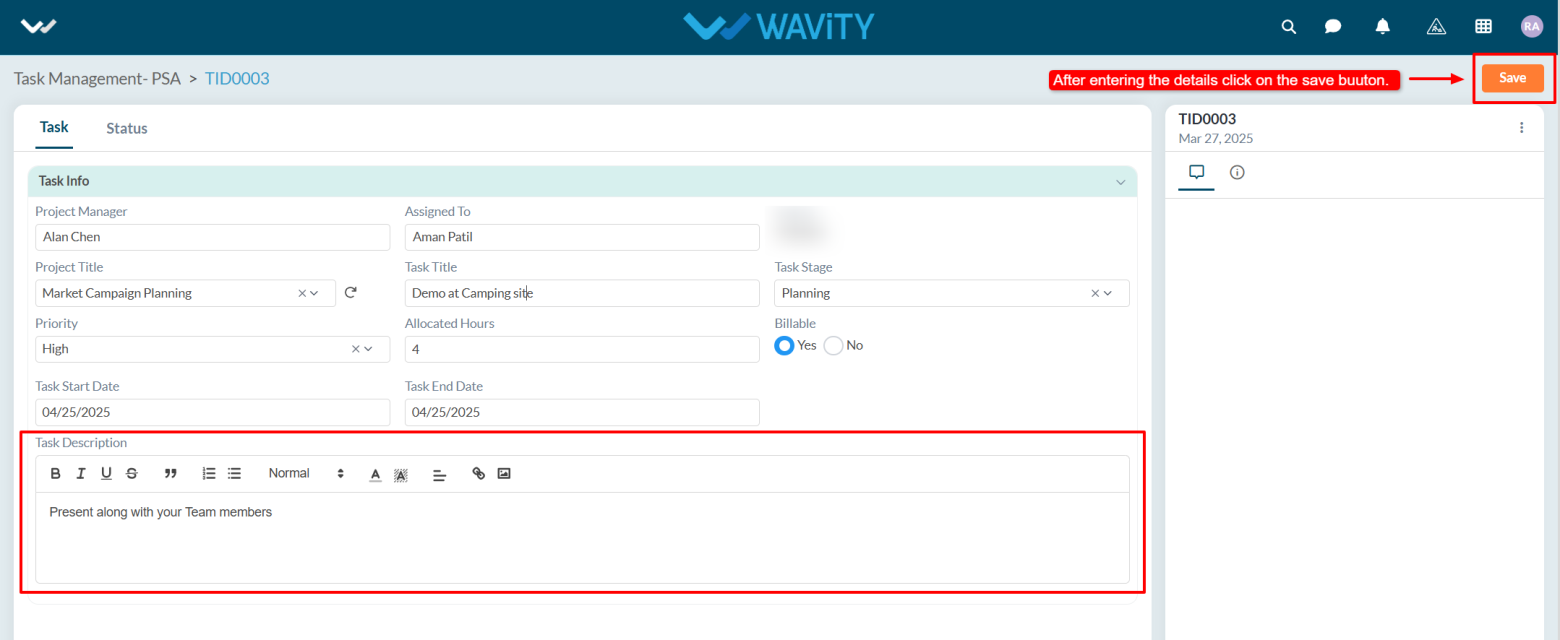
- In the Task tab under Task Info, the Project Manager field is automatically populated. In the Assigned To field, select the user you want to assign the task.
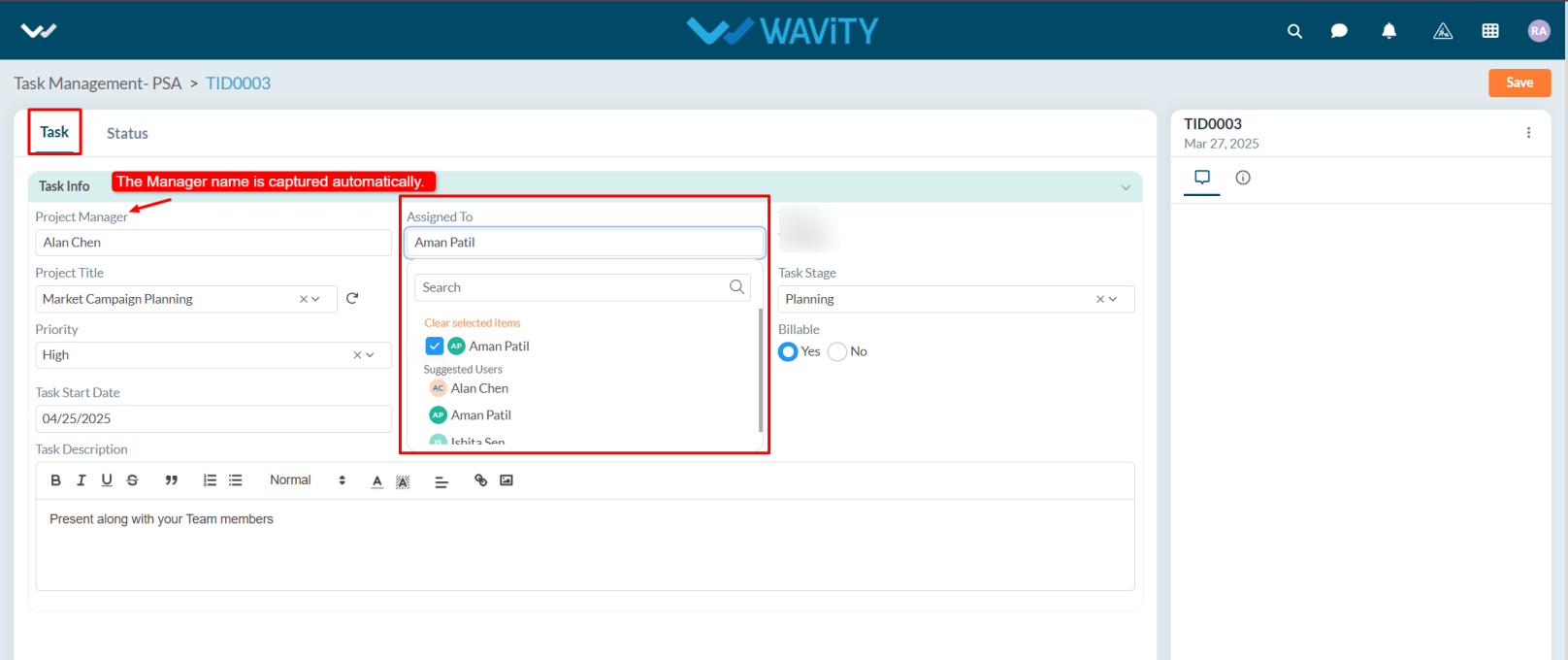
- The Project Title will be auto-filled. Enter the Task Title and choose the Task Stage from the dropdown.
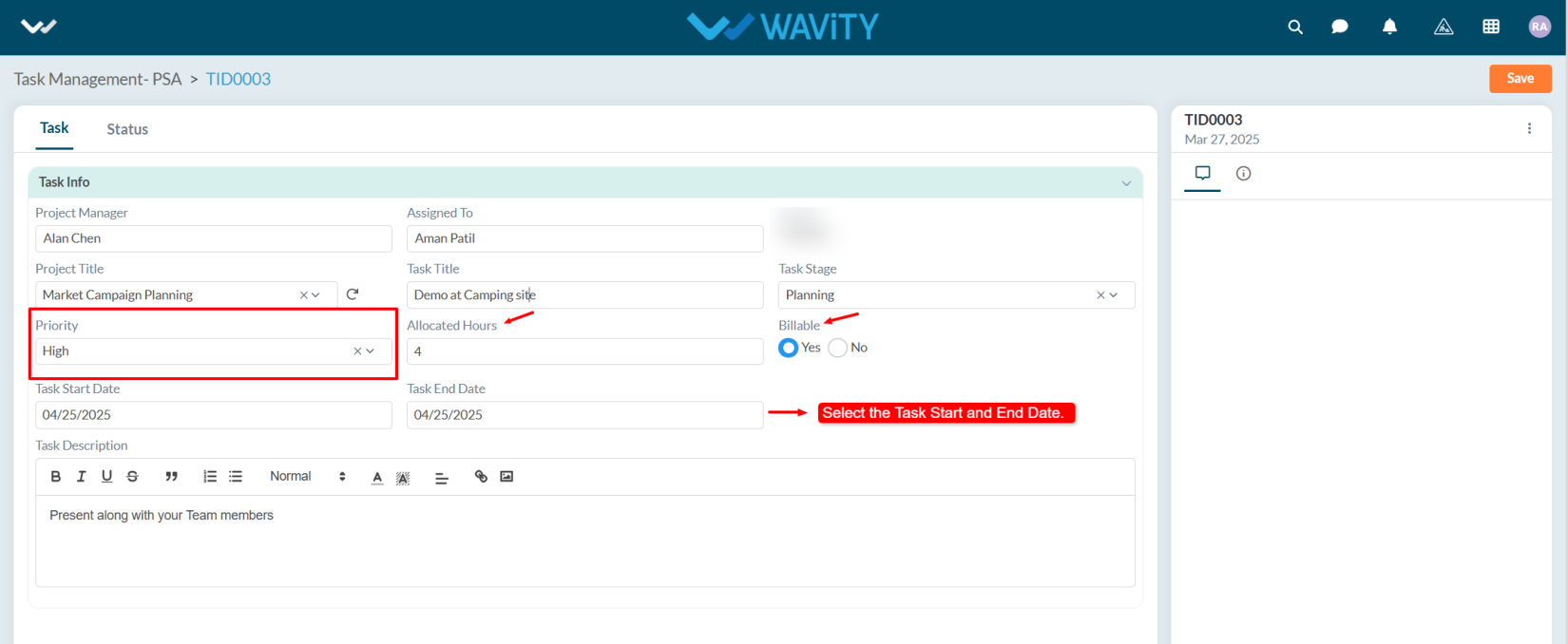
- Set the Priority, specify the Allocated Hours, and if billable, select Yes. Choose the Start Date and End Date for task completion.
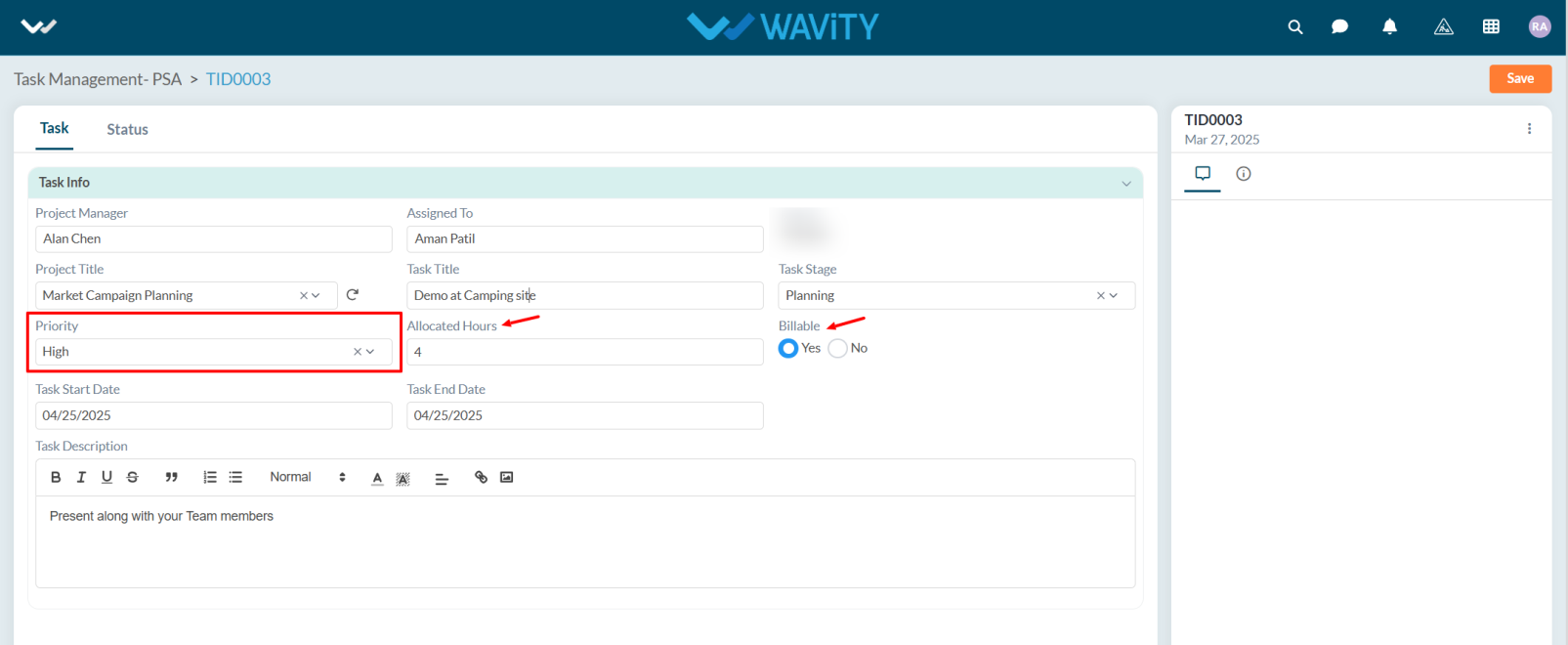
- If needed, add any relevant details in the Description box. Once all details are filled in, click the Save button to complete the task creation.
- Once a task is created, the assigned user will receive a notification and is responsible for working on the task and updating its Status accordingly.