Team Member Guide: Viewing and Managing Assigned Tasks
In Wavity Project Management Solution, Viewing and managing assigned tasks as a Team Member is a straightforward process.
Team Member can view the tasks assigned to them by the Project Manager.
Note: The steps provided serve as sample instructions and can be customized based on specific requirements; however, the core workflow will remain the same.
Users with Team Member access can log in using their credentials and will land on the Team Member Persona.
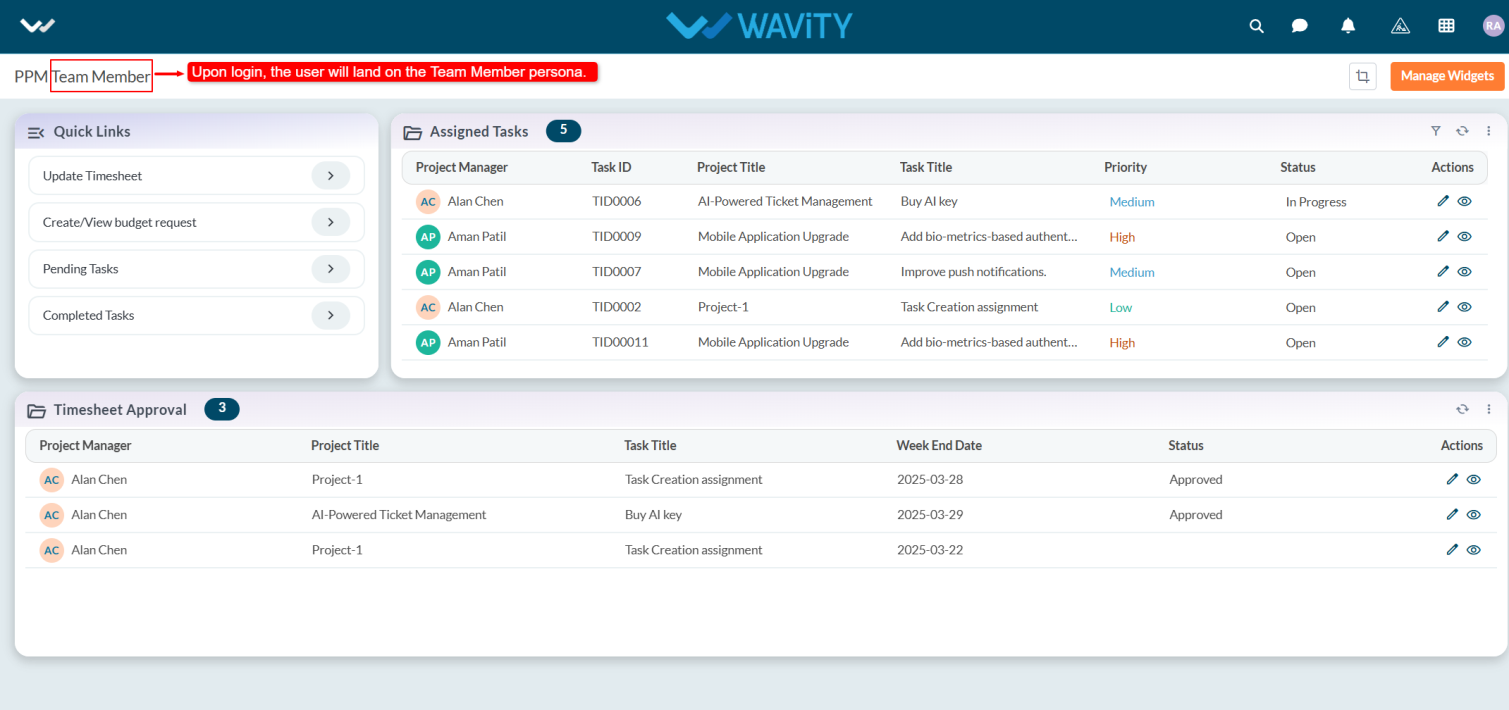
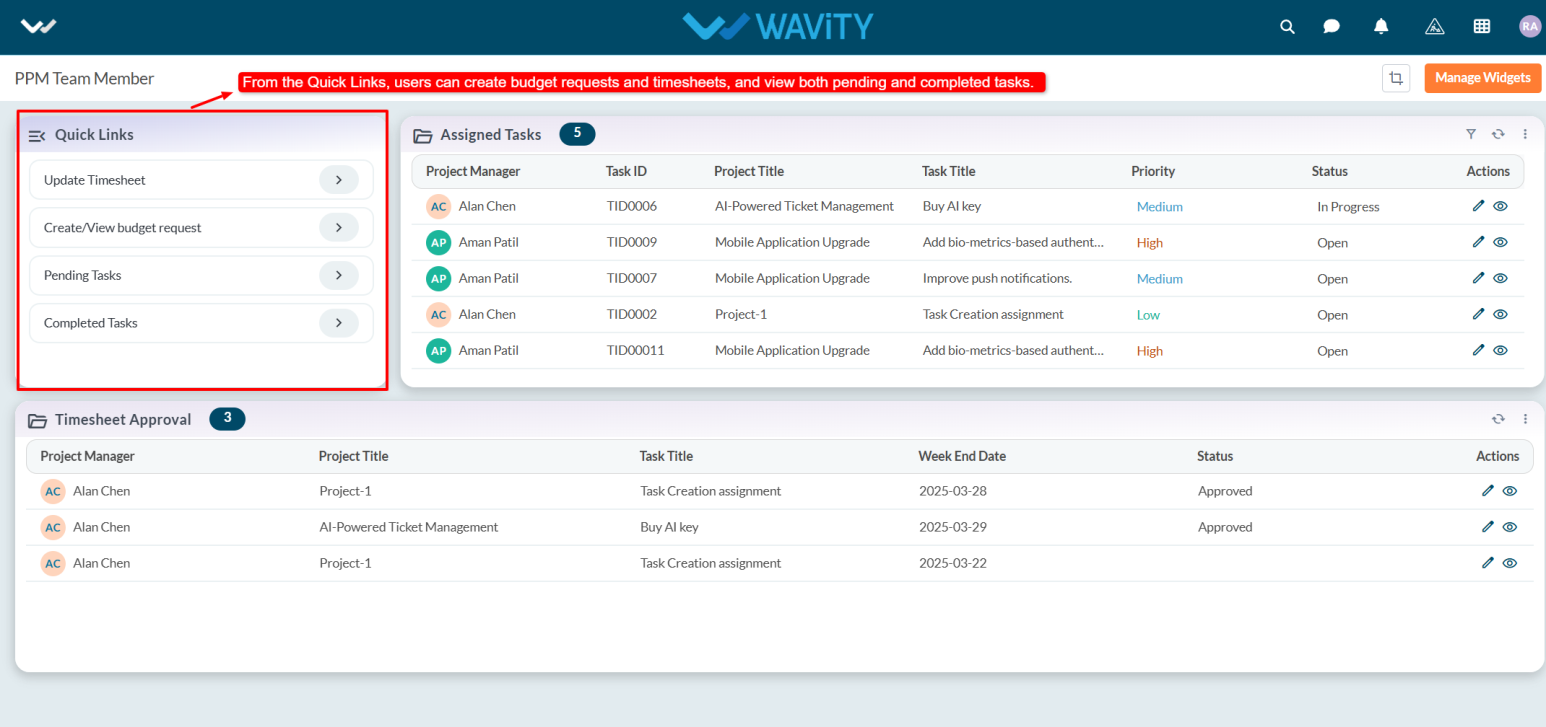
In the Quick Links, users can create or update their timesheet, create or view the budget, and view both pending and completed tasks.
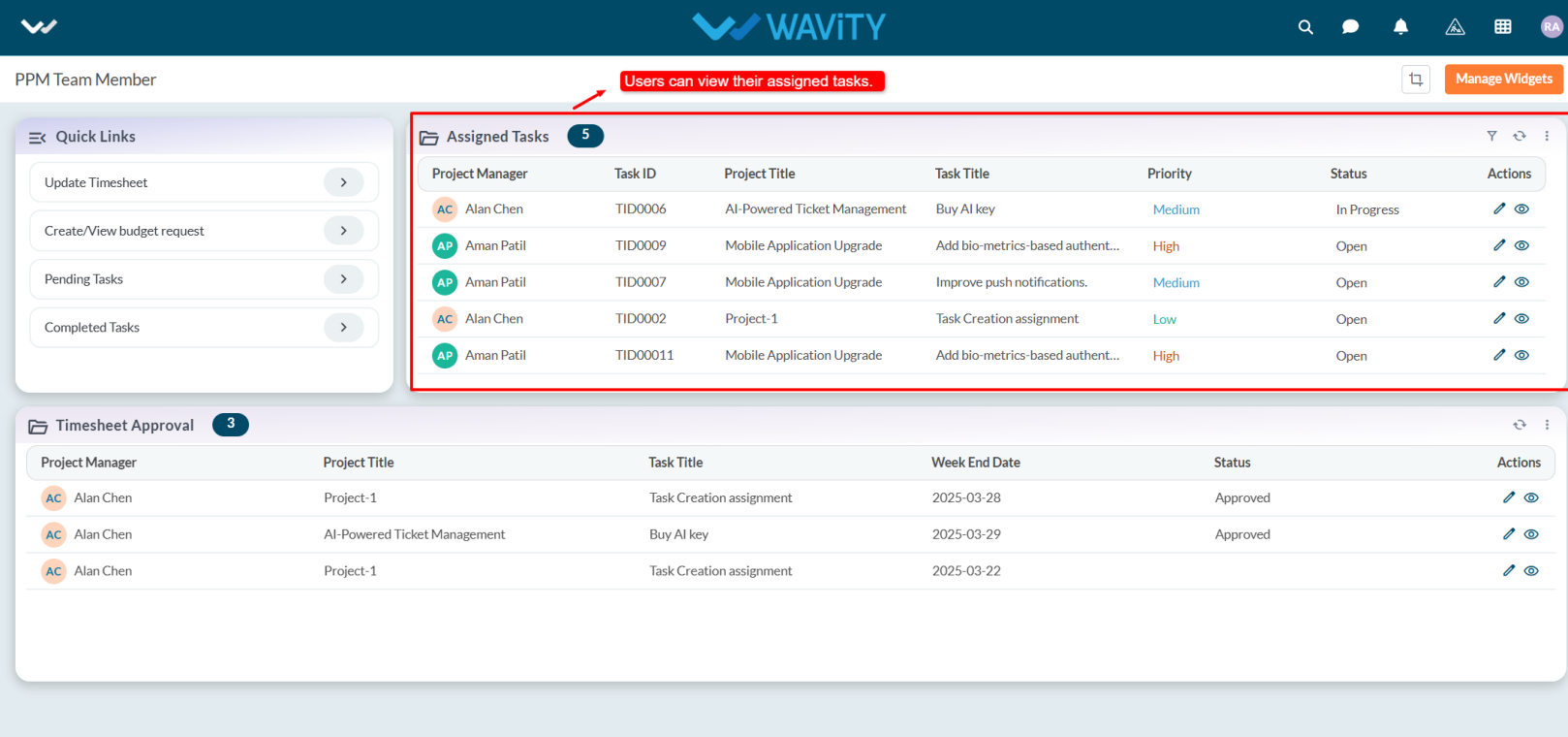
In the Assigned Task table widget, users can see all tasks assigned to them.
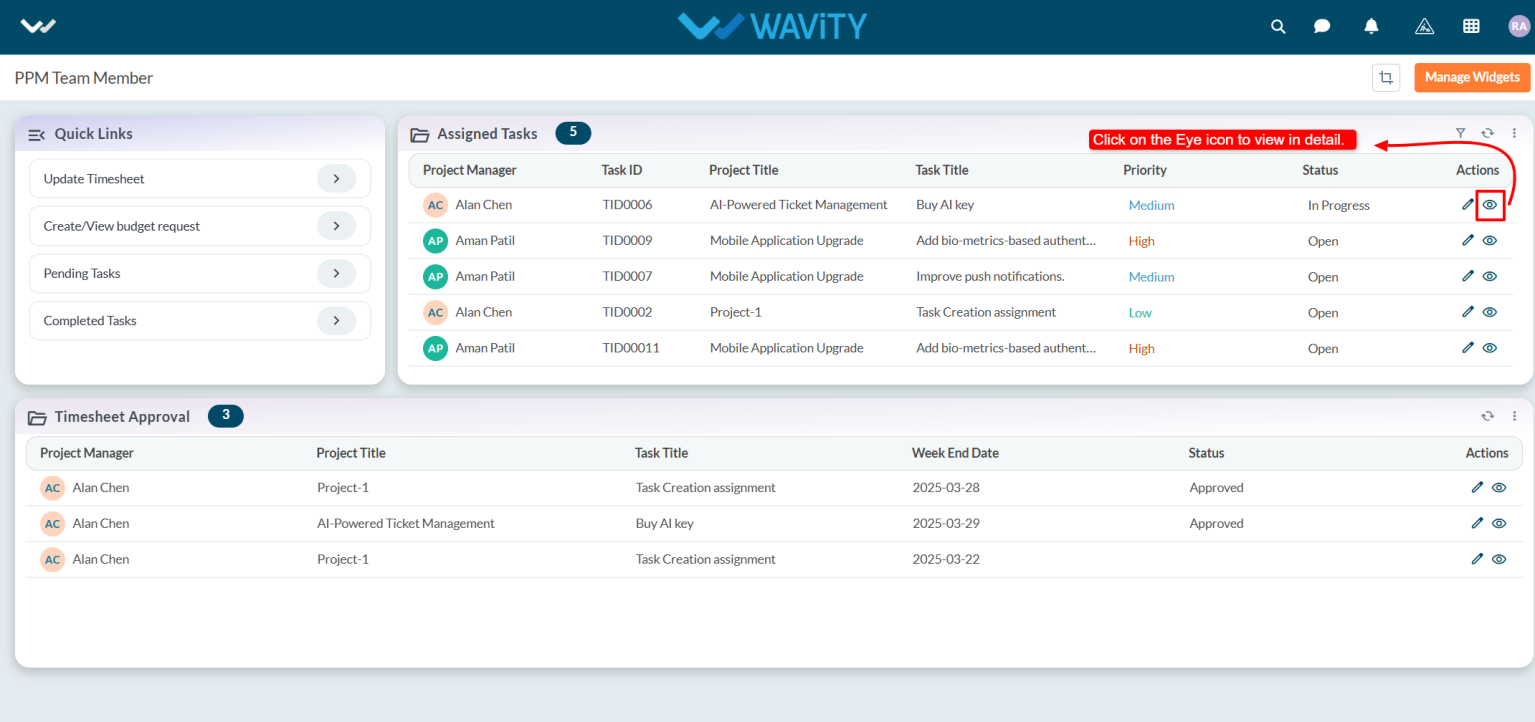
Select any task from the list to view or update its details.
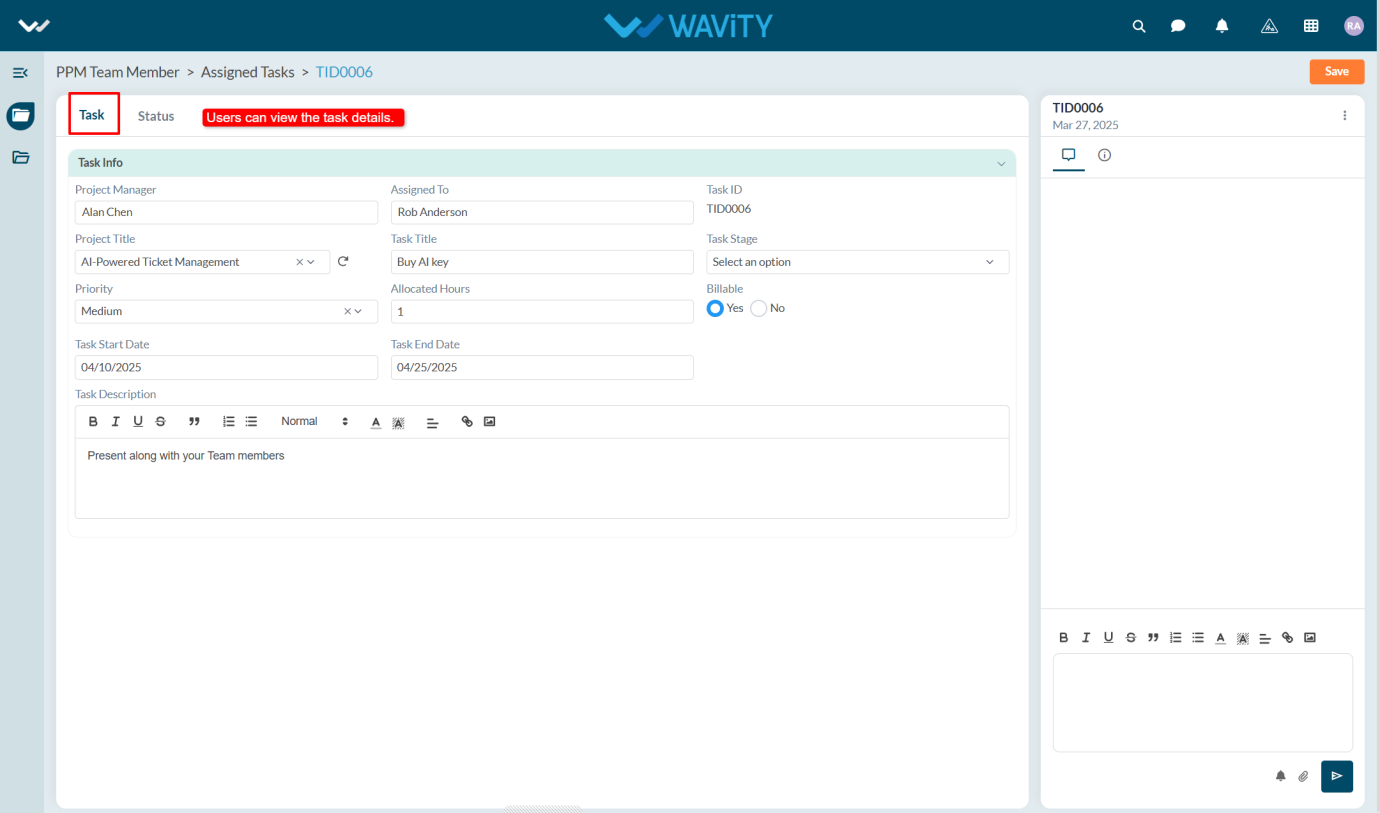
In the Task tab, under the Task Info section, users can view complete task details.
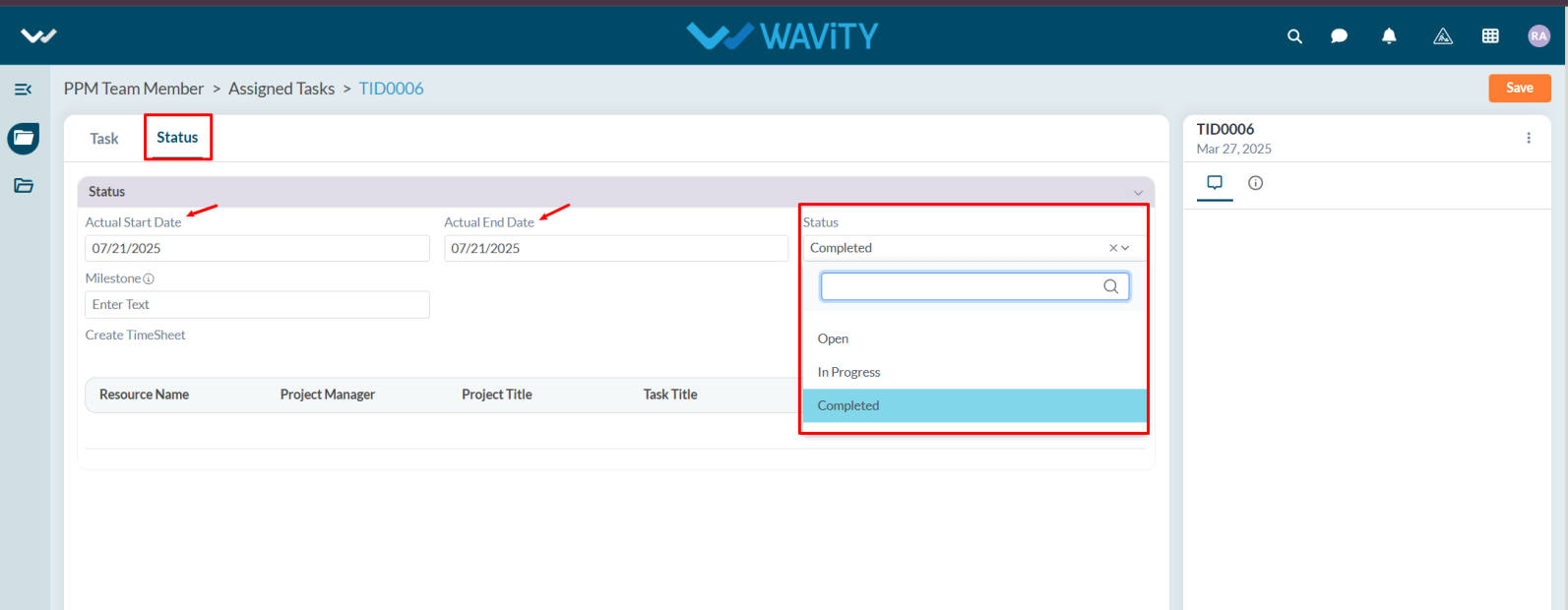
Under the Status section, users need to enter the Start and End Date of the task. Once the task is completed, they must update the status to Completed.
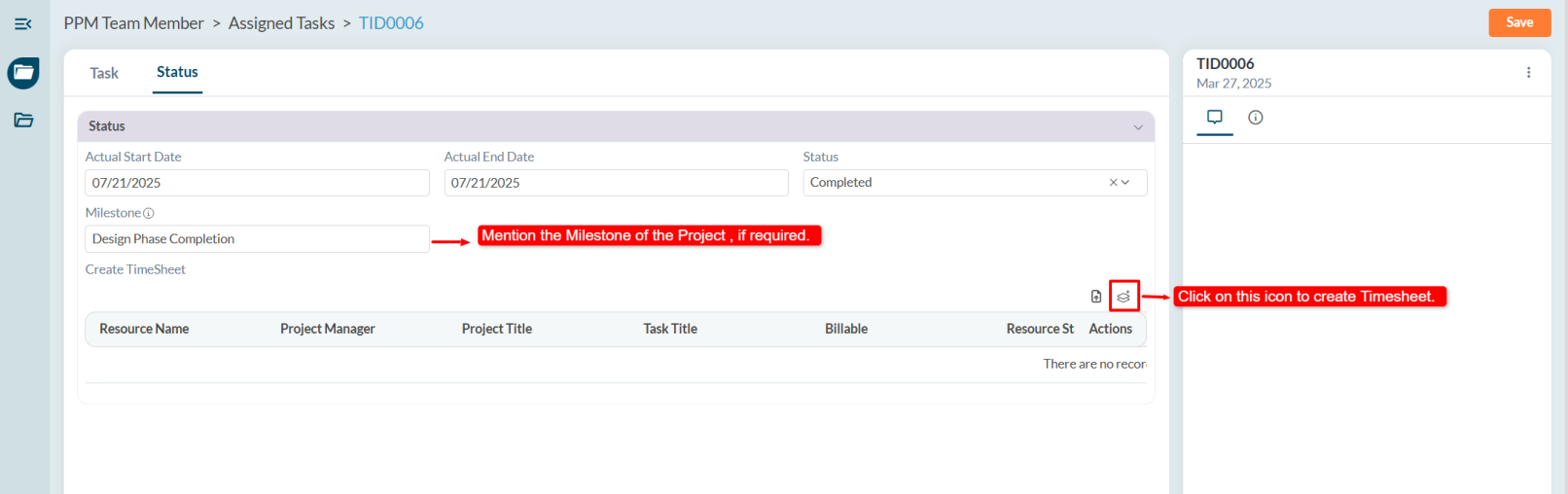
Mention the Milestone of the project. A milestone represents a key achievement or a sequence of important events leading to project completion. Users can create the timesheet by clicking the Create New Record icon.
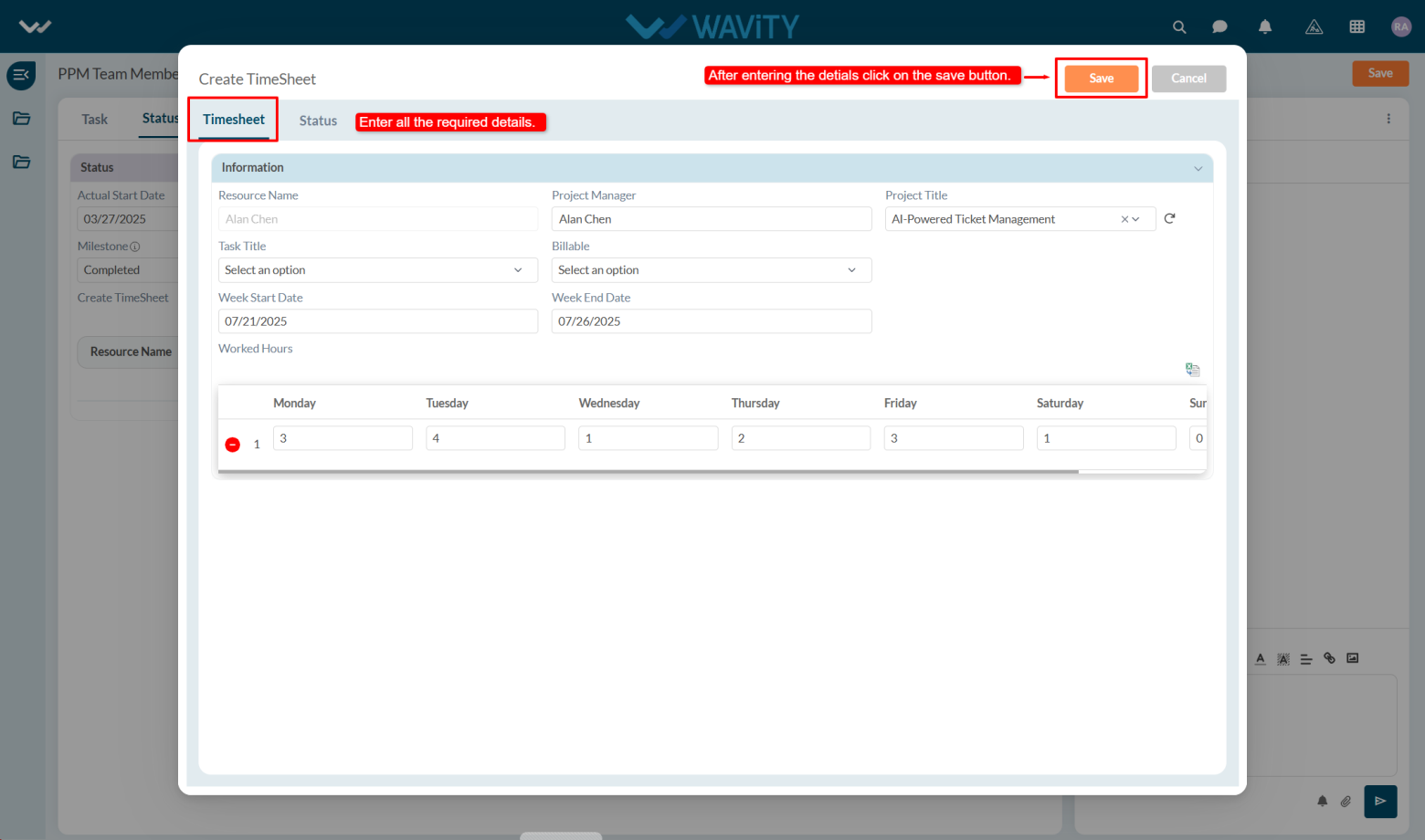
In the timesheet, enter all the required details and click the Save button to complete the entry.
Team Member Guide: Viewing and Managing Assigned Tasks
In Wavity Project Management Solution, Viewing and managing assigned tasks as a Team Member is a straightforward process.
Team Member can view the tasks assigned to them by the Project Manager.
Note: The steps provided serve as sample instructions and can be customized based on specific requirements; however, the core workflow will remain the same.
Users with Team Member access can log in using their credentials and will land on the Team Member Persona.
In the Quick Links, users can create or update their timesheet, create or view the budget, and view both pending and completed tasks.
In the Assigned Task table widget, users can see all tasks assigned to them.
Select any task from the list to view or update its details.
In the Task tab, under the Task Info section, users can view complete task details.
Under the Status section, users need to enter the Start and End Date of the task. Once the task is completed, they must update the status to Completed.
Mention the Milestone of the project. A milestone represents a key achievement or a sequence of important events leading to project completion. Users can create the timesheet by clicking the Create New Record icon.
In the timesheet, enter all the required details and click the Save button to complete the entry.
Leave you comment...
Thank you! Your submission has been received!
Oops! Something went wrong while submitting the form.
Leave you comment...