Team Member Guide: Updating Timesheet
Team Member Guide: Updating Timesheet
- Team Members can update their timesheets based on their assigned tasks.
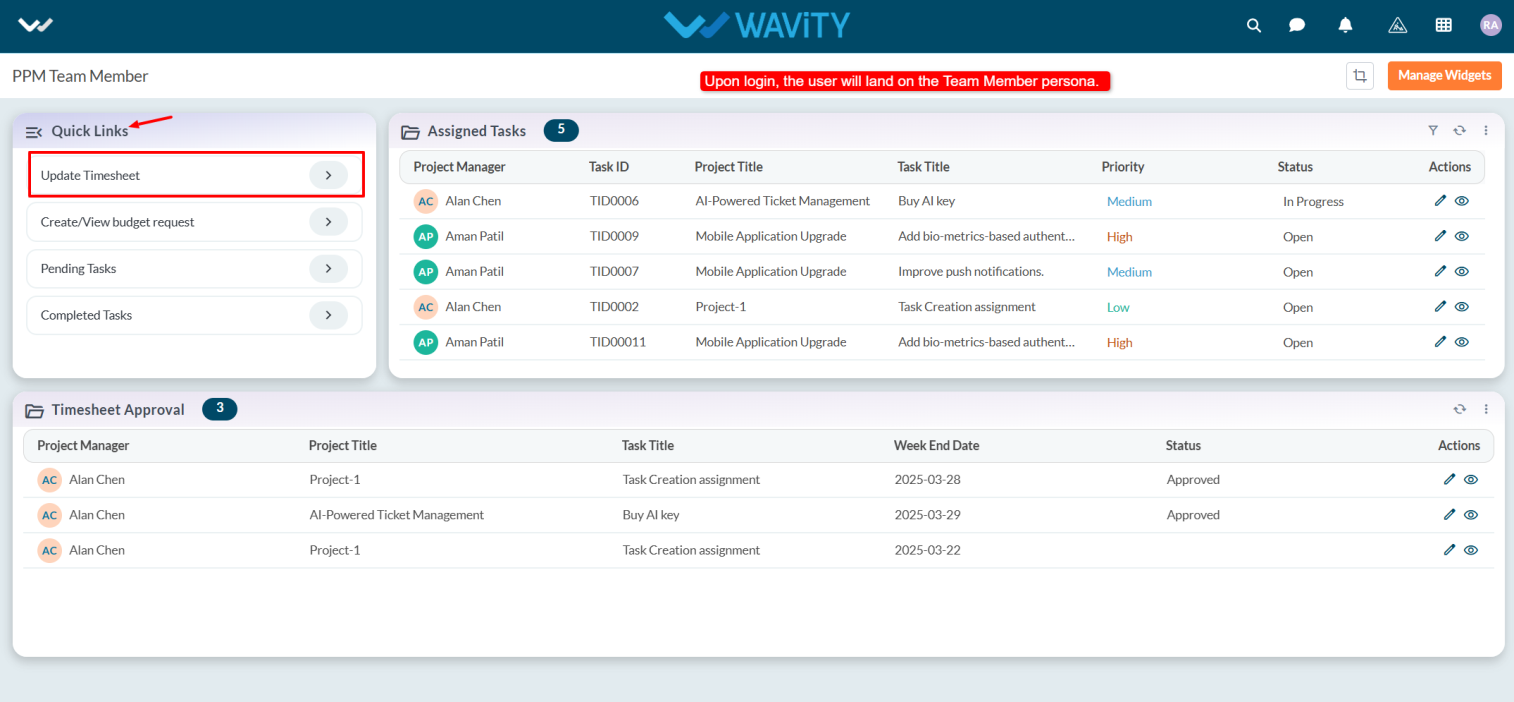
- Users with Team Member access can log in using their credentials and will be directed to the Team Member Persona.
- Note: The steps provided serve as sample instructions and can be customized based on specific requirements; however, the core workflow will remain the same.
- From the Quick Links, select Update Timesheet.
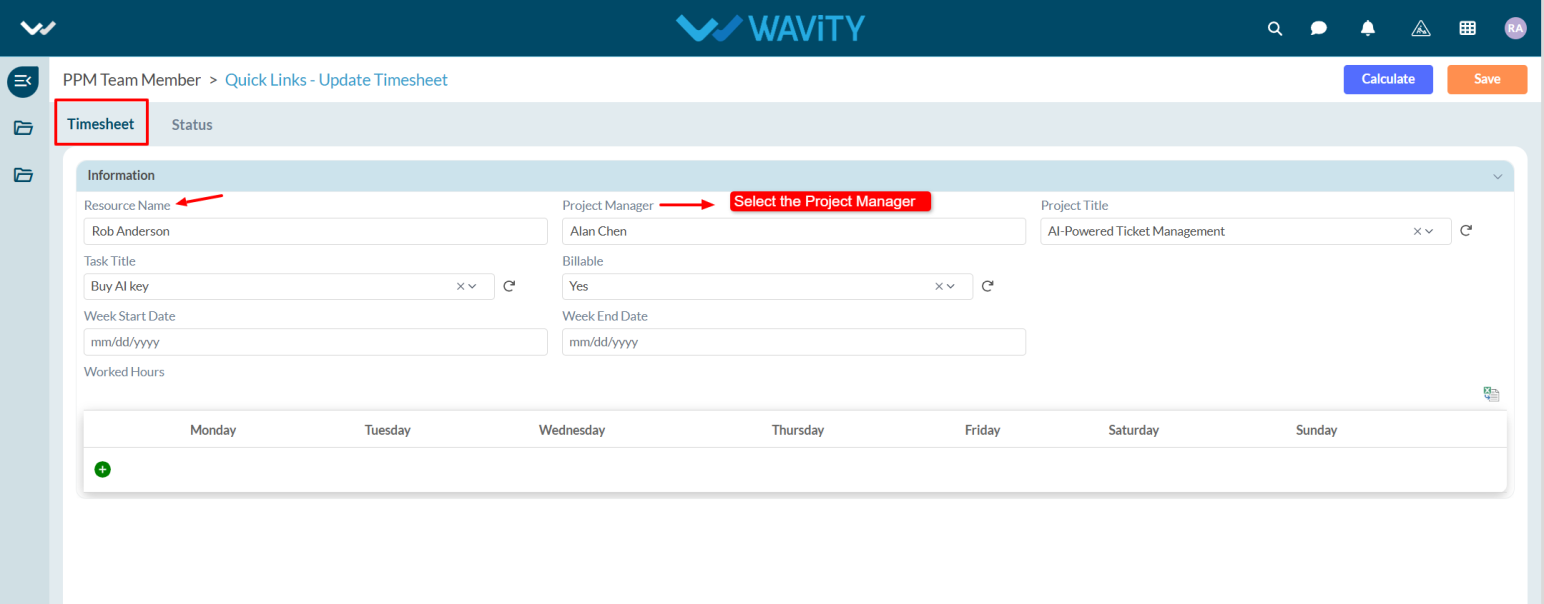
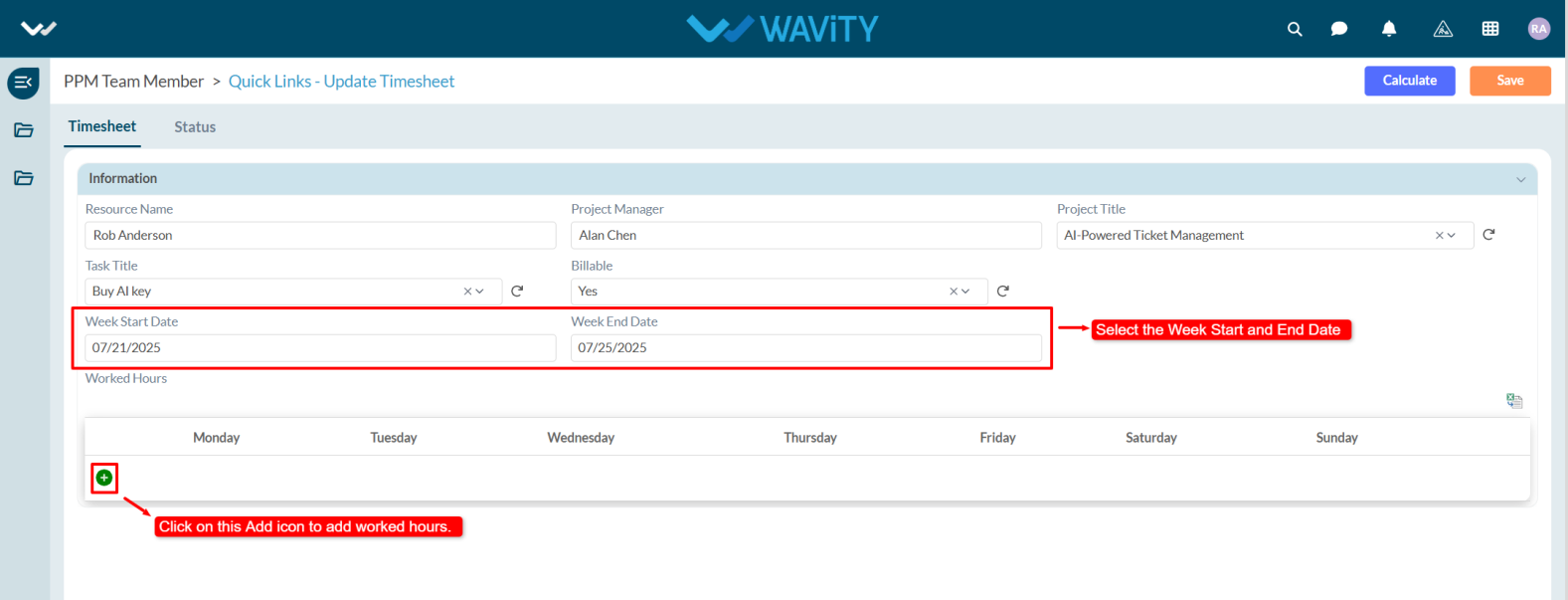
- In the Timesheet tab, under the Information section, the system will automatically capture the Requester Name. The user must select the Project Manager.
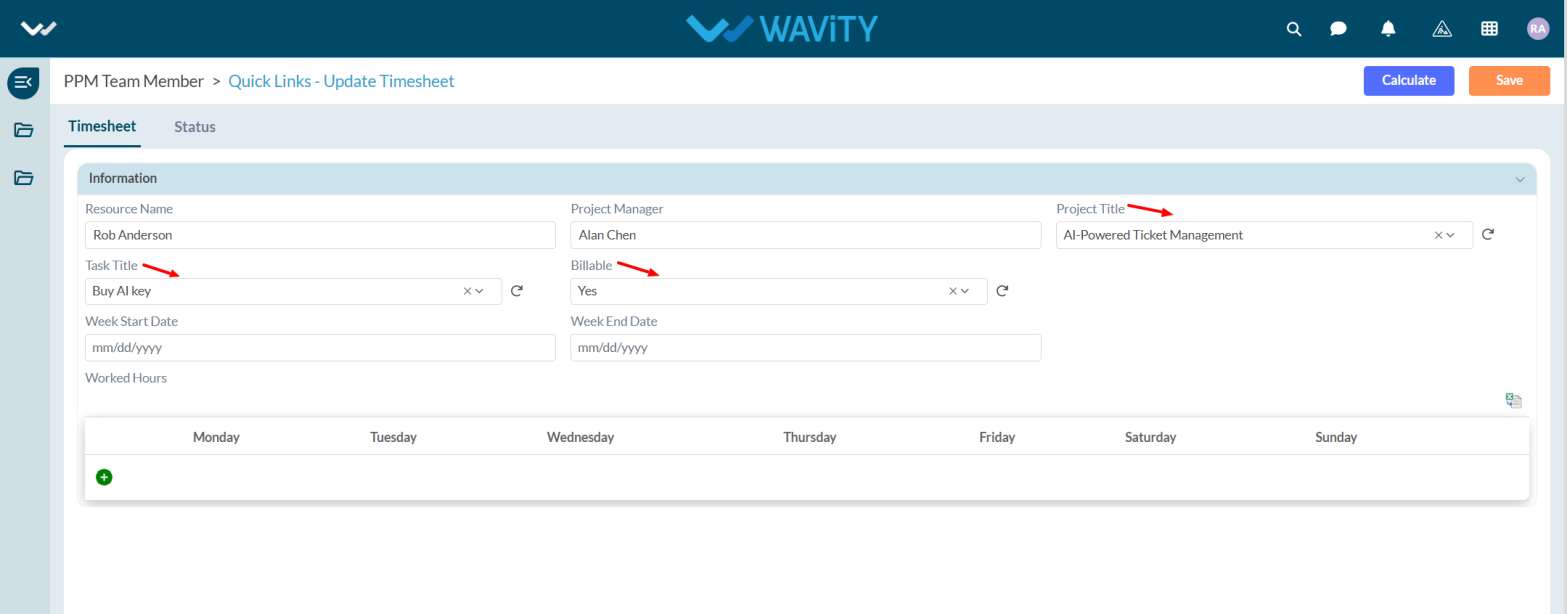
- Based on the selected Project Manager, the Project Title, Task Title, and Billable fields will populate automatically.
- If the Project Manager assigns multiple tasks, user needs to select the Project Title from the dropdown.
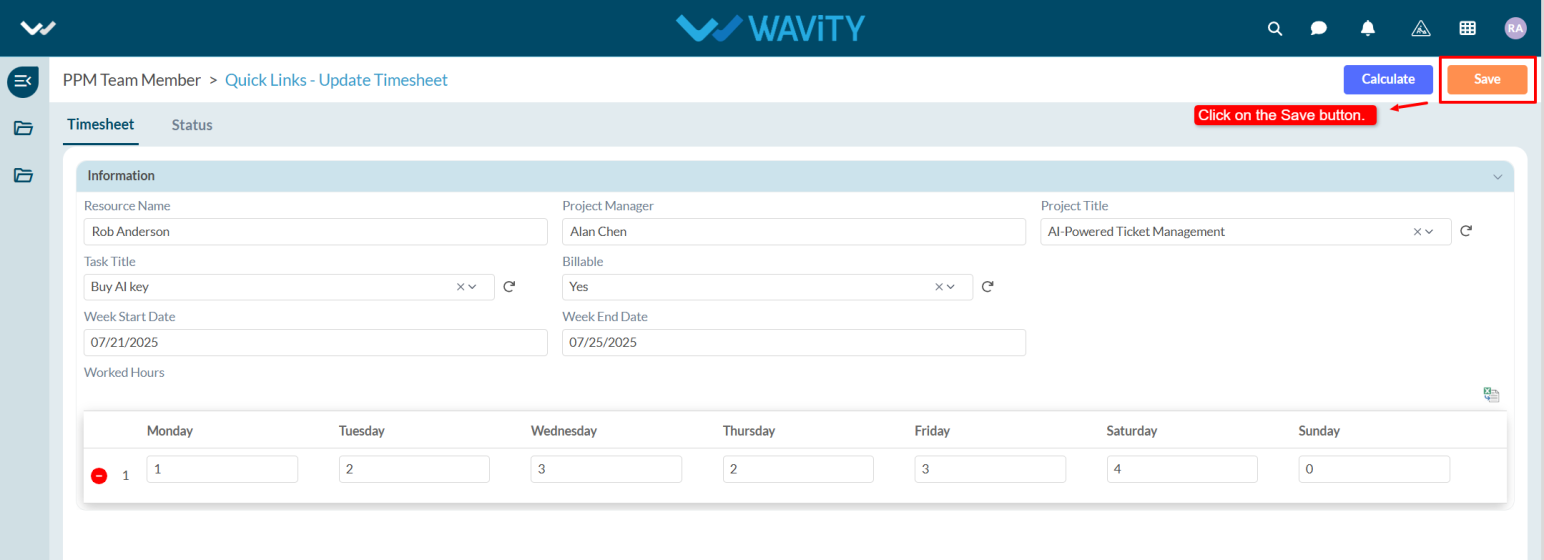
- Enter the Week Start Date and End Date. Add the Work Hours by clicking the Add icon
- Click the Save button to complete the entry.