Project Manager Guide: Viewing Team Tasks
Project Manager Guide: Viewing Team Tasks
- In the Wavity PPM Module, Project Managers can conveniently view Team Tasks assigned to team members across multiple projects.
- This feature enables Project Managers to monitor team responsibilities, track task progress, and manage workloads more effectively.
- Note: These instructions serve as a general guide and can be tailored to your organization’s specific setup. However, the core steps remain consistent.
- Project Managers can log in using their credentials and will be redirected to the Project Manager Interface.
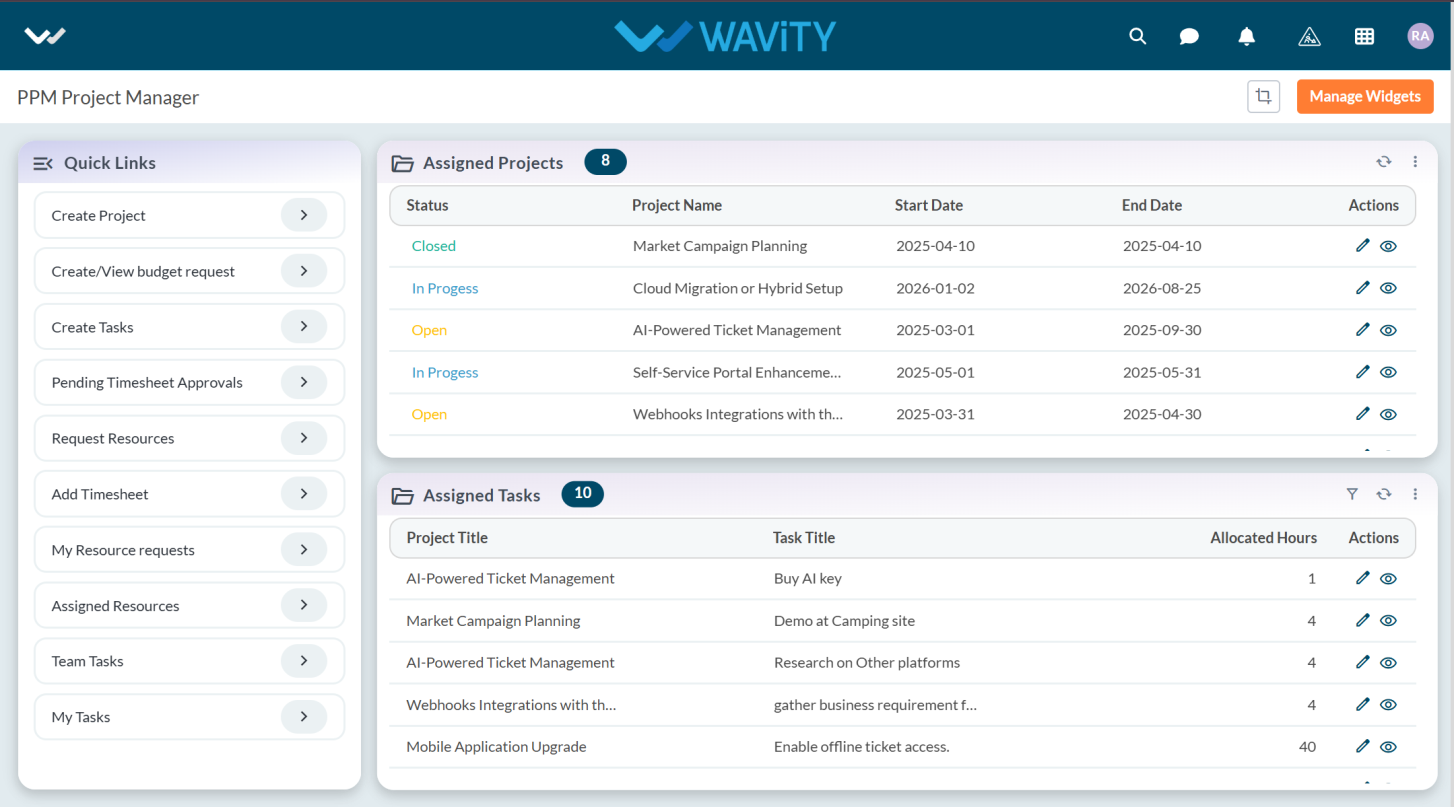
- To view Team Tasks, navigate to the "Team Tasks" under Quick Links on the left-hand panel.
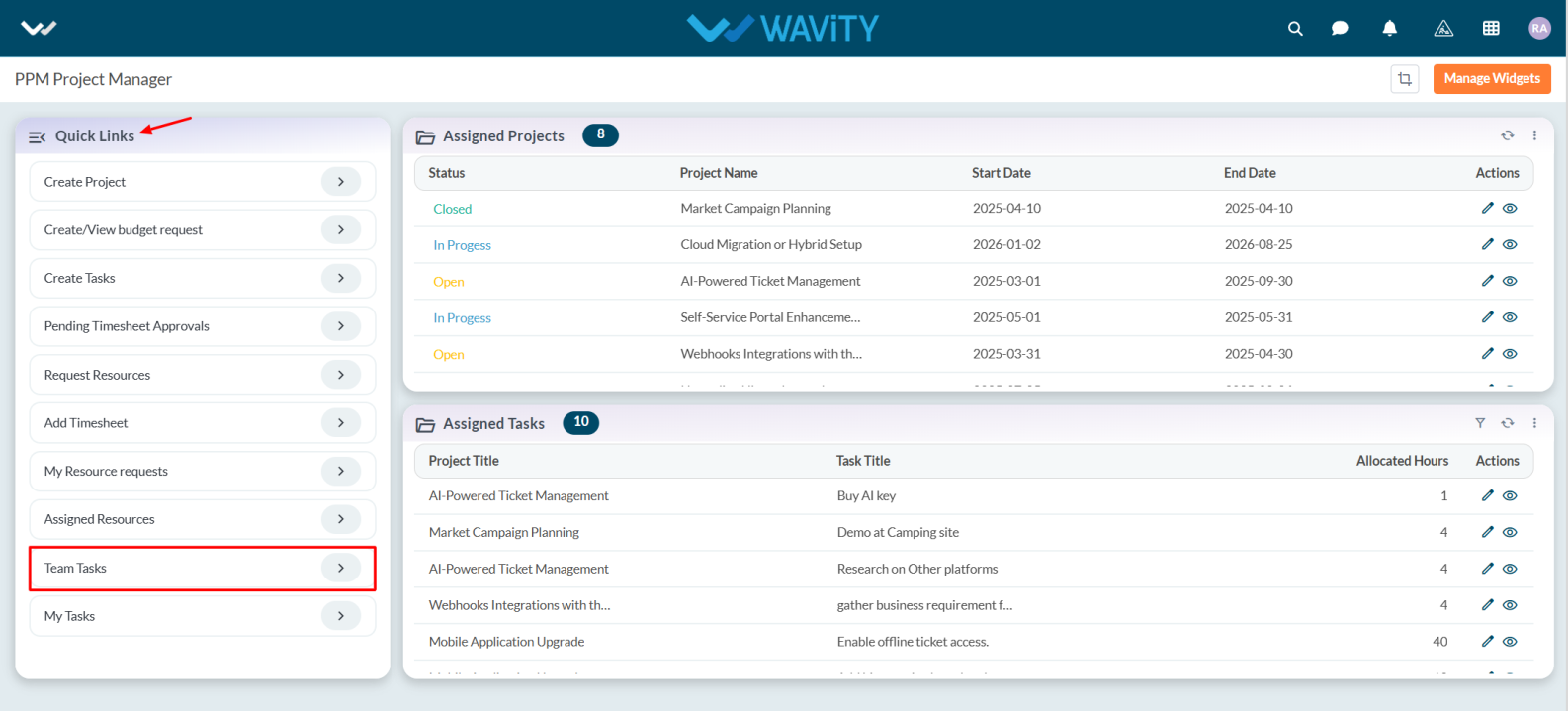
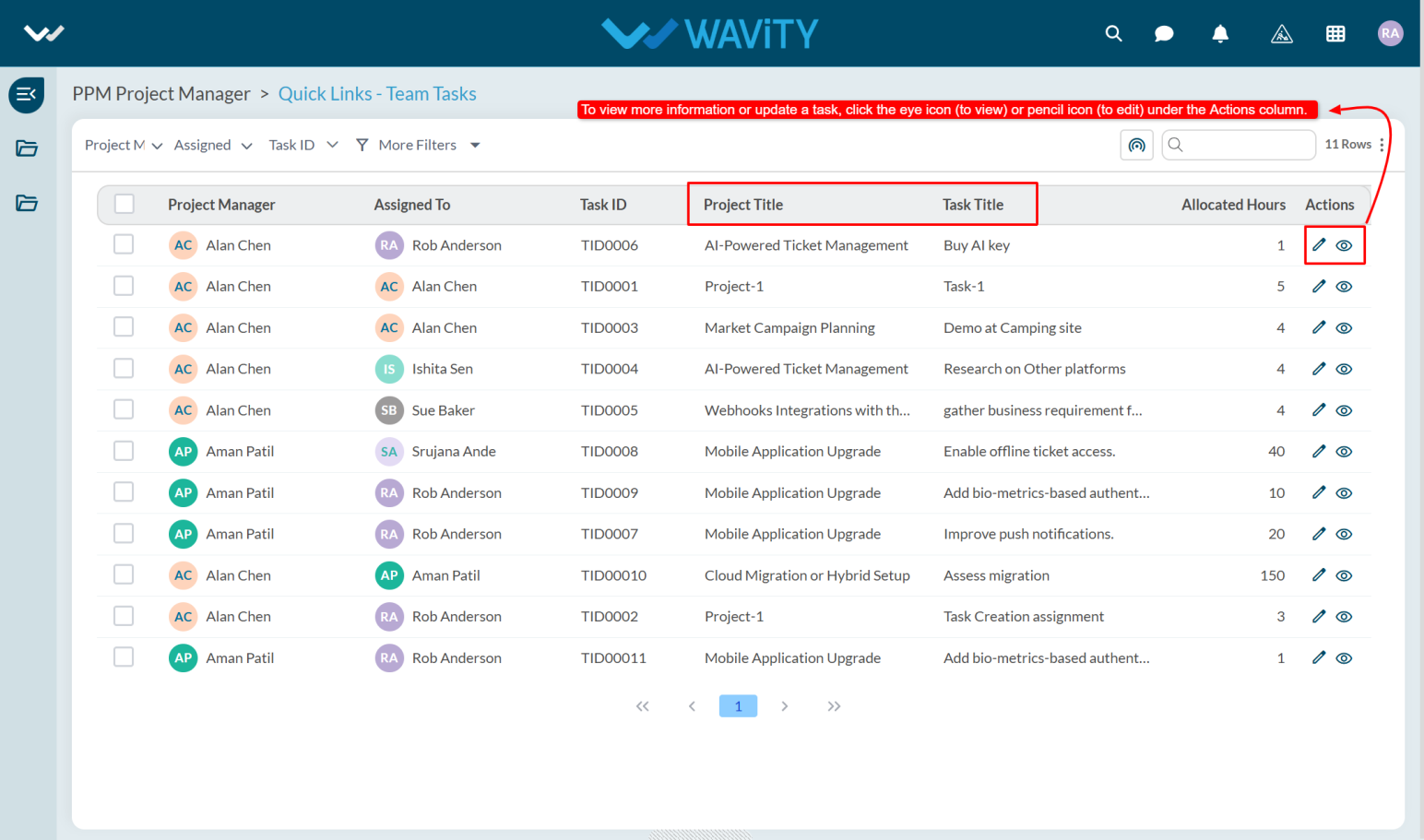
- The Team Tasks displays a list of all tasks assigned by the Project Manager to their team member. Each task entry includes the following details:
- Project Title – The project to which the task is linked.
- Task Title – The description or objective of the task.
- Allocated Hours – The number of hours allotted to complete the task.
- To view more information or update a task, click the eye icon (to view) or pencil icon (to edit) under the Actions column.
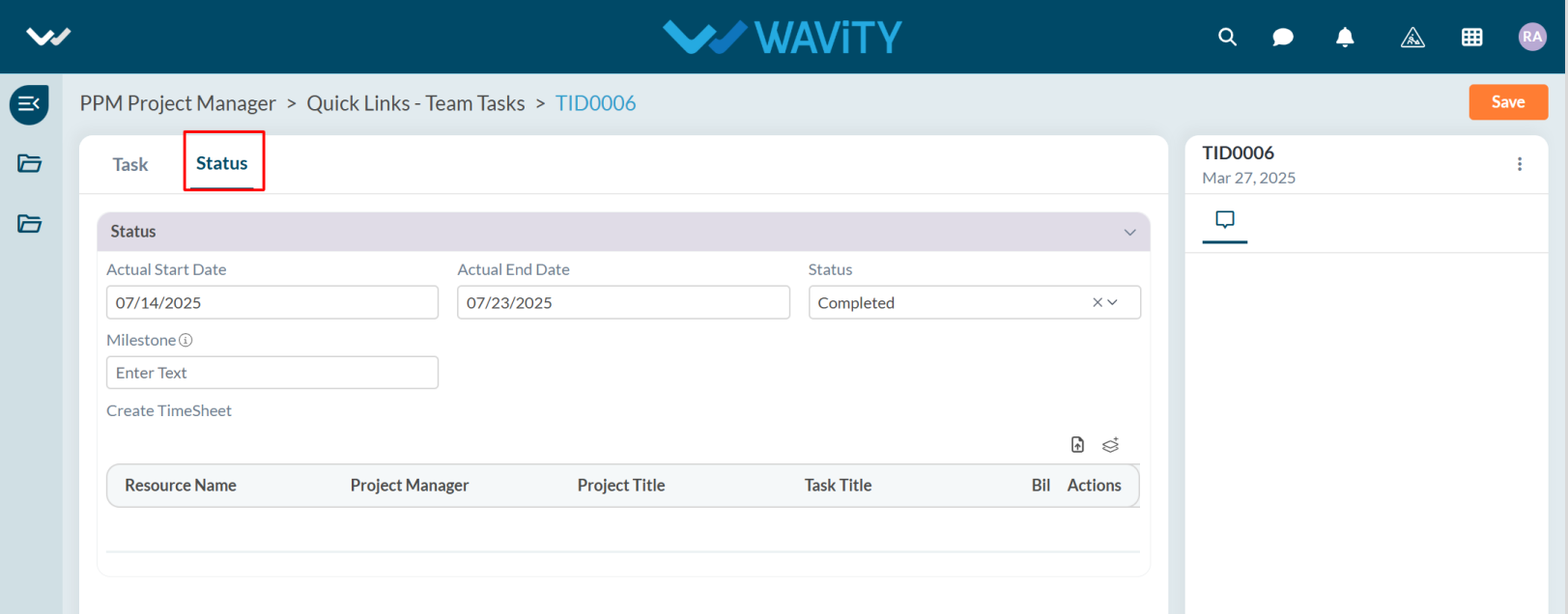
- The user can view Team Task details by clicking on the eye icon under the Actions column.

- Under Status tab user can view the Task Status, Start Date, and End Date.
- This view helps Project Managers maintain visibility over task assignments, prioritize team activities, and ensure timely project delivery.