Portfolio Manager Guide - Assigning a Project Manager
Portfolio Manager Guide - Assigning a Project Manager
- In the Wavity PPM Module, assigning a Project Manager to a project is a simple and user-friendly process.
- Only users with Portfolio Manager access can assign a Project Manager.
- Upon logging in with their credentials, users will be directed to the Portfolio Manager Interface.
- Portfolio Managers can track project statuses via Quick Links, view active projects in the Active Projects table widget, and monitor all pending projects in Final Release Project(s) table widget.
- Note: The steps outlined below are sample instructions and can be adapted based on specific requirements; however, the core workflow remains unchanged.
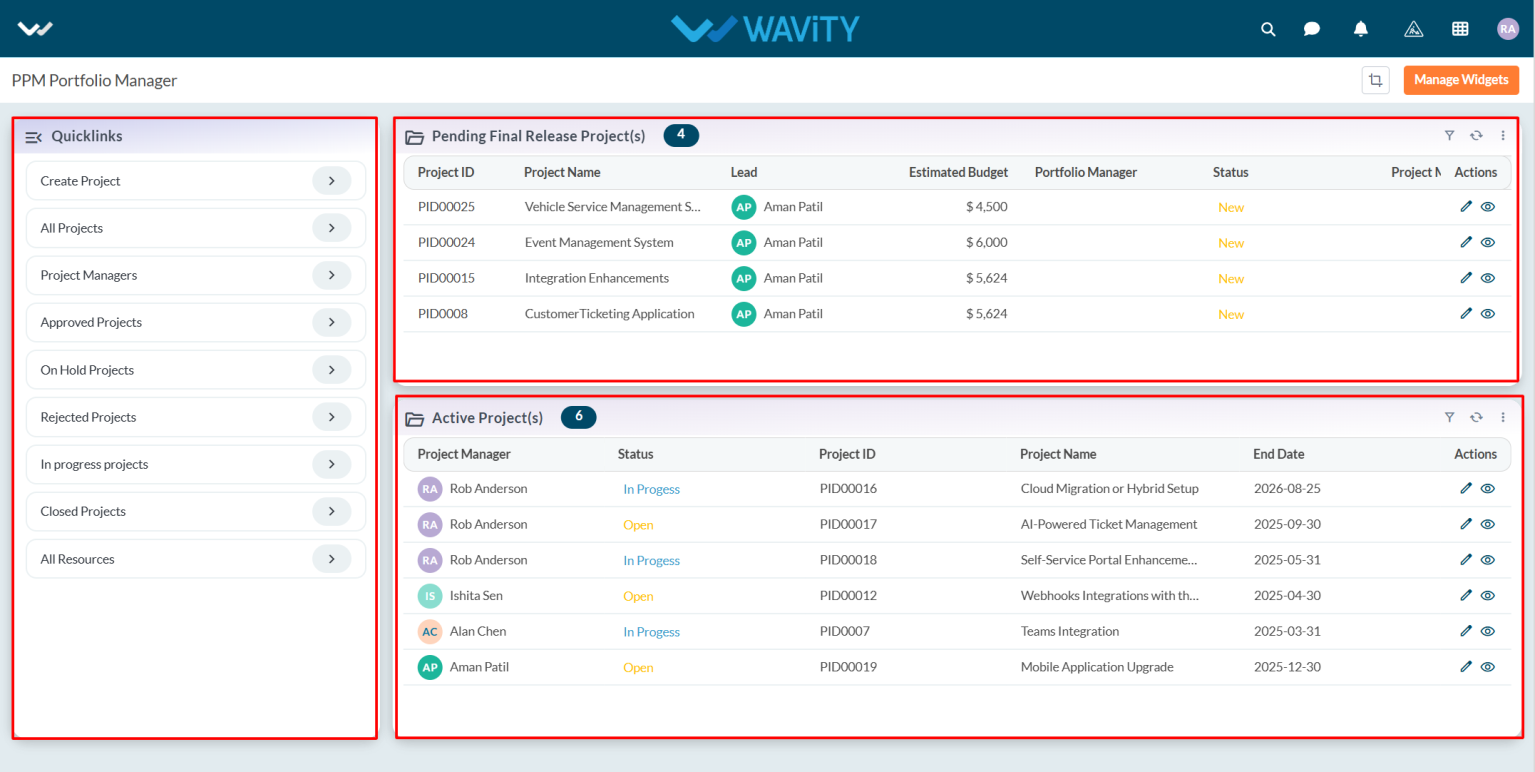
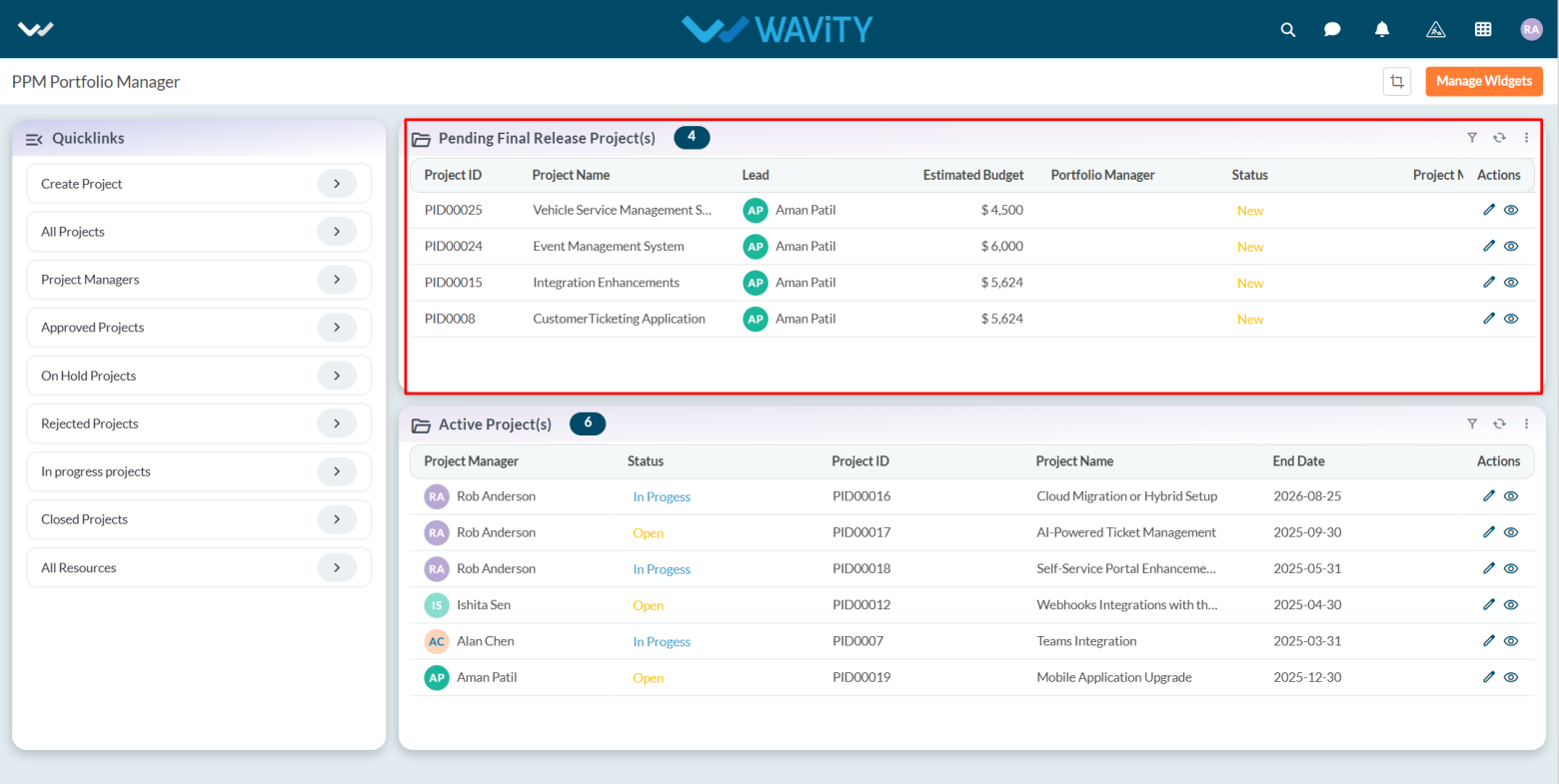
- To assign a Project Manager, select a project listed under Pending Final Release Project(s).
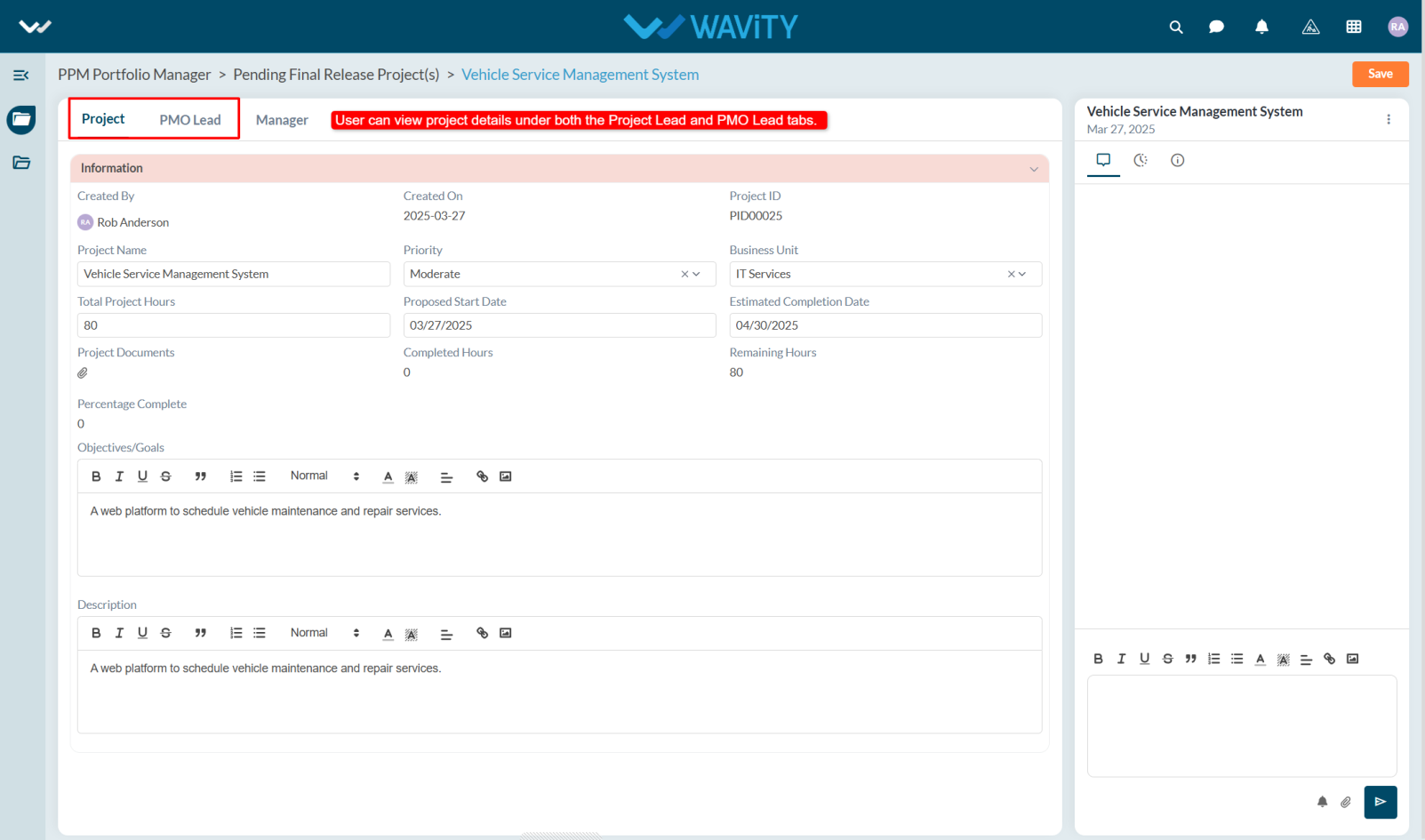
- Review the project details in the Project and PMO Lead tabs.
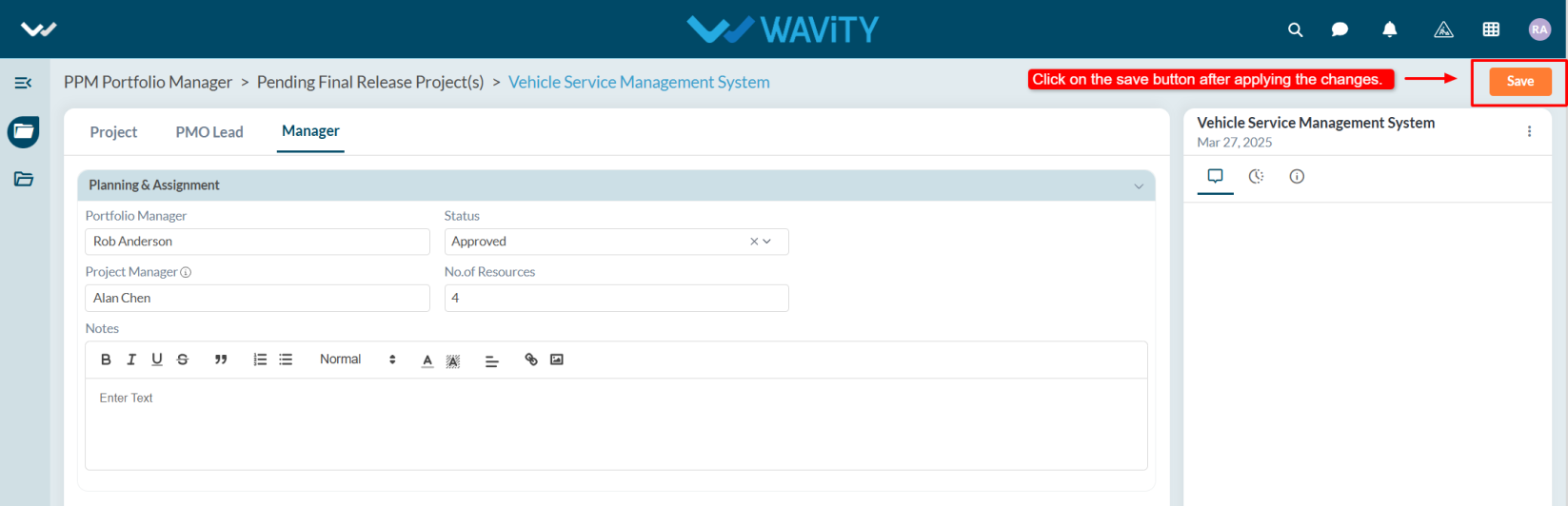
- Navigate to the Manager tab. Under the Portfolio Manager section, update the Status to Approved.
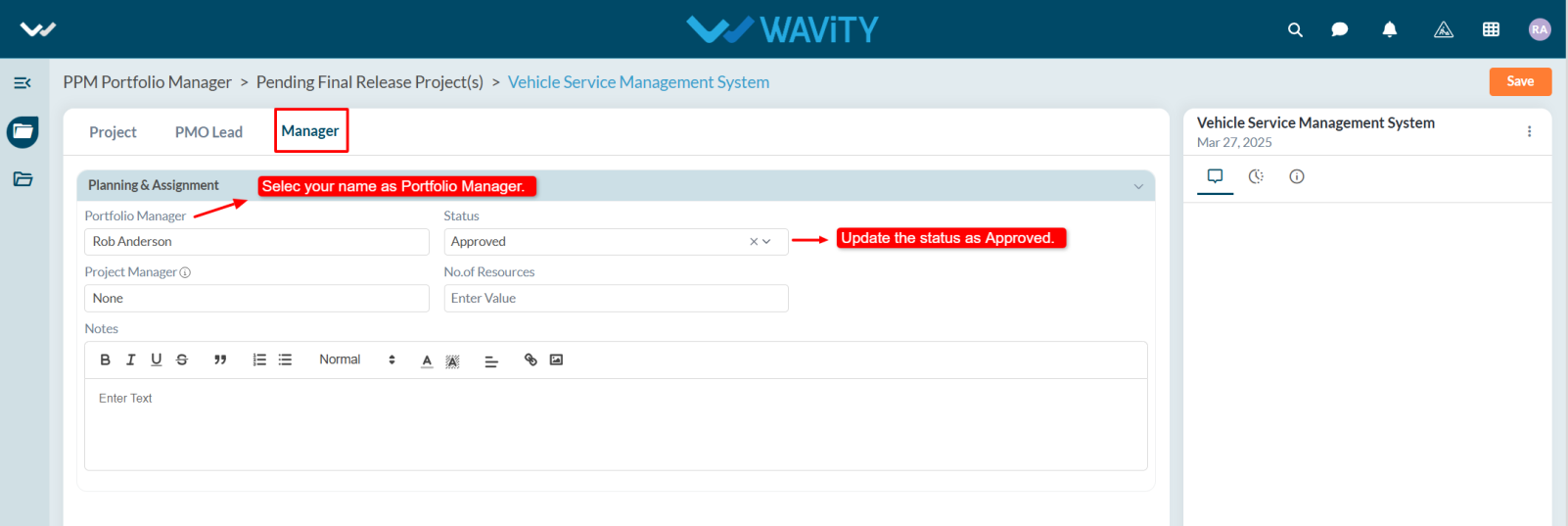
- Select the desired Project Manager from the dropdown, enter the required number of resources for the project, and include any notes if needed.
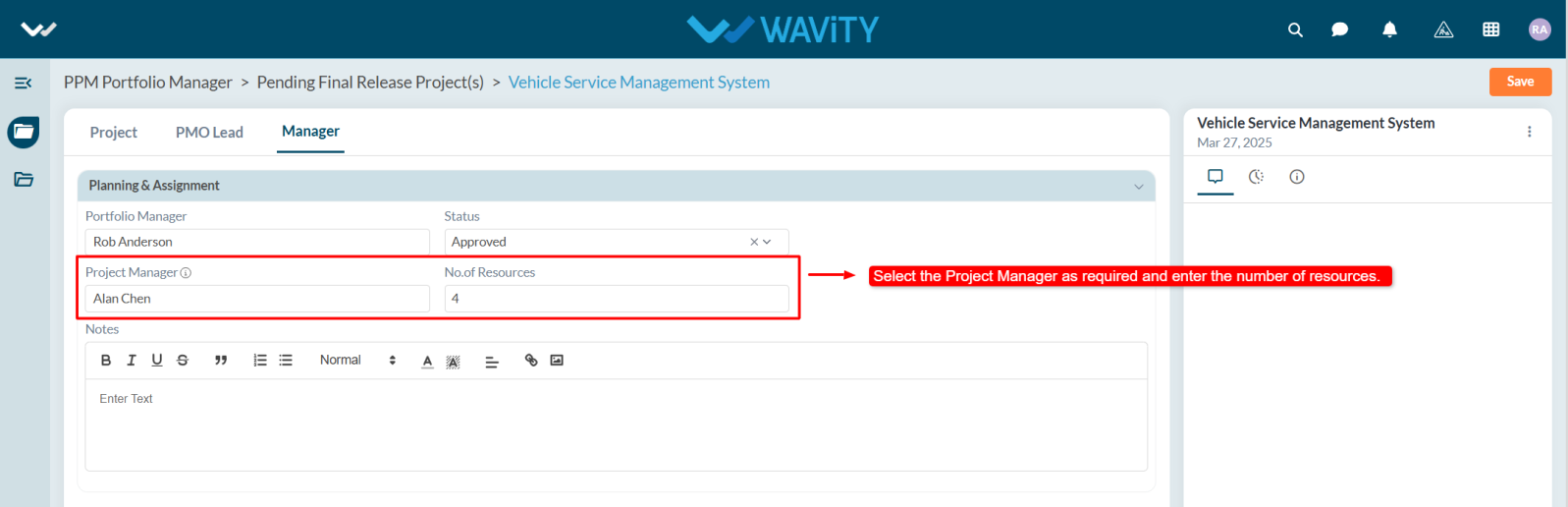
- Click Save to apply the changes. A notification will be sent to the assigned Project Manager, who can then begin working on the project.