Managing Email and Push Notifications
  • Email Notifications/Push Notifications allow users to receive alerts on their mobile devices when a ticket is created or updated.
  • Notifications are sent to both moderators and the end user who created the ticket.
  • To disable notifications on mobile, follow these steps:
  • Only Admin users have the permission to enable or disable this feature.
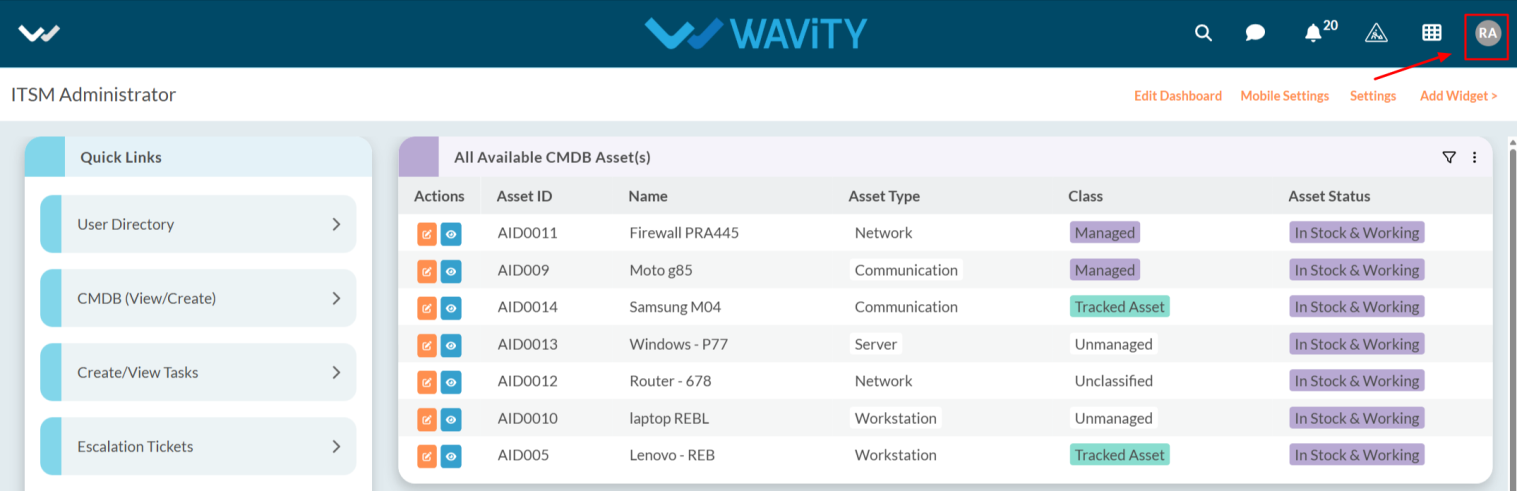
  • Click on the Profile icon.
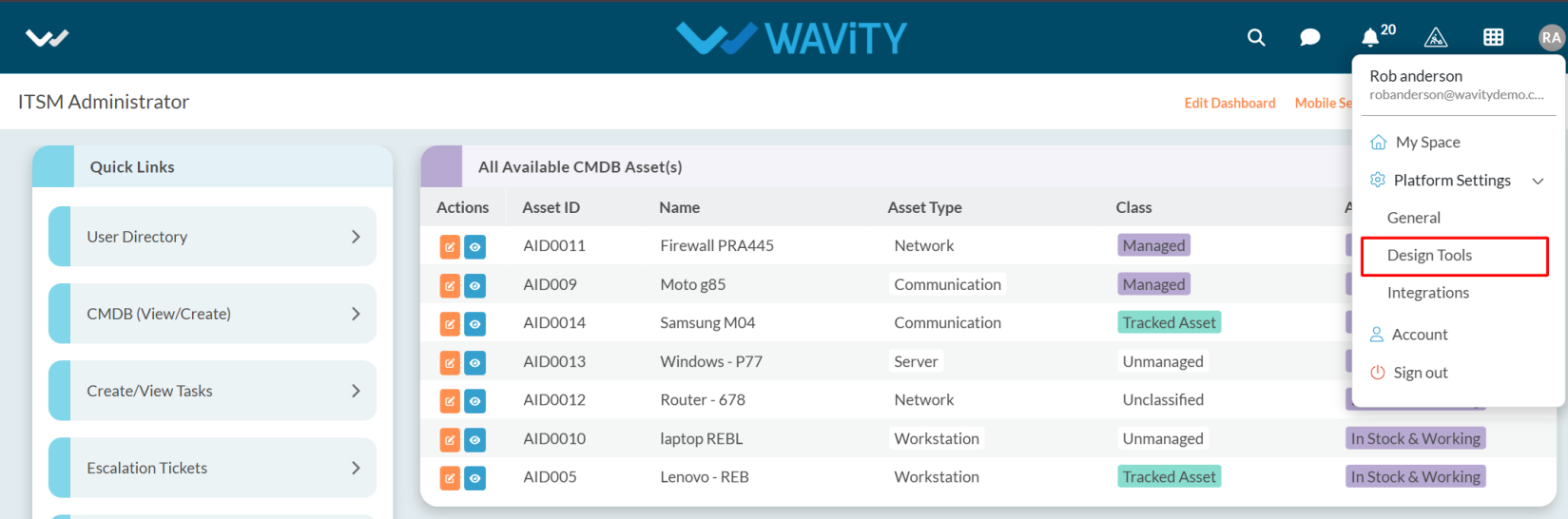
  • Open Design Tools.
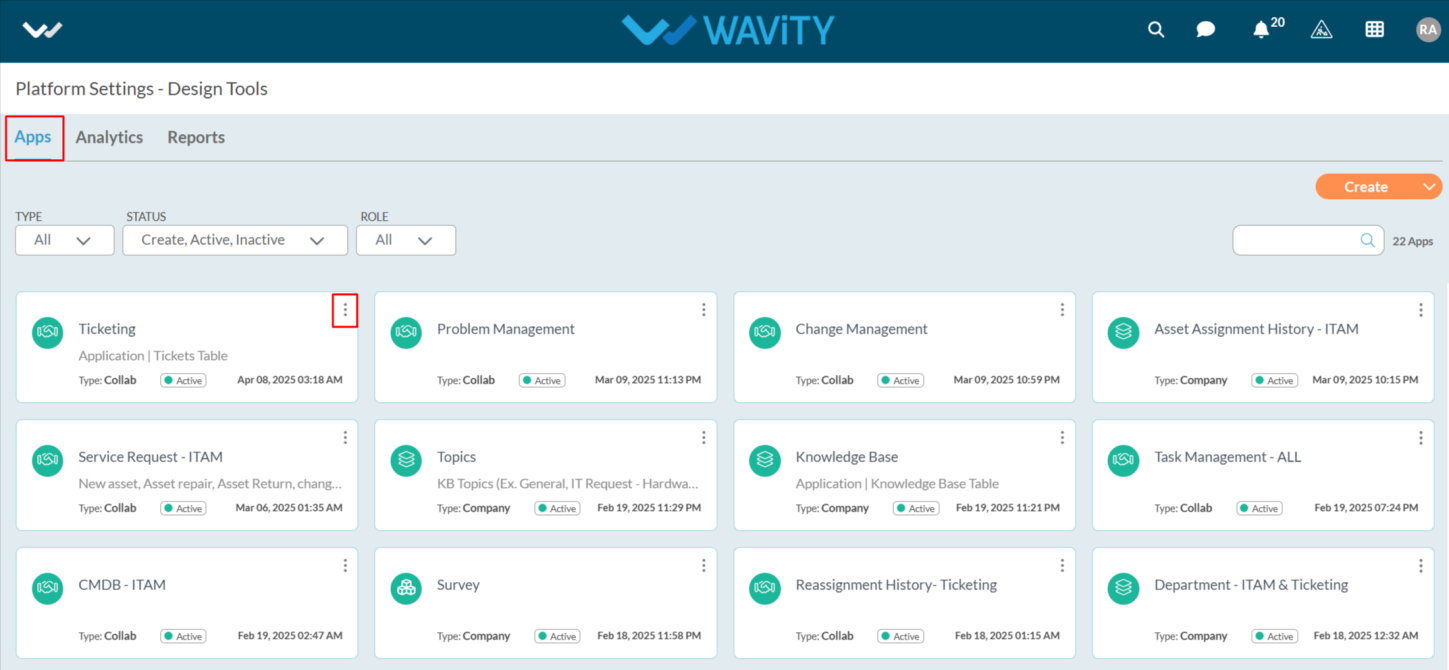
  • Go to the Apps, pick the app you want, and click on the three dots.
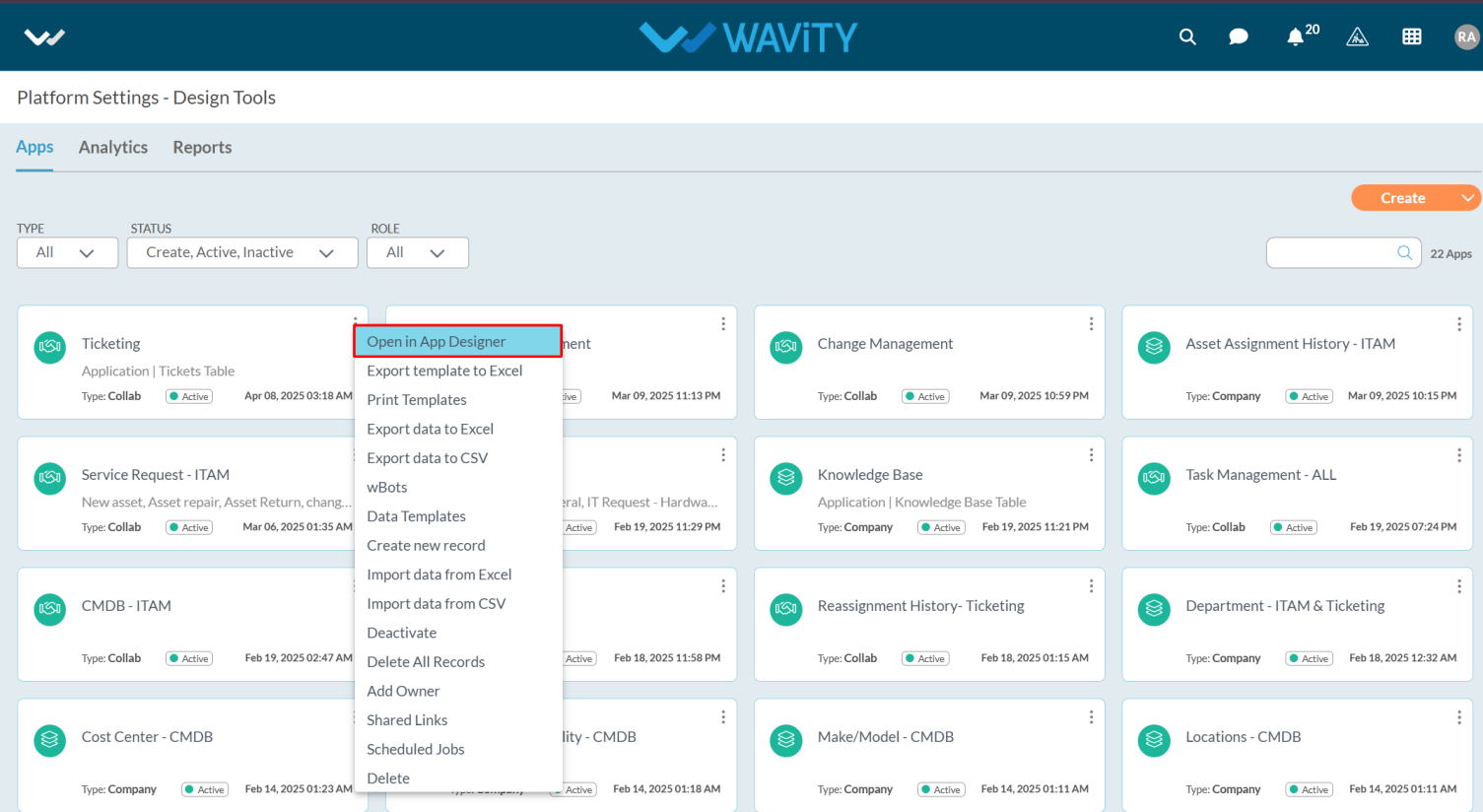
  • From the three-dot menu, choose Open App Designer.
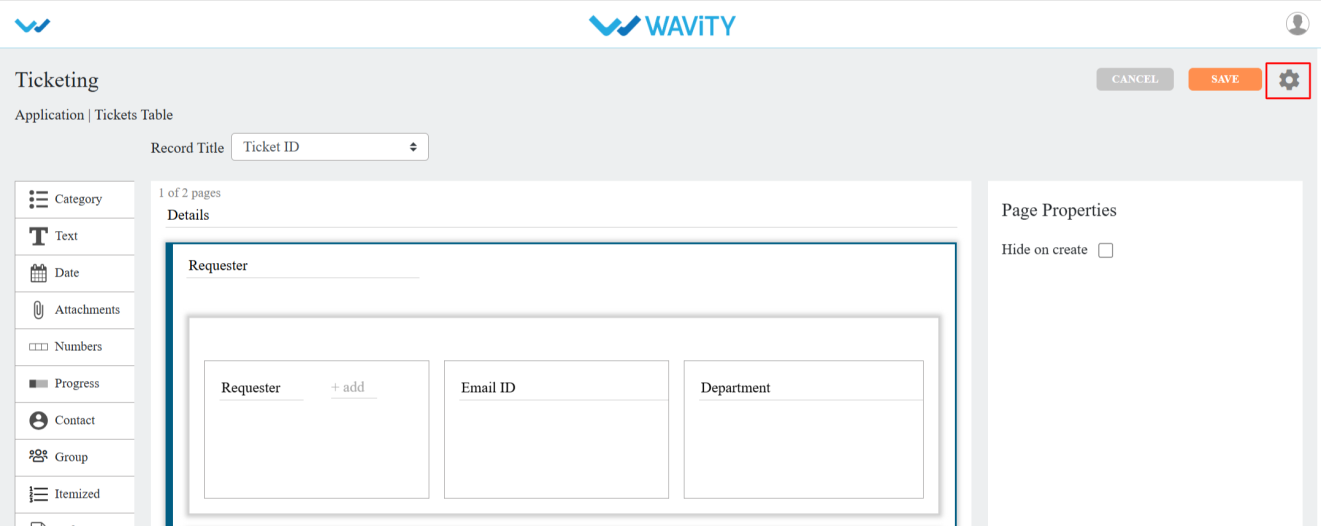
  • Click the Settings icon.
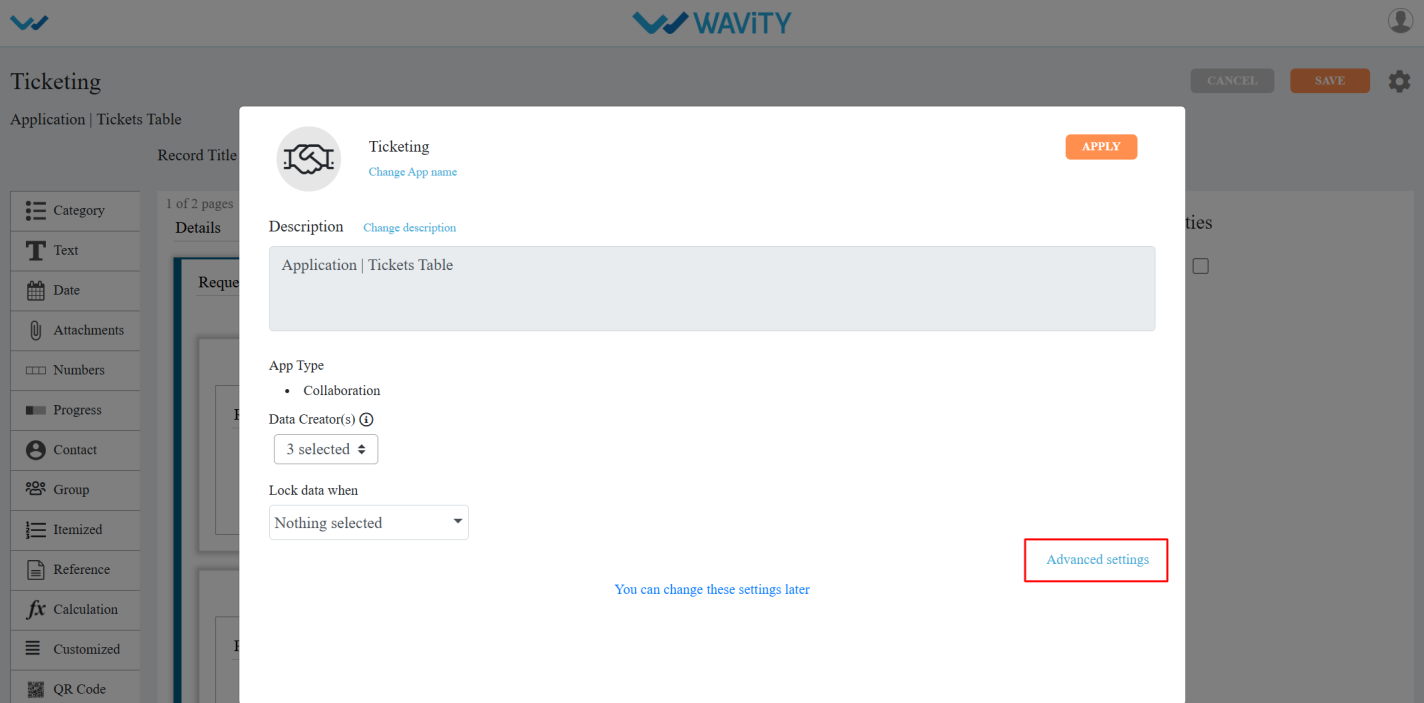
  • Click on Advanced settings.
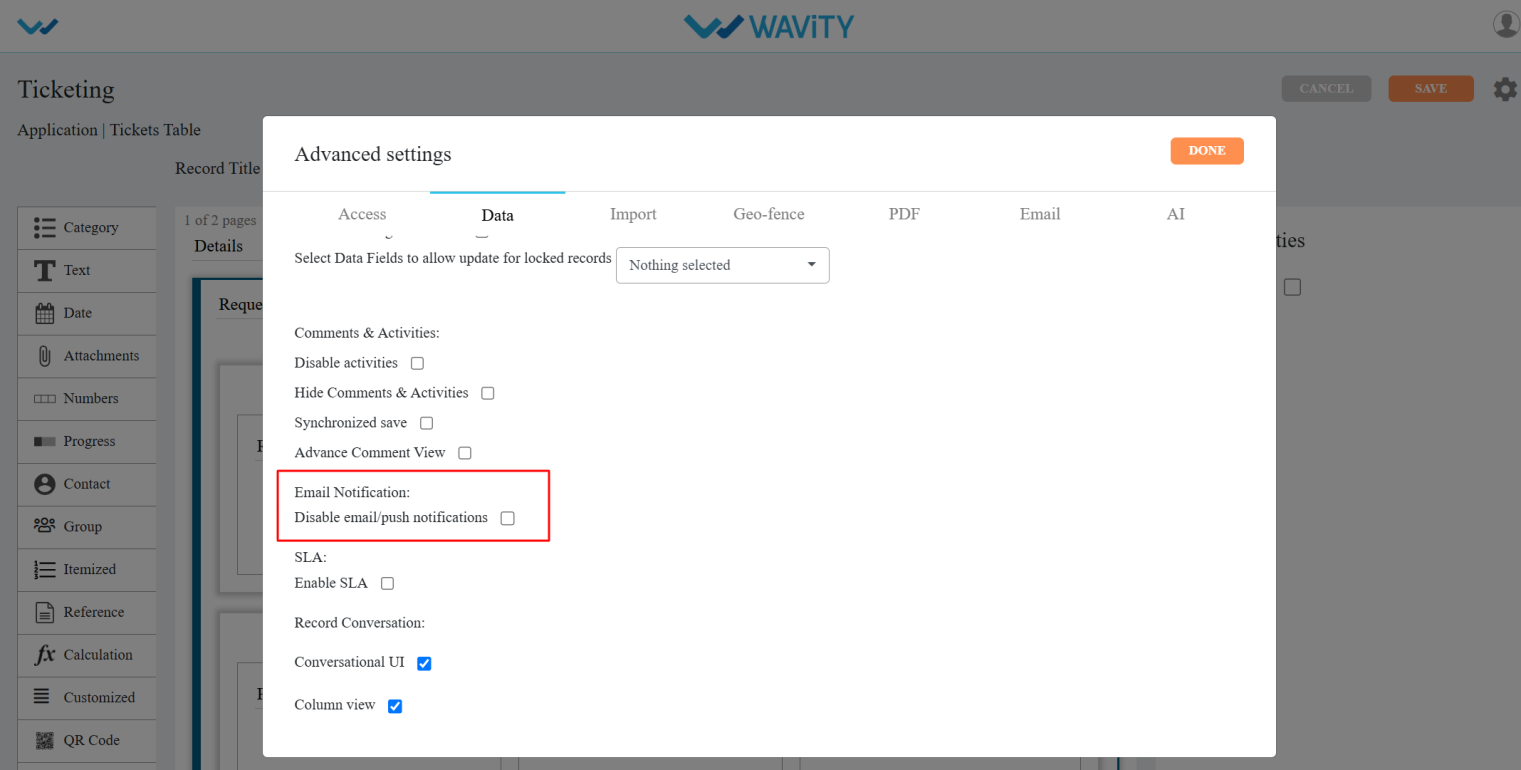
  • Click on the Data section and scroll down. Under Email Notification, you will find the option Disable email/push notification.
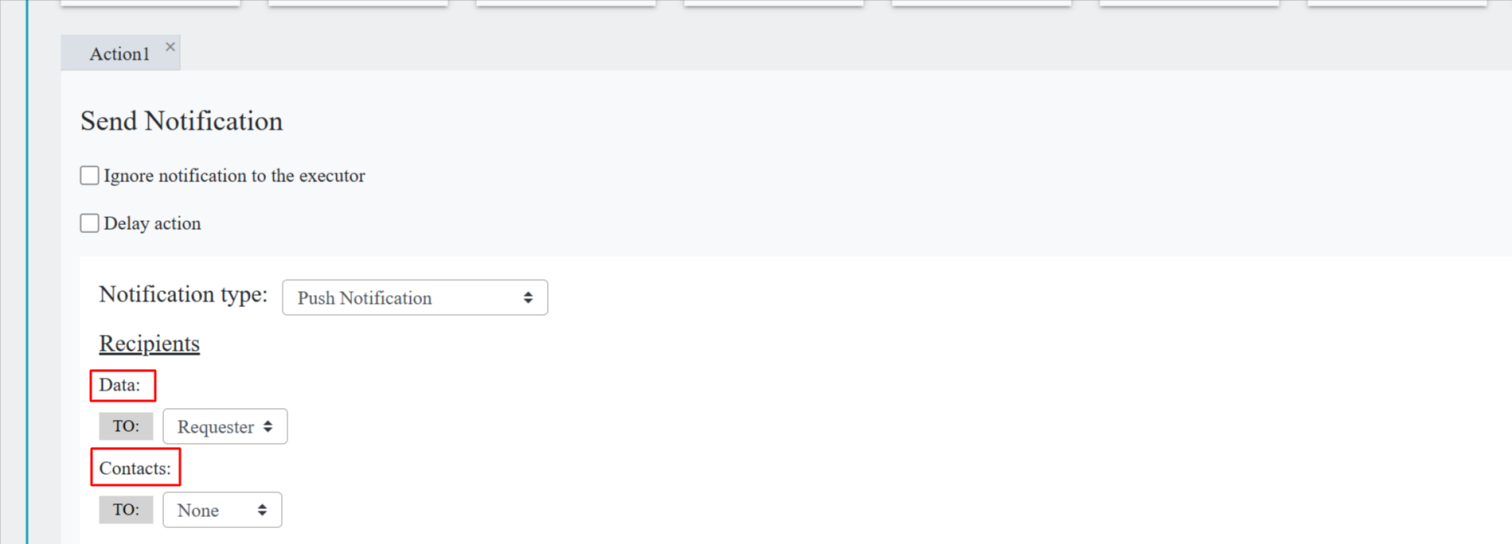
  • When you enable this feature, notifications will be sent to mobile devices when a ticket is created or updated, based on the recipients selected in the Wbots, as shown in the image.
Managing Email and Push Notifications
  • Email Notifications/Push Notifications allow users to receive alerts on their mobile devices when a ticket is created or updated.
  • Notifications are sent to both moderators and the end user who created the ticket.
  • To disable notifications on mobile, follow these steps:
  • Only Admin users have the permission to enable or disable this feature.
  • Click on the Profile icon.
  • Open Design Tools.
  • Go to the Apps, pick the app you want, and click on the three dots.
  • From the three-dot menu, choose Open App Designer.
  • Click the Settings icon.
  • Click on Advanced settings.
  • Click on the Data section and scroll down. Under Email Notification, you will find the option Disable email/push notification.
  • When you enable this feature, notifications will be sent to mobile devices when a ticket is created or updated, based on the recipients selected in the Wbots, as shown in the image.

Leave you comment...

Thank you! Your submission has been received!
Oops! Something went wrong while submitting the form.