Managing Budget Requests
Managing Budget Requests
- Project Managers, Resource Managers, and Team Members have access to create and view budget requests in Wavity Project Portfolio Management Solution.
- Upon logging in with their credentials, users will land on their respective personas (e.g., Project Manager Persona).
- Note: The steps provided serve as sample instructions and can be customized based on specific requirements; however, the core workflow will remain the same.
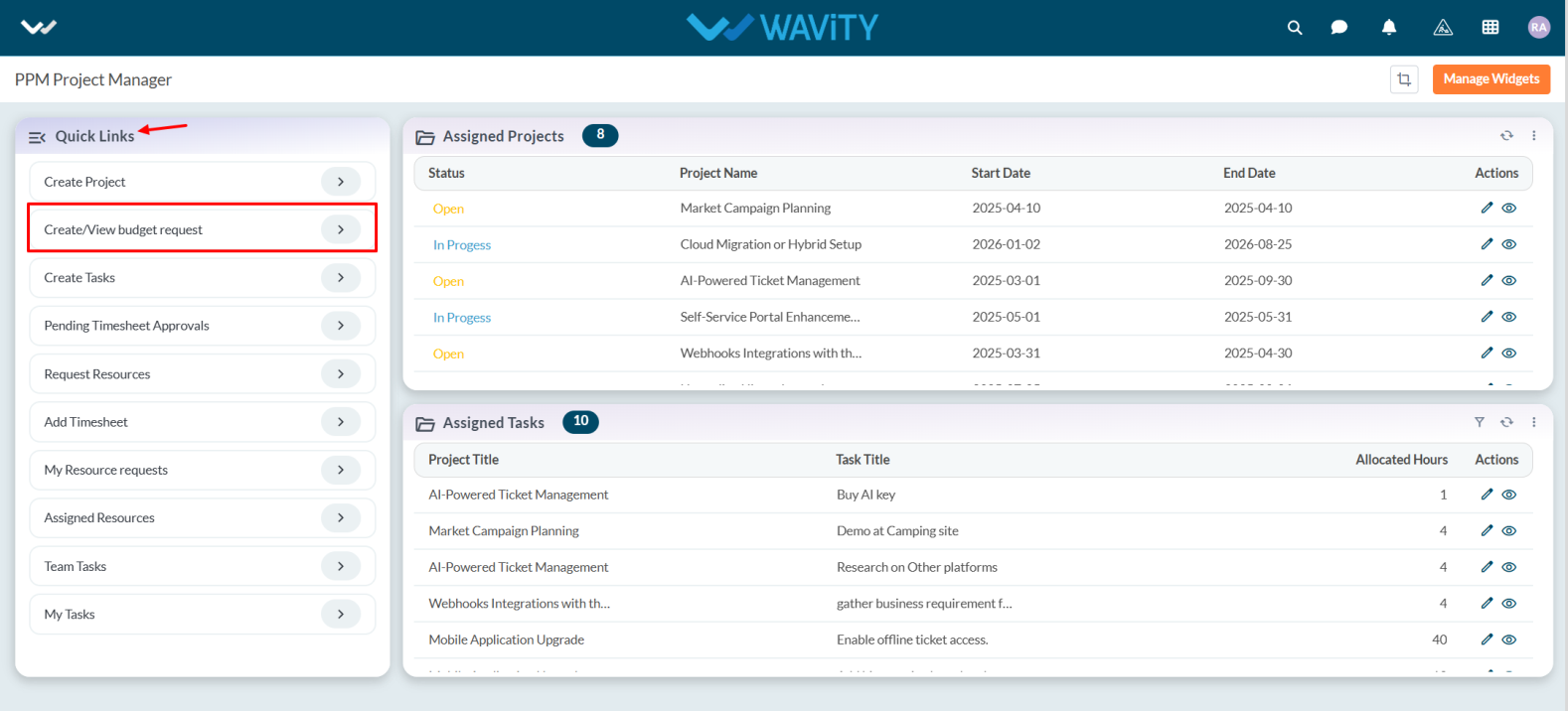
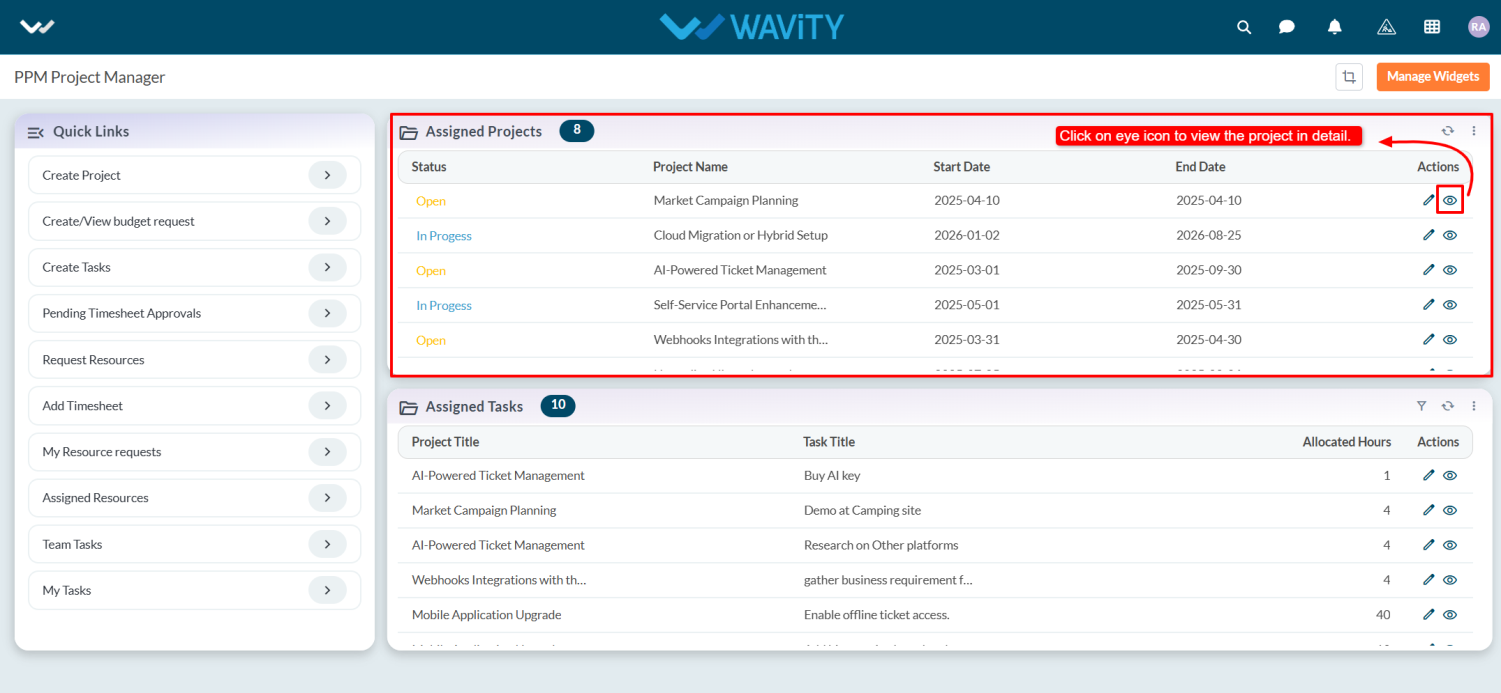
- From the Quick Links, select Create/View Budget Request.
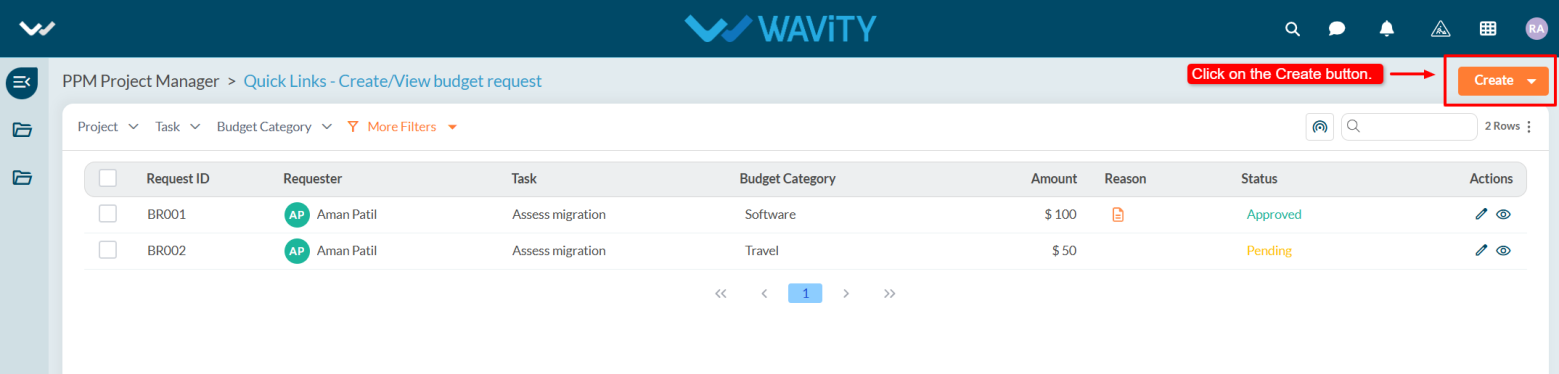
- After selecting the link, users can view any pending requests or click the Create button to submit a new budget request.
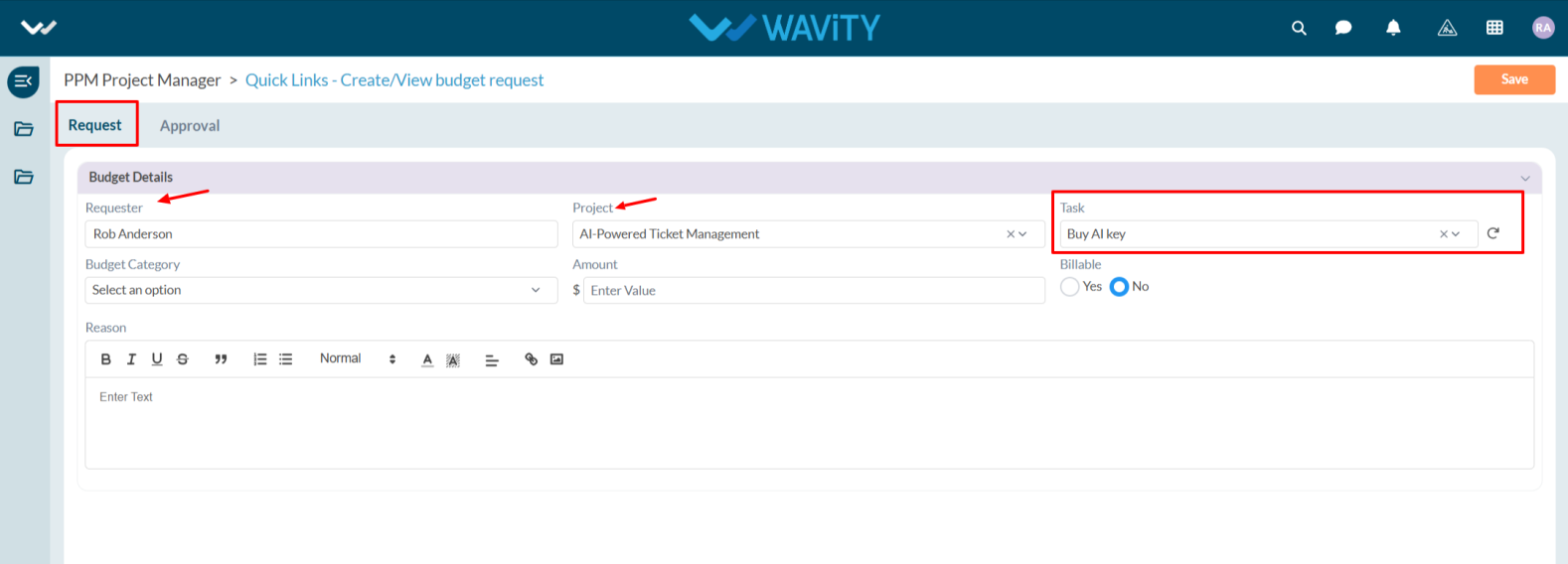
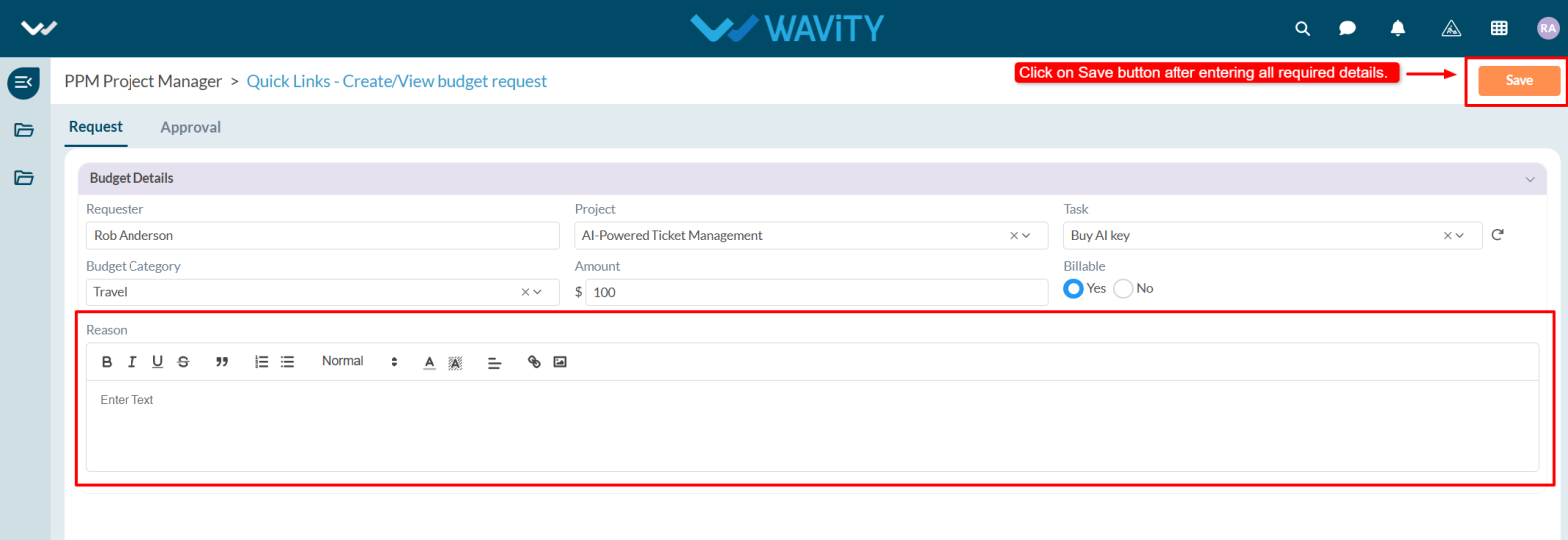
- In the Request tab, under the Budget Details section, the system will automatically populate the Requester field with the user's name.
- Select the Project Title from the dropdown. When a project is selected, the Task field will automatically capture the relevant task title if tasks are associated with the project.
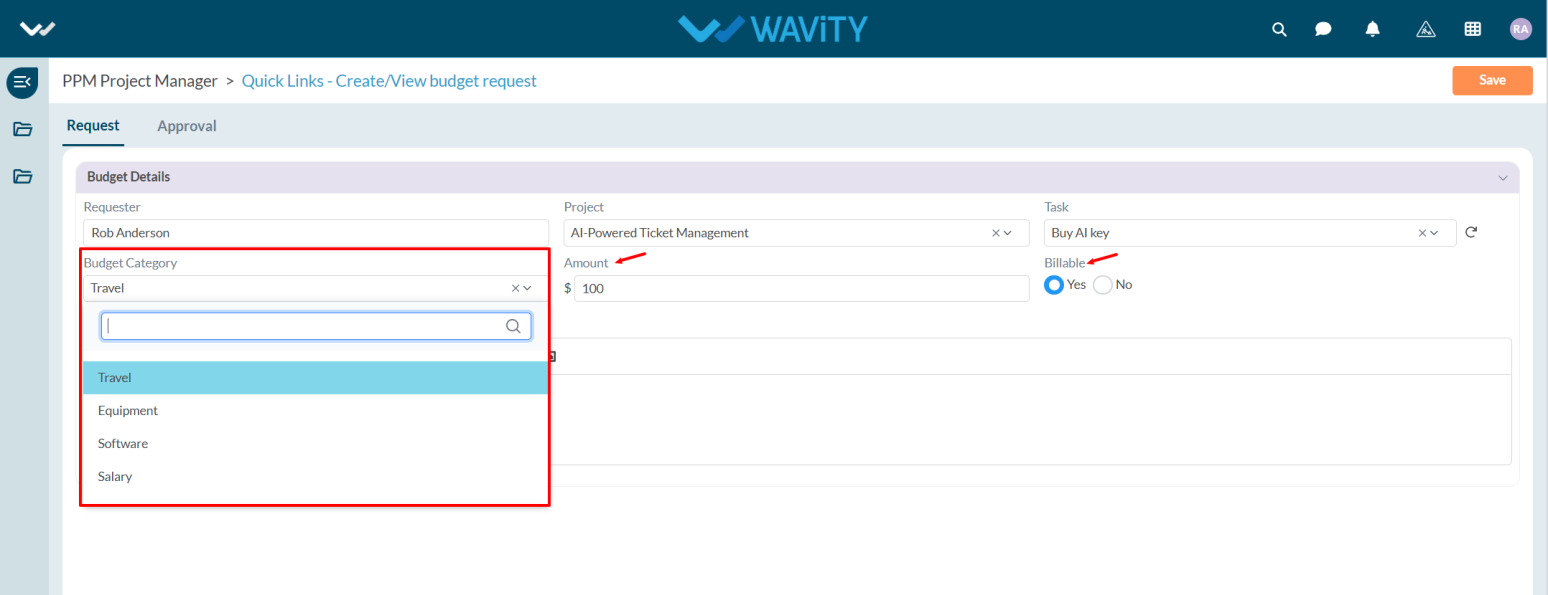
- Choose the appropriate Budget Category from the dropdown, enter the Amount, and select Yes if it is billable.
- Provide a Reason for the budget request and click the Save button.
- Users can track the status of their request in the Assigned Project table widget by selecting the project for which the budget was requested.
- Go to the Budget tab. Under Pending Budget Approval, users can view their pending requests. In the Budget Breakdown section, approved budgets will be displayed.

- Similarly, Resource Managers and Team Members can request budgets within their respective personas by navigating to Quick Links.