Live Chat Configuration Guide for Admins
  • On the Wavity Platform, end users can directly communicate with agents to resolve their issues.
  • The Messaging feature enables live chat between end users and agents for real-time support.
  • Enabling Messaging feature is a simple process
  • Only Admin will have access to enable the messaging feature.
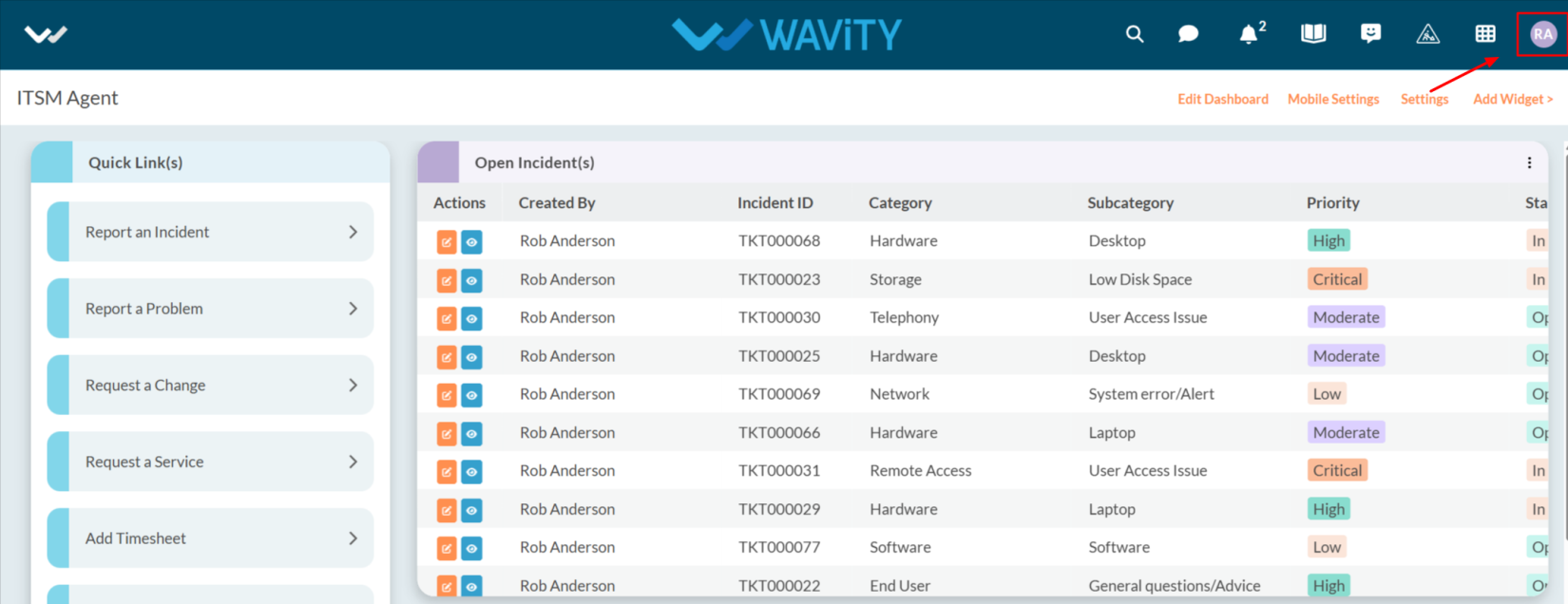
  • Click on the Profile Icon.
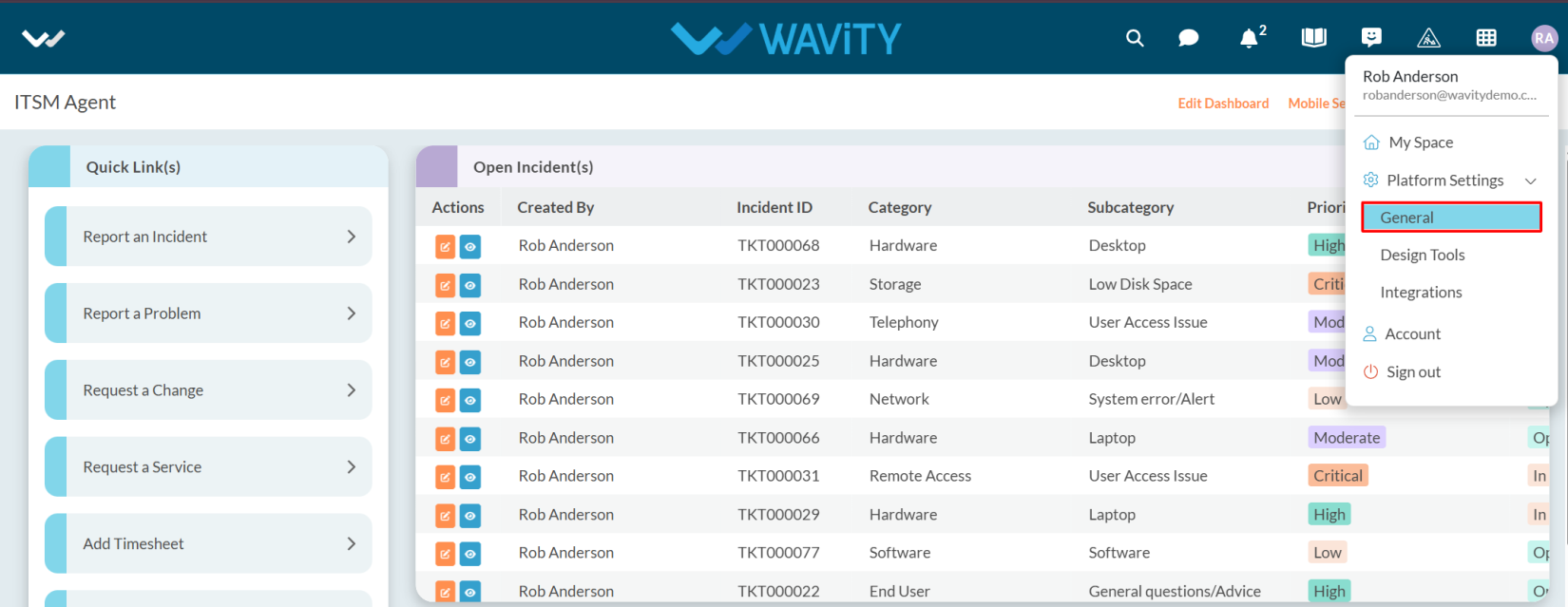
  • Select General.
  • After selecting General from the options, you will be directed to the Platform Settings – General page.
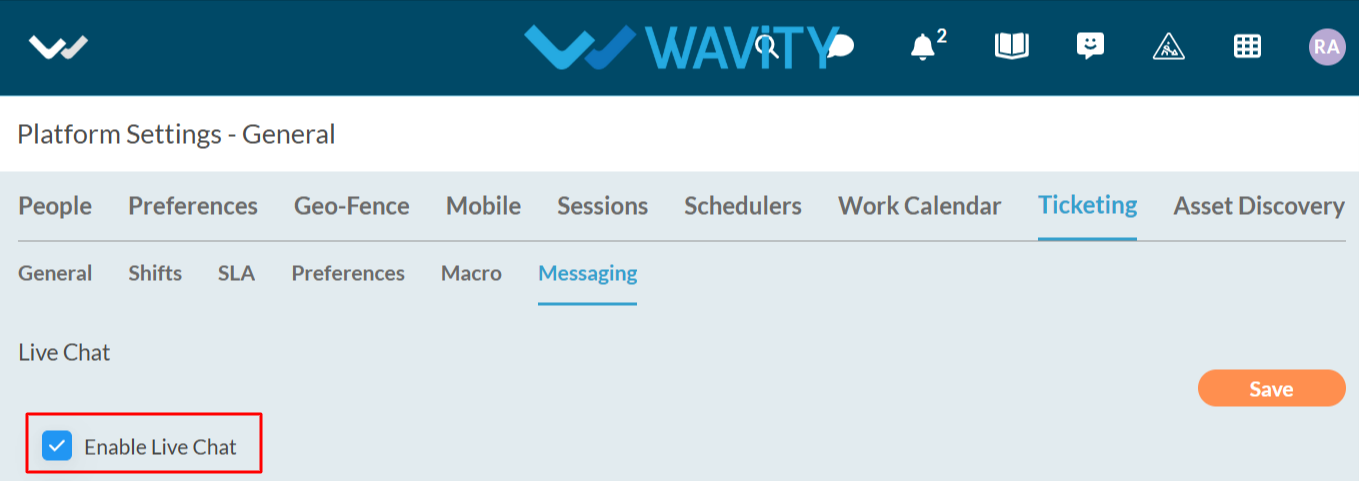
  • Navigate to the Ticketing tab and select Messaging.
  • After selecting the Messaging, you can view the Live Chat.
  • Enable Live Chat.
  • After enabling the live chat , you can Enable live chat redirect view
  • Enable Live Chat Redirect View: If enabled, you can specify which widget the agent will be redirected to after accepting a live chat request.
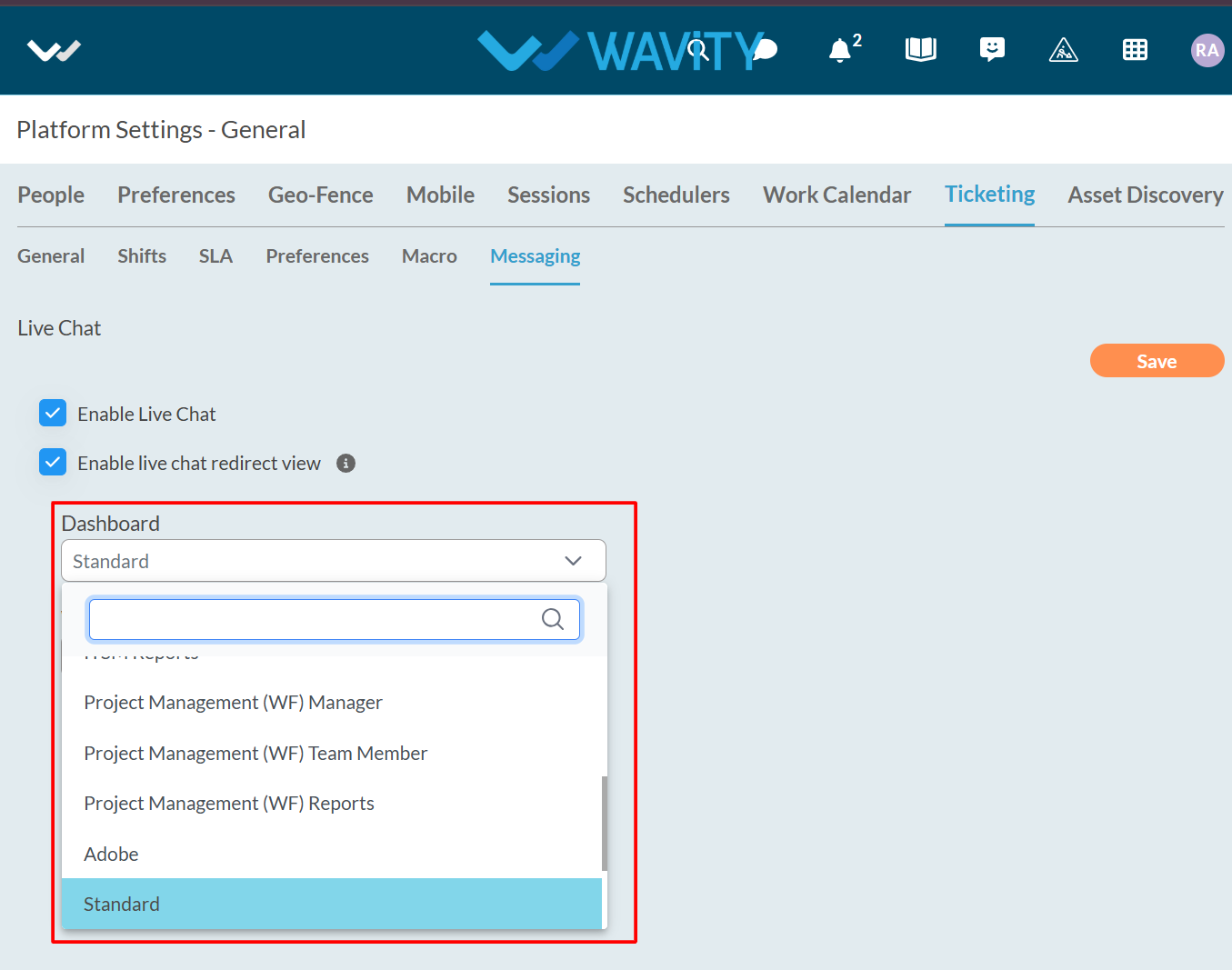
  • When you enable the Live Chat Redirect View, you must select both the dashboard and the widget to complete the configuration.
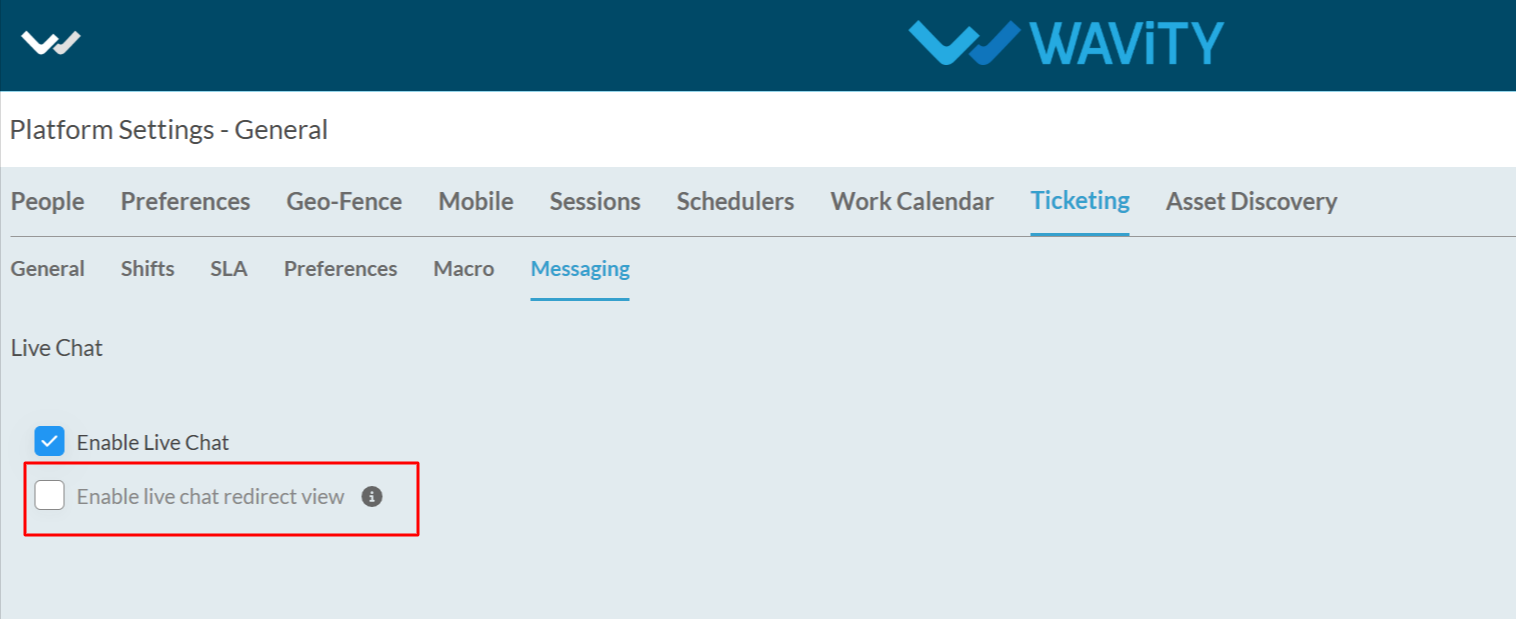
  • Select the appropriate dashboard and widget from the options to complete the setup.
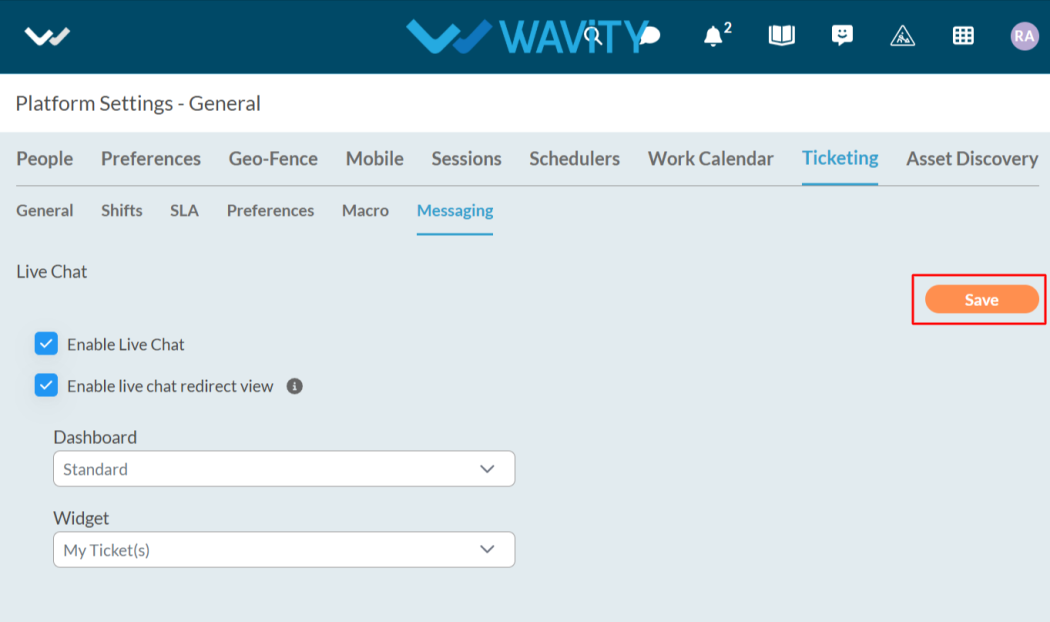
  • After selecting the dashboard and widget, click the Save button to apply the changes.
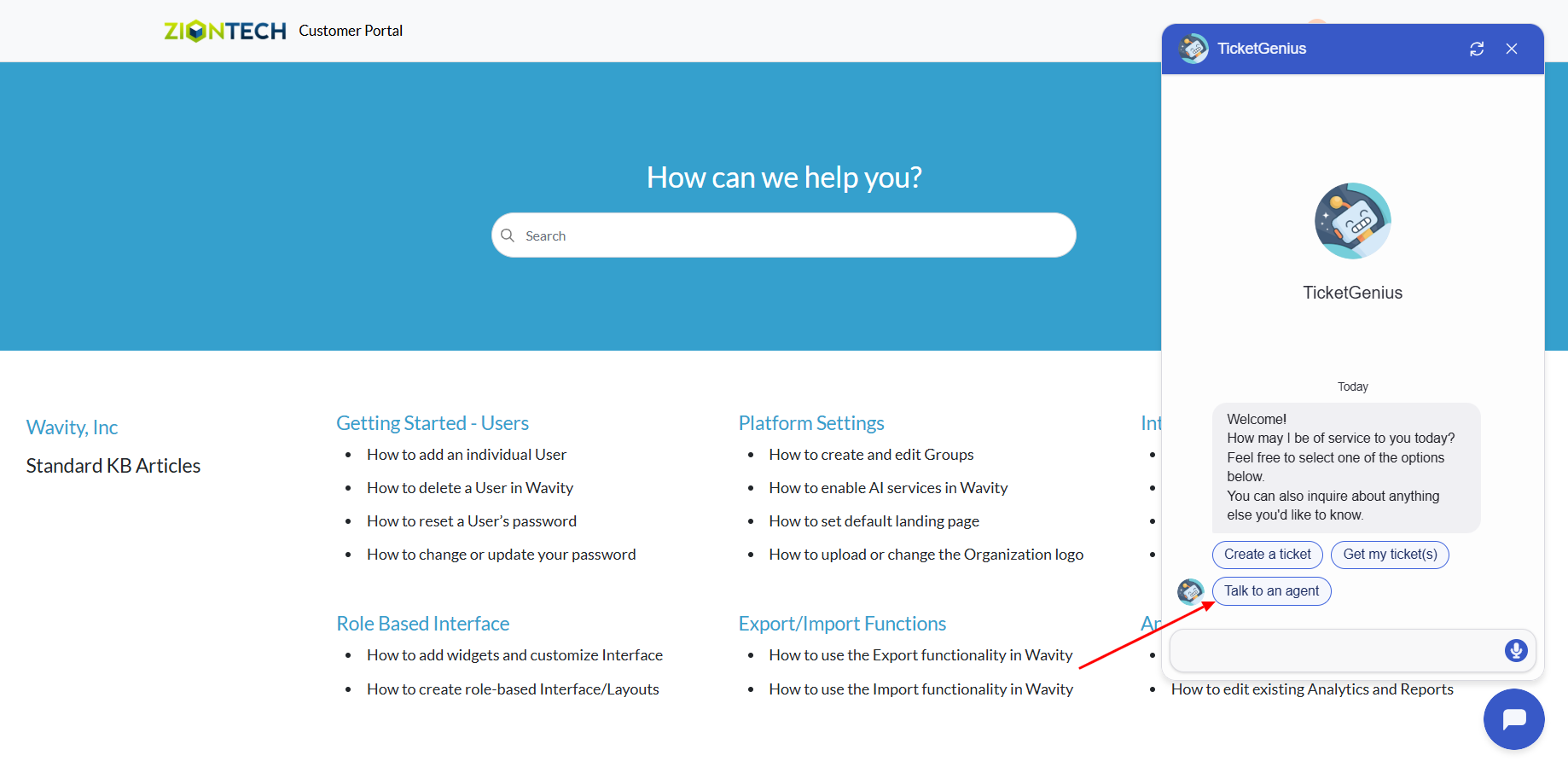
  • The Chatbot is now enabled. Now the end user can use the Live Chat feature where they can select 'Talk to an agent'; the Chatbot will then connect them with an agent, allowing the user to describe their issue.
Live Chat Configuration Guide for Admins
  • On the Wavity Platform, end users can directly communicate with agents to resolve their issues.
  • The Messaging feature enables live chat between end users and agents for real-time support.
  • Enabling Messaging feature is a simple process
  • Only Admin will have access to enable the messaging feature.
  • Click on the Profile Icon.
  • Select General.
  • After selecting General from the options, you will be directed to the Platform Settings – General page.
  • Navigate to the Ticketing tab and select Messaging.
  • After selecting the Messaging, you can view the Live Chat.
  • Enable Live Chat.
  • After enabling the live chat , you can Enable live chat redirect view
  • Enable Live Chat Redirect View: If enabled, you can specify which widget the agent will be redirected to after accepting a live chat request.
  • When you enable the Live Chat Redirect View, you must select both the dashboard and the widget to complete the configuration.
  • Select the appropriate dashboard and widget from the options to complete the setup.
  • After selecting the dashboard and widget, click the Save button to apply the changes.
  • The Chatbot is now enabled. Now the end user can use the Live Chat feature where they can select 'Talk to an agent'; the Chatbot will then connect them with an agent, allowing the user to describe their issue.

Leave you comment...

Thank you! Your submission has been received!
Oops! Something went wrong while submitting the form.