How to Use the Export Functionality in Wavity?

  • Wavity provides Export and Import functions within its platform
  • The Export functionality allows you to export all fields from any application, including templates and data, into Excel sheets or PDF documents.
  • Follow the steps below to perform Export functions in the Wavity platform.
  • Log in to the Wavity platform. Based on your role, you will have access to your dashboard.
  • From the quick Links, click on the application (e.g., "All Tickets") that contains the data you want to export. Refer to the image below for guidance.
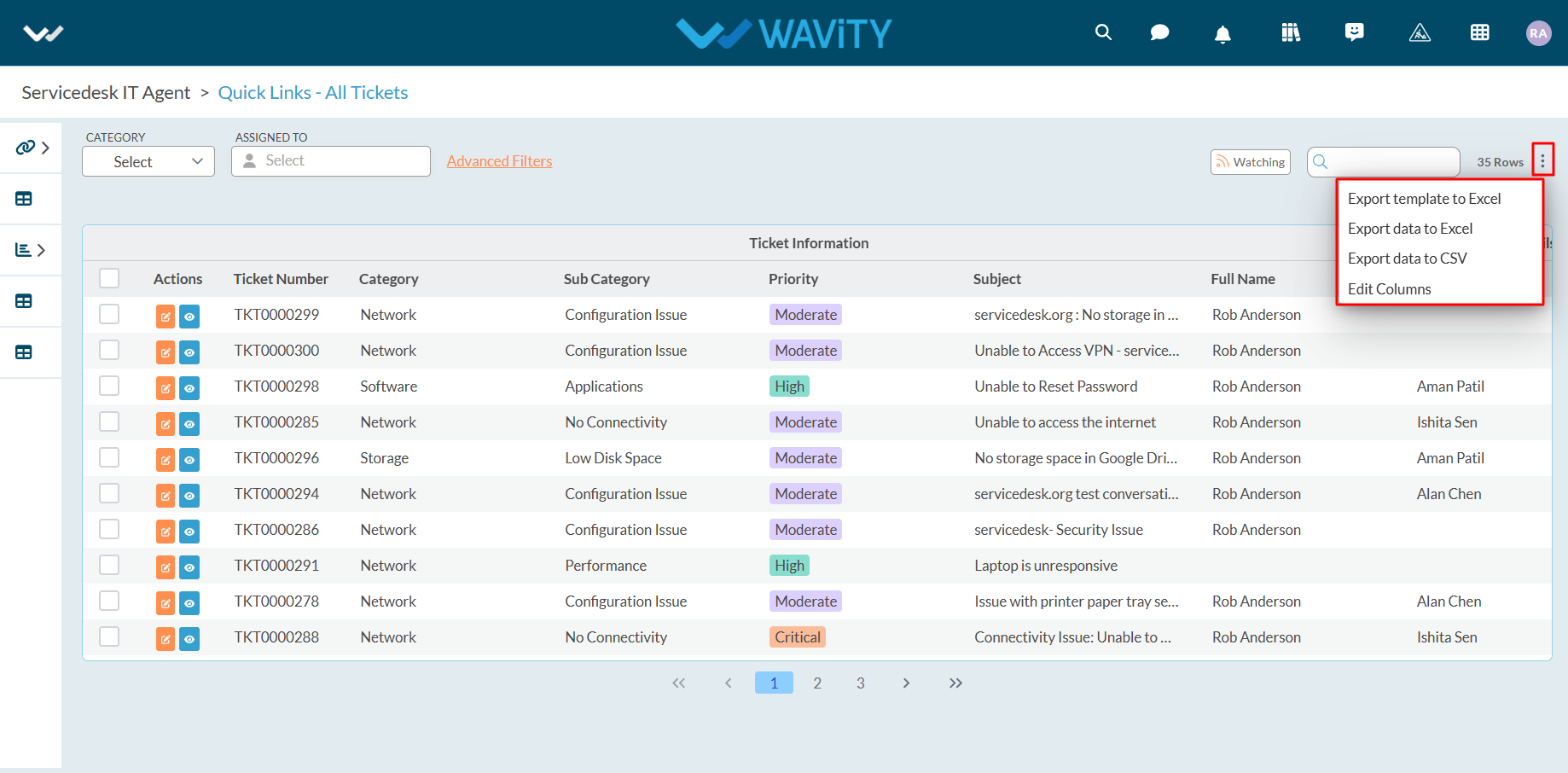
  • Export Template to Excel: Use this function to export the application's template in Excel format.
  • Click on "Export Template to Excel".
  • Select "Ignore Reference Applications" if needed and click "Export."
  • Ignore Reference Applications: Check this box to exclude reference applications from the export. If unchecked, reference applications will be included in the exported template.
  • Once you click on "Export," the Excel sheet containing the template will be downloaded to your system.
  • Refer to the image below for an example of the downloaded Excel sheet.
  • Export Data to Excel: Use this function to export all the data from the application in Excel format.
  • Before exporting data to Excel, you can modify the columns or data fields you wish to include in the export.
  • To do this, click on ‘Edit Columns’ and make the necessary adjustments to the data fields.
  • All available data fields will be displayed in the dropdown.
  • The currently selected data fields will have a tick mark indicating they are included in the export.
  • Select the data fields you want to include in the export and deselect any fields that are not needed.
  • Once you select the data fields, they will immediately appear in the list.
  • Review the selected data fields to ensure the correct fields are included before exporting the data to Excel.
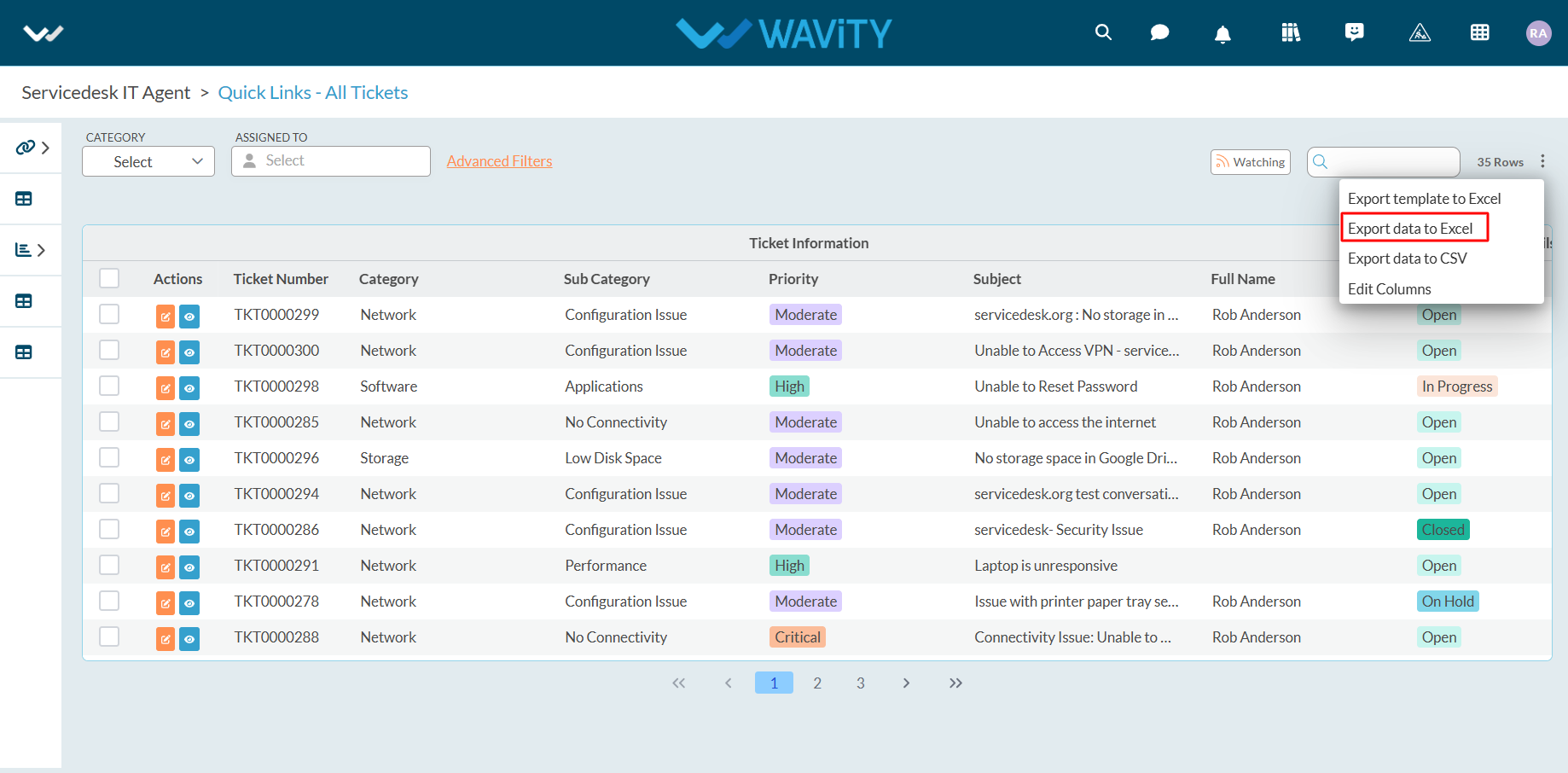
  • Click on "Export Data to Excel" as shown below.
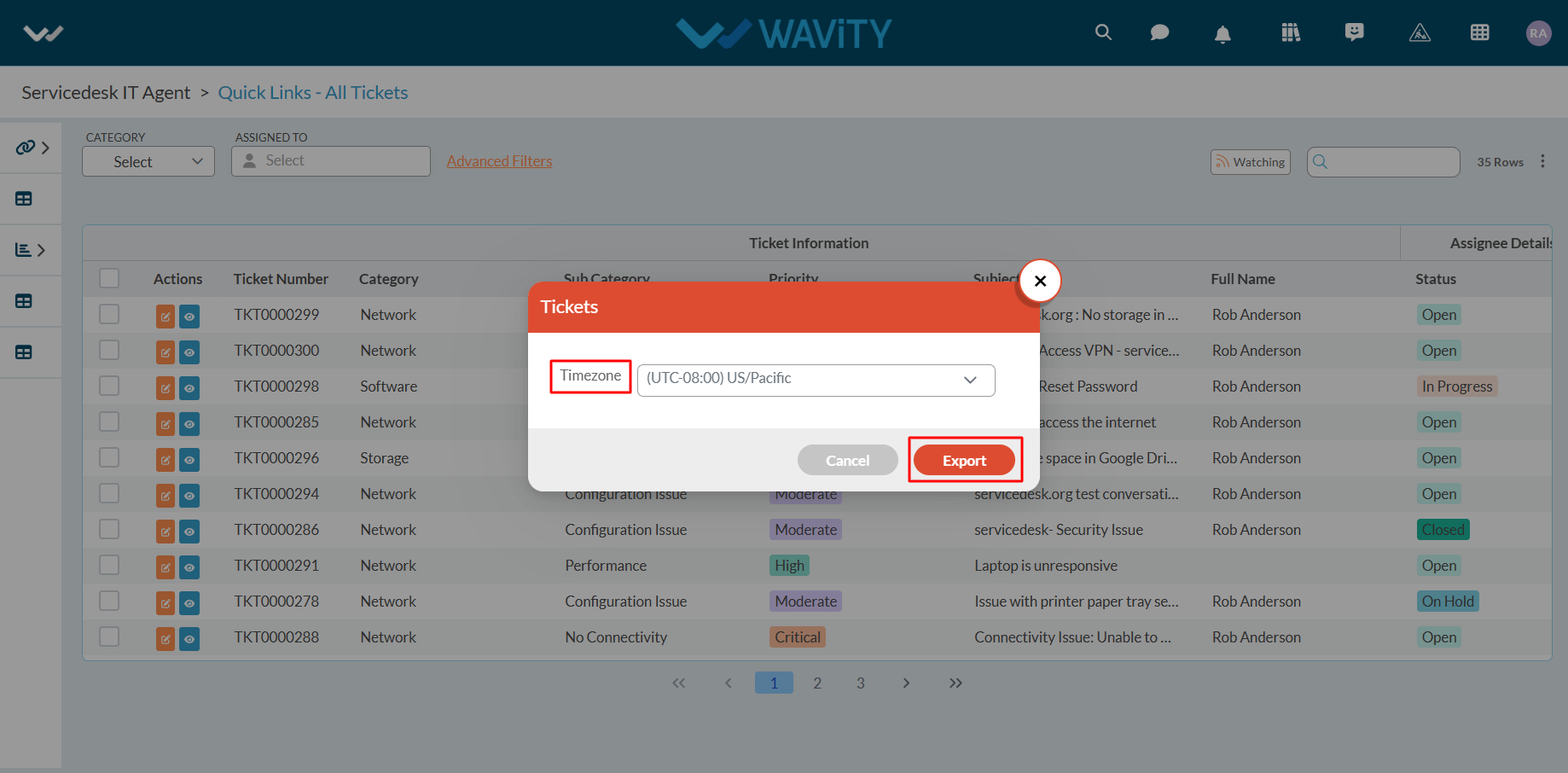
  • Select your organization's time zone from the dropdown menu. For example, if your organization uses the PST time zone, select "US/Pacific" as shown below.
  • Click "Export" after selecting the time zone.
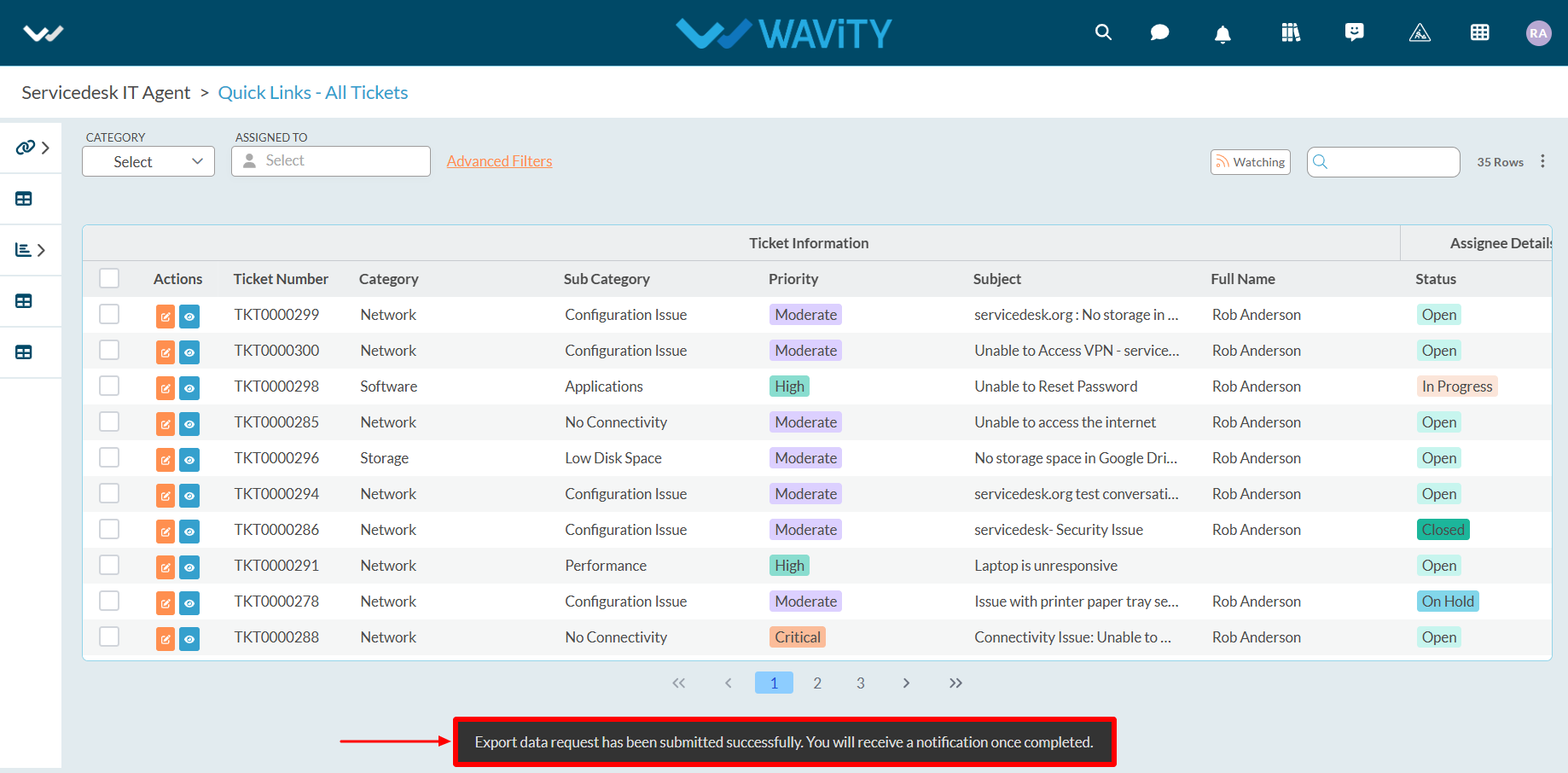
  • Upon successful completion of the export, a confirmation message will appear: "Export Data request has been submitted successfully."
  • Click on the bell icon in the top-right corner to view all notifications.
  • Locate the notification for the export request and click on the blue link to download the Excel sheet.
  • After clicking the link, the Excel sheet containing the data and template will be downloaded to your system. Refer to the image below for reference.
  • Export of Selected data to Excel: This function allows you to export only the selected data from an application into a new Excel sheet.
  • Check the required data (using the left corner selection boxes) and click "Export Data to Excel."
  • Select your organization's time zone from the dropdown menu. For example, if your organization uses the PST time zone, select "US/Pacific" as shown below.
  • Click "Export" after selecting the time zone.
  • Once the export is successfully completed, you will see a confirmation message: "Export Data request has-been submitted successfully."
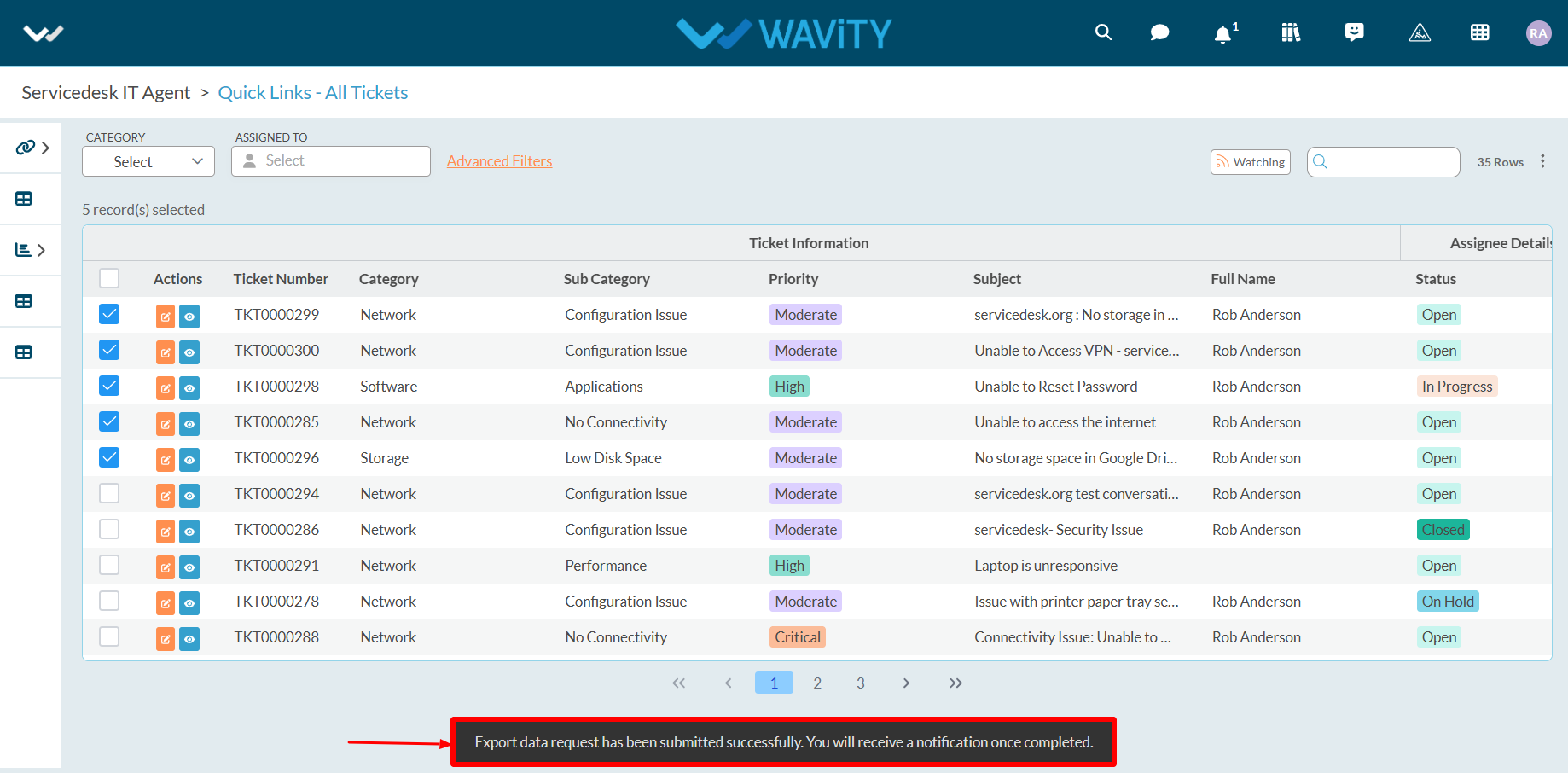
  • Click on the bell icon in the top-right corner to access notifications. Locate the notification and click the blue link to download the Excel sheet with the selected data.
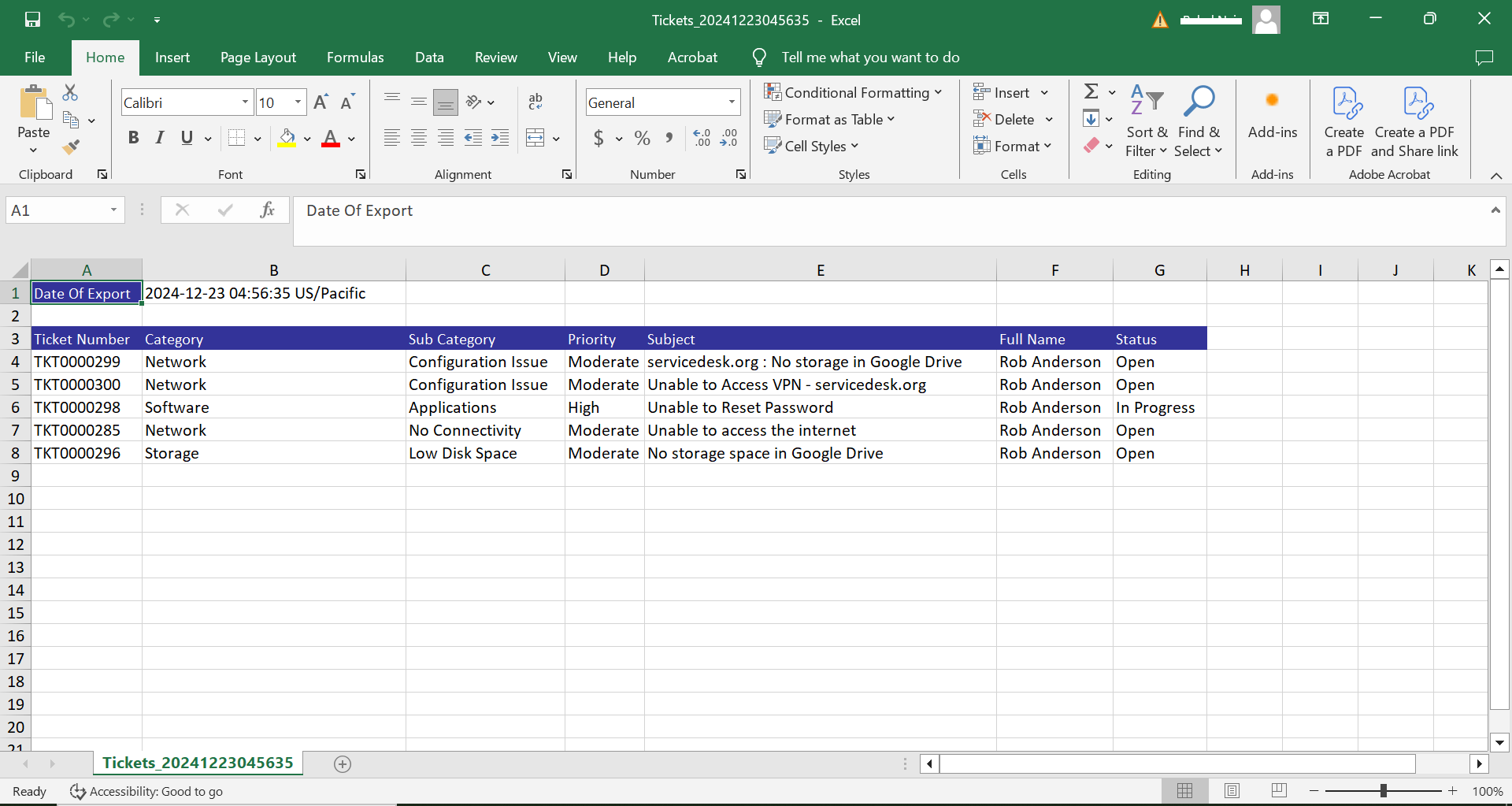
  • After downloading, the Excel sheet containing the selected data will be available on your system. Refer to the image below for reference.
  • Similar steps can be followed to export data to CSV, PDF, and other formats.
How to Use the Export Functionality in Wavity?

  • Wavity provides Export and Import functions within its platform
  • The Export functionality allows you to export all fields from any application, including templates and data, into Excel sheets or PDF documents.
  • Follow the steps below to perform Export functions in the Wavity platform.
  • Log in to the Wavity platform. Based on your role, you will have access to your dashboard.
  • From the quick Links, click on the application (e.g., "All Tickets") that contains the data you want to export. Refer to the image below for guidance.
  • Export Template to Excel: Use this function to export the application's template in Excel format.
  • Click on "Export Template to Excel".
  • Select "Ignore Reference Applications" if needed and click "Export."
  • Ignore Reference Applications: Check this box to exclude reference applications from the export. If unchecked, reference applications will be included in the exported template.
  • Once you click on "Export," the Excel sheet containing the template will be downloaded to your system.
  • Refer to the image below for an example of the downloaded Excel sheet.
  • Export Data to Excel: Use this function to export all the data from the application in Excel format.
  • Before exporting data to Excel, you can modify the columns or data fields you wish to include in the export.
  • To do this, click on ‘Edit Columns’ and make the necessary adjustments to the data fields.
  • All available data fields will be displayed in the dropdown.
  • The currently selected data fields will have a tick mark indicating they are included in the export.
  • Select the data fields you want to include in the export and deselect any fields that are not needed.
  • Once you select the data fields, they will immediately appear in the list.
  • Review the selected data fields to ensure the correct fields are included before exporting the data to Excel.
  • Click on "Export Data to Excel" as shown below.
  • Select your organization's time zone from the dropdown menu. For example, if your organization uses the PST time zone, select "US/Pacific" as shown below.
  • Click "Export" after selecting the time zone.
  • Upon successful completion of the export, a confirmation message will appear: "Export Data request has been submitted successfully."
  • Click on the bell icon in the top-right corner to view all notifications.
  • Locate the notification for the export request and click on the blue link to download the Excel sheet.
  • After clicking the link, the Excel sheet containing the data and template will be downloaded to your system. Refer to the image below for reference.
  • Export of Selected data to Excel: This function allows you to export only the selected data from an application into a new Excel sheet.
  • Check the required data (using the left corner selection boxes) and click "Export Data to Excel."
  • Select your organization's time zone from the dropdown menu. For example, if your organization uses the PST time zone, select "US/Pacific" as shown below.
  • Click "Export" after selecting the time zone.
  • Once the export is successfully completed, you will see a confirmation message: "Export Data request has-been submitted successfully."
  • Click on the bell icon in the top-right corner to access notifications. Locate the notification and click the blue link to download the Excel sheet with the selected data.
  • After downloading, the Excel sheet containing the selected data will be available on your system. Refer to the image below for reference.
  • Similar steps can be followed to export data to CSV, PDF, and other formats.

Leave you comment...

Thank you! Your submission has been received!
Oops! Something went wrong while submitting the form.