How to Use AI to Create New Knowledge Base Articles
The Wavity Platform includes a powerful AI-driven feature that supports the Self-Evolving Knowledge Base. This allows AI to continuously analyze ticket data, identify content gaps, and assist Admins in creating new Knowledge Base articles.
Go to the Customer Portal: From the main interface, click on the Customer Portal icon.
Accessing the AI Knowledge Base Gap Analysis: Only Admin users have access to this feature.
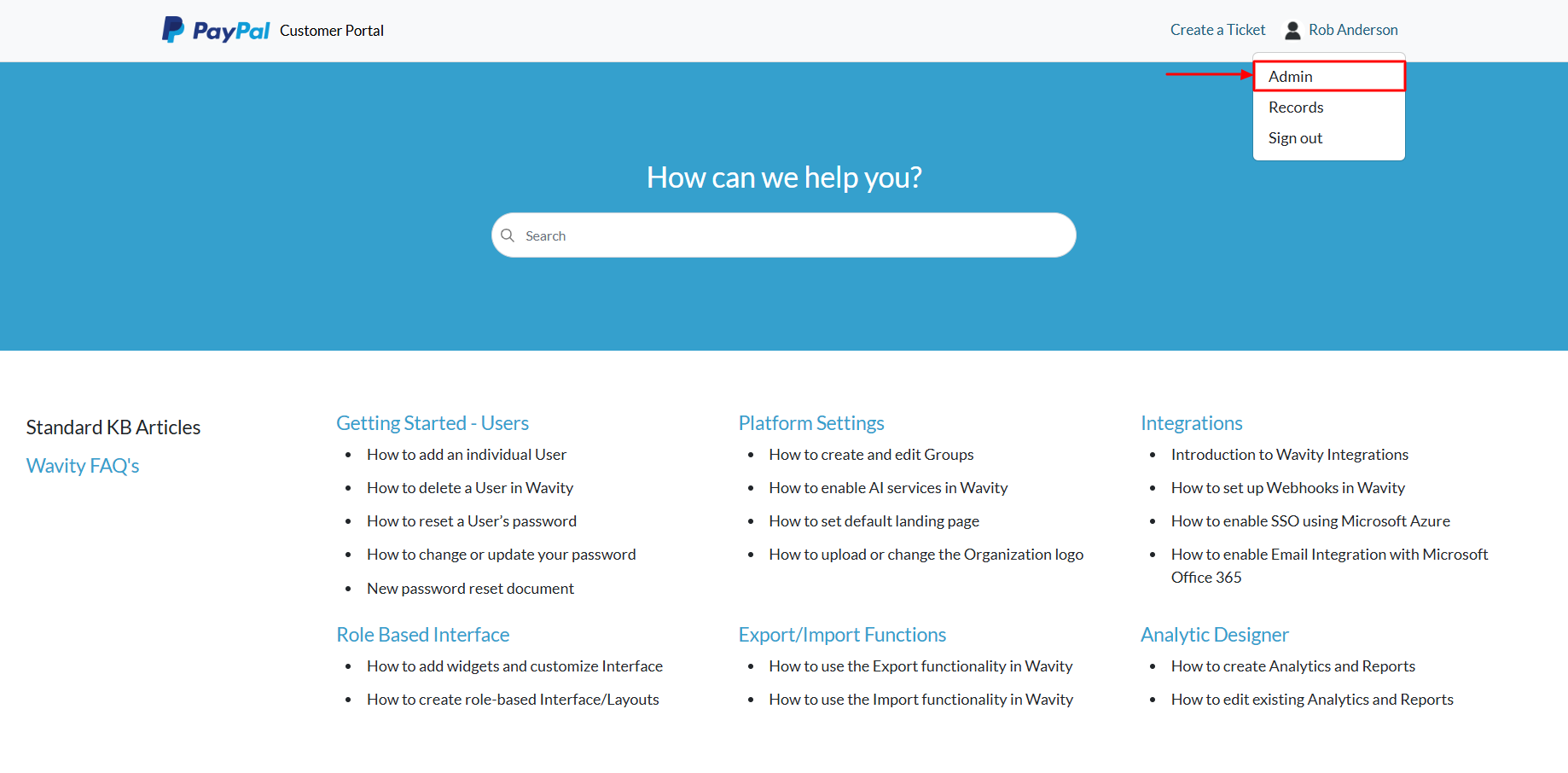
Access the Admin Console: Click on the profile icon, then select Admin to access administrative settings.
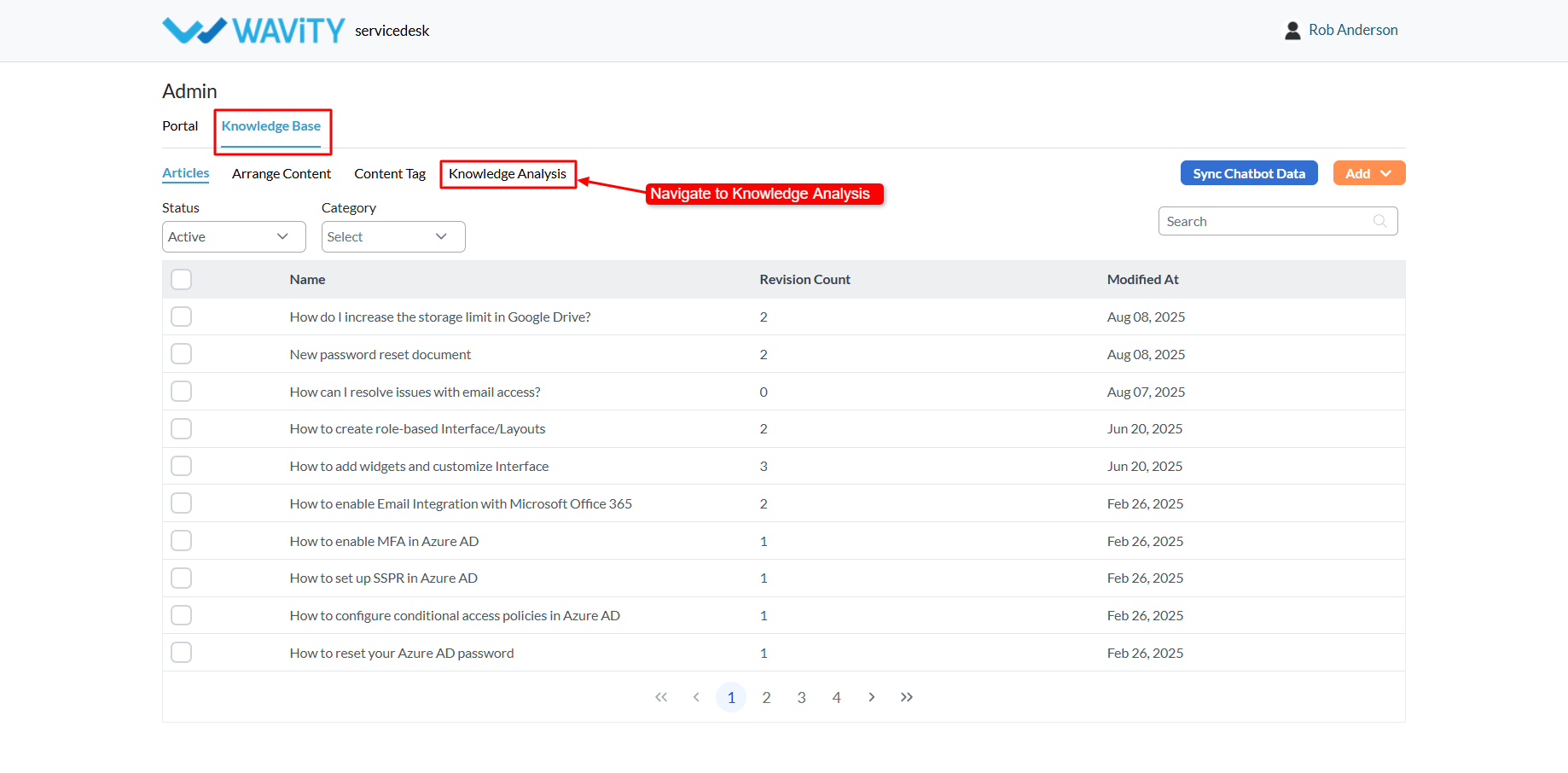
Navigate to Knowledge Analysis: In the Admin Console, go to Knowledge Base > Knowledge Analysis.
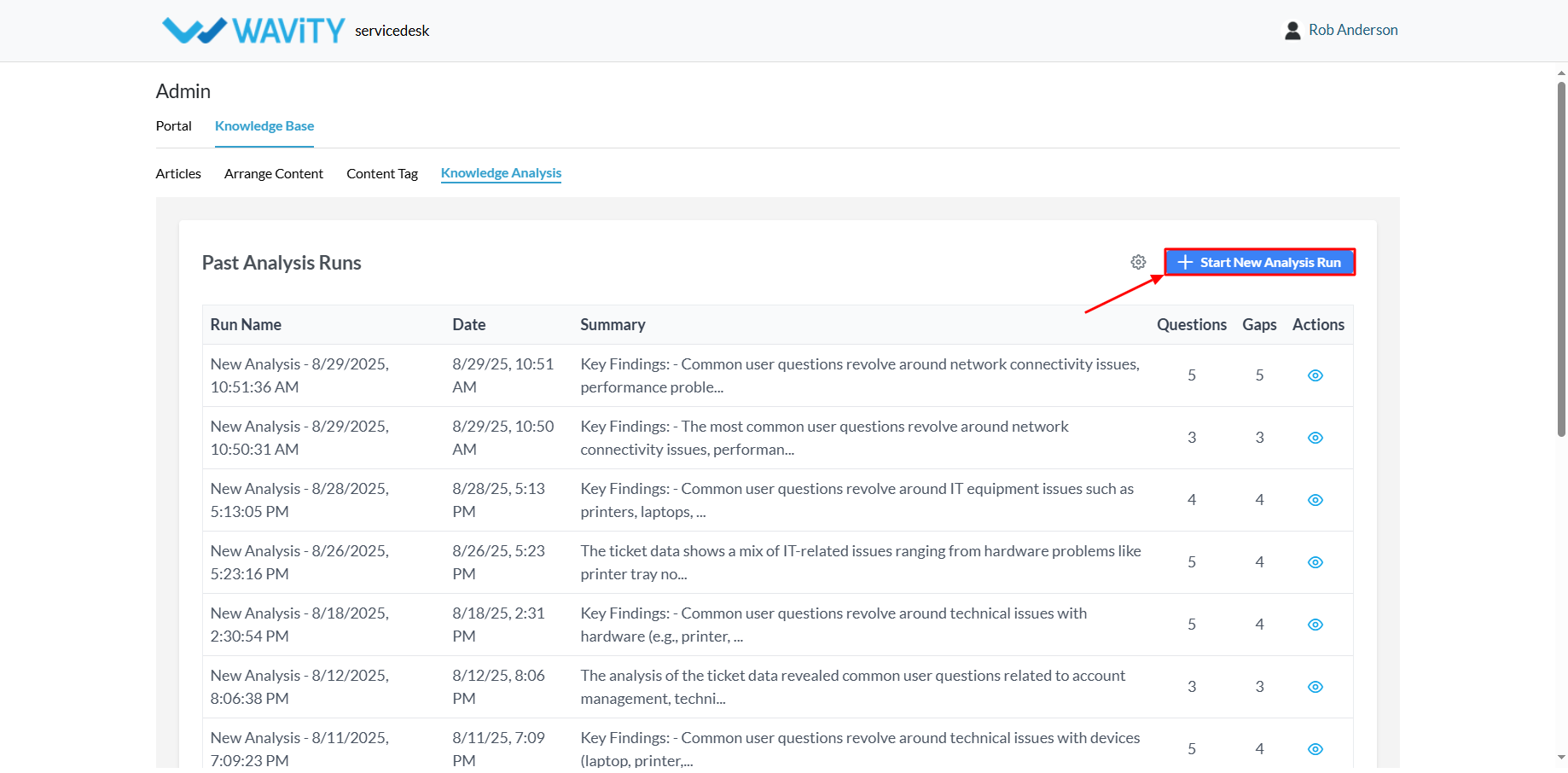
Start a New Analysis Run: You’ll see a list of previous analysis runs. Click Start New Analysis Run to begin.
Running the AI Analysis Process
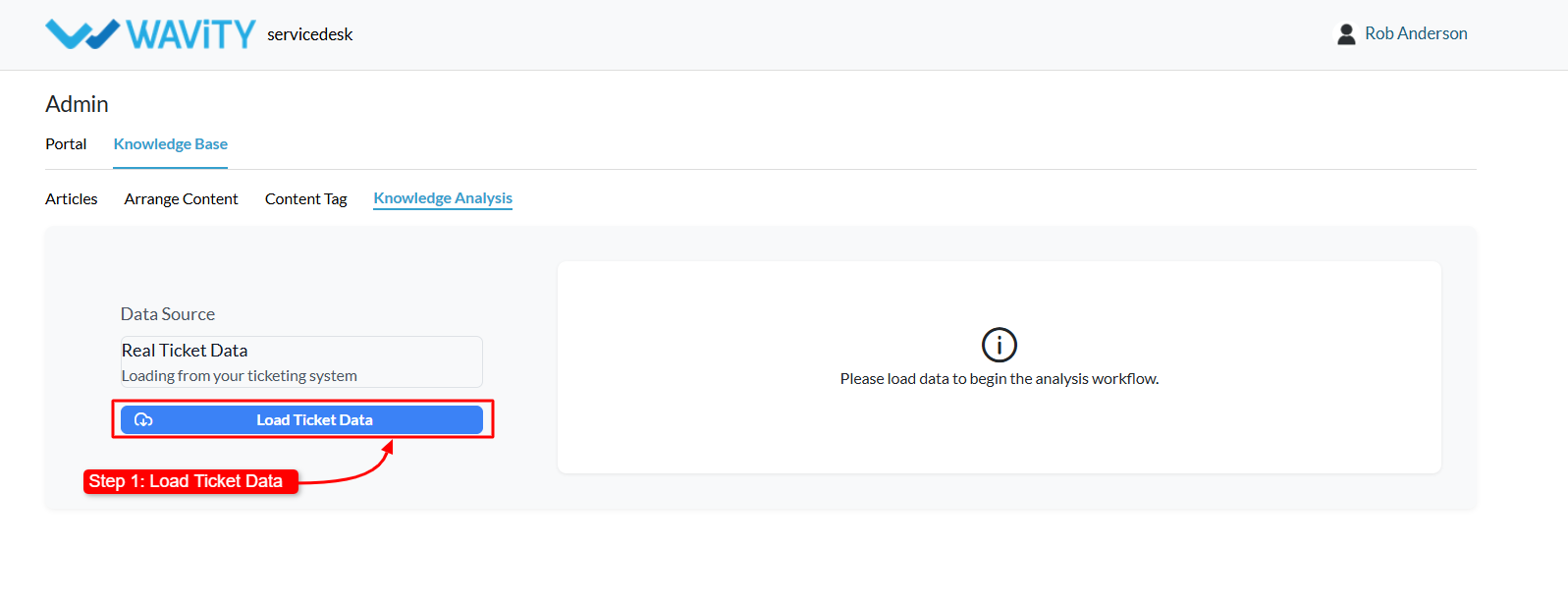
Step 1: Load Ticket Data: Click Load Ticket Data to fetch and display existing tickets from the platform.
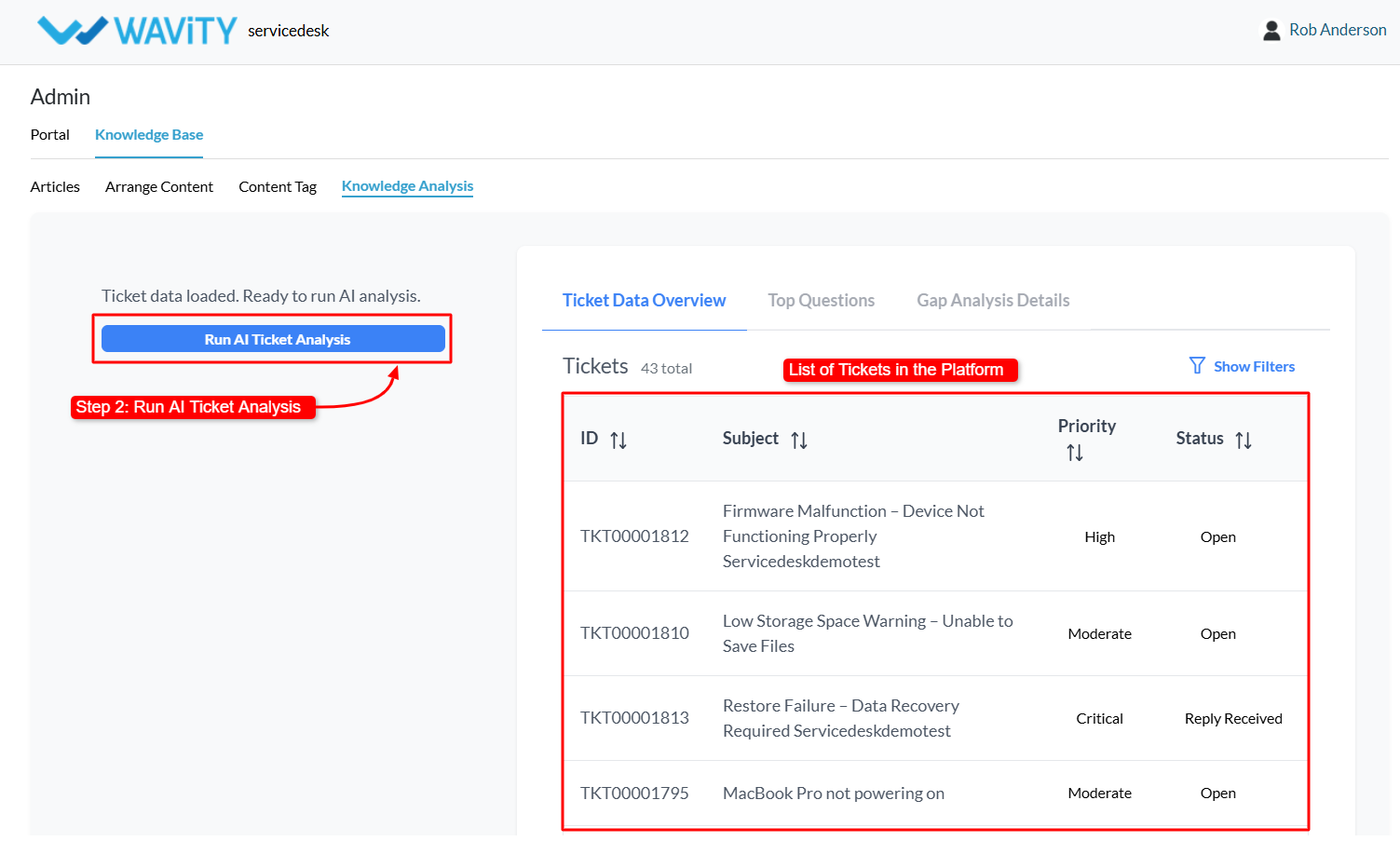
Step 2: Run AI Ticket Analysis: Click Run AI Ticket Analysis. AI will review ticket data and generate a list of common or high-frequency user questions.
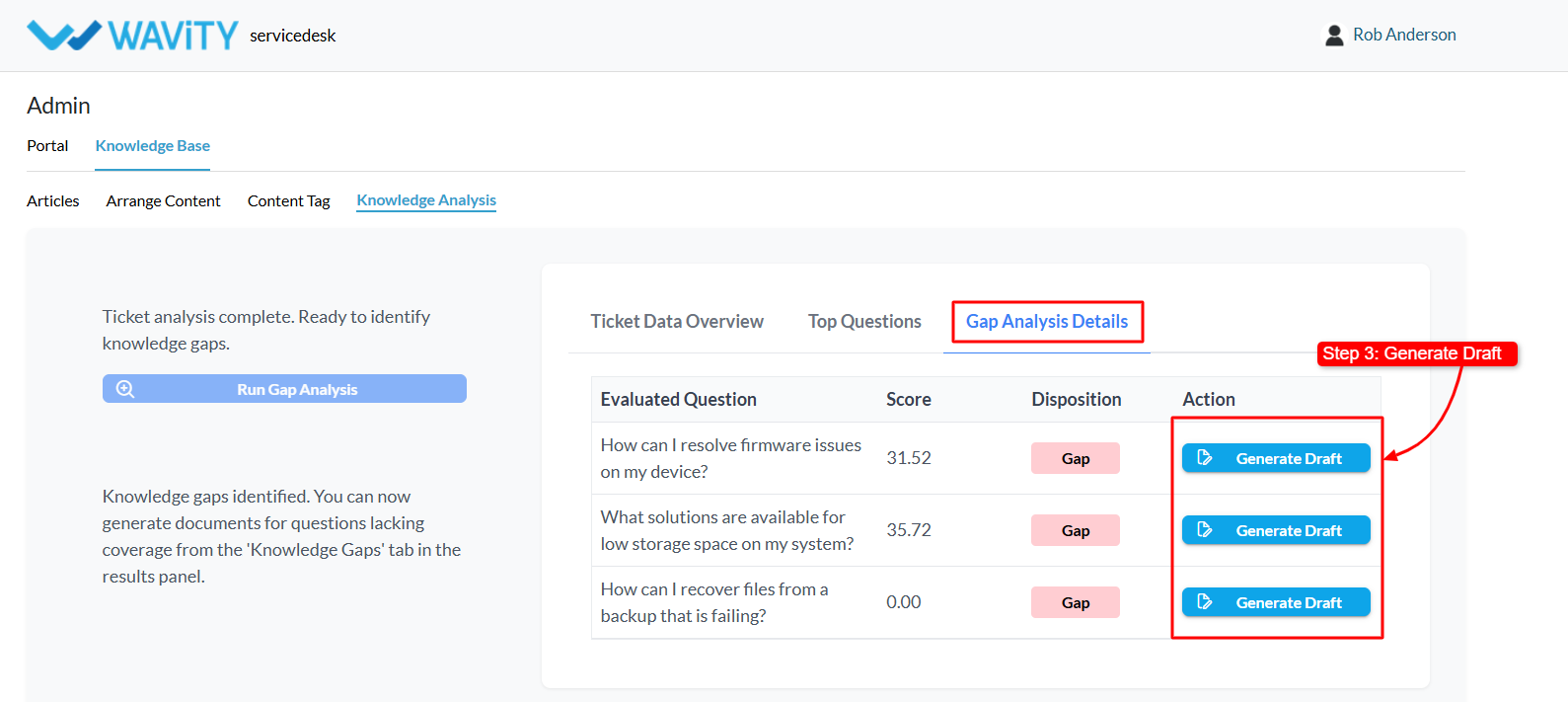
Step 3: Run Gap Analysis: Click Run GAP Analysis. This step identifies gaps in the existing Knowledge Base by comparing it with common ticket topics. Each result includes: gap score and disposition indicating whether a gap exists.
Creating and Publishing AI-Generated Articles
Generate Draft Articles: Based on the gap analysis, the system will offer draft Knowledge Base articles. Click Generate Draft to create them.
Edit and Customize Content:
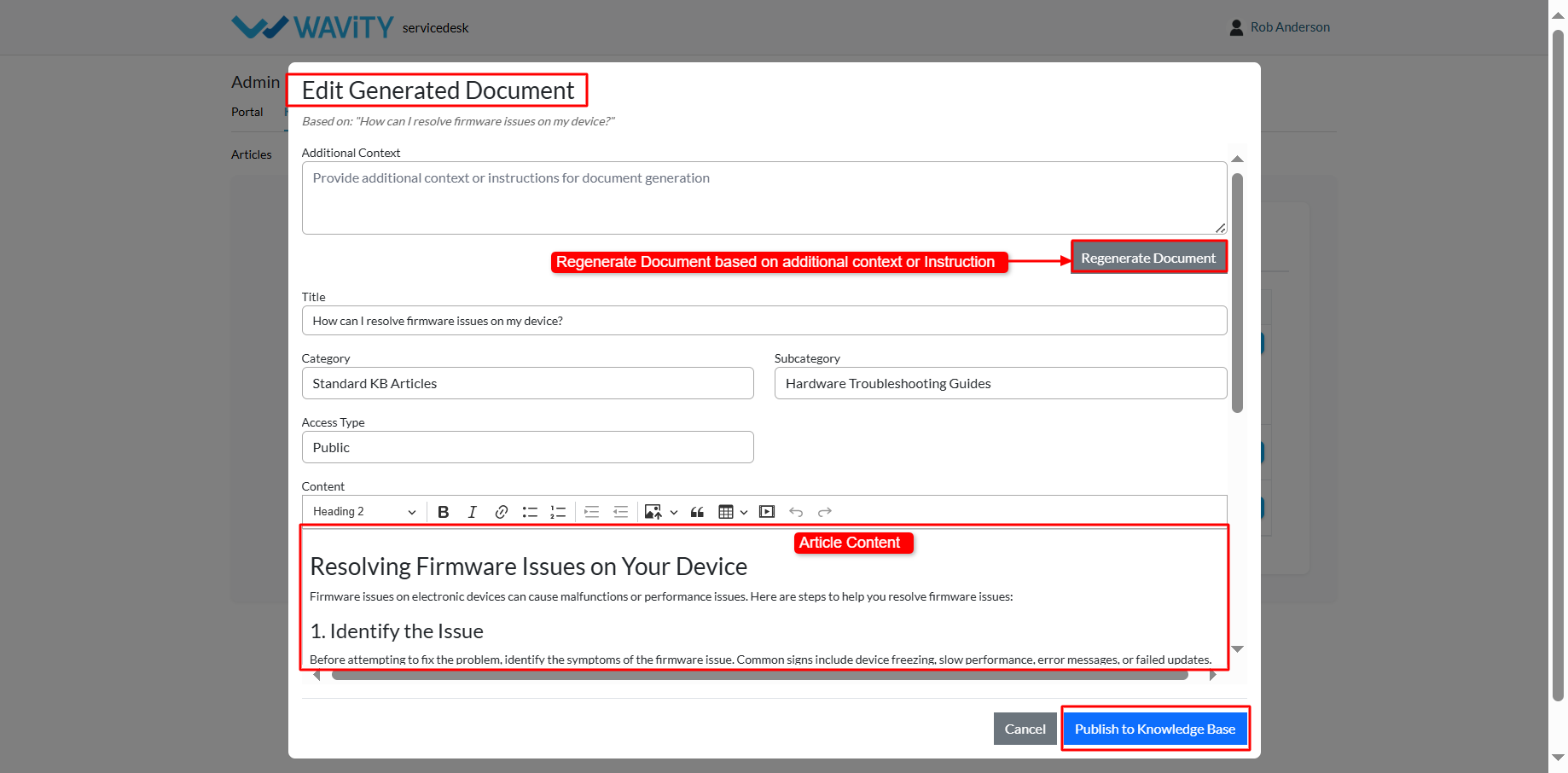
Modify the article title, category, subcategory, and access type.
Use the Additional Content text box to enter more context or instructions, then click Regenerate to update the draft accordingly.
Publish the Article: Once satisfied with the content, click Publish to Knowledge Base. The article will now be available in the customer portal for users.
How to Use AI to Create New Knowledge Base Articles
The Wavity Platform includes a powerful AI-driven feature that supports the Self-Evolving Knowledge Base. This allows AI to continuously analyze ticket data, identify content gaps, and assist Admins in creating new Knowledge Base articles.
Go to the Customer Portal: From the main interface, click on the Customer Portal icon.
Accessing the AI Knowledge Base Gap Analysis: Only Admin users have access to this feature.
Access the Admin Console: Click on the profile icon, then select Admin to access administrative settings.
Navigate to Knowledge Analysis: In the Admin Console, go to Knowledge Base > Knowledge Analysis.
Start a New Analysis Run: You’ll see a list of previous analysis runs. Click Start New Analysis Run to begin.
Running the AI Analysis Process
Step 1: Load Ticket Data: Click Load Ticket Data to fetch and display existing tickets from the platform.
Step 2: Run AI Ticket Analysis: Click Run AI Ticket Analysis. AI will review ticket data and generate a list of common or high-frequency user questions.
Step 3: Run Gap Analysis: Click Run GAP Analysis. This step identifies gaps in the existing Knowledge Base by comparing it with common ticket topics. Each result includes: gap score and disposition indicating whether a gap exists.
Creating and Publishing AI-Generated Articles
Generate Draft Articles: Based on the gap analysis, the system will offer draft Knowledge Base articles. Click Generate Draft to create them.
Edit and Customize Content:
Modify the article title, category, subcategory, and access type.
Use the Additional Content text box to enter more context or instructions, then click Regenerate to update the draft accordingly.
Publish the Article: Once satisfied with the content, click Publish to Knowledge Base. The article will now be available in the customer portal for users.
Leave you comment...
Thank you! Your submission has been received!
Oops! Something went wrong while submitting the form.
Leave you comment...