Creating an Analytics Widget in Wavity
Creating an Analytics Widget in Wavity
- Widgets in Wavity are interactive components or visual elements within a user interface (UI) that provide users with specific functionalities, data visualizations, or quick access to information and actions.
- Widgets can be added/edited to interfaces/dashboards in Wavity platform. This feature allows you to customize dashboards based on your requirements. For more details on creation of dashboards, please refer the following link: How To Create Role-Based Interface/Dashboards/Layouts | Wavity
- An Analytics Widget is used to display pre-built analytics or visual reports from a specific application directly on your interface. It provides users with a quick snapshot of meaningful data insights, helping them make informed decisions without leaving the dashboard.
- Only an Admin of your organization has the access to create or update widgets in Wavity.
- To create a new analytics widget: Click on “Manage Widget”.

- The Widget Settings pop-up will be displayed. As shown in the image below, all existing active widgets in the layout are listed. To create a new widget, click the ‘Create New’ button.
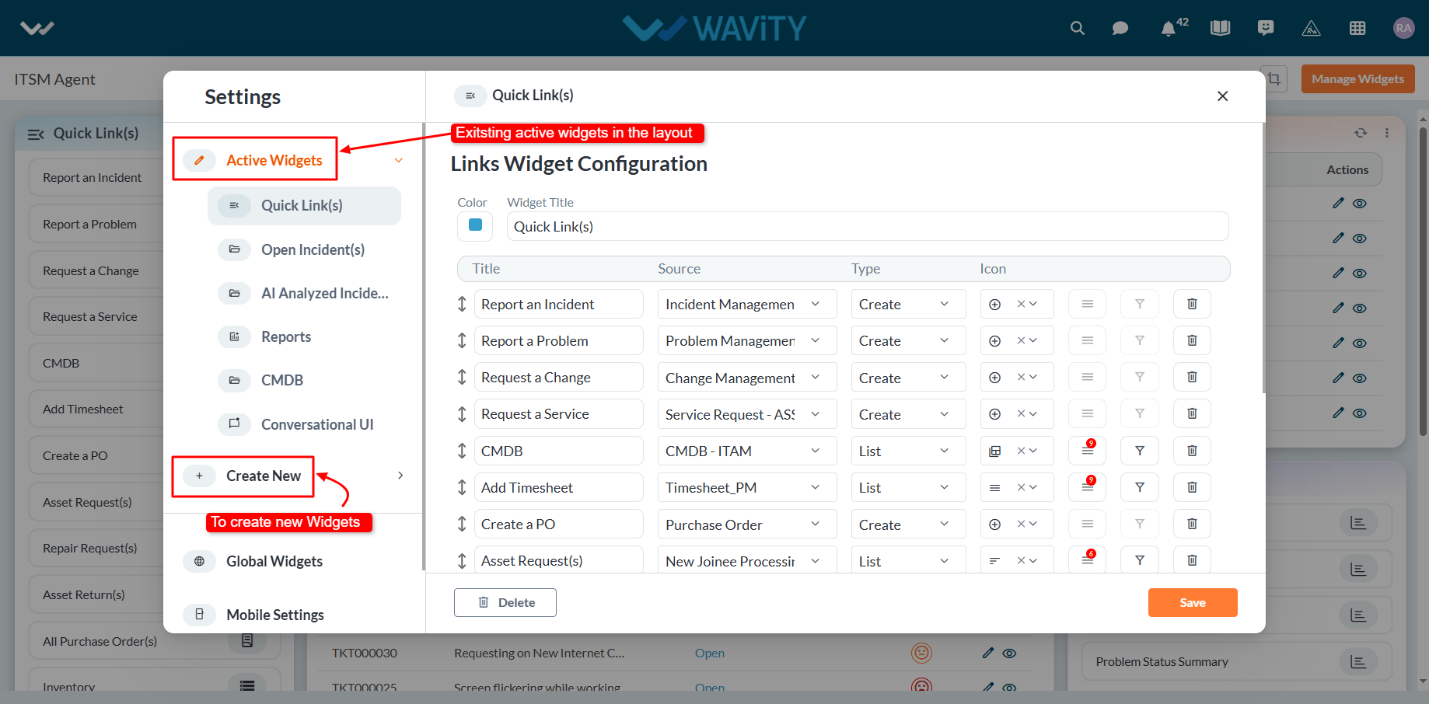
- You can create various types of widgets such as Reports, Analytics, Table, Links, Bulletin & Columns in the layout.
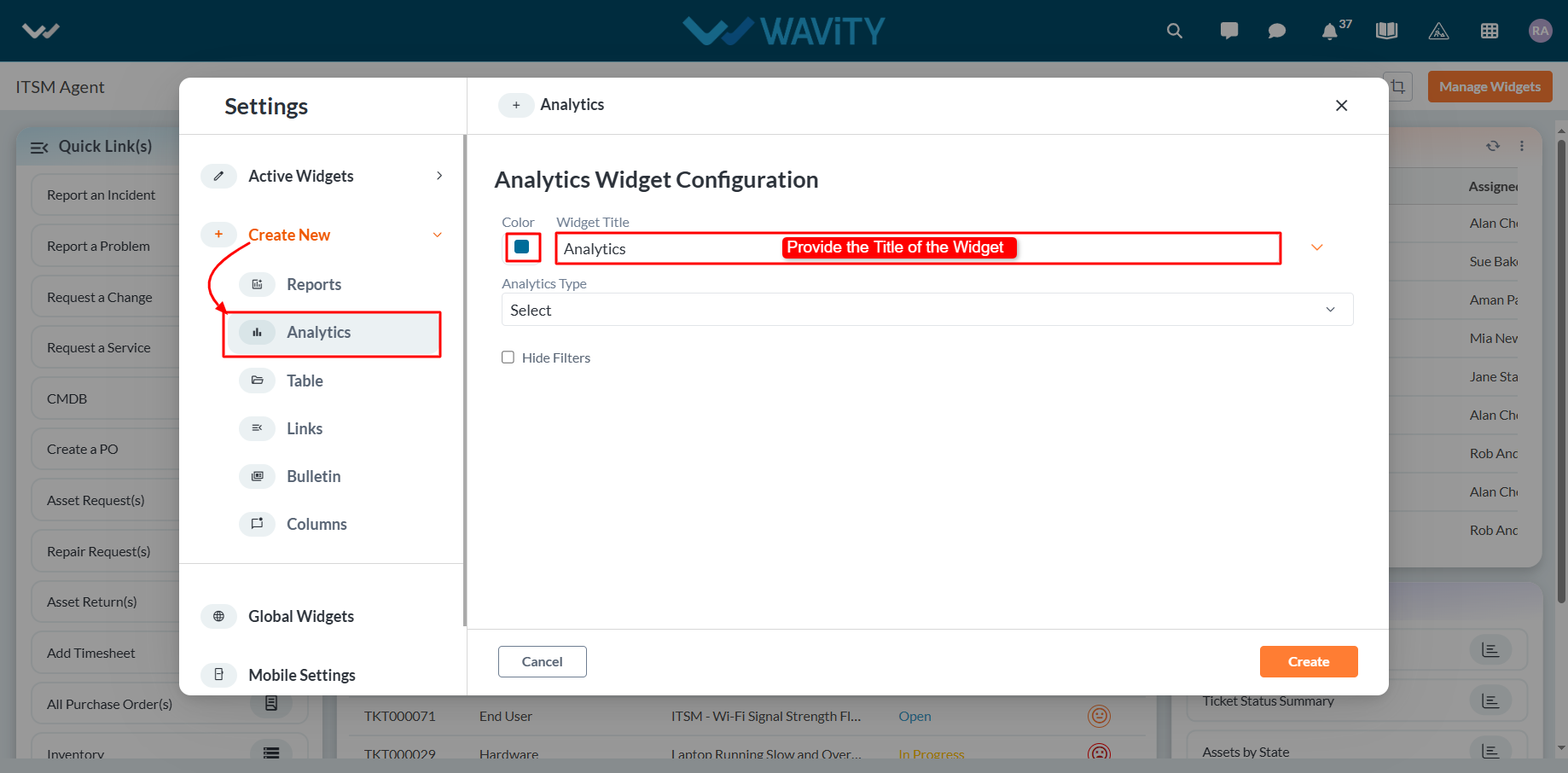
- To create a new table widget, click on "Analytics".
- Choose a color for the widget to customize its appearance.
- Enter a title for the widget to identify it clearly.
- Choose the Application from which the widget will pull existing analytics.
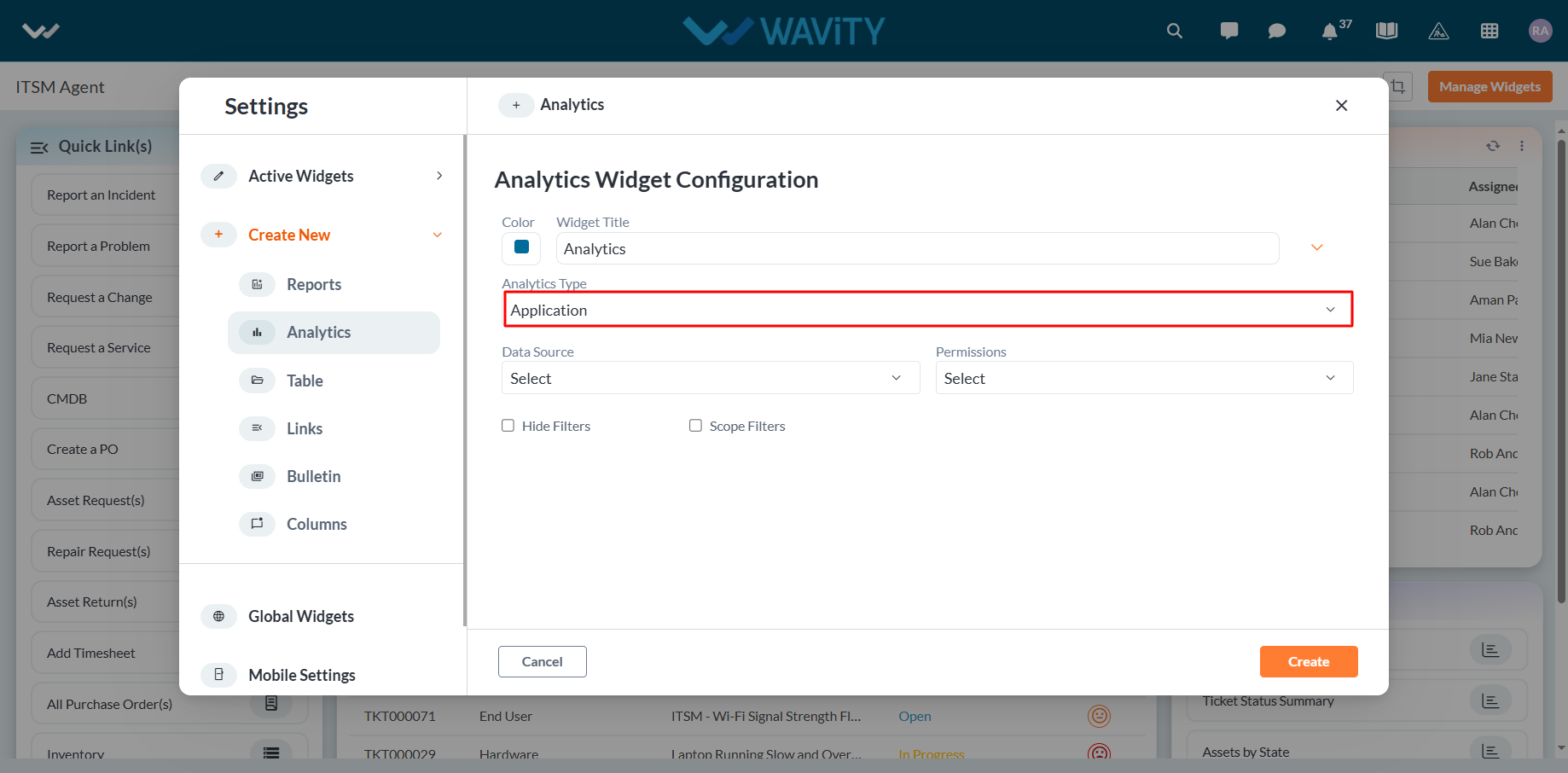
- Select the specific Analytics item you want to display from that application.
- Choose the User Category (e.g., End User, Approver, Manager, Moderator) to define who can view or interact with the Analytics Widget. Permissions are based on the selected data source application.
- Once all configurations are set: Click Create to generate a new Analytics Widget or Click Save to update an existing one.

- Here’s an illustration of how an Analytics Widget will appear in the interface:
