Configuring the Close Field in Conversational UI
Configuring the Close Field in Conversational UI
- In Wavity, admin can configure the Close field to appear in the Conversational UI, allowing agents to update and close tickets with a single click.
- Only users with Admin access can perform this configuration.
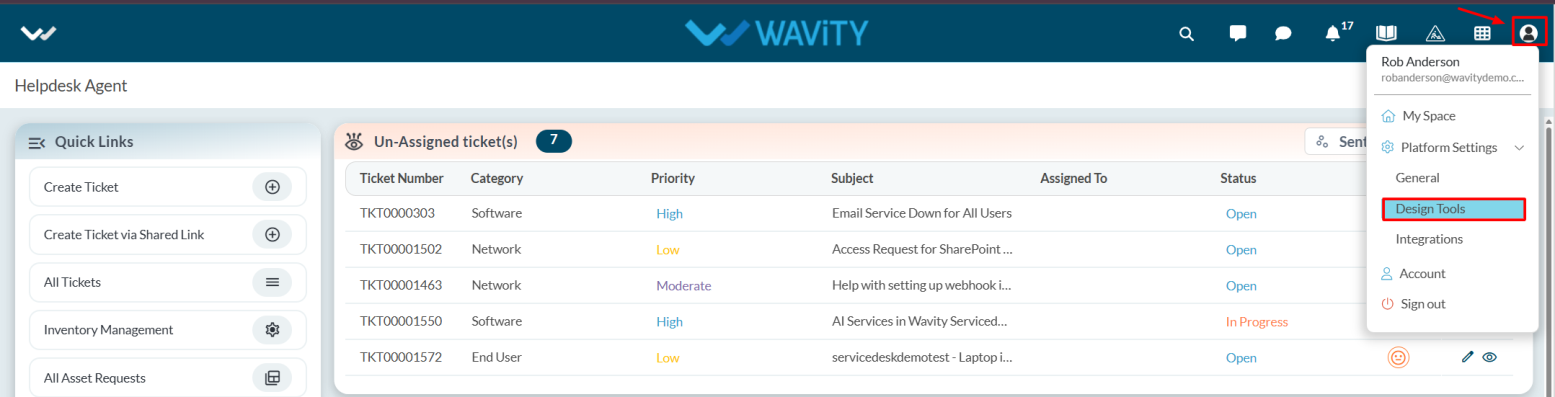
- Click on the Profile icon and select Design Tools.
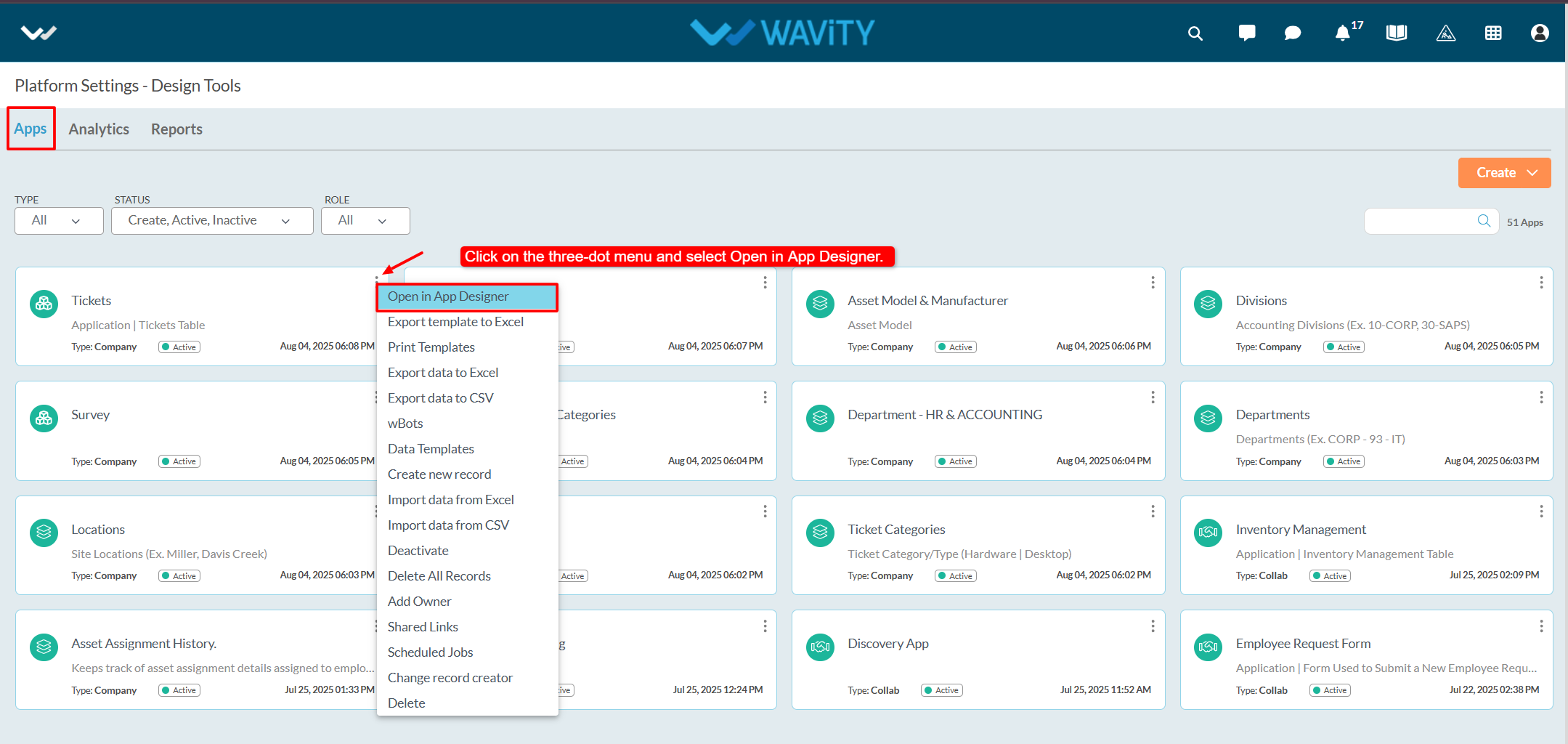
- You will be redirected to the Design Tools page, where under the App tab, you can select the desired application and click the three dots to choose Open App Designer.
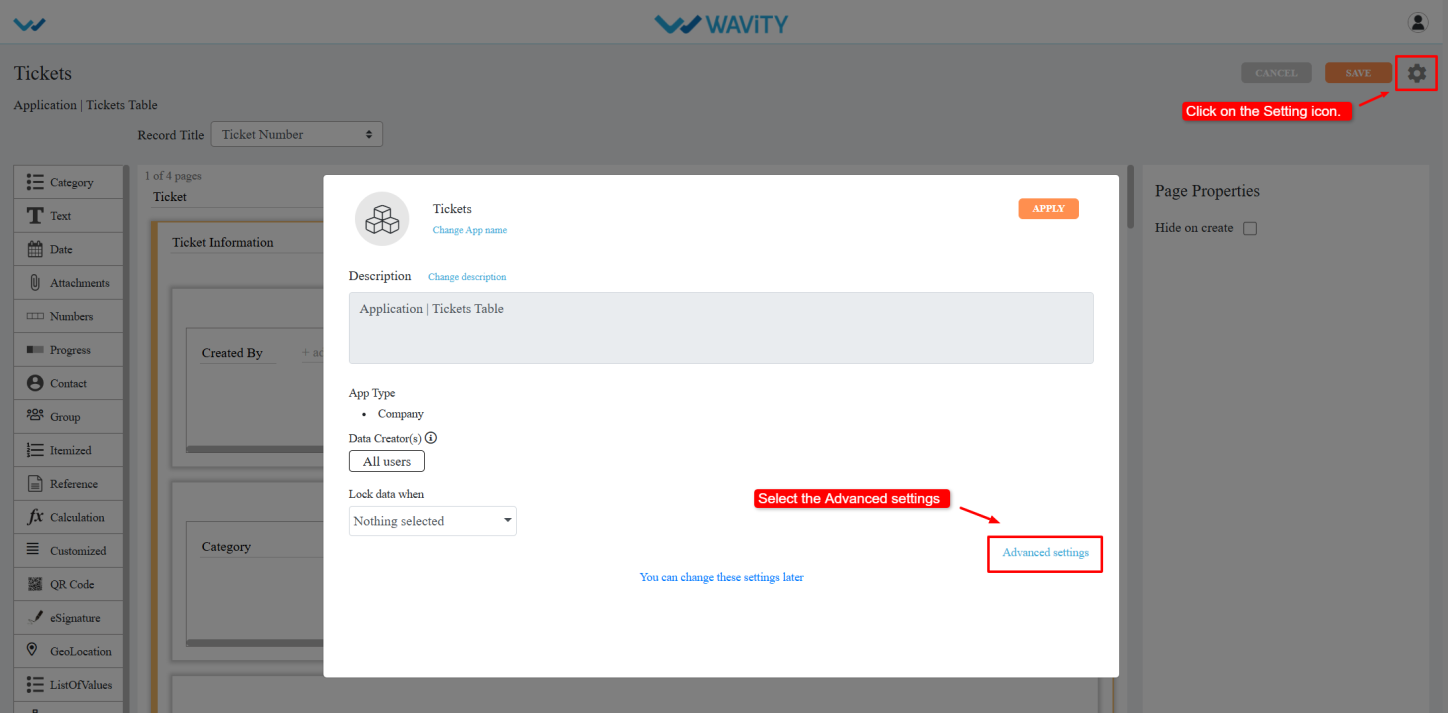
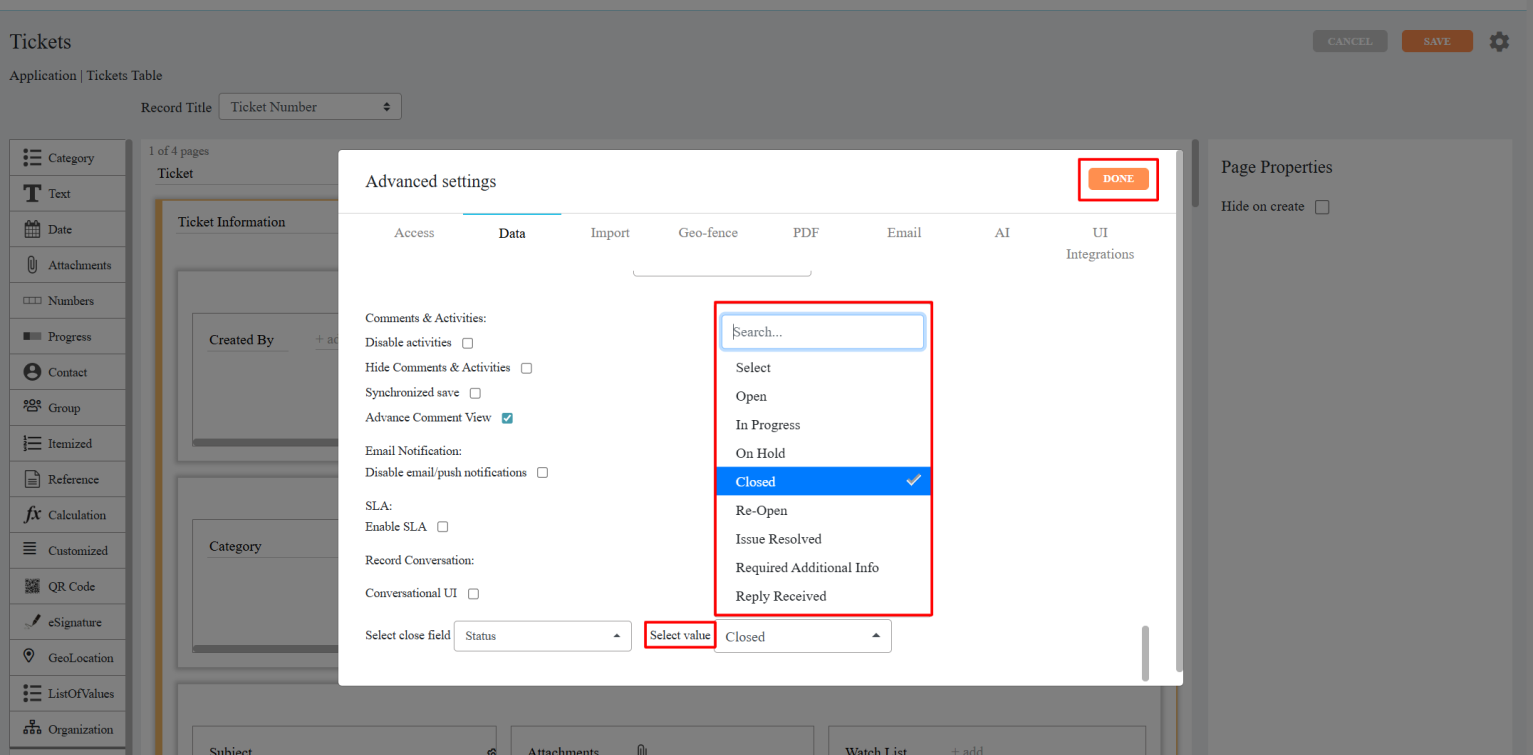
- Click on the Settings icon, and then select Advanced Settings.
- Go to the Data tab and scroll down to the bottom section.
- Select the Close Field from the dropdown.
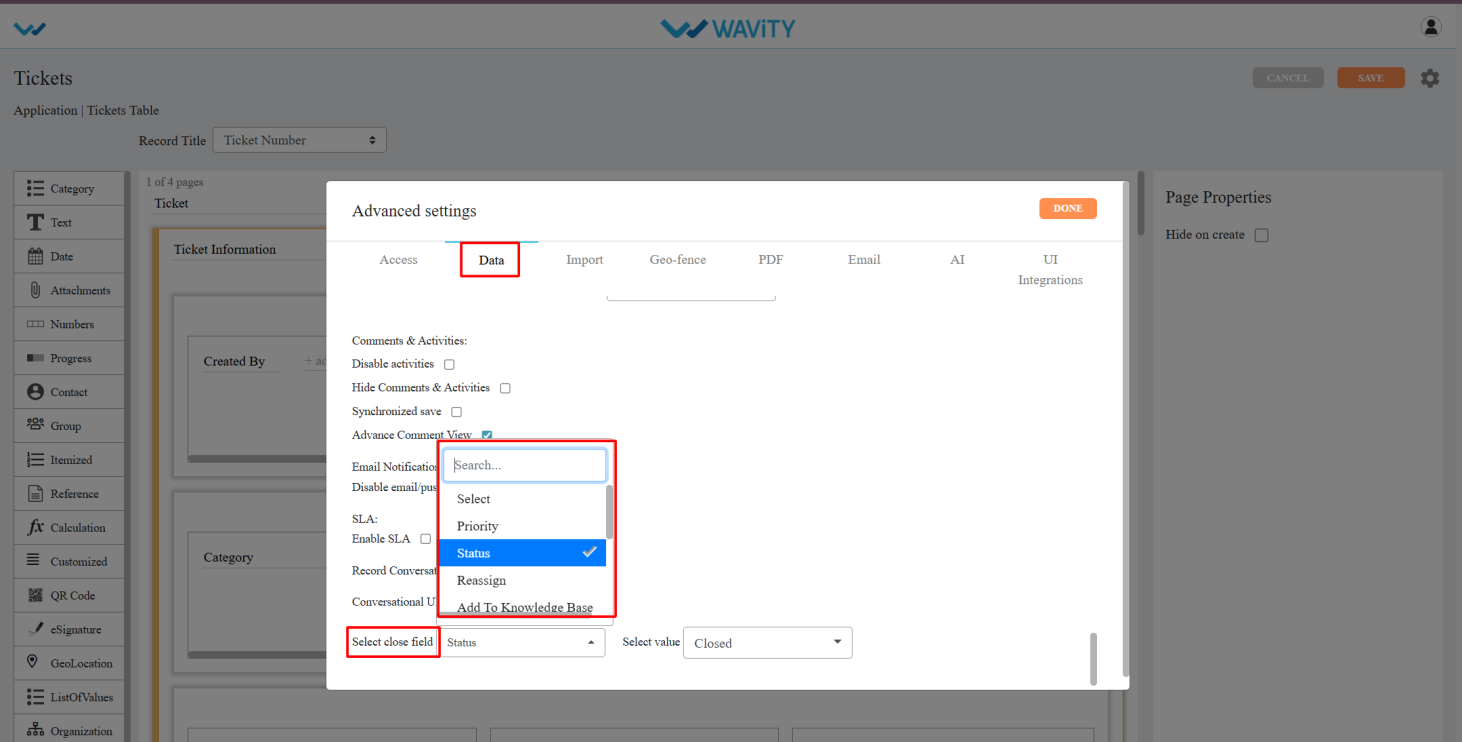
- Choose the status value you want to assign when closing the ticket (e.g., “Closed” or “Resolved”). Click Done.
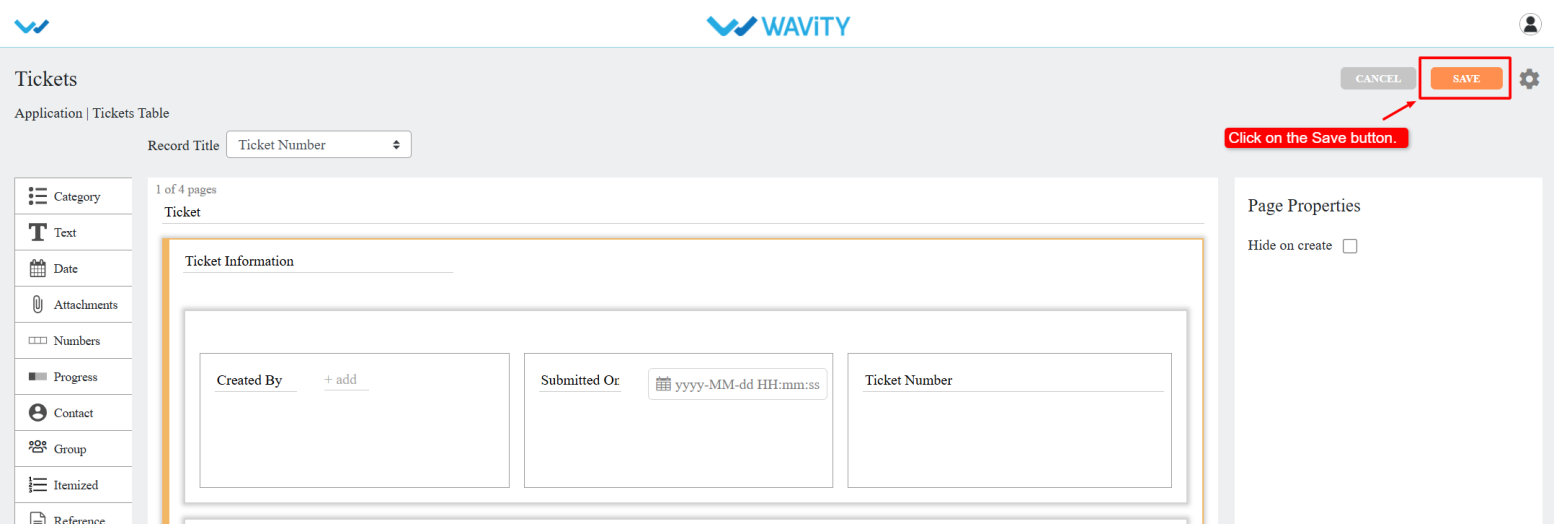
- Click Apply, and then click Save again to confirm and apply the changes.
- Once configured, the Close button will be visible in the Conversational UI, enabling agents to close tickets with a single click.
