Configuring Filters in App Designer
  • Applying filters in the Wavity platform is a simple process that can be done for any lists or reports. There are two types of filters available: Direct Filters and Advanced Filters.
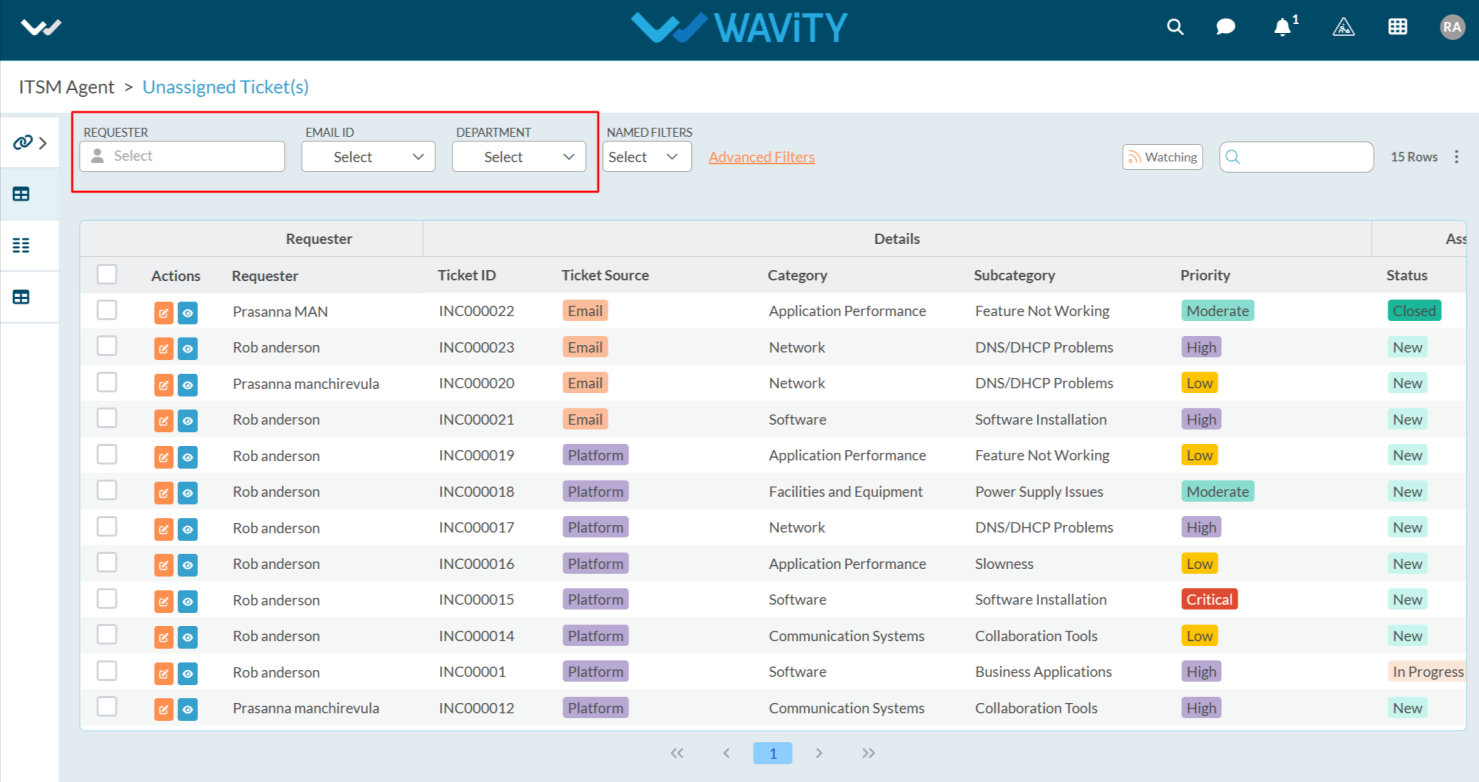
  • Example to apply direct/simple filters is shown below. Direct Filters are easily accessible through dropdown boxes located beside advanced filters. These filters can be customized according to your requirements during implementation.
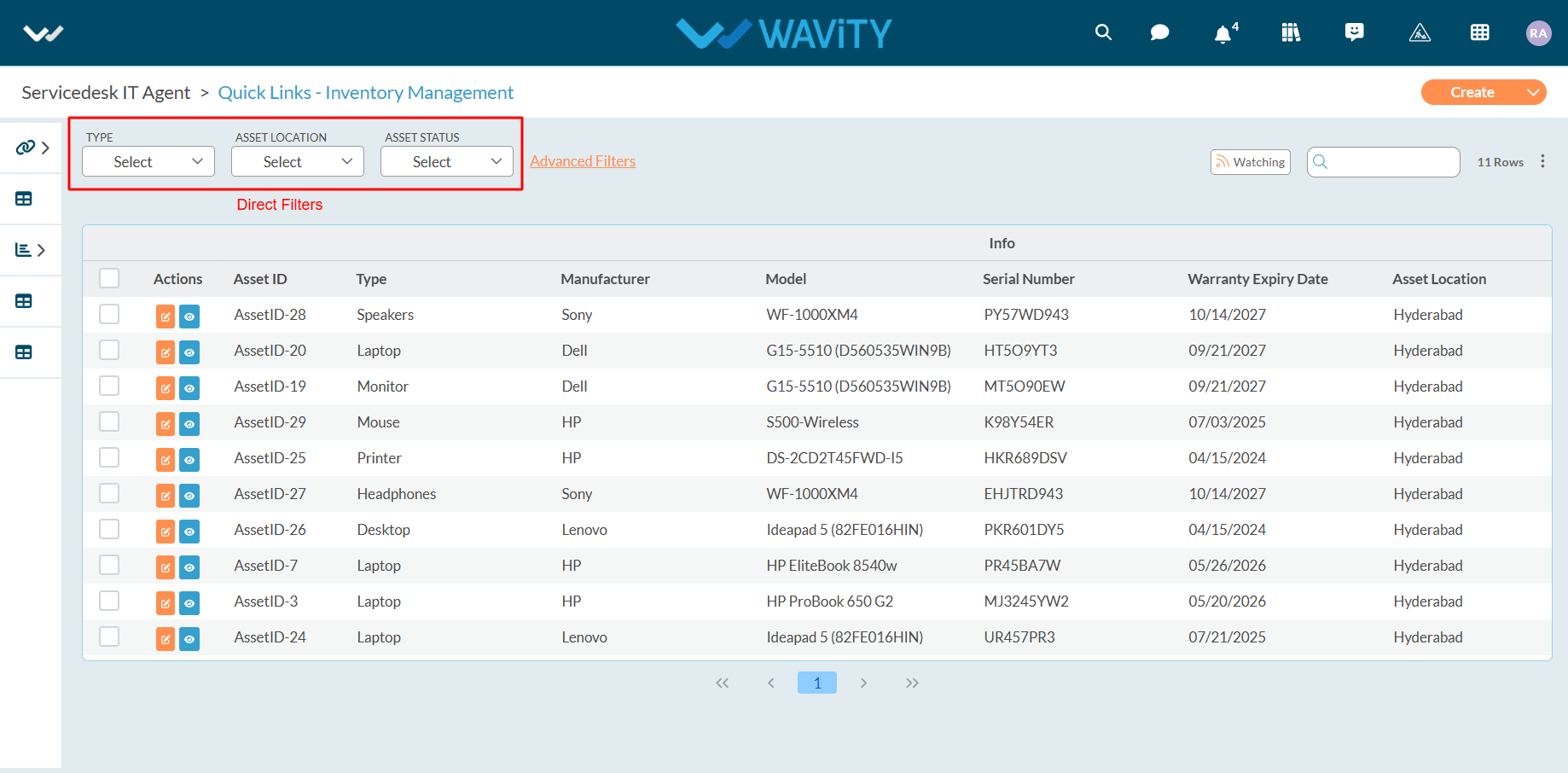
  • Applying simple filters on the Wavity platform is a straightforward process.
  • Only Admin has access to advanced settings when creating an App.
  • Click on the profile icon and select Design Tools (accessible only to Admin).
  • In the App section, only the Admin can see all the existing applications in the tenant.
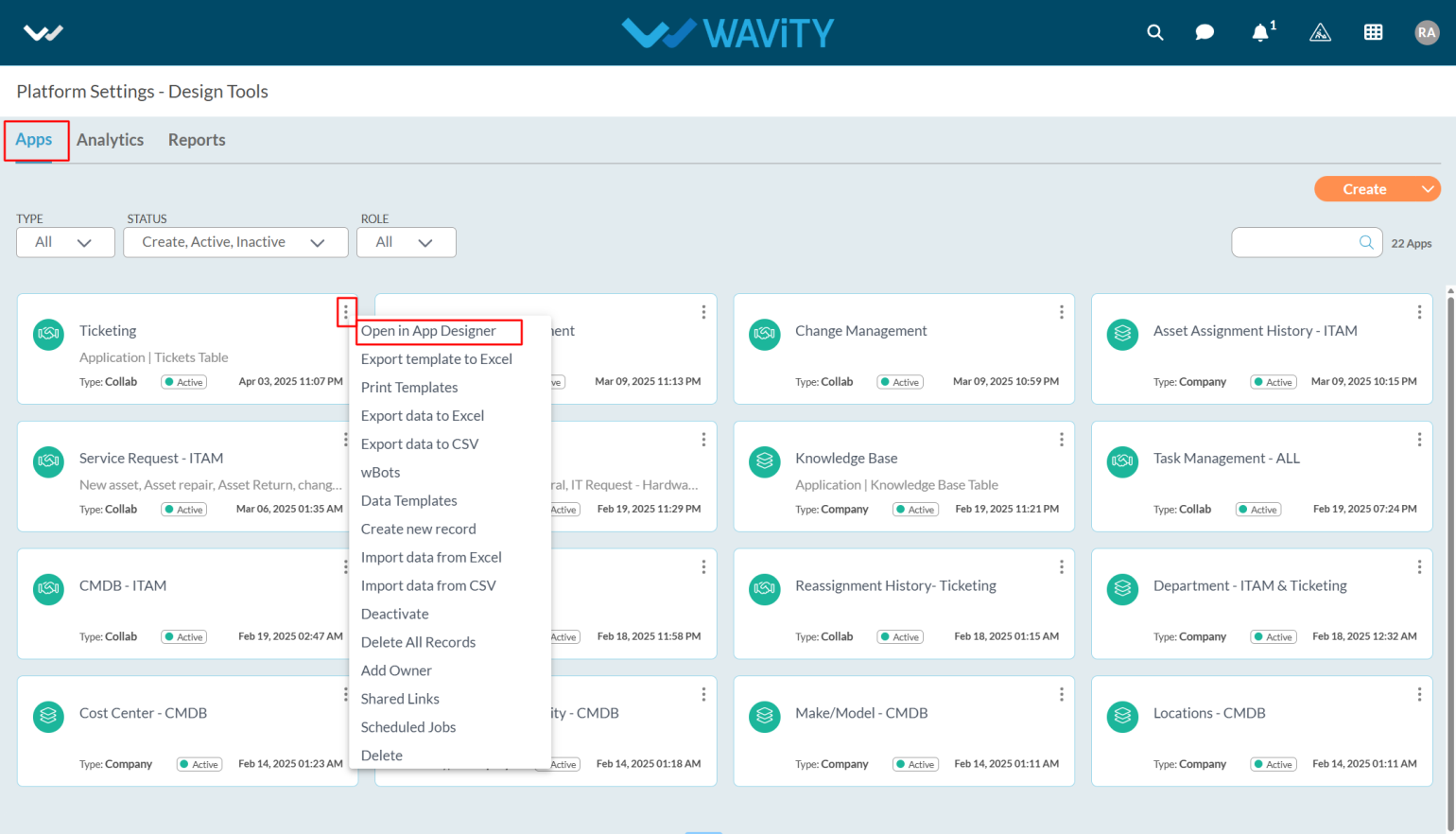
  • Select the application where you want to apply simple filters and click on the three dots.
  • From the options in the three dots menu, choose Open in App Designer.
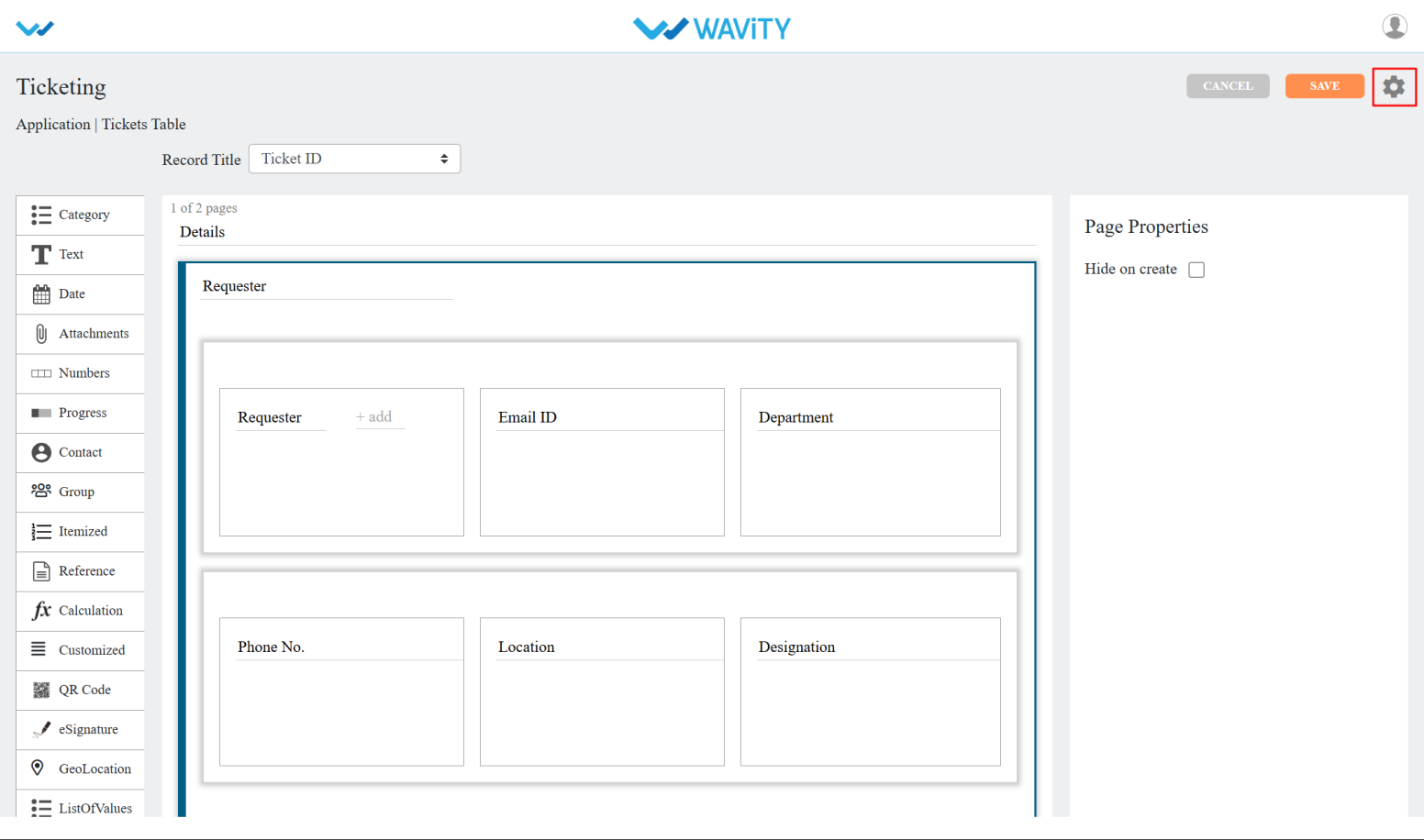
  • Click the Settings icon, as shown in the image below, to view or edit the Application Settings.
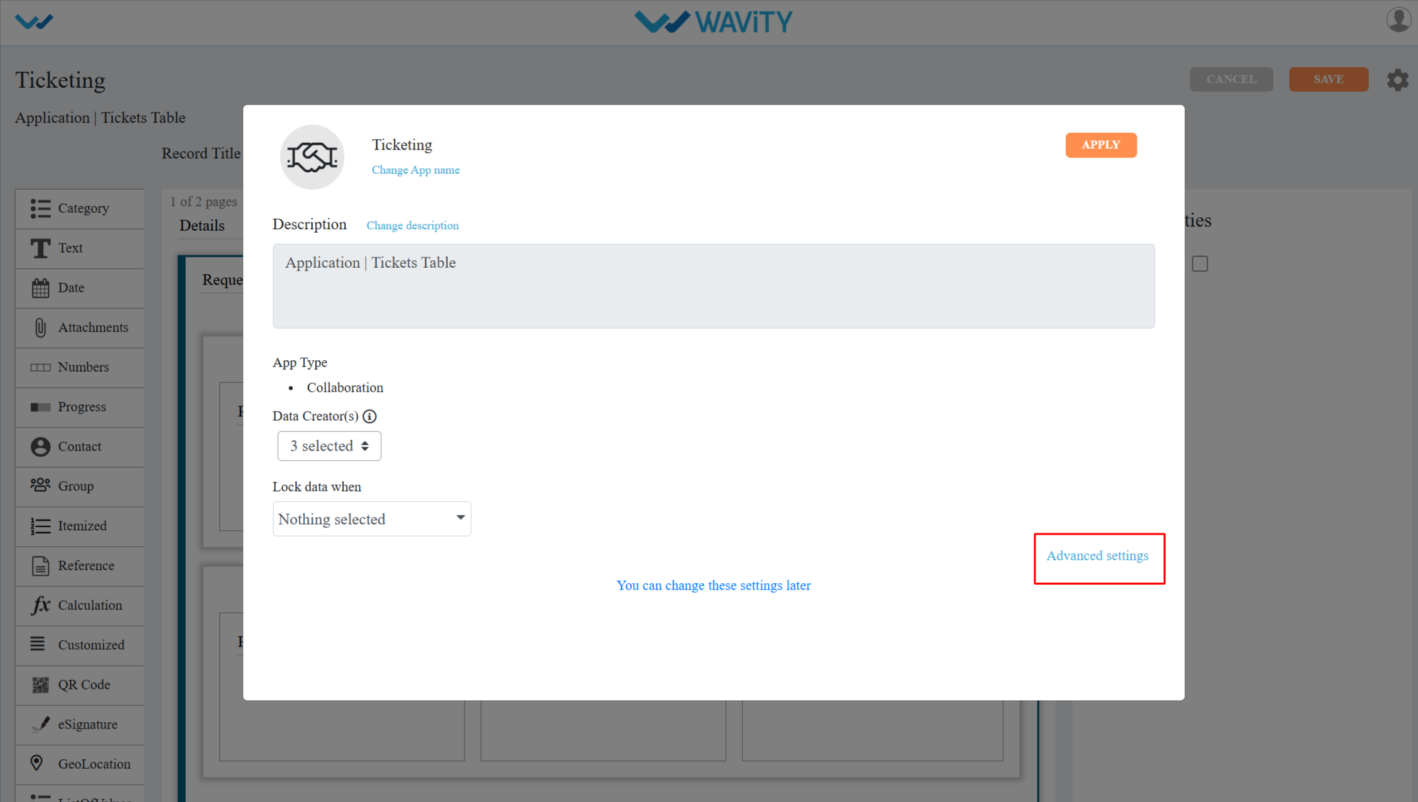
  • Click on Advanced settings to apply the simple filters.
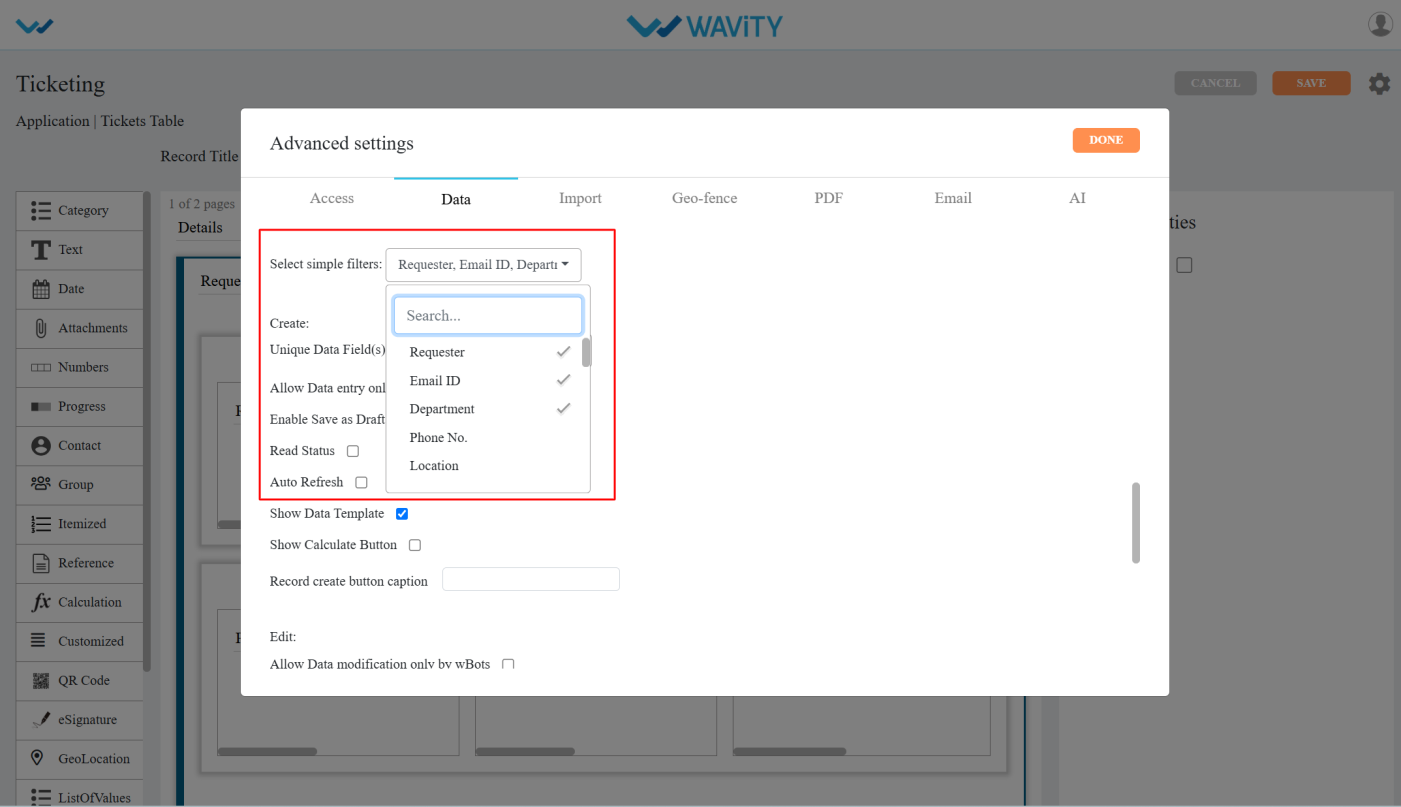
  • In Advanced Settings, click on the Data tab and scroll down and you can see the select simple filters option.
  • In Simple filters dropdown’s you can select only 3 data controls/form fields which can be made visible as a simple filter on the listing page.
  • After selecting the filters click on the Done & apply and click on the save button to save the filters.
  • Now you can see the applied simple filters in the Record listening page.
Configuring Filters in App Designer
  • Applying filters in the Wavity platform is a simple process that can be done for any lists or reports. There are two types of filters available: Direct Filters and Advanced Filters.
  • Example to apply direct/simple filters is shown below. Direct Filters are easily accessible through dropdown boxes located beside advanced filters. These filters can be customized according to your requirements during implementation.
  • Applying simple filters on the Wavity platform is a straightforward process.
  • Only Admin has access to advanced settings when creating an App.
  • Click on the profile icon and select Design Tools (accessible only to Admin).
  • In the App section, only the Admin can see all the existing applications in the tenant.
  • Select the application where you want to apply simple filters and click on the three dots.
  • From the options in the three dots menu, choose Open in App Designer.
  • Click the Settings icon, as shown in the image below, to view or edit the Application Settings.
  • Click on Advanced settings to apply the simple filters.
  • In Advanced Settings, click on the Data tab and scroll down and you can see the select simple filters option.
  • In Simple filters dropdown’s you can select only 3 data controls/form fields which can be made visible as a simple filter on the listing page.
  • After selecting the filters click on the Done & apply and click on the save button to save the filters.
  • Now you can see the applied simple filters in the Record listening page.

Leave you comment...

Thank you! Your submission has been received!
Oops! Something went wrong while submitting the form.