Agent Guide: How to add a new CMDB record
  • Adding or managing Configuration Management Database (CMDB) records on the Wavity ITSM platform is designed to be straightforward and user-friendly for agents.
  • Note: The steps outlined below serve as general instructions and can be customized to meet specific organizational needs; however, the core workflow remains the same.
  • Agents with the appropriate access can log in using their credentials and will be directed to the Agent Interface.
  • From the Agent Interface, Click on ‘CMDB’ from the quick links widget.
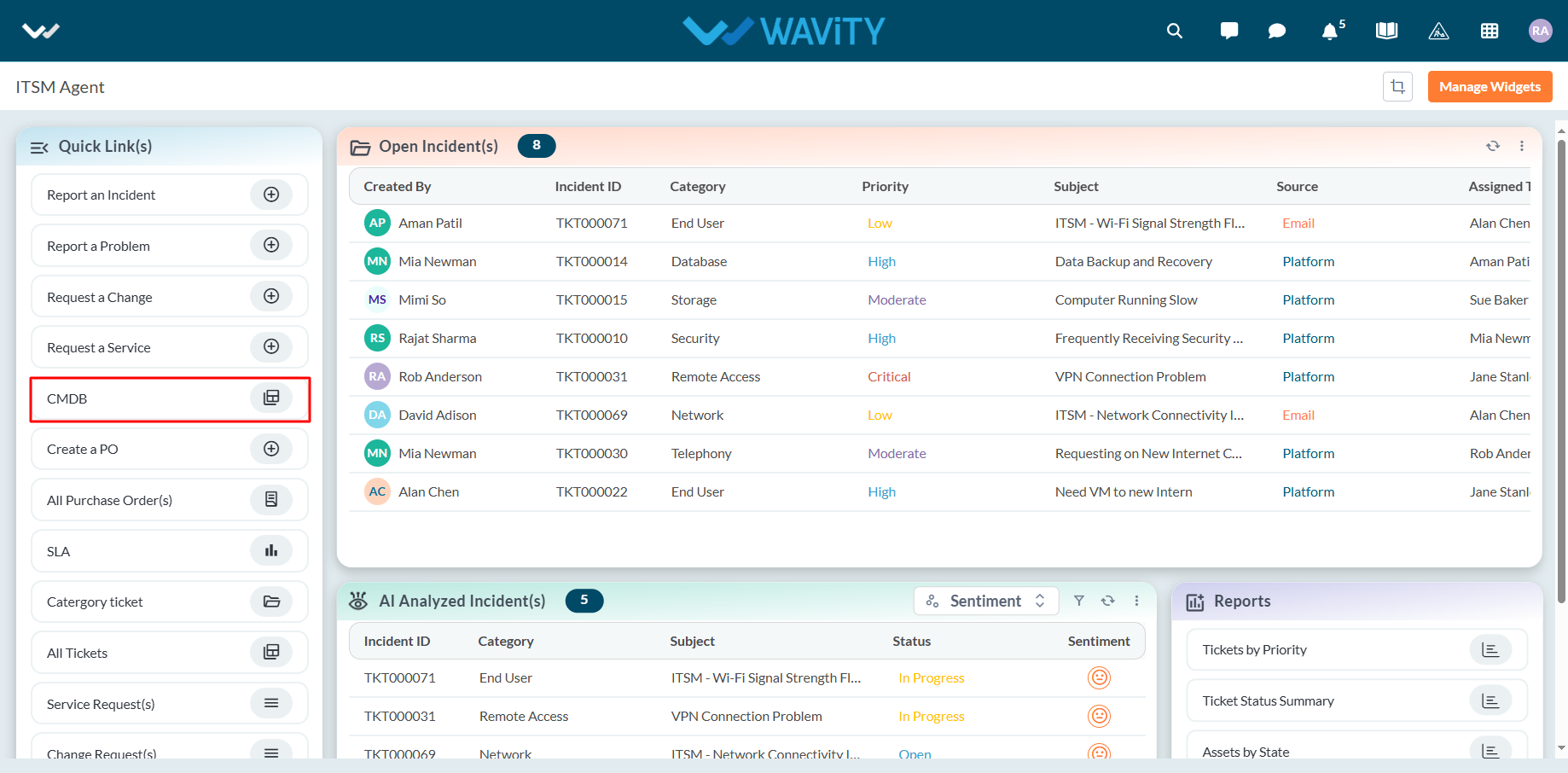
  • You can create new CMDB records either manually or by importing data in bulk using Excel or CSV files. Click on "New Record" to begin adding a CMDB entry manually.
  • Enter the name or title of the asset and select the appropriate asset type for the record.
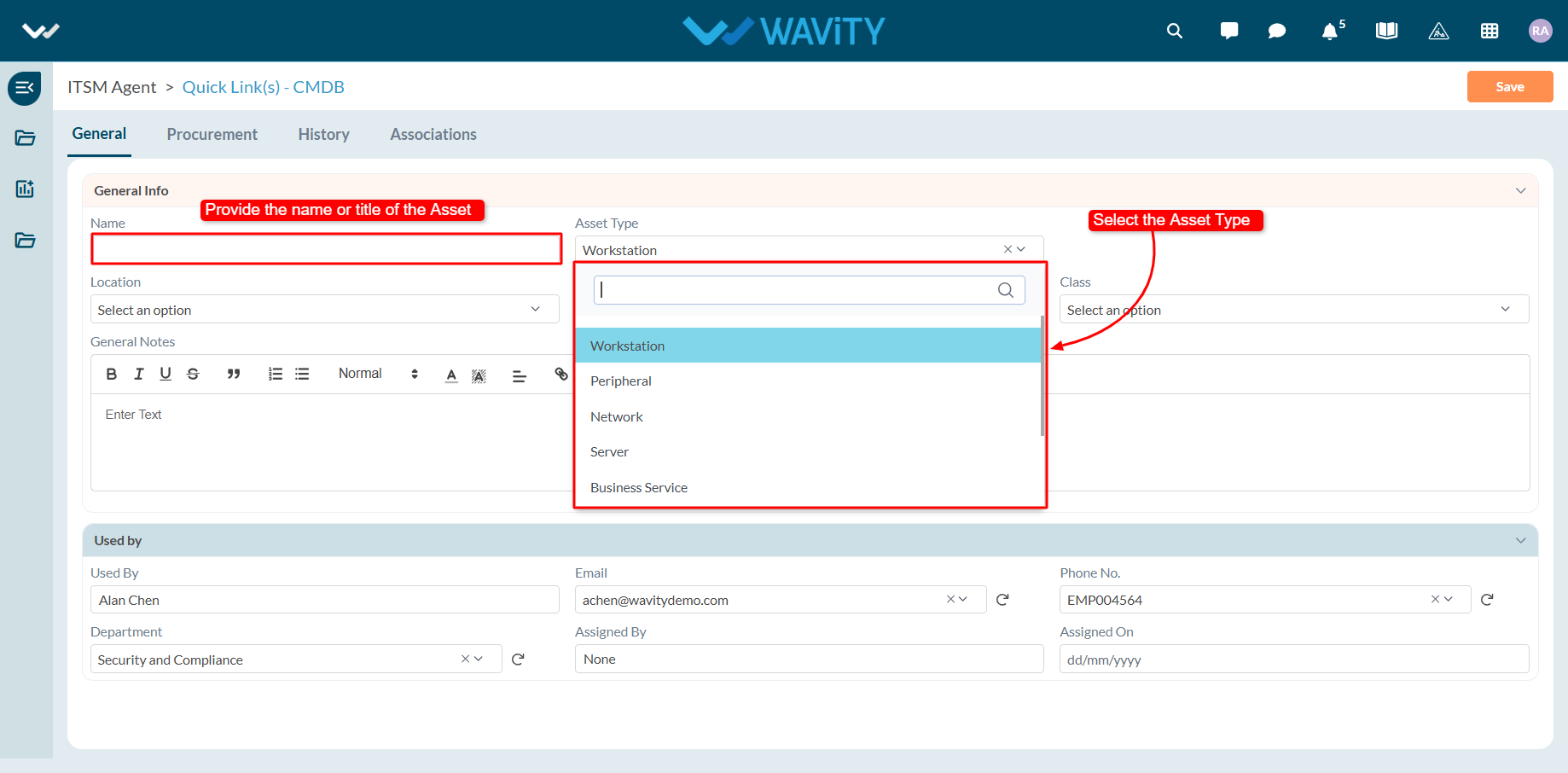
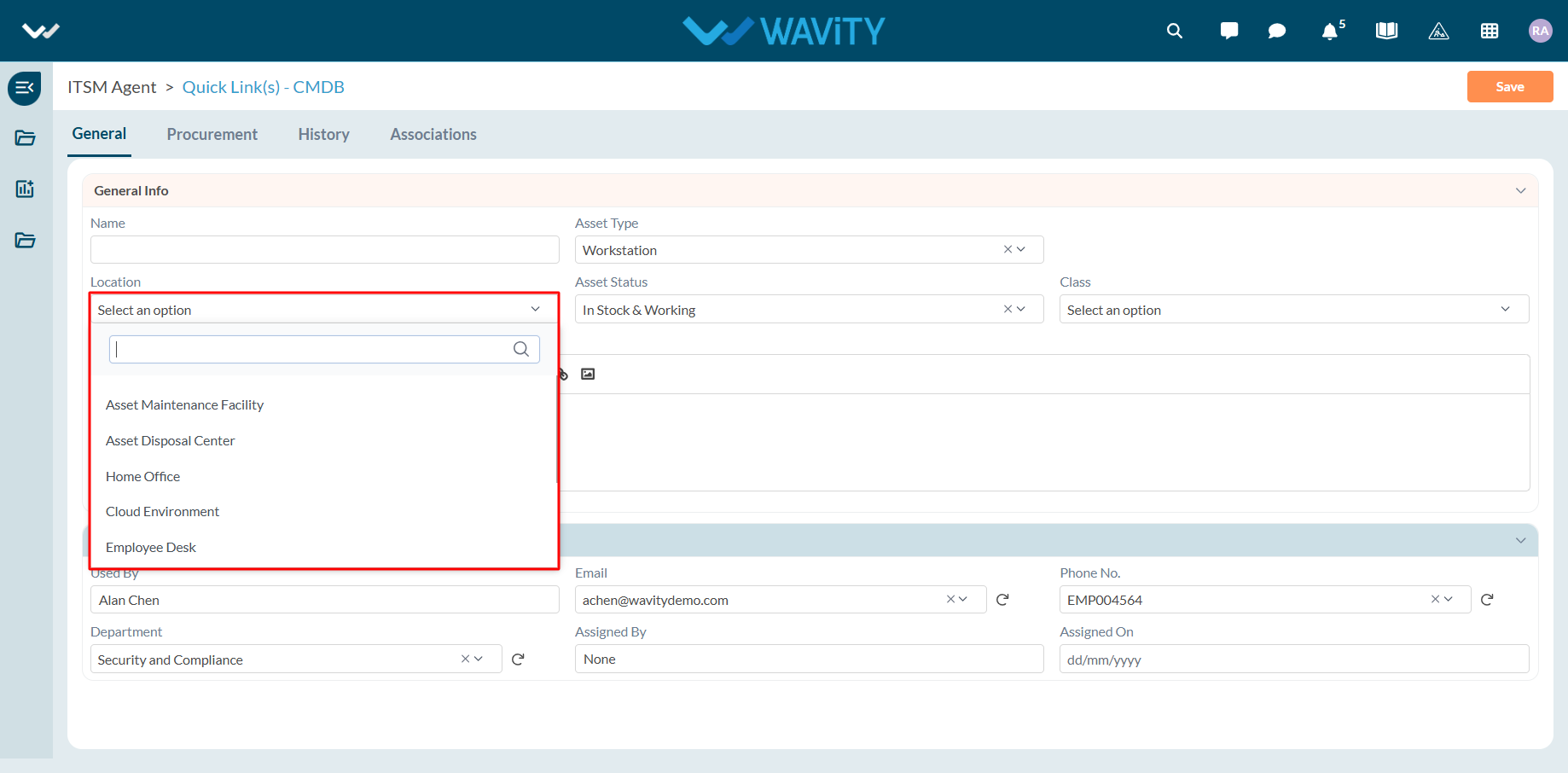
  • Choose the asset’s location from the dropdown menu.
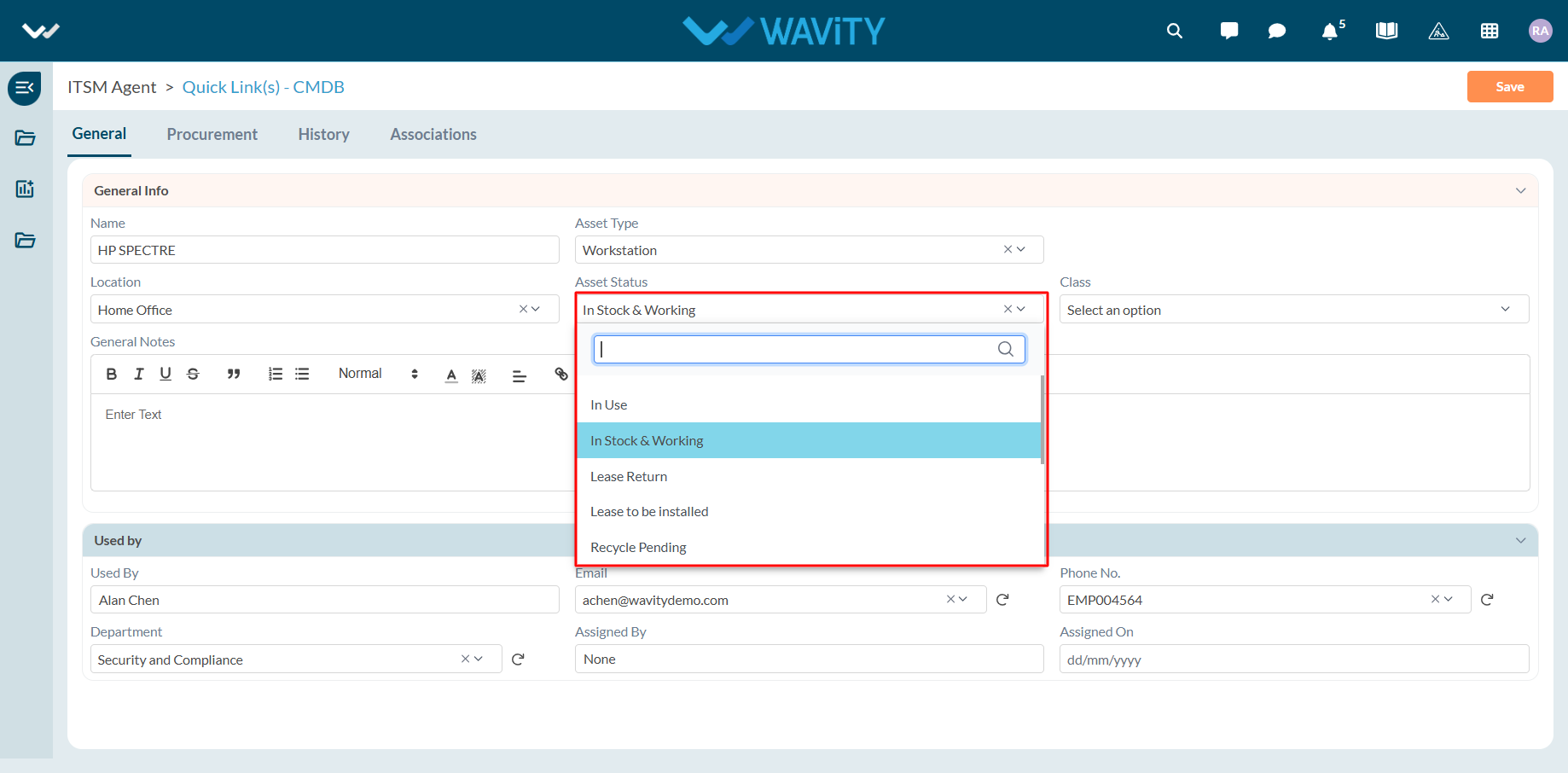
  • Select the current status of the asset using the available dropdown options.
  • Specify the asset’s classification—whether it is managed or unassigned. Use the description box to add any relevant notes or context.
  • If the asset is assigned to a user, input the user’s details. Once a name is selected, related user information will auto-populate.
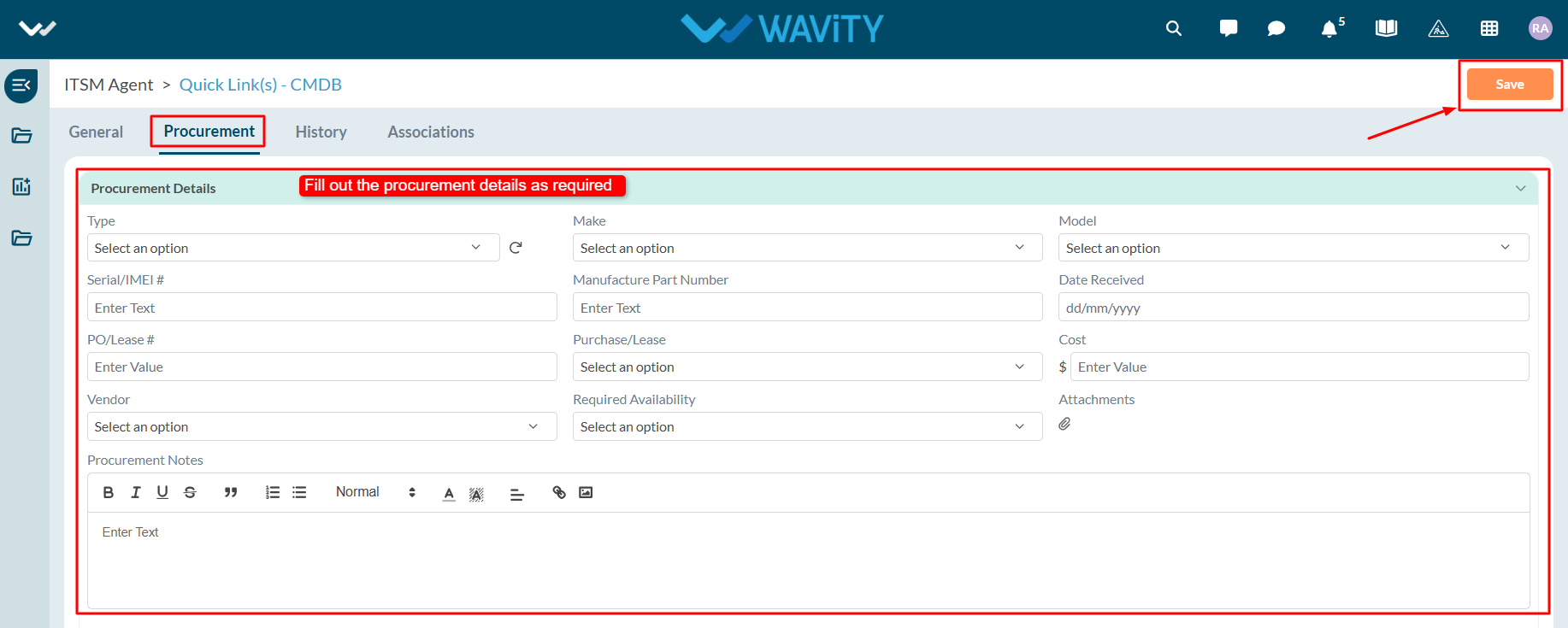
  • Complete the procurement section with details such as procurement type, vendor, make, serial number, and any additional vendor information.
  • After all required fields are completed, click "Save" to finalize and create the new CMDB record.
Agent Guide: How to add a new CMDB record
  • Adding or managing Configuration Management Database (CMDB) records on the Wavity ITSM platform is designed to be straightforward and user-friendly for agents.
  • Note: The steps outlined below serve as general instructions and can be customized to meet specific organizational needs; however, the core workflow remains the same.
  • Agents with the appropriate access can log in using their credentials and will be directed to the Agent Interface.
  • From the Agent Interface, Click on ‘CMDB’ from the quick links widget.
  • You can create new CMDB records either manually or by importing data in bulk using Excel or CSV files. Click on "New Record" to begin adding a CMDB entry manually.
  • Enter the name or title of the asset and select the appropriate asset type for the record.
  • Choose the asset’s location from the dropdown menu.
  • Select the current status of the asset using the available dropdown options.
  • Specify the asset’s classification—whether it is managed or unassigned. Use the description box to add any relevant notes or context.
  • If the asset is assigned to a user, input the user’s details. Once a name is selected, related user information will auto-populate.
  • Complete the procurement section with details such as procurement type, vendor, make, serial number, and any additional vendor information.
  • After all required fields are completed, click "Save" to finalize and create the new CMDB record.

Leave you comment...

Thank you! Your submission has been received!
Oops! Something went wrong while submitting the form.