Agent Guide: Handling Incidents in Wavity ServiceDesk
- In the Wavity platform, handling and updating incidents as an agent is a simple and intuitive process.
- Note: The steps outlined below serve as general instructions and can be customized to meet specific organizational needs; however, the core workflow remains the same.
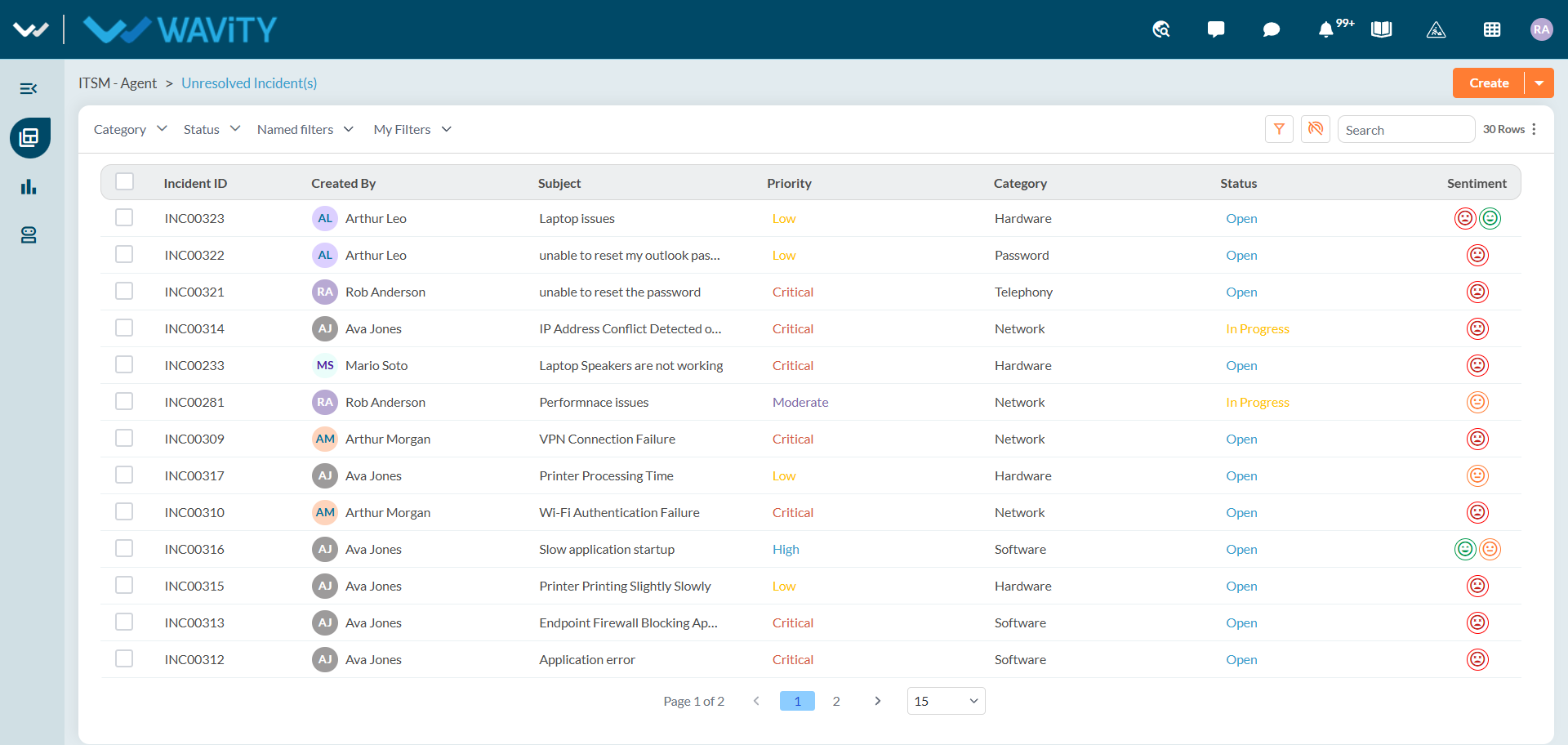
- Agents with the appropriate access can log in using their credentials and will be directed to the Unresolved Incidents page, which is the default landing page in this case.
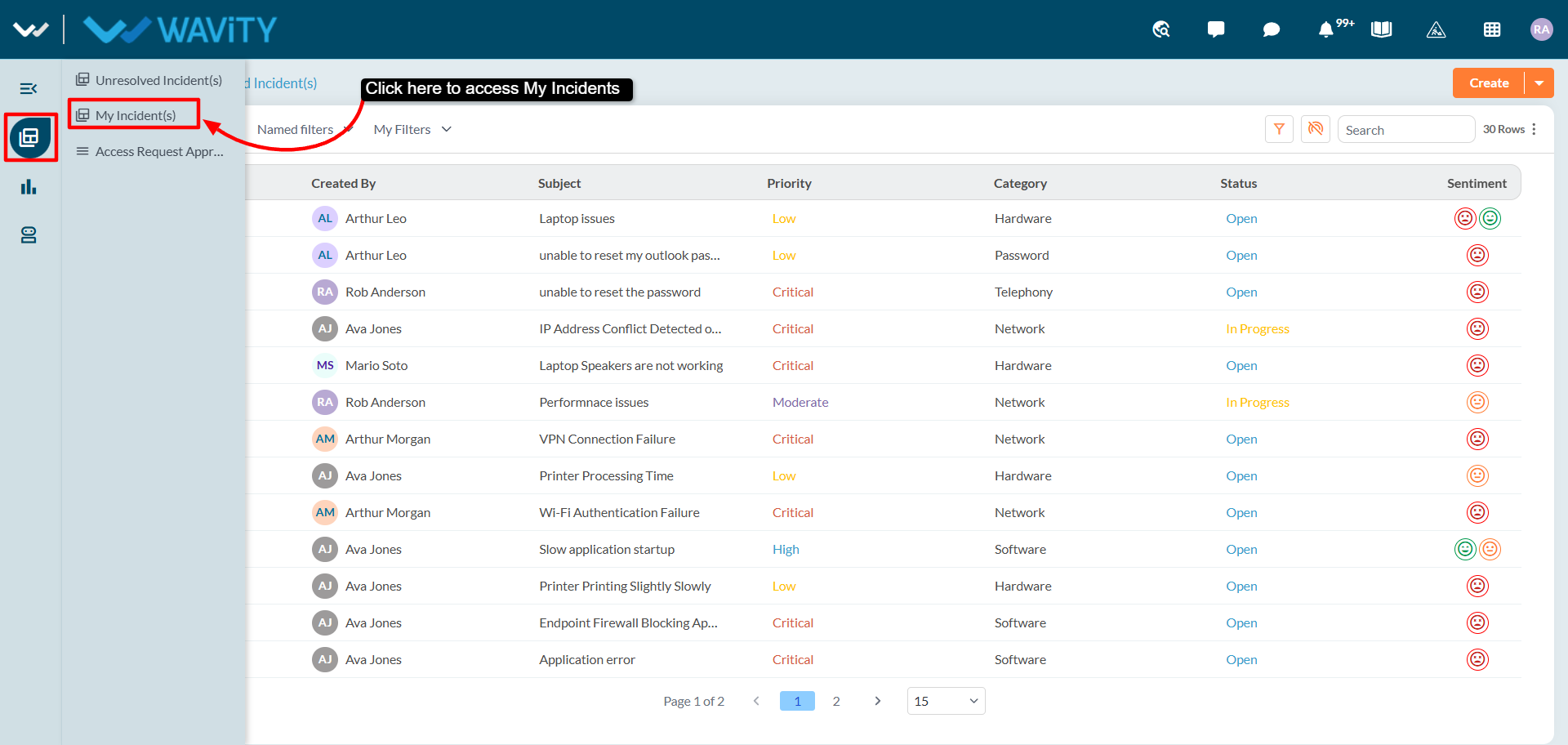
- From the Unresolved Incidents page, agents can select My Incidents from the left panel to view all incidents assigned to them. My Incidents can also be configured as the default landing page, based on organizational requirements.
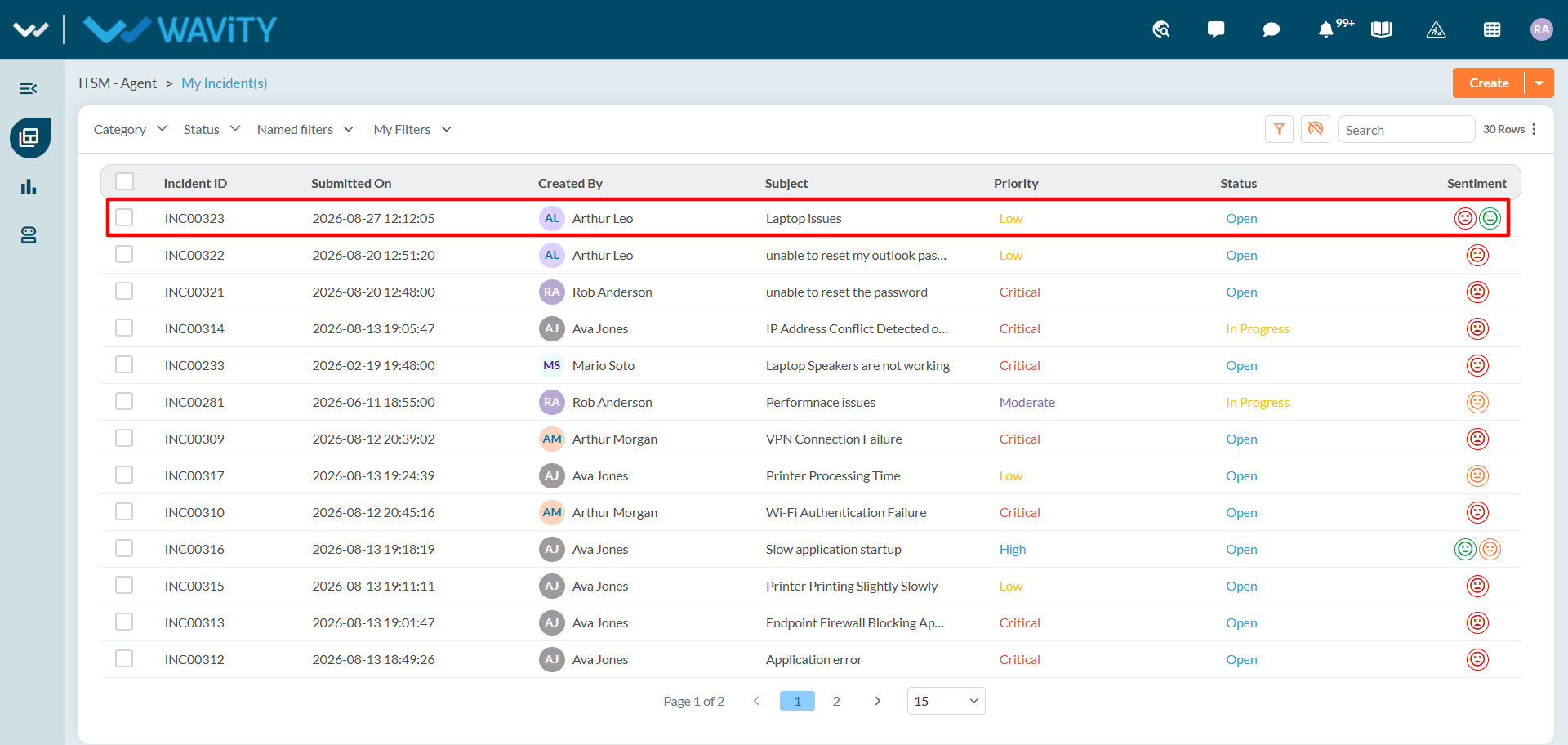
- A list of assigned incidents will be displayed. Agents can click on any incident to view its details.
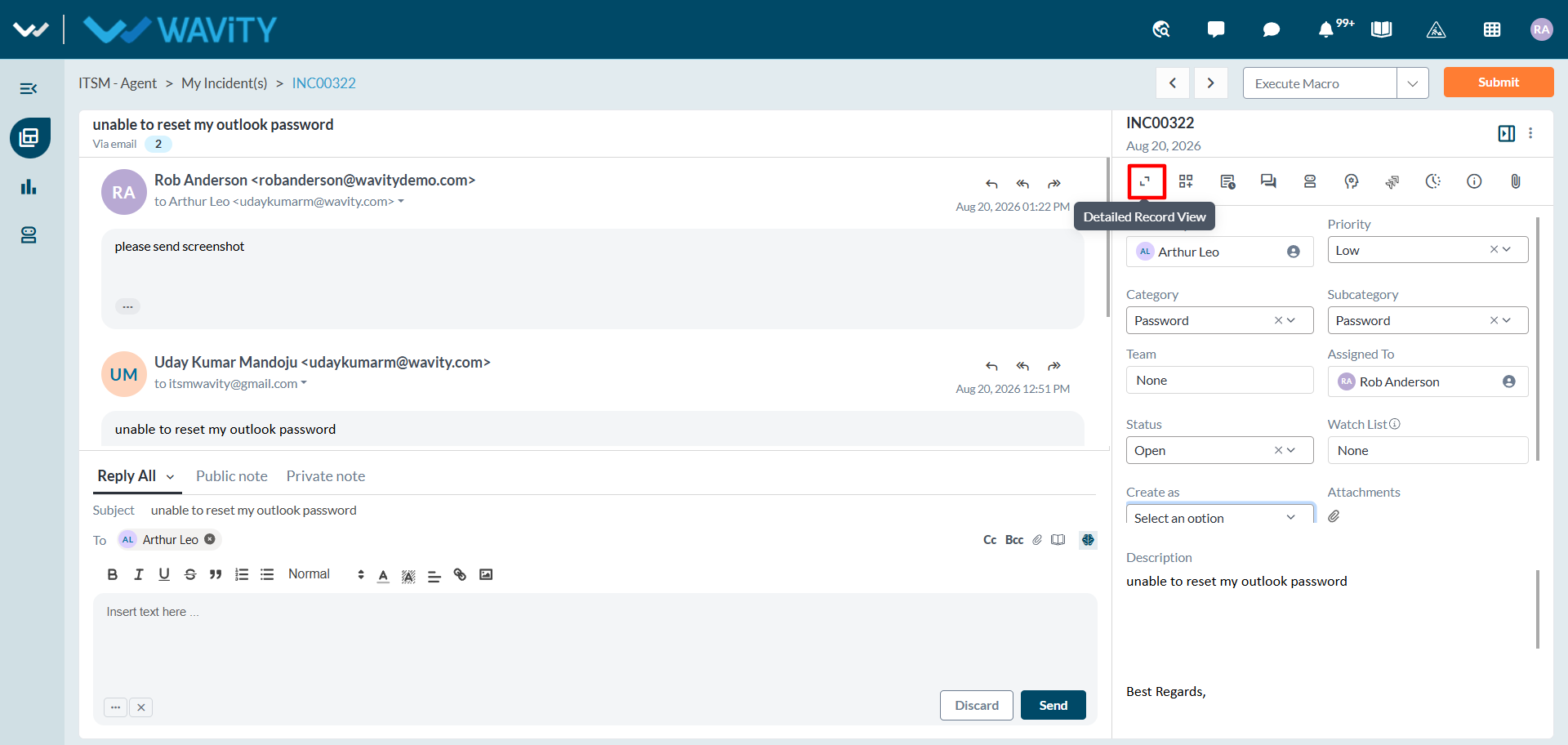
- When an agent opens an incident, they will land on this page, where the required incident information is displayed for quick reference. To view the complete details of the incident, the agent can click on the Detailed Record View option.
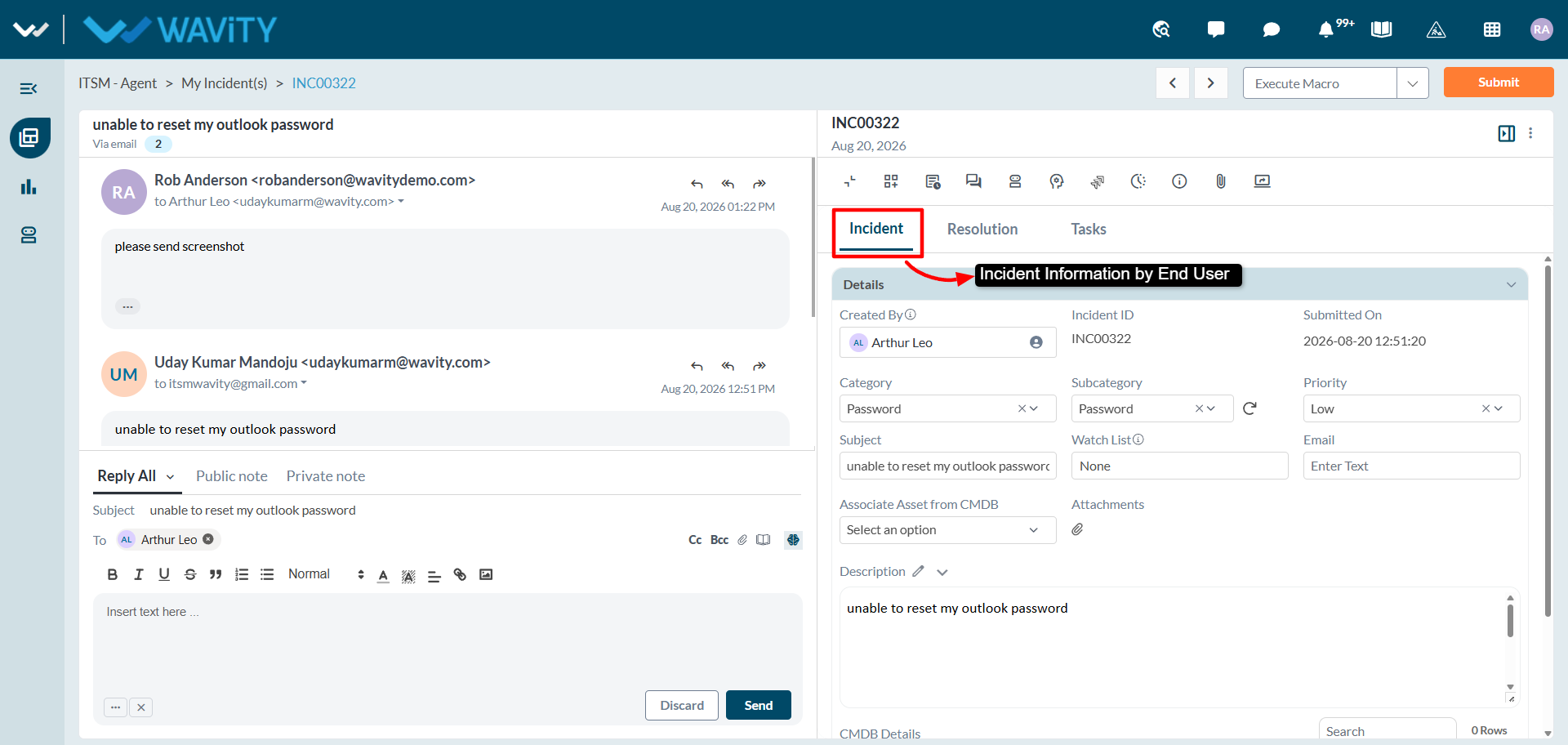
- The Incident section will display the information initially submitted by the end user.
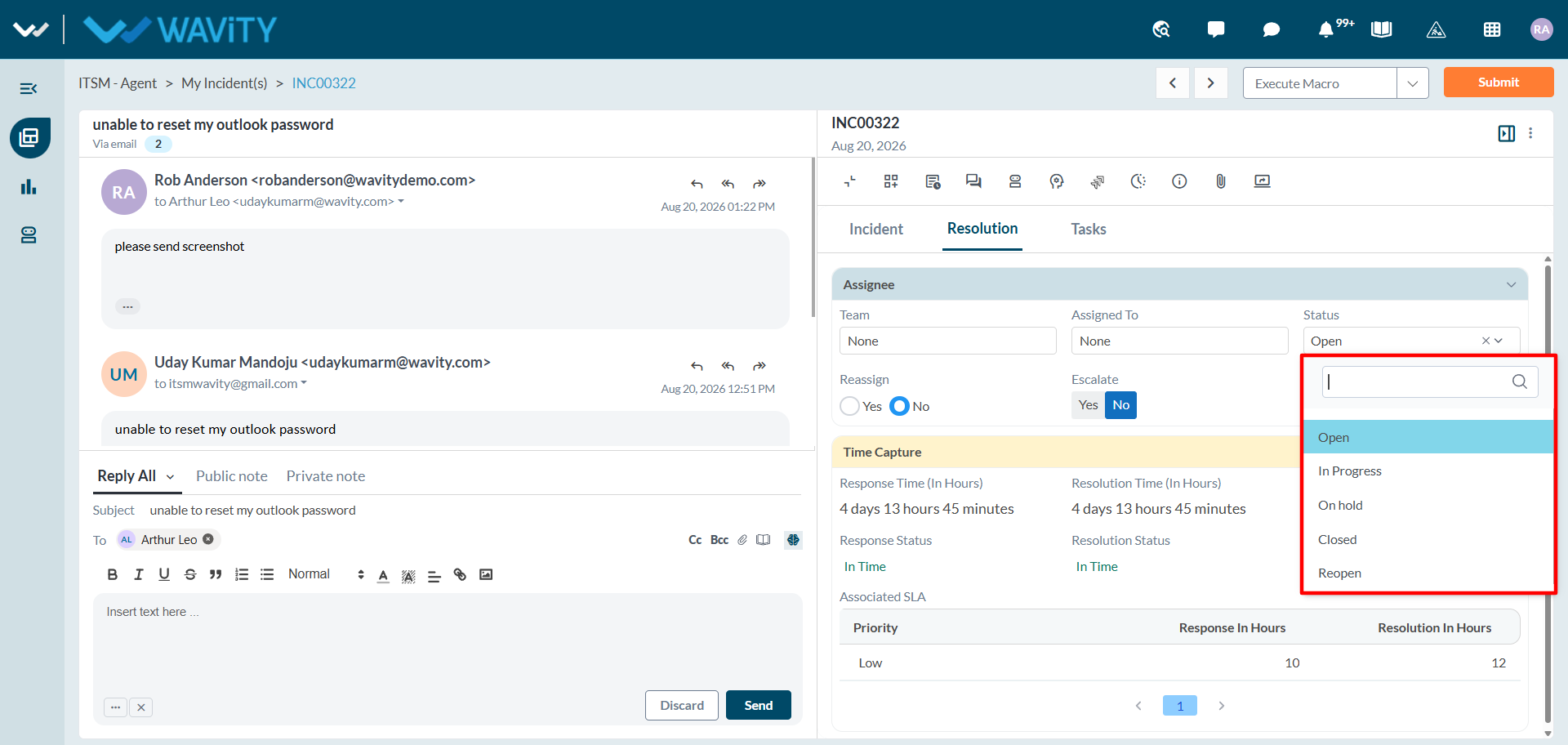
- The Resolution section is where the agent works on the incident. The status can be updated using the provided dropdown menu.
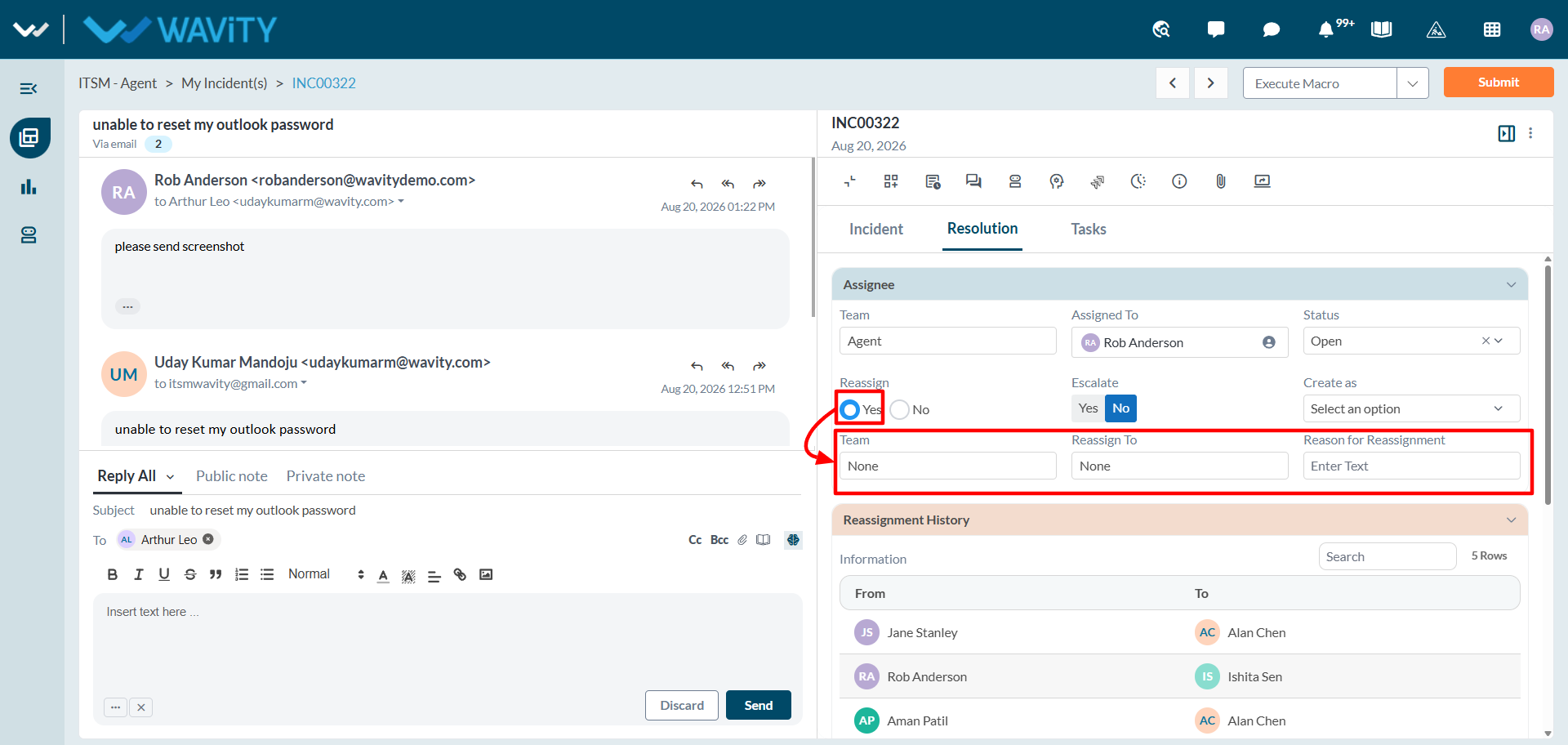
- If the agent needs to reassign the incident, they can select ‘Yes’ in the Reassign field. A pop-up will appear allowing the agent to:
- Select Team and another agent
- Provide a reason for reassignment
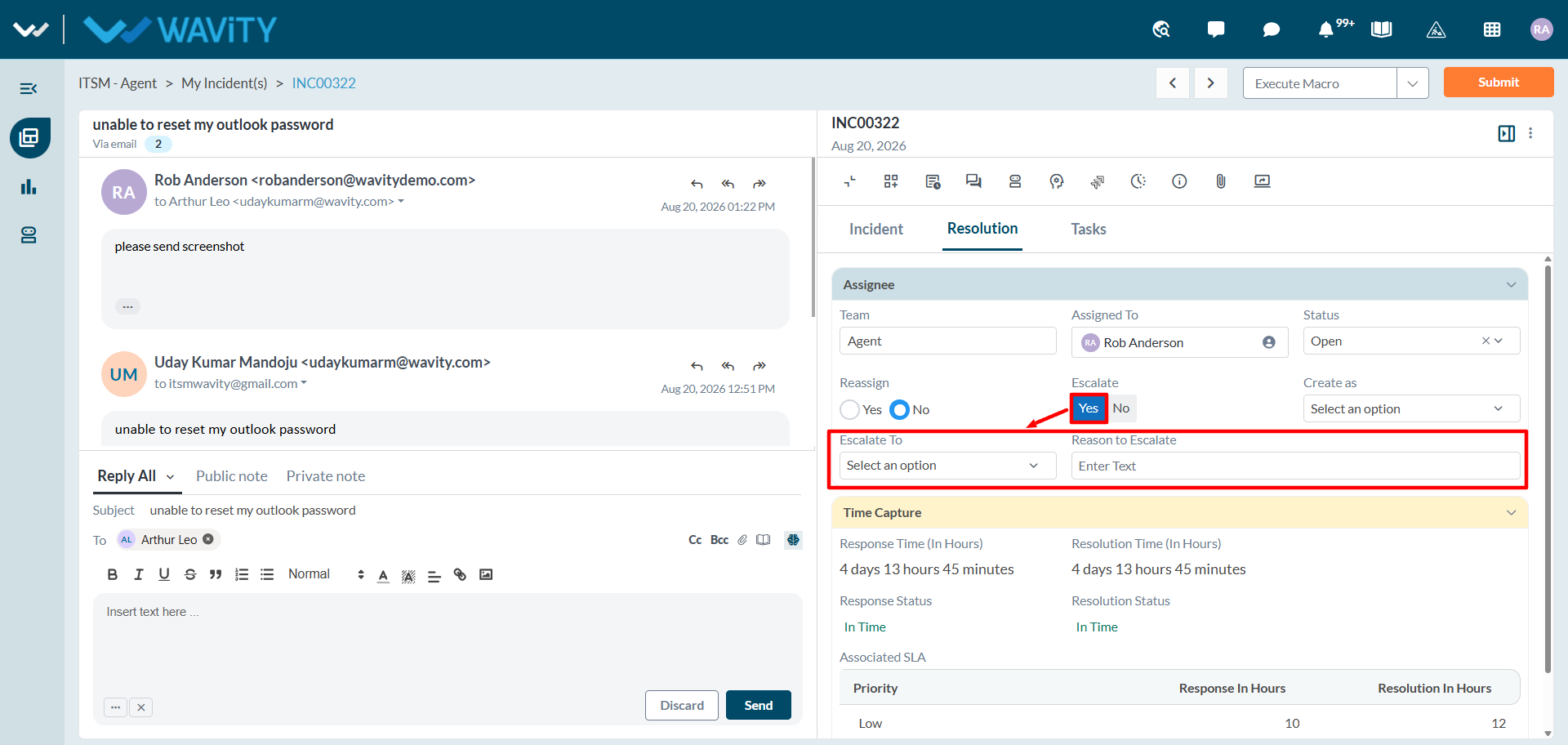
- Agents can also manually escalate an incident when necessary. Note that the Wavity ITSM platform also supports automatic escalation based on predefined rules.
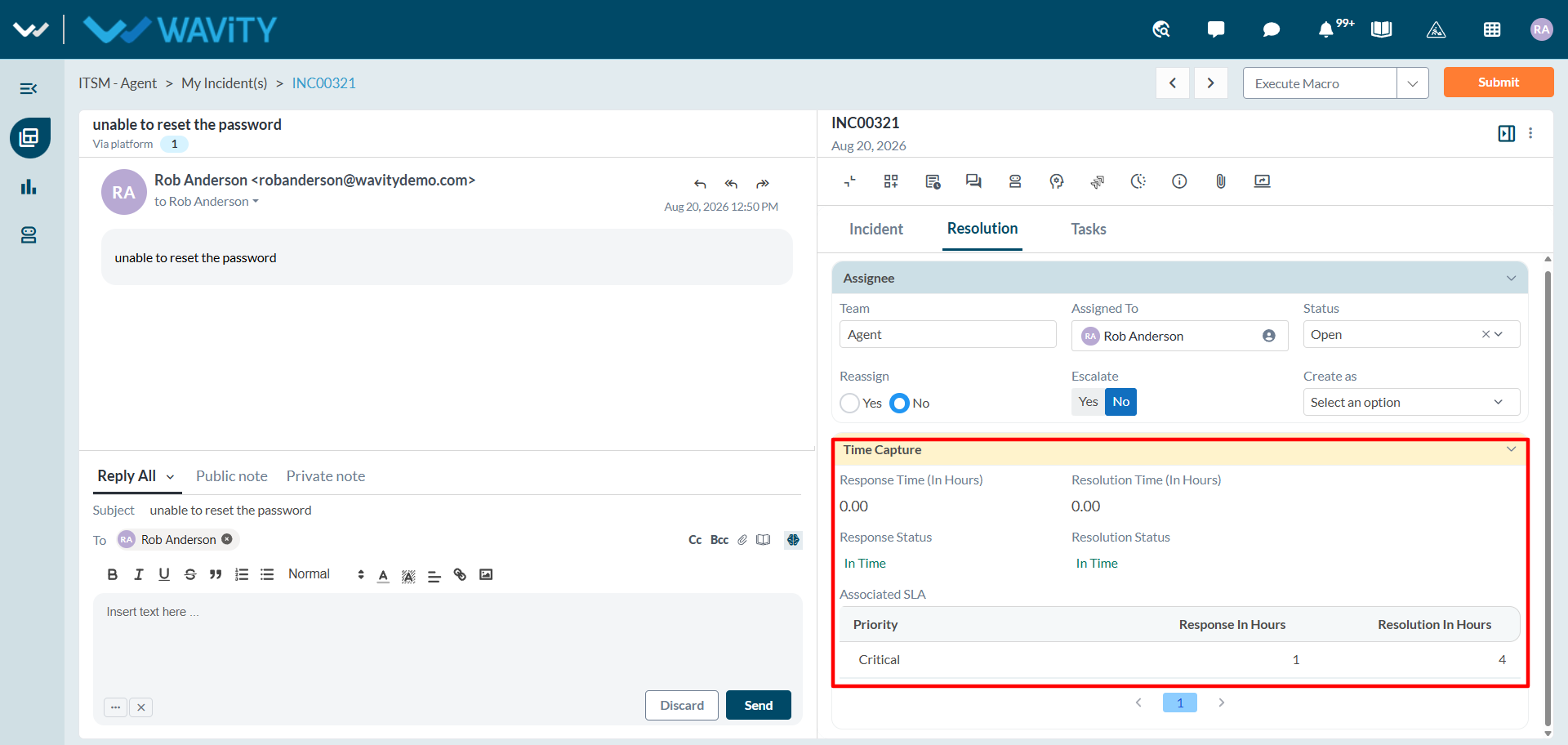
- The system will automatically capture and track key timestamps such as:
- First Response Time
- Resolution Time- These metrics are updated in real-time and aligned with the associated SLAs.
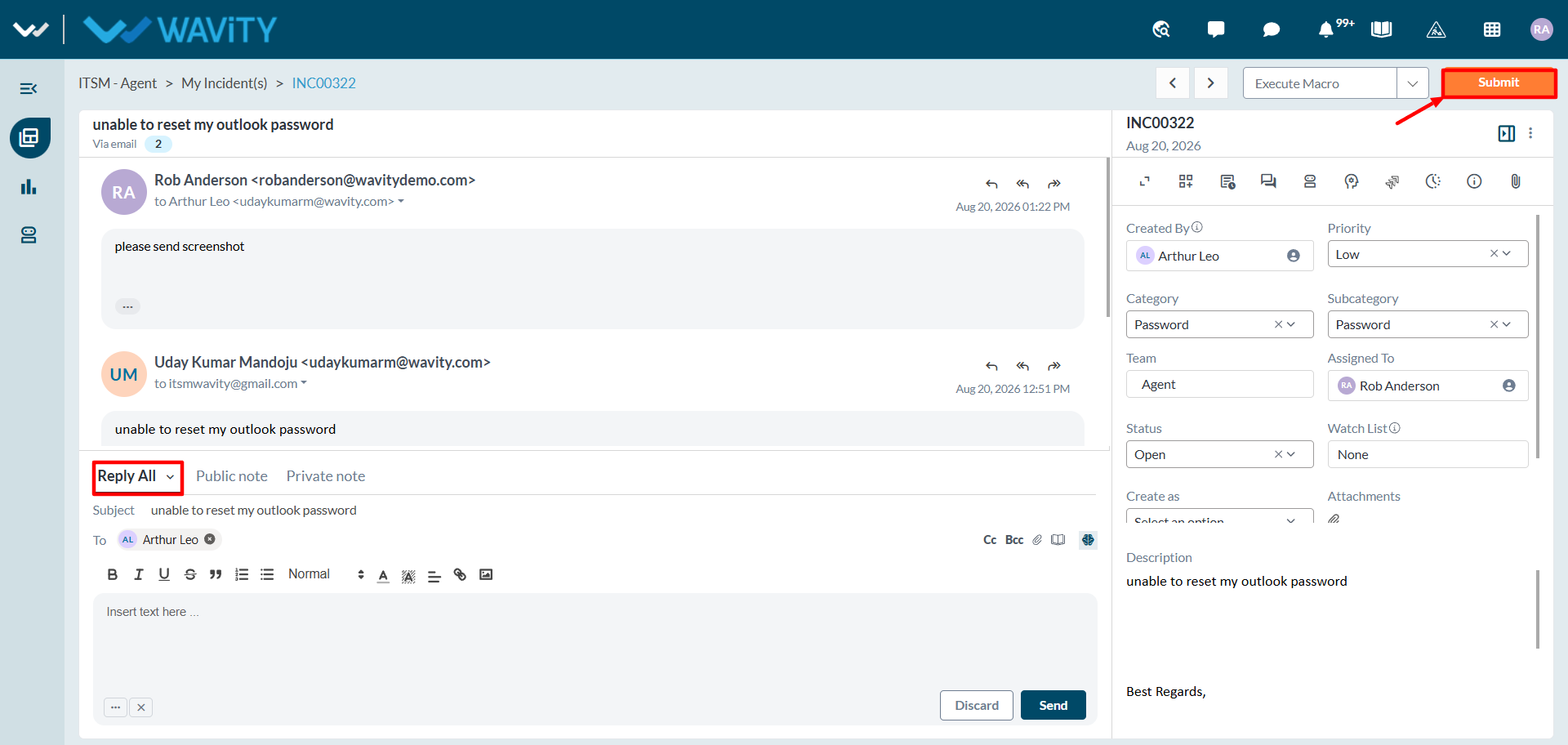
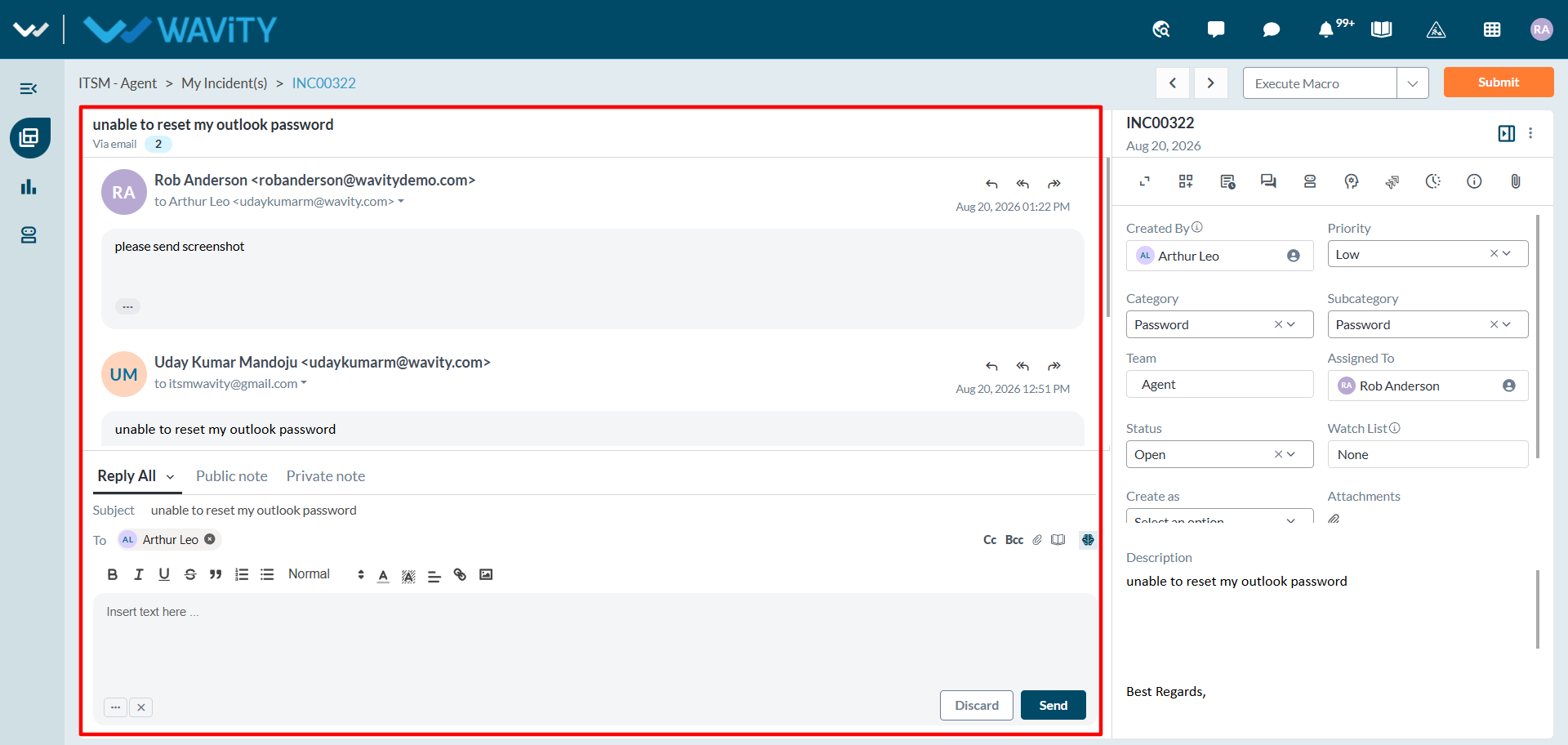
- To communicate with the requester, agents can use the conversational UI on the left side to initiate and manage the conversation.
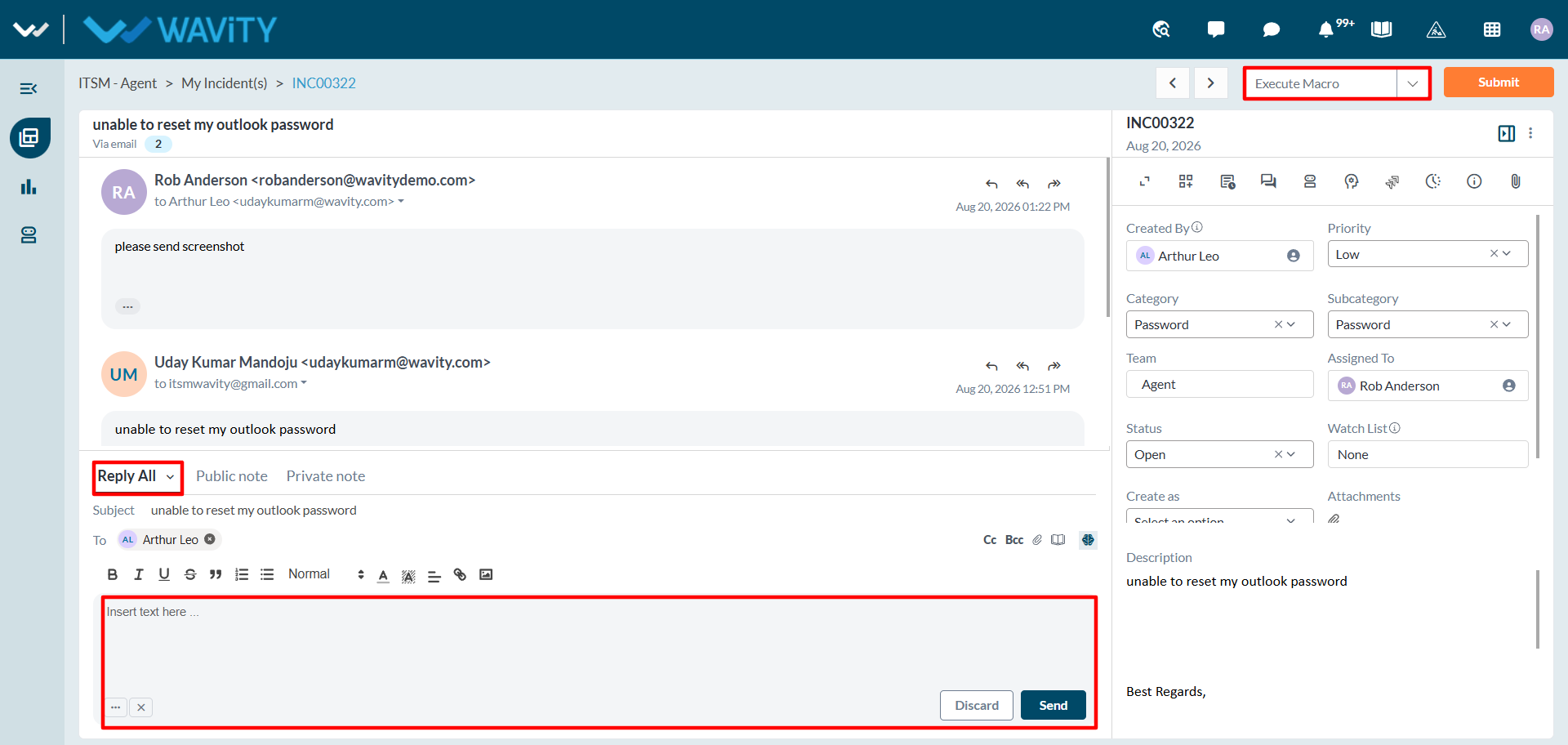
- Agents can respond to the requester using the reply box, and they may also use macros for inserting prebuilt, standardized responses (canned responses).
- After making any updates, agents can click ‘Save’ or ‘Submit’ to finalize changes to the incident.