Admin Guide: Setting Up Public and Private Notes Notifications
Admin Guide: Setting Up Public and Private Notes Notifications
- Agents in Wavity can send notifications to other agents when they add Private or Public notes.
- Setting up these notifications is straightforward and user-friendly.
- Public Notes: Visible to all users on the platform.
- Private Notes: Visible only to agents.
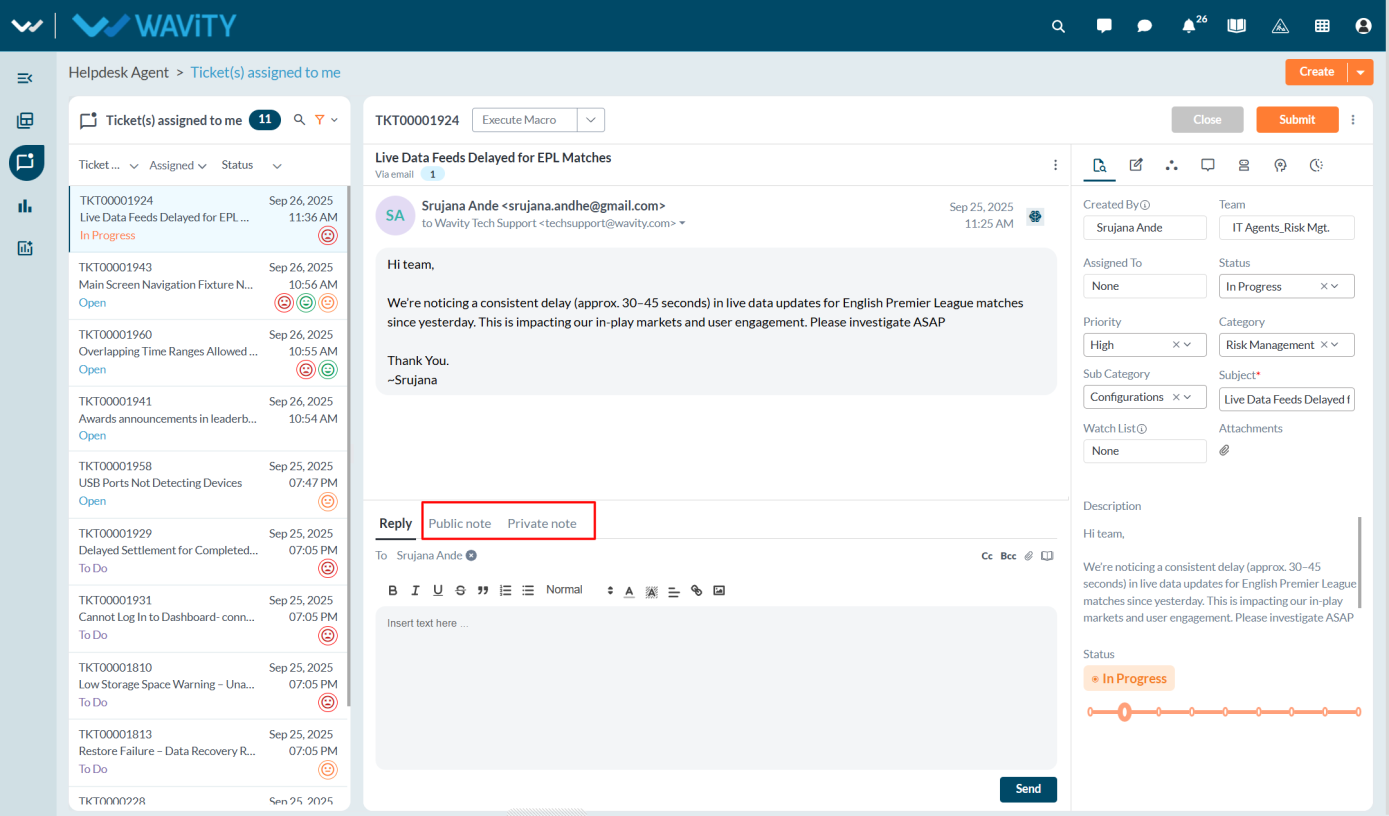
- Only Admin have access to configure Public and Private Notes notifications.
- Log in with your admin credentials.
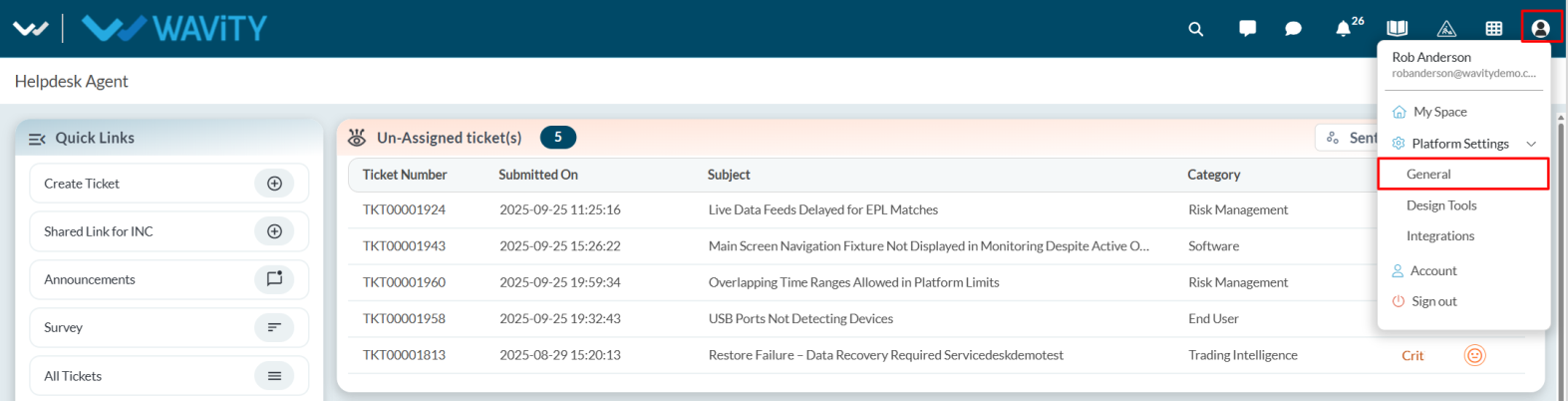
- Click the Profile icon, choose the General option, and then select the Ticketing tab.
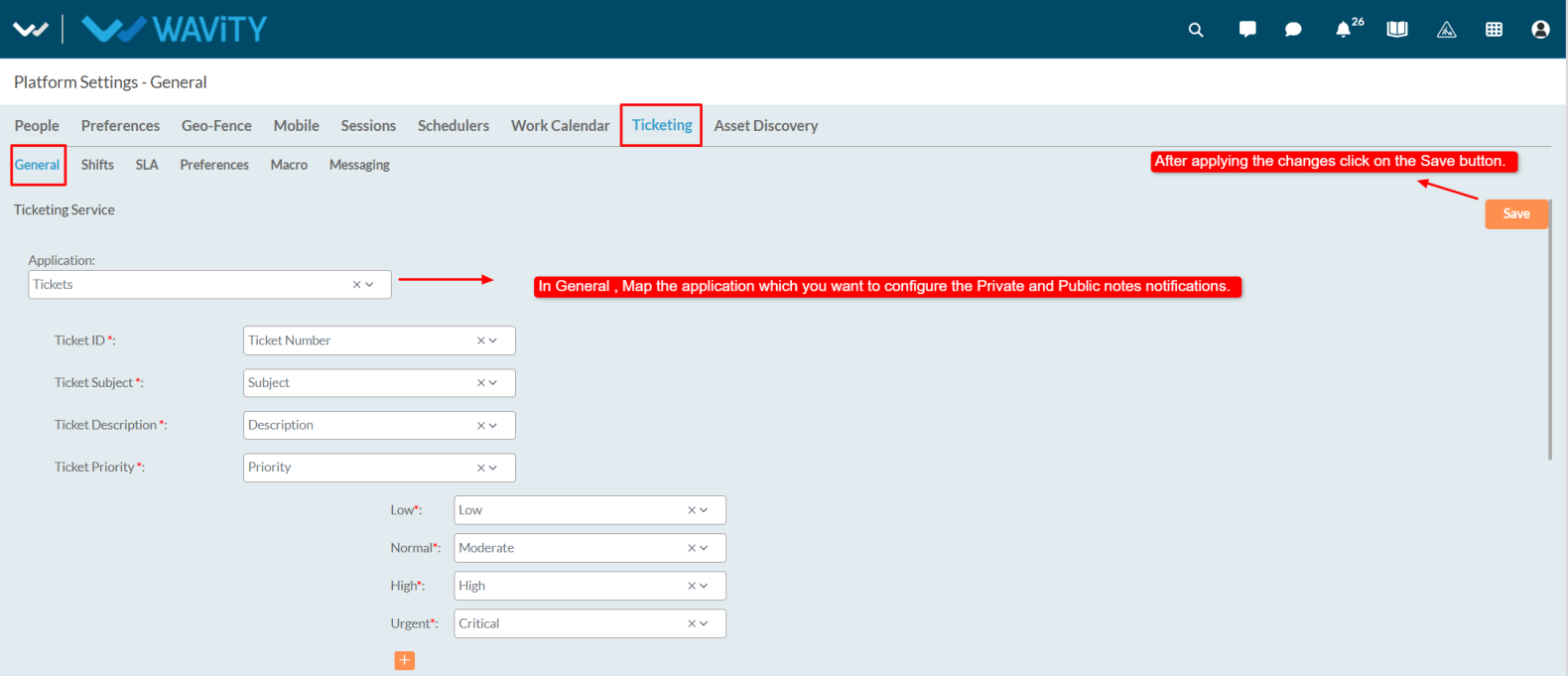
- In General, Map the application where you want to enable private and public notes.
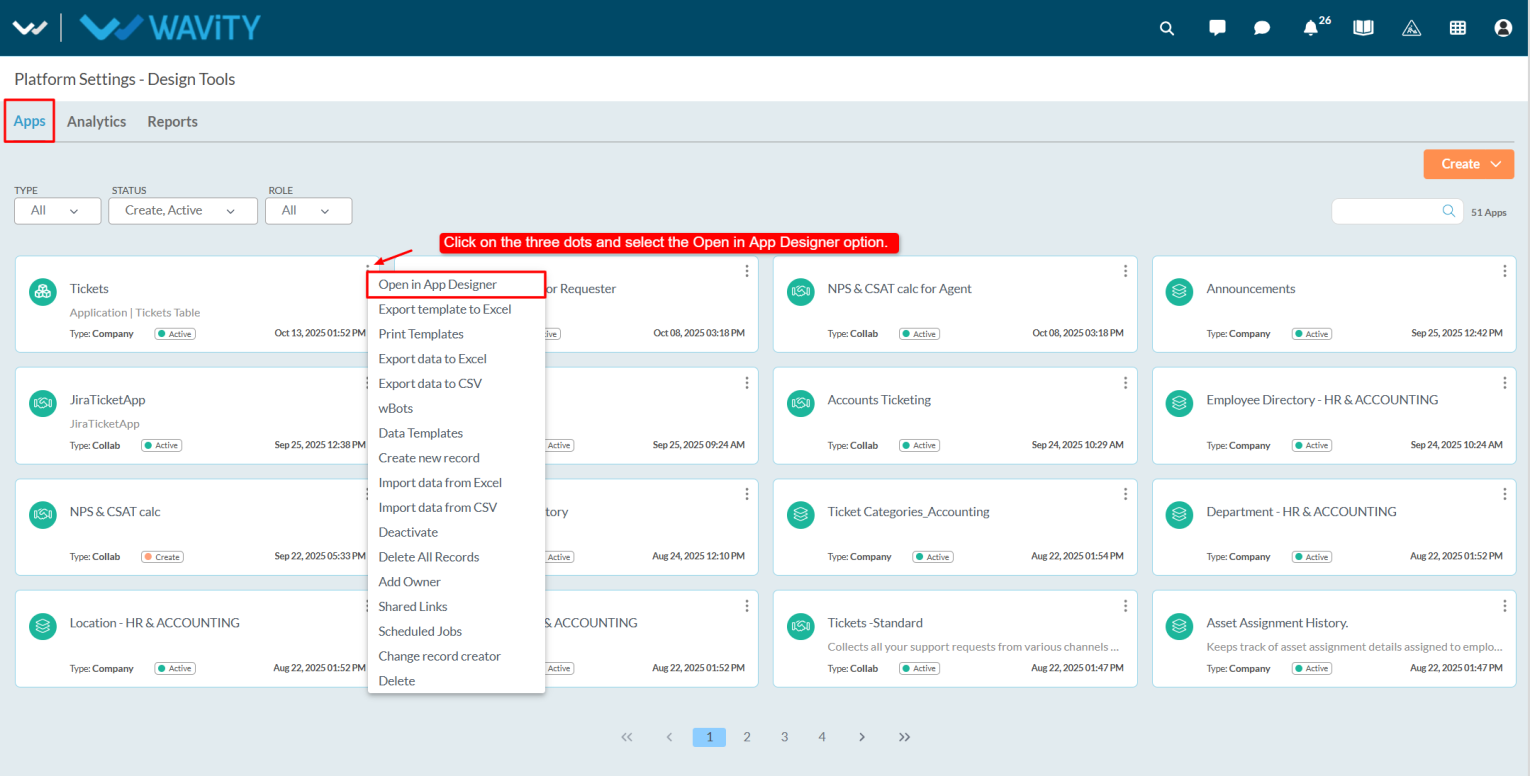
- After from the Profile dropdown, select Design Tools.
- In the Apps tab, view all applications. Select the desired application, click the three dots, and choose wBots.
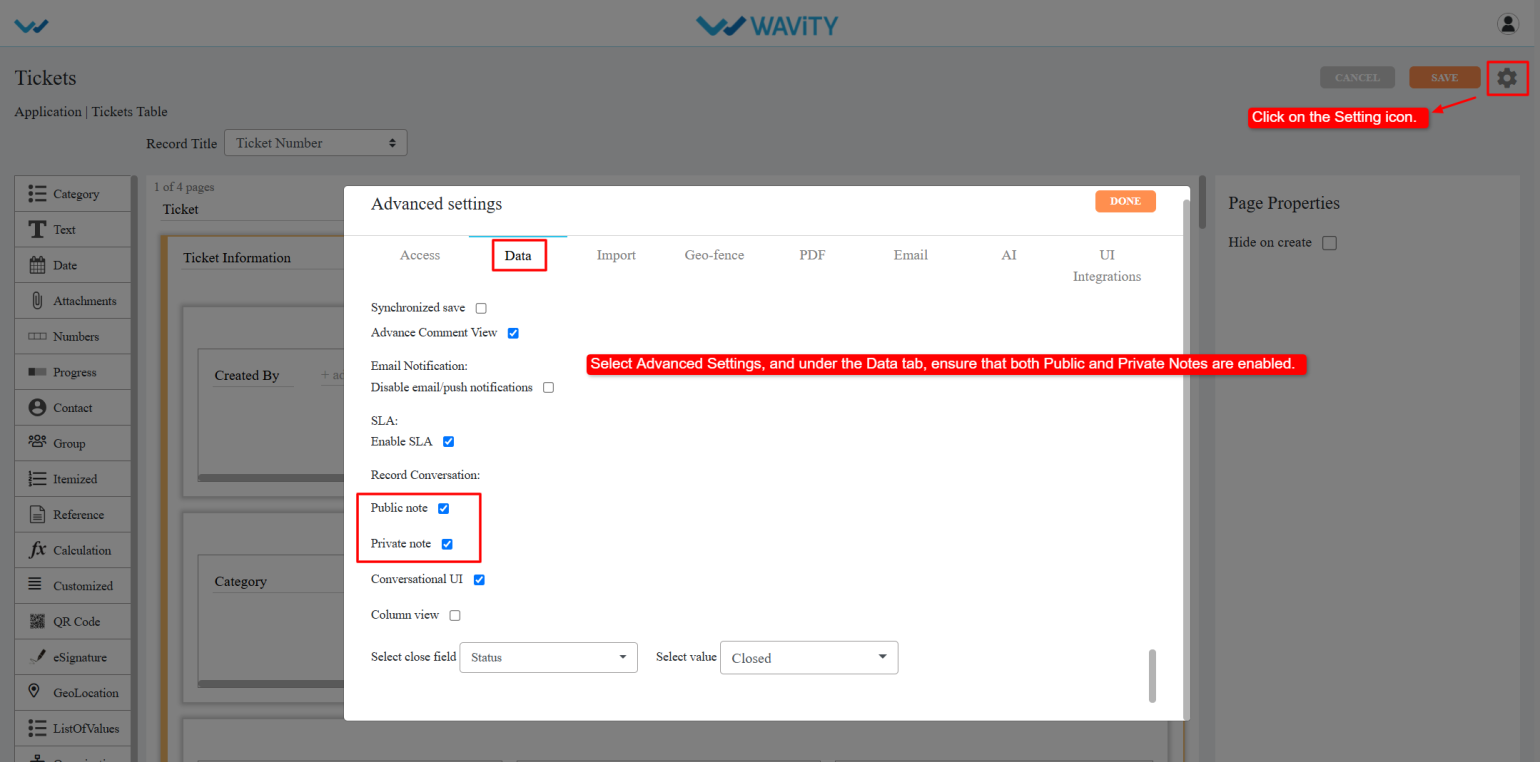
- Click the Settings icon, select Advanced Settings, navigate to the Data tab, scroll down, and enable the Public and Private Notes options.
- Go to the Wbots creation page for the same application where you enabled the public and private notes by selecting Wbots option from the three dots menu. Click on the Create button.

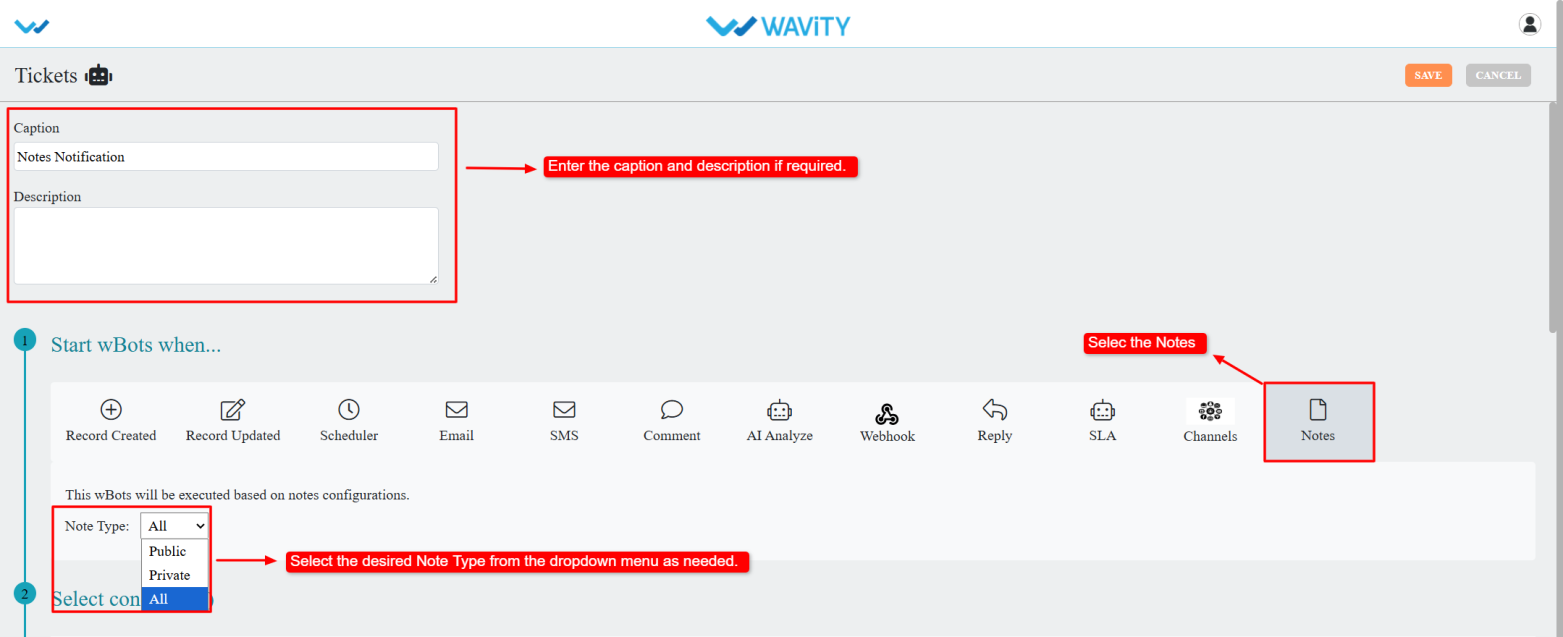
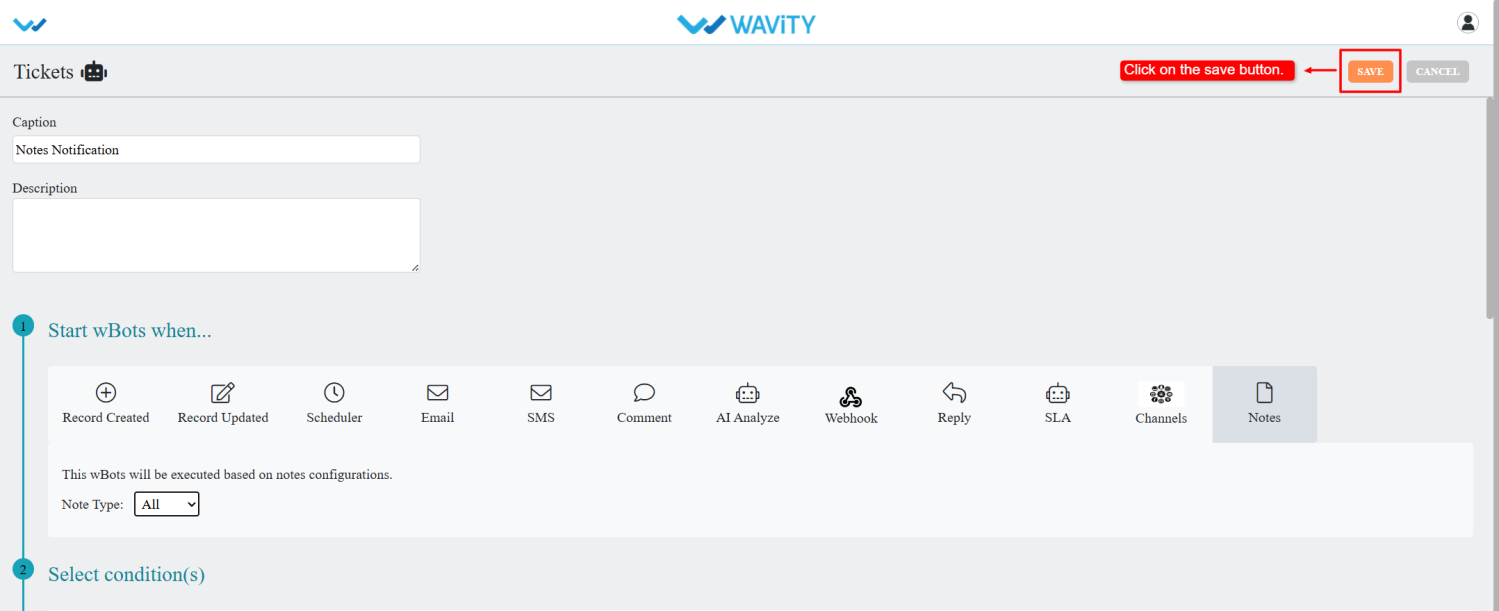
- Enter a caption and description.
- Under Start wBots When, select Notes.
- Choose the note type: Public, Private, or All. The wBot will trigger based on the selected type.
- Define conditions as required.
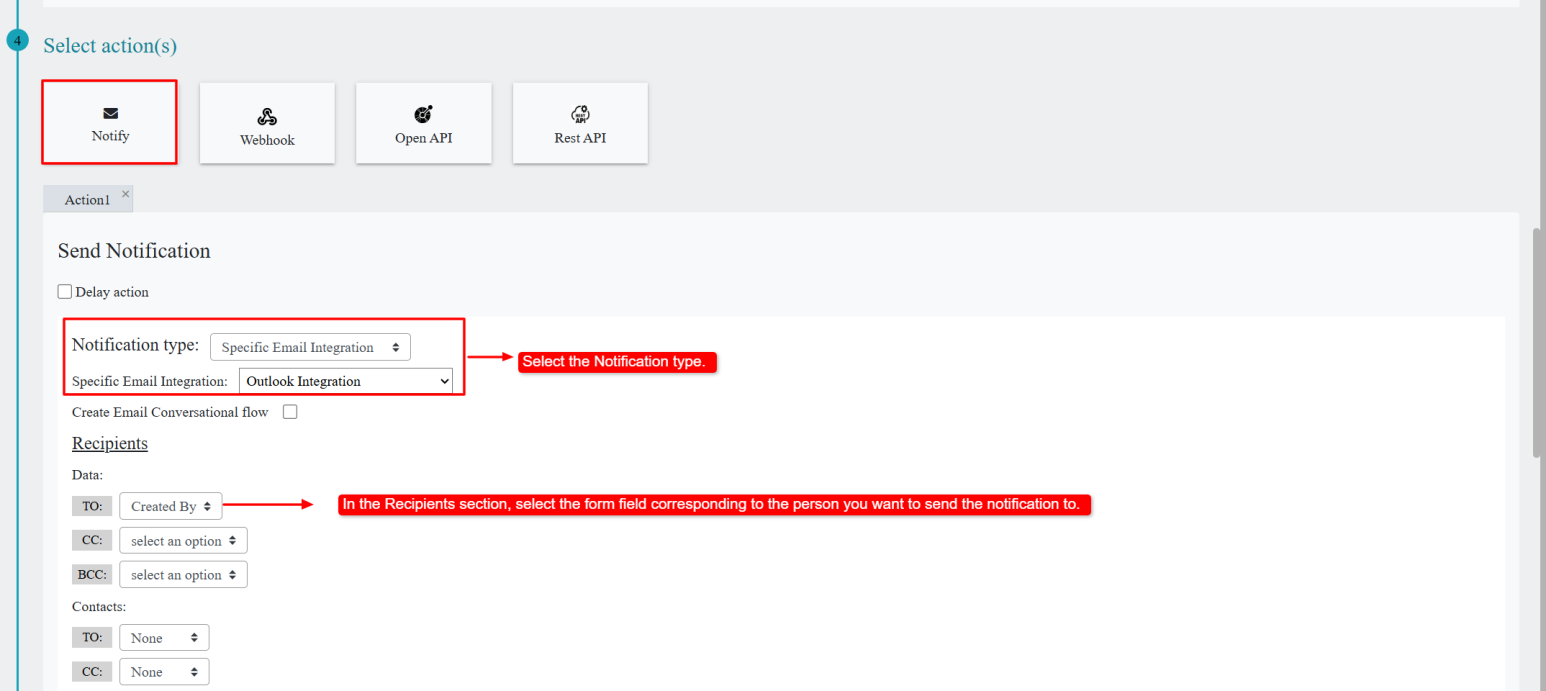
- Select the notification action and choose the notification type.
- In Recipients, select the form field from the dropdown.
- Enter the subject and the description in the description box; add details so agents can identify ticket information.

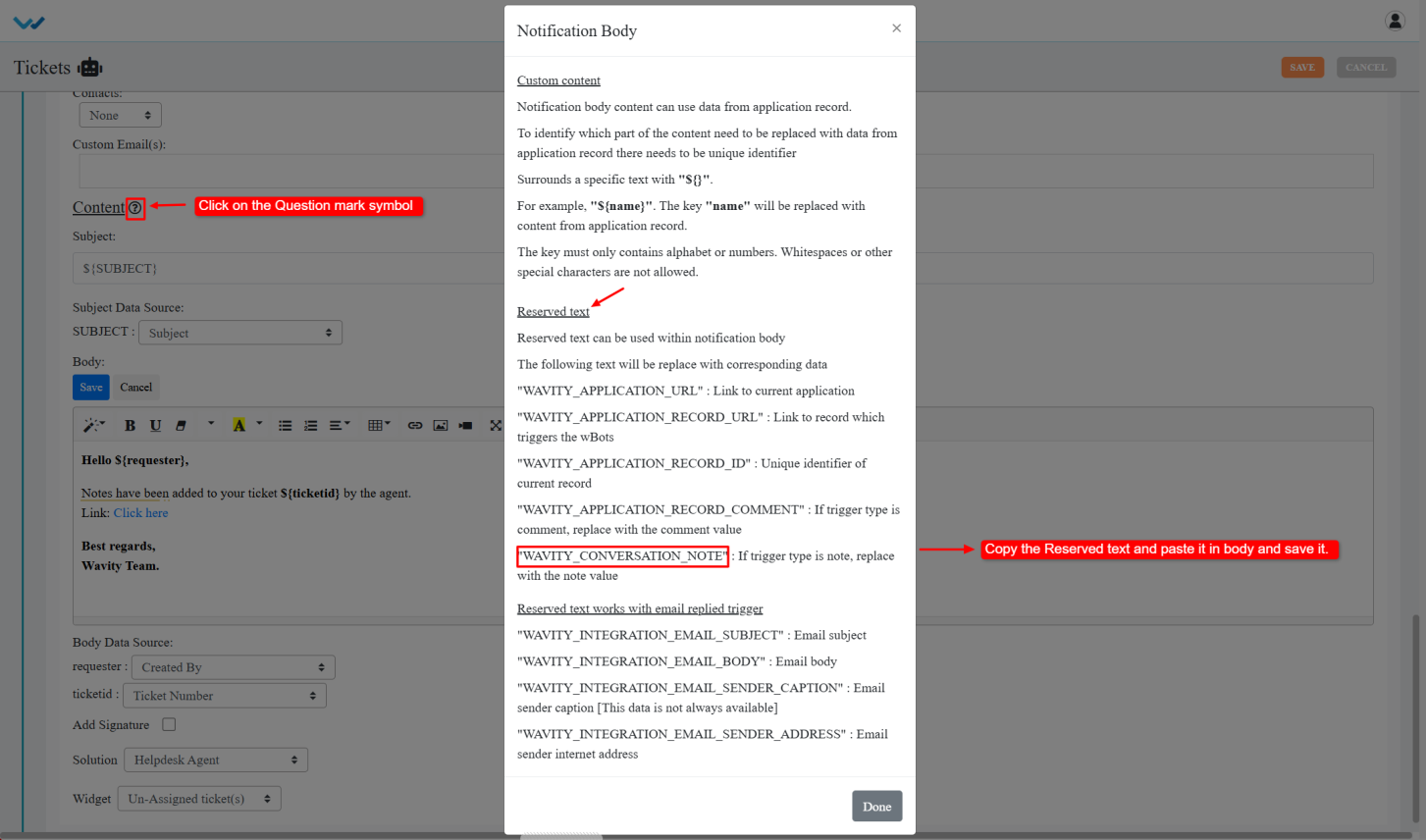
- Admin can add notes information in notifications by clicking the question mark beside content.
- Copy Wavity_Conversation_Note from the reserved text section and paste it into the description box. Save the body.
- After entering all required details, click Save.
- Whenever agents add private or public notes, the system will send notifications to the configured users via wBots.