Admin Guide: Setting Up Custom Auto ID Numbers
  • In the Wavity platform, users can configure the Auto ID Number as needed, and the setup process is simple and user-friendly.
  • Only Admin have permission to configure the Custom Auto ID.
  • Admin must log in with their credentials and navigate to their respective interface.
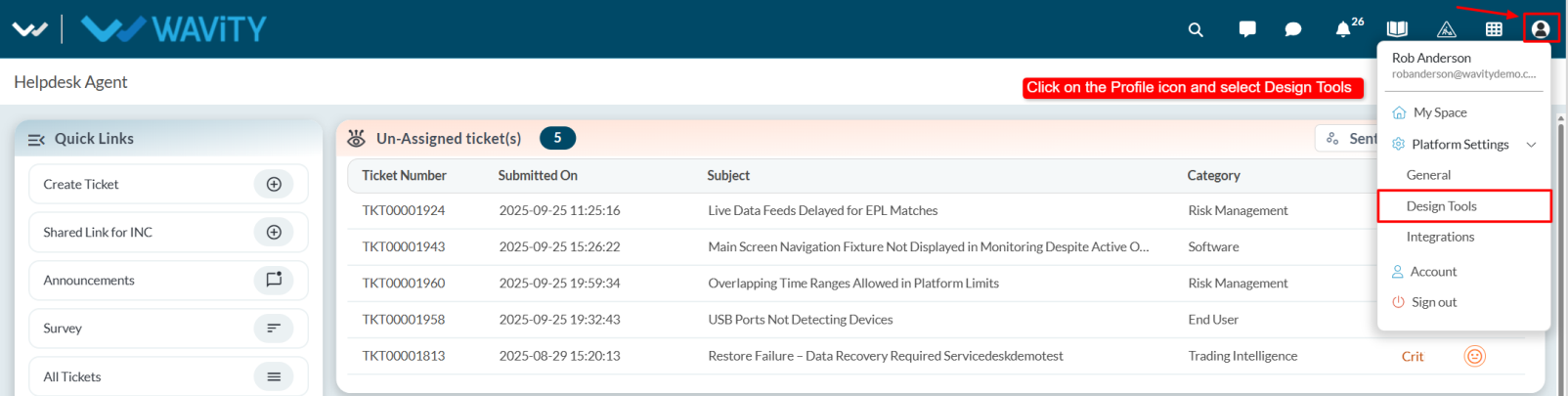
  • Click on the Profile icon and select Design Tools from the dropdown menu.
  • Choose the desired application, click on the three dots (⋮), and select Open in App Designer.
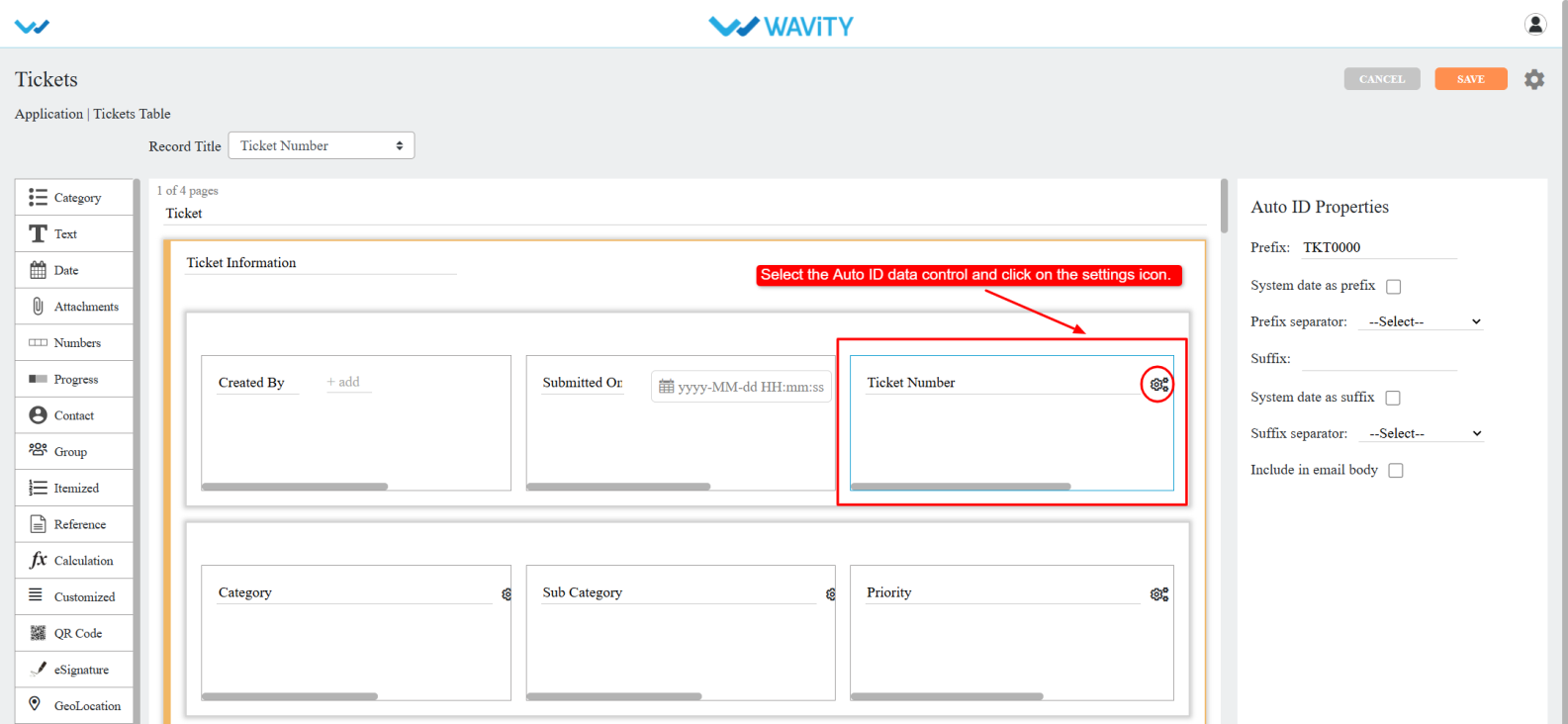
  • Select the Auto ID data control and click on the Settings icon.
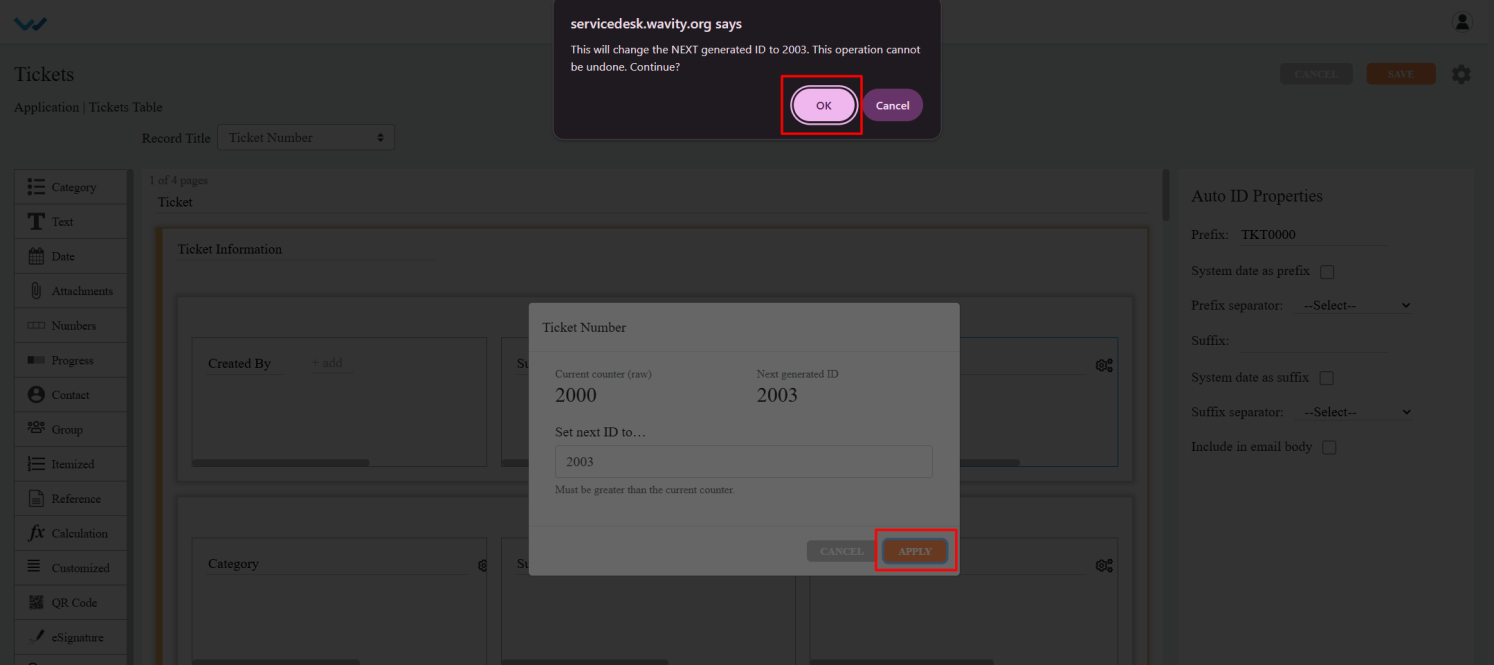
  • The Current Counter (raw) displays the current ID number, while the Next Generated ID shows the next ID number that will be generated.
  • In the Set Next ID field, enter the desired number (it must be greater than the current counter). After entering the custom number.
  • Click Apply. A confirmation popup will appear, click OK to confirm.
  • Save the designer. The Ticket ID will now be generated based on the custom number entered in the Set next ID to field.
Admin Guide: Setting Up Custom Auto ID Numbers
  • In the Wavity platform, users can configure the Auto ID Number as needed, and the setup process is simple and user-friendly.
  • Only Admin have permission to configure the Custom Auto ID.
  • Admin must log in with their credentials and navigate to their respective interface.
  • Click on the Profile icon and select Design Tools from the dropdown menu.
  • Choose the desired application, click on the three dots (⋮), and select Open in App Designer.
  • Select the Auto ID data control and click on the Settings icon.
  • The Current Counter (raw) displays the current ID number, while the Next Generated ID shows the next ID number that will be generated.
  • In the Set Next ID field, enter the desired number (it must be greater than the current counter). After entering the custom number.
  • Click Apply. A confirmation popup will appear, click OK to confirm.
  • Save the designer. The Ticket ID will now be generated based on the custom number entered in the Set next ID to field.

Leave you comment...

Thank you! Your submission has been received!
Oops! Something went wrong while submitting the form.